What Happened On My PC - See what happened on this PC and when: sign-ins, apps used, files changed, USB drives, camera use. (New Nov 2026)
Description
Did someone use your PC while you were away? What did the kids open after school? Which USB drive was plugged in, and what was copied? Was the camera on? Windows quietly records all of this, but in dozens of different places that only experts know how to read.
What Happened On My PC puts it all into
one timeline for the time you choose: when the PC was started, woken, put to sleep and signed in to (including failed passwords), which apps were opened and for how long, which files were opened, created, changed, renamed or deleted, what was downloaded, which USB drives, phones and Bluetooth devices were connected, which networks it joined, what was installed, when the camera, microphone or location were used and by which app, remote connections (Remote Desktop, TeamViewer, AnyDesk), antivirus warnings, crashes and more.
What stands out sums it up, including
when the PC was actually in use.
It is
read only: it changes nothing and sends nothing anywhere.
How to use
1. Open
What Happened On My PC (in
Security & Privacy, or type "who used my PC" or "while I was away" in the search box). It reads the last 24 hours straight away (it takes a few seconds).
2. Choose the time in
Show: the last hour, 24 hours, 3, 7 or 30 days, since the PC last started, or
Choose the dates and times... (for example from when you left to when you got back), then click
Show what happened.
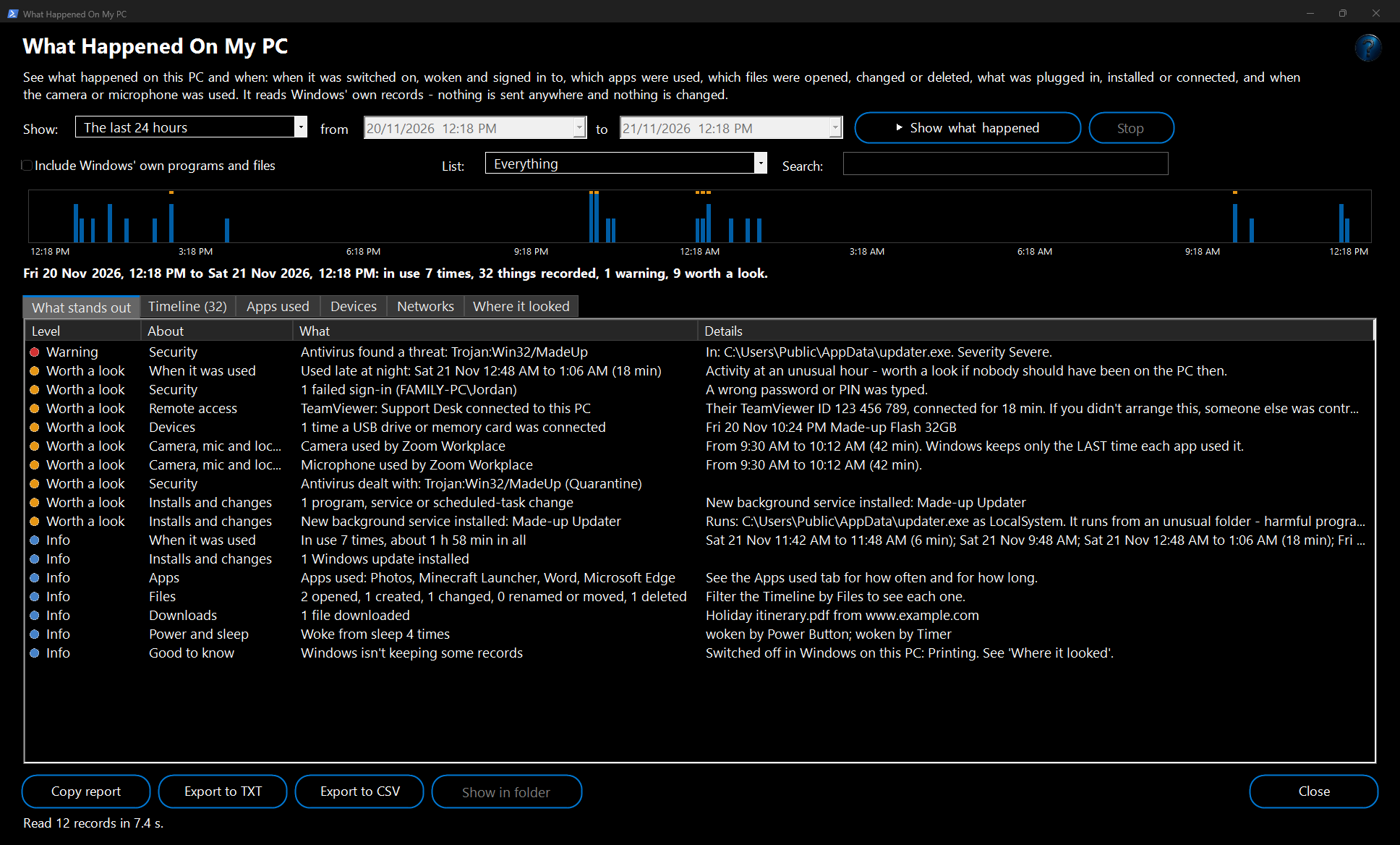
3. Read the line under the chart and the
What stands out tab: warnings first (red), then things worth a look (amber), then a summary of each kind of activity.
4. The chart shows how busy the PC was over the time. Amber marks show when something worth a look happened. Click a bar to jump to that time in the timeline.
5. The
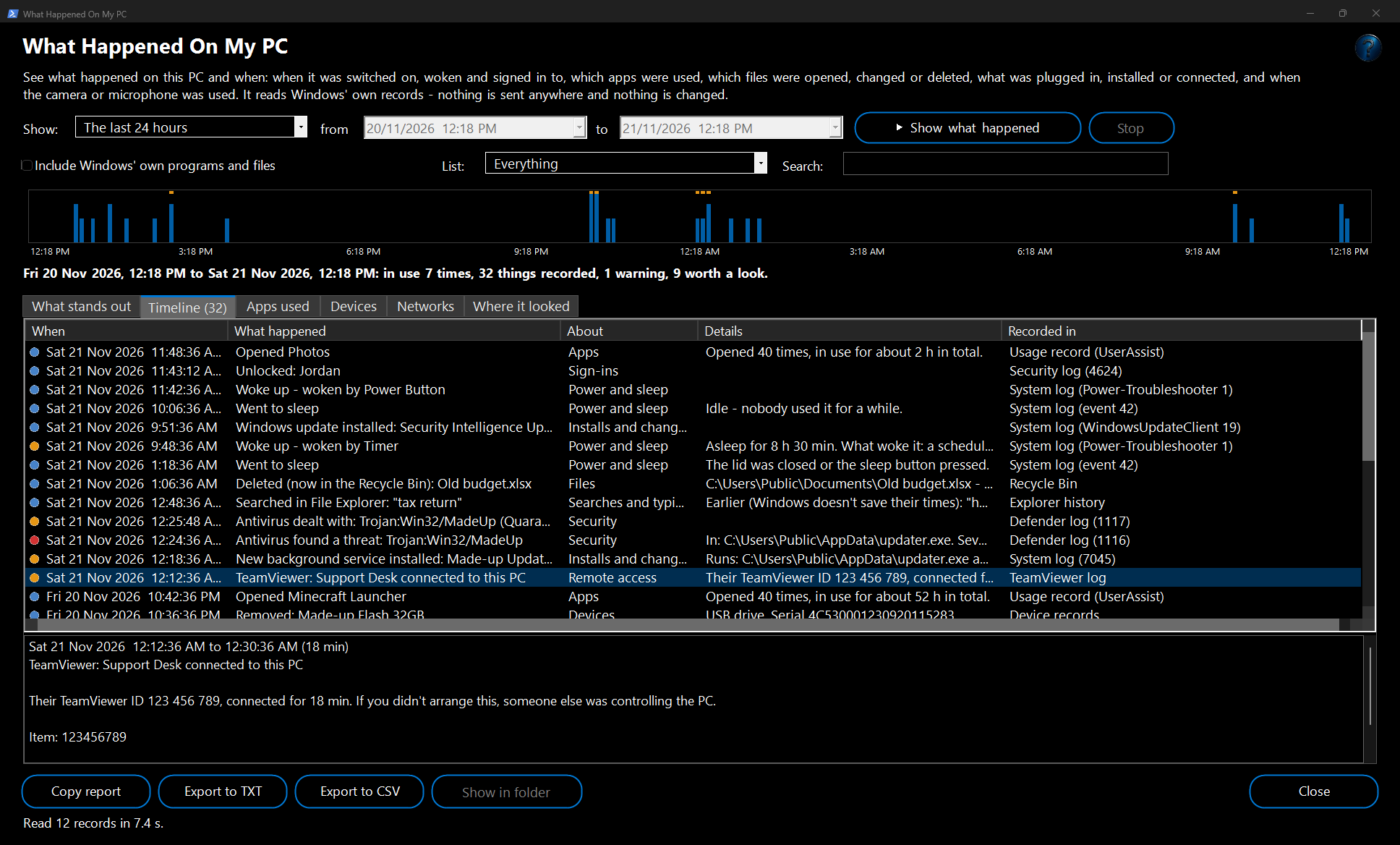
Timeline tab lists everything, newest first. Click a row to read all of it in the box below. Use
List to show one kind only (for example
Files or
Only things worth a look) and
Search to find a name, file or app. Double-click a file to show it in its folder.
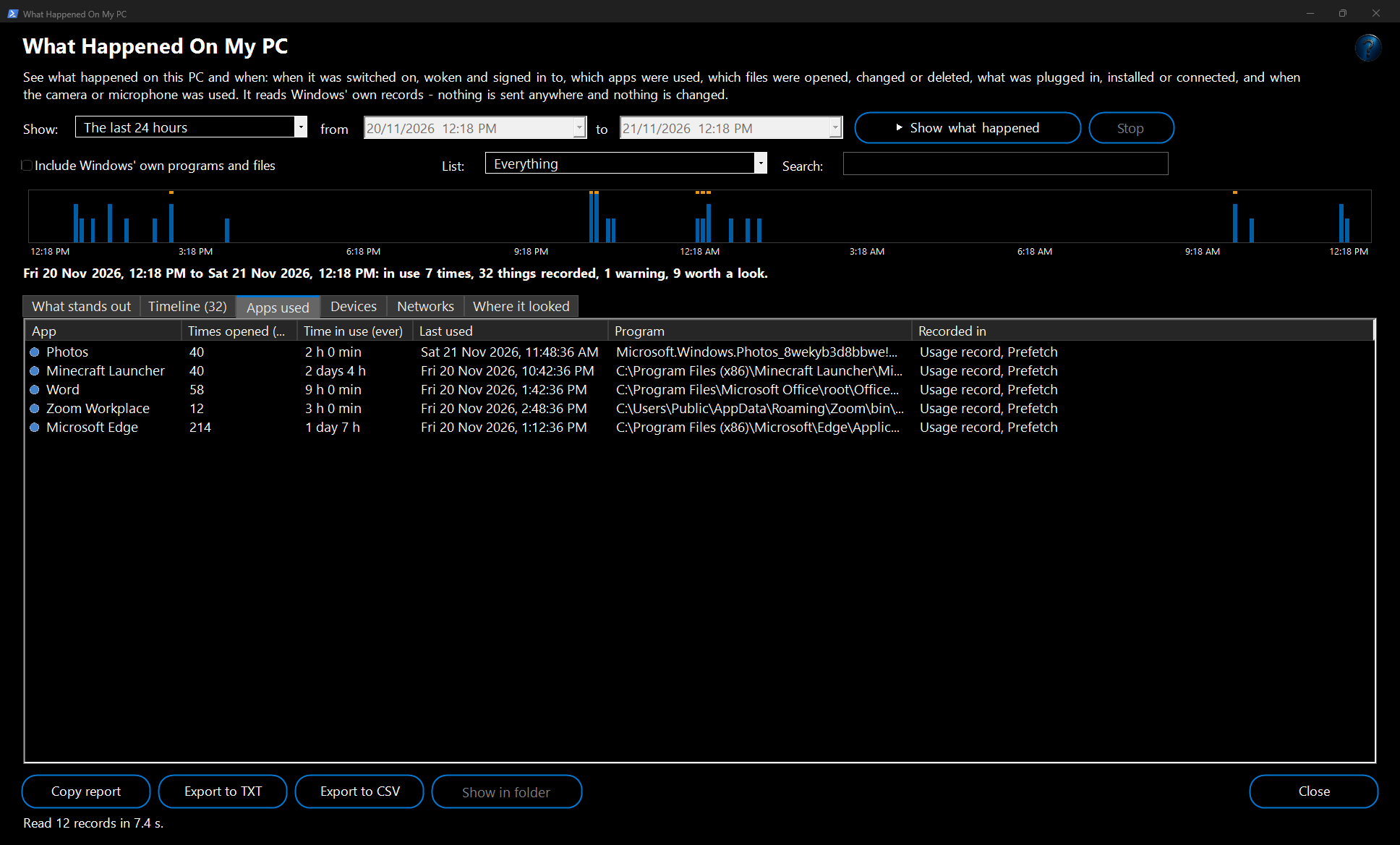
6. Apps used lists every app used in the time, how many times it has ever been opened, how long it has been in use in total and when it was last used.
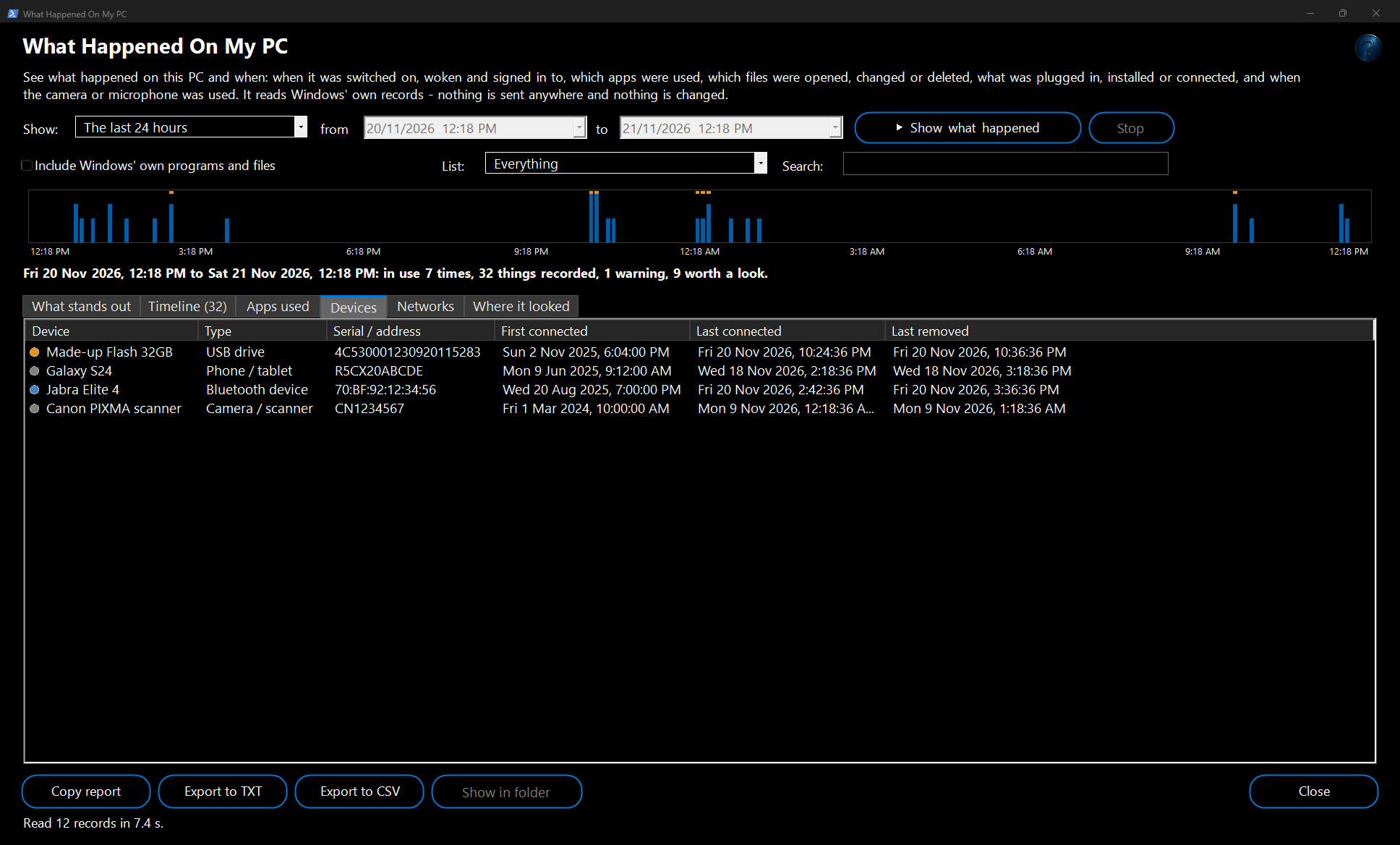
Devices lists every USB drive, phone, camera and Bluetooth device ever connected, with its serial number and when it was first and last connected.
Networks lists every network the PC has joined.
Where it looked shows each record it read and what it found.
7. Copy report and
Export to TXT save the whole story;
Export to CSV saves the list on the tab you're on;
Save as web page saves what stands out, the apps and the timeline as a page you can open in any browser, print or send. Right-click a row to copy it, show its file in its folder or (on the timeline) show only that kind of event.
Example: back from the weekend
Jordan was away from Friday 6 pm to Sunday 4 pm and the laptop was left at home. Jordan chooses
Choose the dates and times..., sets those times and clicks
Show what happened.
What stands out shows
In use 2 times,
3 failed sign-ins on Saturday at 1 pm followed by
Unlocked: Jordan, then
USB drive plugged in: SanDisk Ultra, and on the
Timeline 46 photos created on drive E: - someone who knew the PIN copied the holiday photos to a USB stick. The
Devices tab shows the stick's serial number and that it was connected for 12 minutes.
Example: a "support" phone call
After a call from someone claiming to be from "technical support", Alex isn't sure what they did. The timeline shows
TeamViewer: Support Desk connected to this PC for 18 minutes, then
New background service installed: Made-up Updater running from an unusual folder, and
Antivirus found a threat a minute later. Alex uninstalls TeamViewer, changes passwords from another device and runs a full antivirus scan.
How it works and what to expect
- It reads Windows' own records: the event logs (start-ups, sleep, sign-ins, installs, services, scheduled tasks, Windows updates, antivirus, PowerShell, background downloads, Wi-Fi, crashes), the records Windows keeps of programs you start (with how often and how long), Recent items, jump lists and Office's recent files (each with the exact time), the Recycle Bin, Explorer searches and the Run box, camera / microphone / location use per app, every device and network ever connected, TeamViewer and AnyDesk connection logs, and file changes.
- File changes: run as administrator (FW Admin Tech Tools Pro always is) and it reads the drives' own change journal - every file created, changed, renamed or deleted on the whole drive, with the exact time. Without administrator rights it looks through your own folders (Desktop, Documents, Downloads, Pictures, Videos, Music, OneDrive) instead. Downloads show the website they came from.
- When it was in use: things a person does (signing in, opening apps and files, searching, plugging things in) less than 20 minutes apart count as one time in use. Use late at night is pointed out.
- Windows' own background programs and files (and duplicate records of the same thing) are left out to keep it readable. Tick Include Windows' own programs and files to see everything.
- The window can ask for your Windows sign-in first if Ask me to sign in before opening password and recovery key tools is on in Options, because it shows private activity.
- Your choices (the time, the list, the tab and the divider, and any column widths you drag) are remembered for next time.
Good to know
- How far back it goes depends on Windows: event logs usually keep days to weeks, the change journal a fixed amount (often a day or two on a busy drive - Where it looked says how far back), the program and device records much longer. Windows keeps only the last time each app used the camera or microphone.
- Administrator rights add failed sign-ins and account changes, the last 8 times each program ran, every file change on the drive and more. Without them, Where it looked lists what needs them.
- Some records are switched off in Windows by default (for example printing). Where it looked says which, and how to switch them on.
- Someone who knows what they're doing can clear Windows' records - and clearing the Security log is itself shown as a warning.
Troubleshooting
- "Nobody seems to have used the PC in this time" but you know someone did: choose a longer time, or check Where it looked for records that need administrator rights.
- A file change list ends early: more than 25,000 changes were found, so only the newest are shown. Choose a shorter time.
- It takes a while: reading a month of a busy PC can take a minute. Click Stop to cancel.
- An app shows a strange name: it's the name the program gives itself; the Program column shows where it is.