Voice Changer - Hide your voice in a recording or a video, or have fun with character voices (Updated Nov 2026)
Description
Want to narrate videos, post a recording online or share a voice message without people recognising your voice? Voice Changer gives your voice a different sound: lower or higher, like a bigger or smaller person, like a robot, on a telephone, in a cave. Pick one of the ready-made voices, listen, and save a copy. The file you started with is never changed.
It opens all the usual audio files - MP3, WAV, M4A, AAC, FLAC, OGG, Opus, WMA, AIFF and AMR - and videos (MP4, MOV, MKV, AVI, WMV and WebM). For a video, only the sound is changed; the picture is copied exactly as it was.
How to use
1. Click
Open a file... and pick your recording or video (or drag it onto the window). To record your voice first, use the
Record tab: pick your microphone, click
Record, speak, then click
Stop and open it.
2. On the
Voice tab, click a voice in the list on the left.
Disguise voices hide who is speaking;
Characters are types of voice such as a movie trailer narrator, a child or a ghost;
Fun and
Places are for effects;
Clean up only keeps your own voice and just cleans it up.
3. Click
Play. While it plays, click
Original and
Changed to switch between your real voice and the changed one at the same spot. The space bar plays and pauses.
4. Adjust it if you like with the sliders:
Pitch (higher or lower),
Voice character (sounds like a bigger or a smaller person, without changing the pitch),
Speed,
Bass,
Middle,
Treble and
Volume, plus an
Effect and an
Echo / room. The sound you hear updates by itself a moment after each change.
Undo my changes puts the picked voice back.
5. Watch
Disguise strength on the right: it estimates from the settings how well your voice is hidden -
Light,
Medium or
Strong - and tells you what to change for more.
6. Choose the file type under
Save as (or leave
Same as the original), keep
Remove hidden details (tags) ticked, and click
Save.... The new file is named like the original with
(changed voice) added.
Show in folder opens it in File Explorer.
Example: You recorded
C:\Videos\Clean up your PC.mp4 and don't want viewers to recognise you. Open it, pick
Anonymous - deeper, play it and switch between
Original and
Changed a few times. Disguise strength says
Medium, so you move
Voice character one step further left until it says
Strong. Click
Make this My voice, then
Save.... You get
C:\Videos\Clean up your PC (changed voice).mp4 - the same video and the same length, with a voice that isn't yours. Next time, pick
My voice at the top of the list and every video sounds the same.
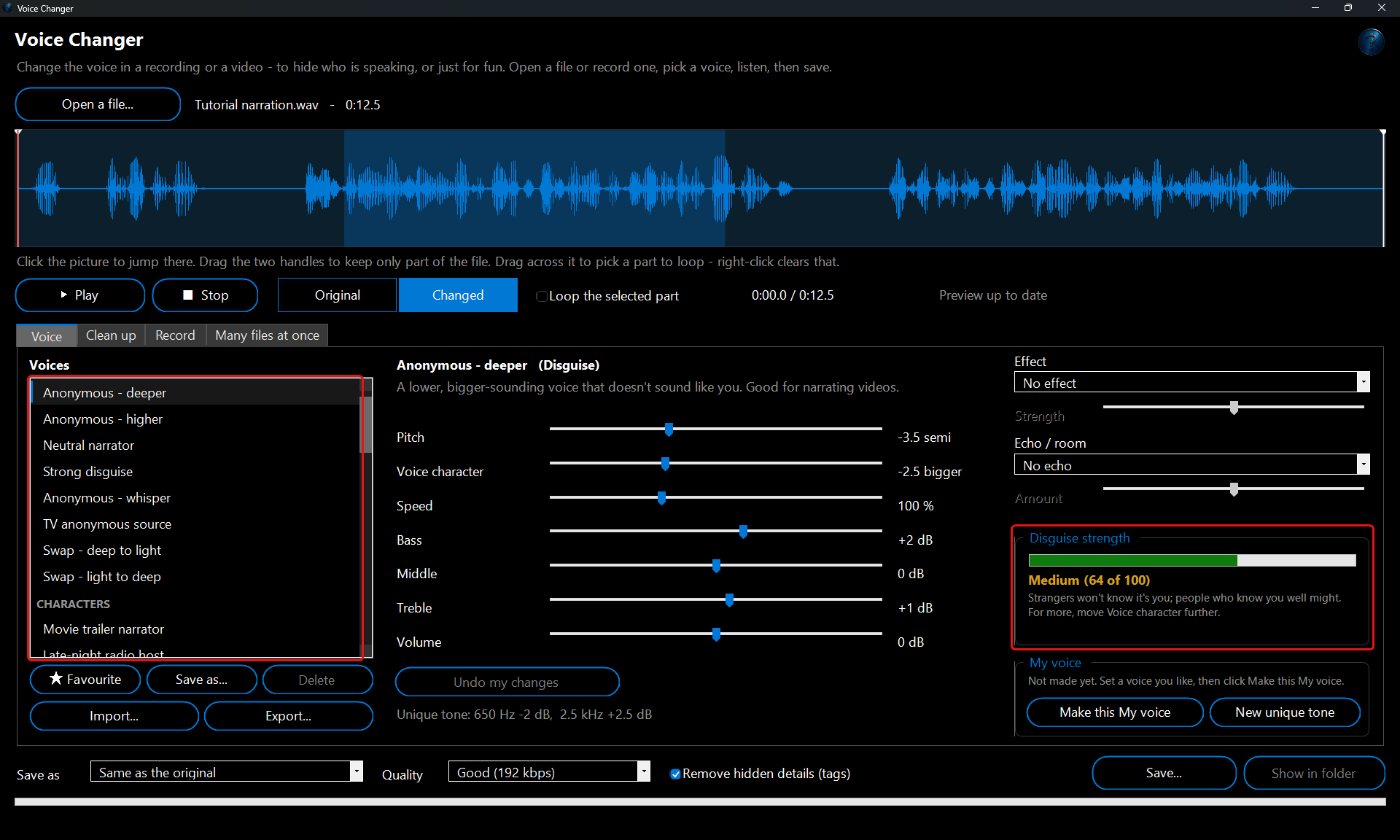
The voices in the list
Every voice is a starting point: pick it, then move the sliders if you want it a little different. When you click a voice, a line under the list says what it sounds like.
- Disguise - Anonymous - deeper, Anonymous - higher, Neutral narrator, Strong disguise, Anonymous - whisper (a breathy whisper with no pitch left to recognise - the strongest disguise), TV anonymous source (the very low, hollow voice used on TV for people who don't want to be recognised), Swap - deep to light and Swap - light to deep (move a voice into the range most women's or most men's voices are in).
- Characters - Movie trailer narrator, Late-night radio host, Stadium announcer, Old person, Child, Cartoon villain, Demon, Ghost, Elf and Space pilot.
- Fun - Robot, 8-bit video game, Deep, Chipmunk, Monster, Alien, Giant in a cave, Slow motion, Fast forward, Nervous and Swirly.
- Places - Radio, Telephone, Walkie-talkie, Megaphone, Underwater, Bathroom, Train station announcement, Big hall and Cave.
The
Effect list has: Robot, Several voices (chorus), Jet (flanger), Wobbly (vibrato), Alien, Telephone, Old radio, Walkie-talkie, Megaphone, Whisper, Ghostly, Underwater, Space helmet / mask, 8-bit video game, Shaky (tremolo), Swirl (phaser) and Gritty (distortion). The
Echo / room list has: Bathroom, Small room, Big hall, Stadium and Cave. Most effects have a
Strength slider.
Example: for a spooky story, pick
Ghost, then move
Strength to the right for a thinner, more drifting voice, and add
Cave under
Echo / room for an even longer echo. For a game trailer, pick
Movie trailer narrator and move
Bass up a step.
Can it make me sound like a particular person, such as a celebrity? No. Voice Changer changes how high or deep, how big or small and how rough or smooth a voice sounds, and adds effects - it doesn't copy a particular person's voice. That needs AI trained on hours of that person's recordings, and copying a real person's voice without their permission can be against the law and is often used for scams. The
Characters voices are types of voice, not real people.
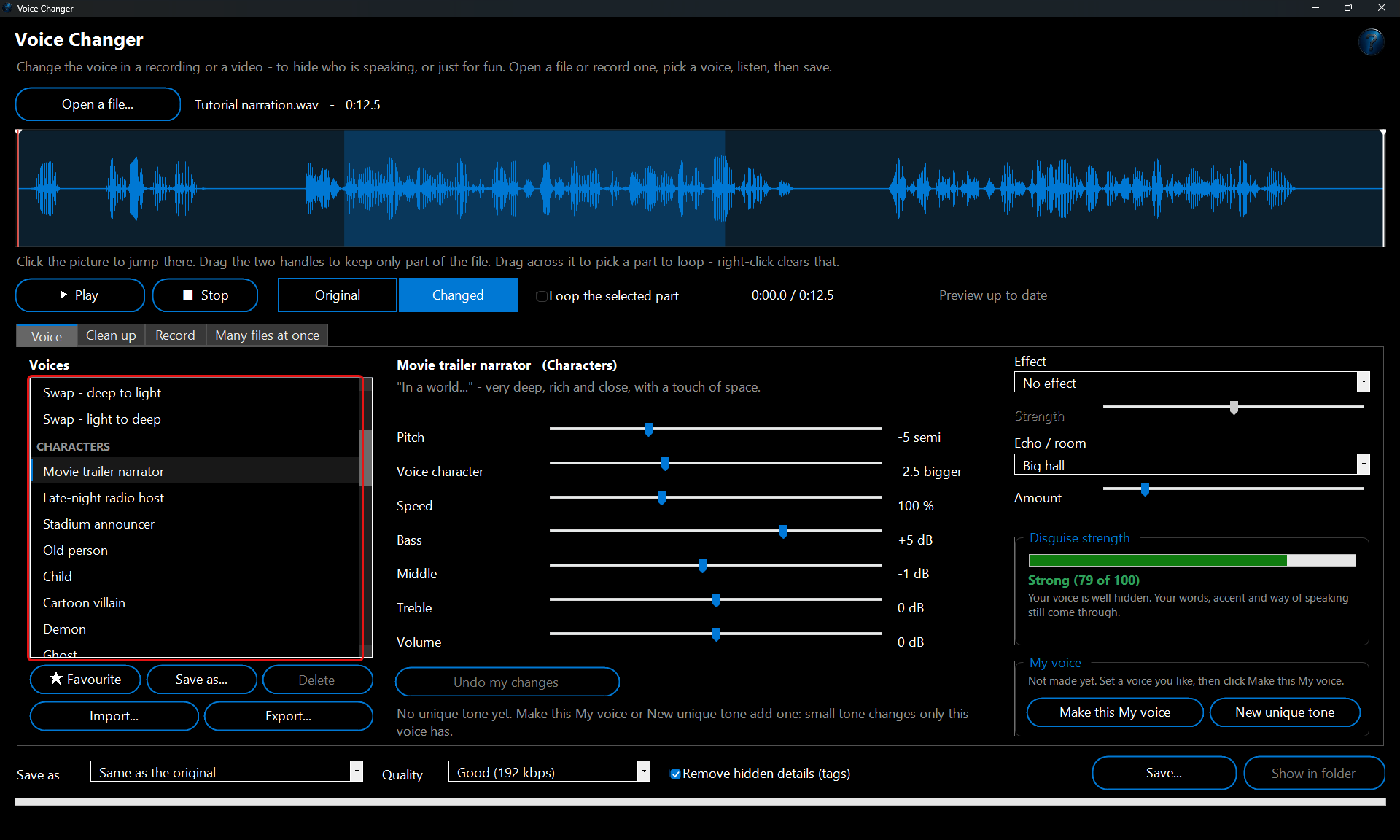
My voice: always the same disguise
If you make videos regularly, set up a voice you like and click
Make this My voice. It is saved with a
unique tone: a few small tone changes that only your voice has, so it doesn't sound like everyone else using the same preset, and nobody can undo it with one simple change.
My voice is then at the top of the list in Voice Changer, in the Video Editor and in Watch and Process.
New unique tone gives the current settings a different set of small changes.
Replace My voice saves new settings over it - files you already made keep their voice.
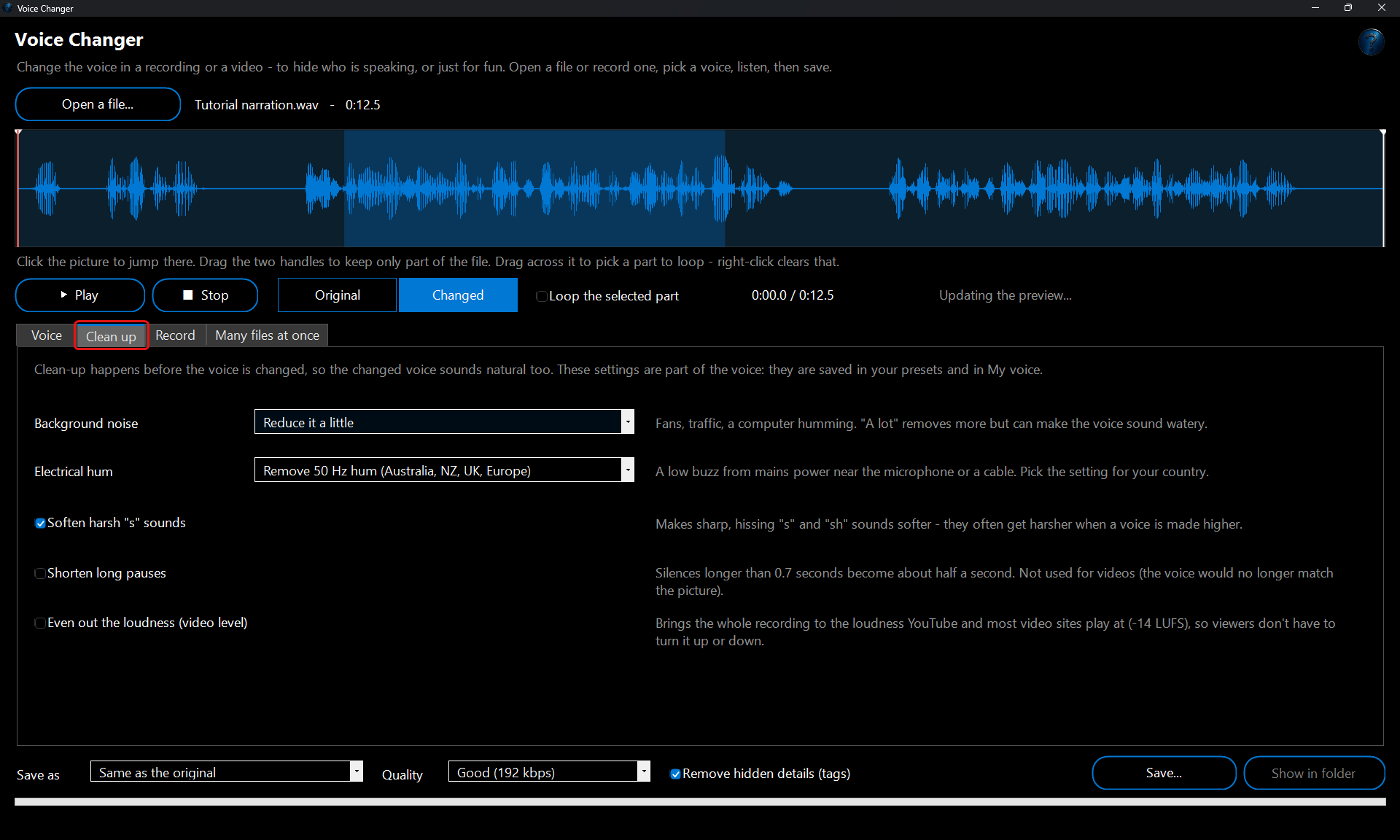
Clean up
The
Clean up tab works before the voice is changed, so the result sounds natural too.
Background noise (fans, traffic) can be reduced a little or a lot.
Electrical hum removes a low mains buzz - pick 50 Hz in Australia, New Zealand, the UK and Europe, 60 Hz in the USA and Canada.
Soften harsh "s" sounds calms hissing "s" and "sh".
Shorten long pauses turns silences longer than 0.7 seconds into about half a second (not used for videos).
Even out the loudness brings the whole recording to the loudness YouTube and most video sites play at. These settings are saved with your presets and My voice.
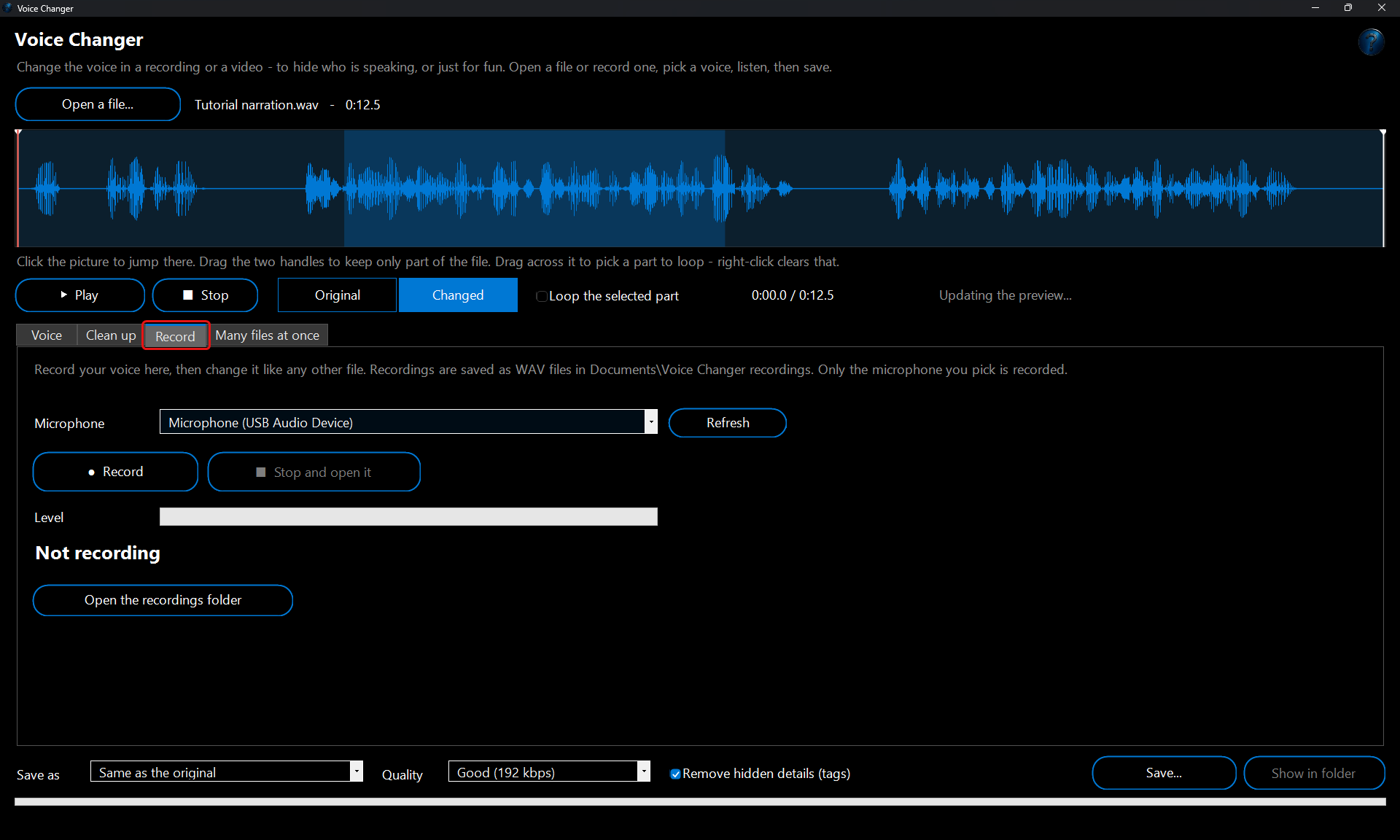
Record your voice
The
Record tab records from the microphone you pick and saves a WAV file in
Documents\Voice Changer recordings (
Open the recordings folder shows it). When you click
Stop and open it, the recording opens straight away, ready for a voice. The level bar shows how loud you are: aim for the middle of the bar when you speak normally.
Live: change your voice as you speak (calls, games and streams)
The
Live tab changes your voice while you talk - to hear yourself as a robot, a giant or an old radio, or to use the voice in a call, a game chat or a stream. It uses the same voices as the rest of Voice Changer.
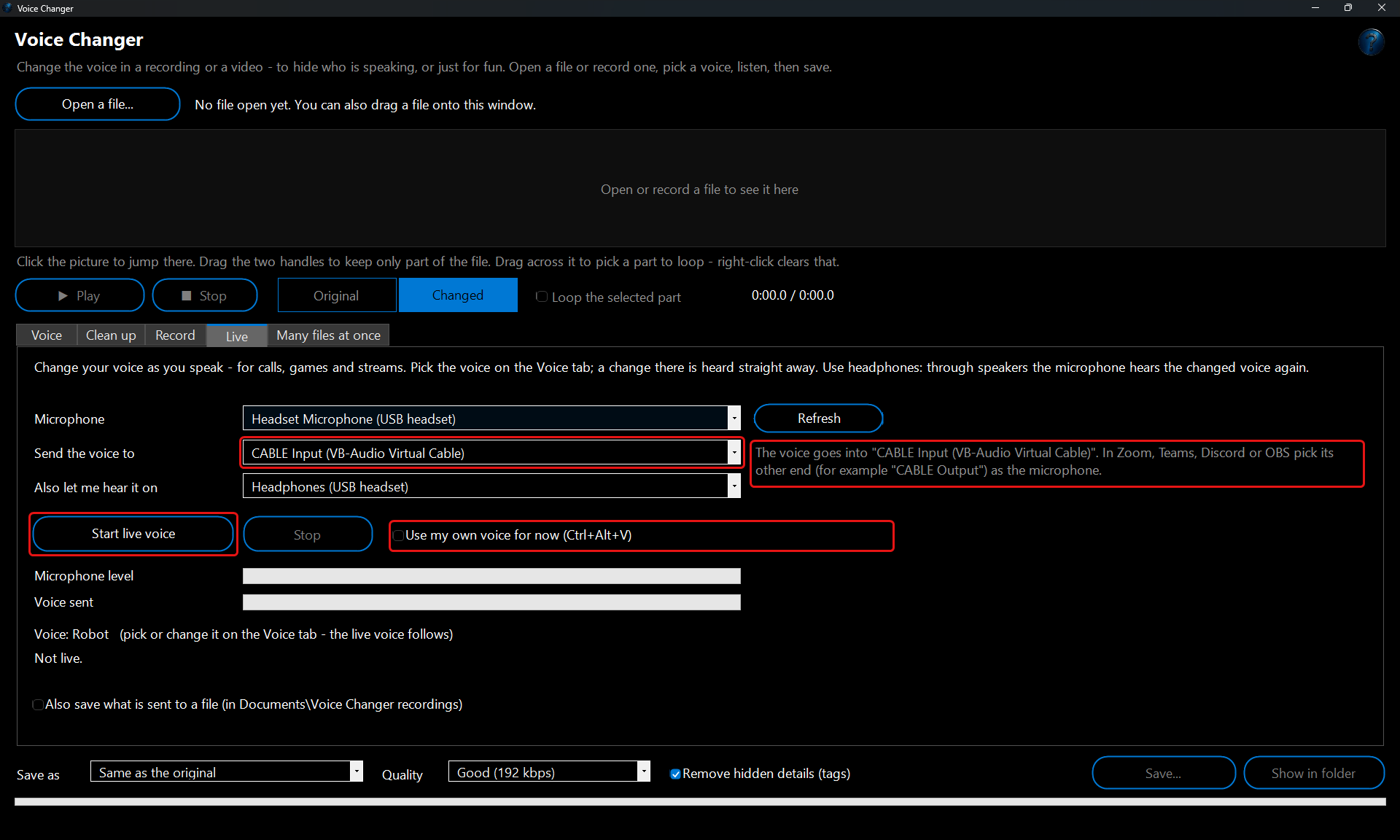 1.
Put on headphones. Through speakers, the microphone hears the changed voice again and it howls or echoes.
2. Pick a voice on the
Voice tab (you can try it on a recording first).
3. On the
Live tab pick your
Microphone, and under
Send the voice to pick your headphones (to hear yourself) or a virtual cable (for calls and streams - see below).
4. Click
Start live voice and speak. The
Microphone level bar shows your voice coming in,
Voice sent shows the changed voice going out.
5. While live you can pick another voice or move any slider on the
Voice tab - the live voice follows a moment later. Tick
Use my own voice for now, or press
Ctrl+Alt+V (it works even while the call program is in front), to talk in your own voice for a while; press it again to go back.
6. Click
Stop when you are done. Closing Voice Changer stops it too.
Using it in Zoom, Teams, Discord, OBS or a game: these programs listen to a microphone, and Windows can't make a new microphone by itself. A free
virtual audio cable does that: a pretend speaker and microphone joined together, so whatever goes into one end comes out of the other.
1. Install a virtual audio cable, for example
VB-CABLE from VB-Audio (vb-audio.com, free). Restart the PC if it asks.
2. In Voice Changer click
Refresh on the
Live tab, pick
CABLE Input under
Send the voice to, and your headphones under
Also let me hear it on if you want to hear yourself. The line next to it confirms where the voice goes.
3. In the call or game program open its sound or voice settings and pick
CABLE Output as the microphone. In OBS add an
Audio Input Capture source and pick
CABLE Output.
Example: you play a game with friends on Discord and want to sound like a robot. Pick
Robot on the Voice tab, on the Live tab send the voice to
CABLE Input and let yourself hear it on your headset, click
Start live voice, and in Discord's
Voice & Video settings choose
CABLE Output as the input device. Your friends hear the robot; press Ctrl+Alt+V when you want them to hear your own voice.
How it works and what to expect:
- There is a short delay between speaking and the changed voice. The Live tab shows it: about a tenth of a second for most voices, a little more for voices that change the pitch or the character.
- Live, Speed and Shorten pauses are left out (you can't speak faster than you speak), and Even loudness becomes a gentler leveller. Everything else sounds the same as when you save a file.
- It keeps going while you use other tabs or other programs, or minimise the window.
- Tick Also save what is sent to a file to keep a WAV of everything that was sent, in Documents\Voice Changer recordings.
- Your voice stays on this PC: it only goes where you send it. Your choices of microphone and devices are remembered for next time.
- A voice that is changed live is a disguise for fun or for privacy in a chat - like any voice changer, it can't promise that nobody could ever recognise you.
Many files at once
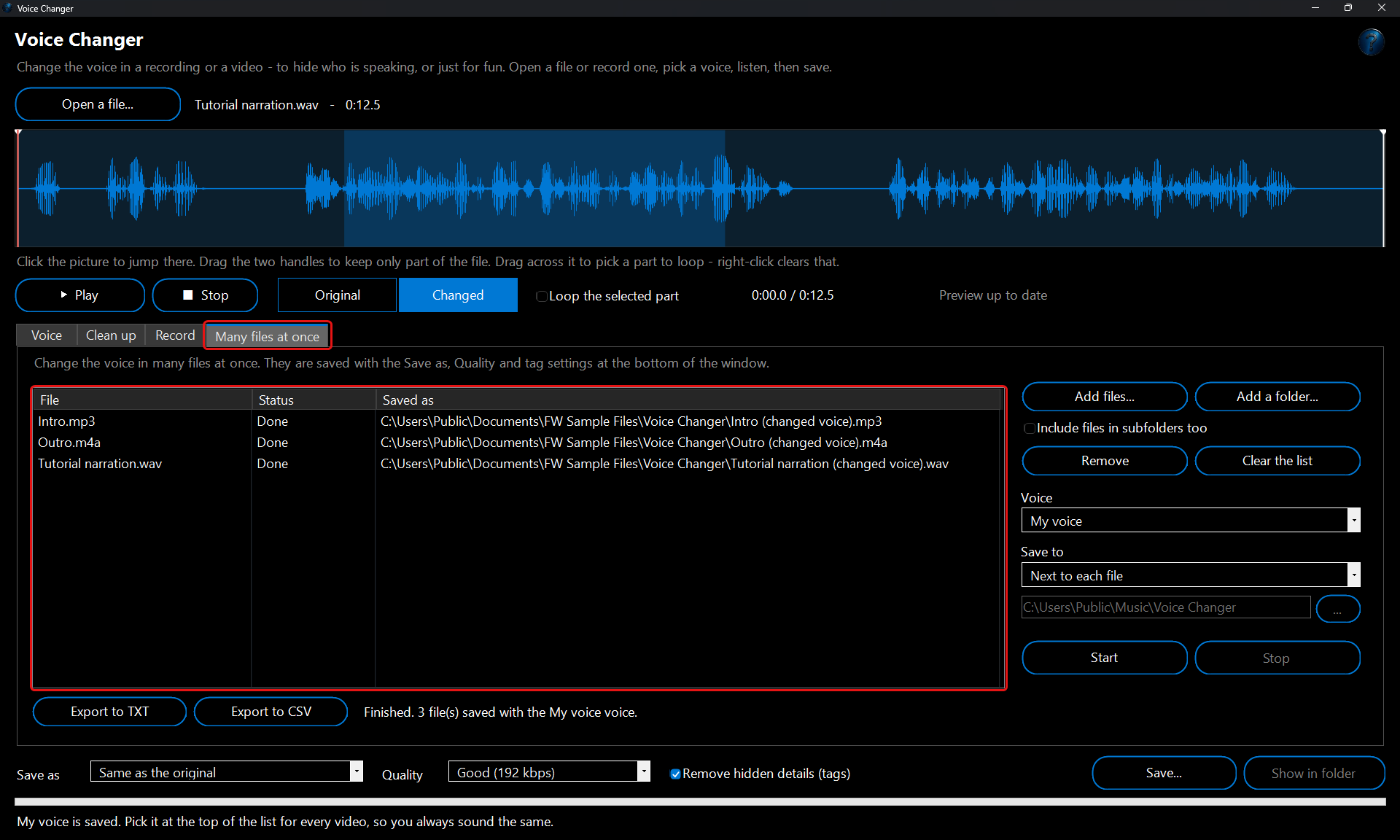
1. On the
Many files at once tab, click
Add files... or
Add a folder... (tick
Include files in subfolders too first if you want them).
2. Pick the
Voice - one of the voices, My voice, or
The current settings from the Voice and Clean up tabs.
3. Choose
Save to: next to each file, or one folder you choose.
4. Click
Start. Each file shows
Done or why it couldn't be changed.
Stop stops straight away: the file it is working on and the ones after it are marked
Not done (stopped), and no half-made file is left.
Export to TXT and
Export to CSV save the list.
The files are saved with the
Save as,
Quality and
Remove hidden details settings at the bottom of the window. A file that already exists isn't replaced: the new one gets a number, like
Intro (changed voice) (2).mp3.
Use it in the Video Editor and automatically
In the
Video Editor, click a clip on the timeline, then
Tools > Change the voice in the selected clip..., pick a voice and click
Change the voice. A copy of the clip's file is made with the new voice and the clip uses it;
Undo puts the original back.
Run it automatically with Watch and Process: recordings you drop into a folder can get their voice changed by themselves.
1. Open
Watch And Process Automation and make a task that watches a folder, for example
C:\Videos\To disguise.
2. Click
Add FW tool... and pick
Voice Changer.
3. Choose the
Voice (My voice works too), the file type and where to save, then click OK.
4. Start watching. Every recording or video that arrives gets a
(changed voice) copy; the original stays where it is.
Example: a task watching
C:\Videos\To disguise with Voice
My voice and Save as
MP3: you save
Episode 4.wav there and shortly afterwards
Episode 4 (changed voice).mp3 appears next to it.
How it works and what to expect
- Nothing you open is ever changed - every save is a new file, and a save can't replace the file it is made from.
- A plain pitch change can be undone by shifting it back. That's why the Disguise voices change pitch and voice character by different amounts and add small tone changes: there is no single simple change that turns it back into your voice.
- Disguise strength is an estimate from the settings, not a test of the result. A voice changer hides the sound of your voice from people listening; your words, accent and way of speaking still come through, and it can't promise that specialist voice-analysis software couldn't link it to you.
- For videos, Speed and Shorten long pauses are left out so the voice still matches the picture, and the video keeps its exact length.
- Remove hidden details (tags) (on by default) leaves out the title, artist, comments, recording software and other details stored inside the file. Turn it off to keep them.
- Echo and room effects (and the Ghostly effect, which has its own echo) add a short tail at the end of an audio file.
- Voices that change the speed (Slow motion, Fast forward, Old person, Child) make an audio file longer or shorter. In videos the speed is left as it is, so the voice keeps matching the picture.
- Your presets and My voice are kept on this PC; Export... saves a voice as a .fwvoice file to keep or share, and Import... adds one (it goes under My presets).
- The microphone is only used while you are recording or while the live voice is on, and only the one you pick.
Troubleshooting
- "This file has no sound to change" - the video has no sound track. Check it plays with sound in another player.
- Nothing is heard when I click Play - check the PC's volume and the speakers or headphones Windows uses (the speaker icon on the taskbar).
- Changed isn't ready yet - the changed voice is made in the background after each change; long recordings take a little longer. Watch the text next to the time.
- No microphone found / recording won't start - plug the microphone in, click Refresh, and check Windows Settings > Privacy & security > Microphone lets desktop apps use it.
- Howling, whistling or an echo while live - the microphone hears the speakers. Use headphones, or under Send the voice to pick headphones or a virtual cable instead of speakers.
- The other people in the call hear nothing (or my normal voice) - check the live voice is on (the Live tab says LIVE), that it sends to CABLE Input, and that the call program's microphone is CABLE Output. Some programs need to be restarted after the cable is installed.
- There is no CABLE Input in the list - a virtual audio cable isn't installed yet (see Using it in Zoom, Teams, Discord, OBS or a game). After installing it, click Refresh.
- The live voice sounds choppy - close programs that keep the PC busy, or pick a simpler voice (voices that change the pitch need the most work).
- "The live voice stopped" - a microphone or headset was unplugged, or Windows switched sound devices. Plug it back in, click Refresh and Start live voice again.
- Ctrl+Alt+V does nothing - another program already uses that shortcut. Use the Use my own voice for now tick box instead.
- The voice sounds robotic or watery - move Pitch and Voice character back towards 0 a step at a time, set Background noise to "Reduce it a little", and turn the effect off.
- Harsh "s" sounds after making the voice higher - tick Soften harsh "s" sounds on the Clean up tab.