OpenVPN Certificate Manager - Build and run a complete OpenVPN certificate authority (Updated Oct 2026)
Description:
OpenVPN Certificate Manager gives you a full public-key infrastructure (PKI) for OpenVPN without touching the command line. You point it at a folder, create a certificate authority (CA), then issue server and client certificates that are automatically signed by that CA with the correct OpenVPN key usages. Client certificates come out as ready-to-use files — an
.ovpn config, a
.p12 bundle, and PEM
.crt/
.key files — using the server host, port, protocol and other options you set. You control the connection settings written into every client
.ovpn — server host, port, protocol, an
Encryption preset (for example
AES-256-GCM,
AES-256-CBC with
SHA256 or
SHA1, or ChaCha20-Poly1305), optional TLS hardening and a pushed route. You choose the
Config style:
Inline (single file) packs the CA, certificate and key into one self-contained file, or
Separate files (ca/cert/key) writes a config that references them by name. For login, the
Credentials option can use the certificate only, prompt for a username and password at connect, or write a
login.conf credentials file so the client connects with no prompt. The defaults suit a MikroTik RouterOS OpenVPN server, and every setting can be changed for other server configurations. The issued-certificate list shows the type, key algorithm, serial, expiry and days remaining for every certificate, colour-coded so anything expiring or expired stands out. You can view a certificate’s details, renew it with a fresh key, or revoke it — which updates a certificate revocation list (
crl.pem) you publish to your server. It also generates the tls-crypt/tls-auth key and, if you want it, Diffie-Hellman parameters.
Pure, self-contained cryptography: All keys and certificates are generated in the tool itself — there is no OpenSSL or Easy-RSA to install — so it works the same on a desktop or a server, and the heavy work runs in the background so the window stays responsive. Keys can be RSA (2048 or 4096-bit) or elliptic-curve (EC secp384r1), and private keys can be protected with a passphrase.
How to use:
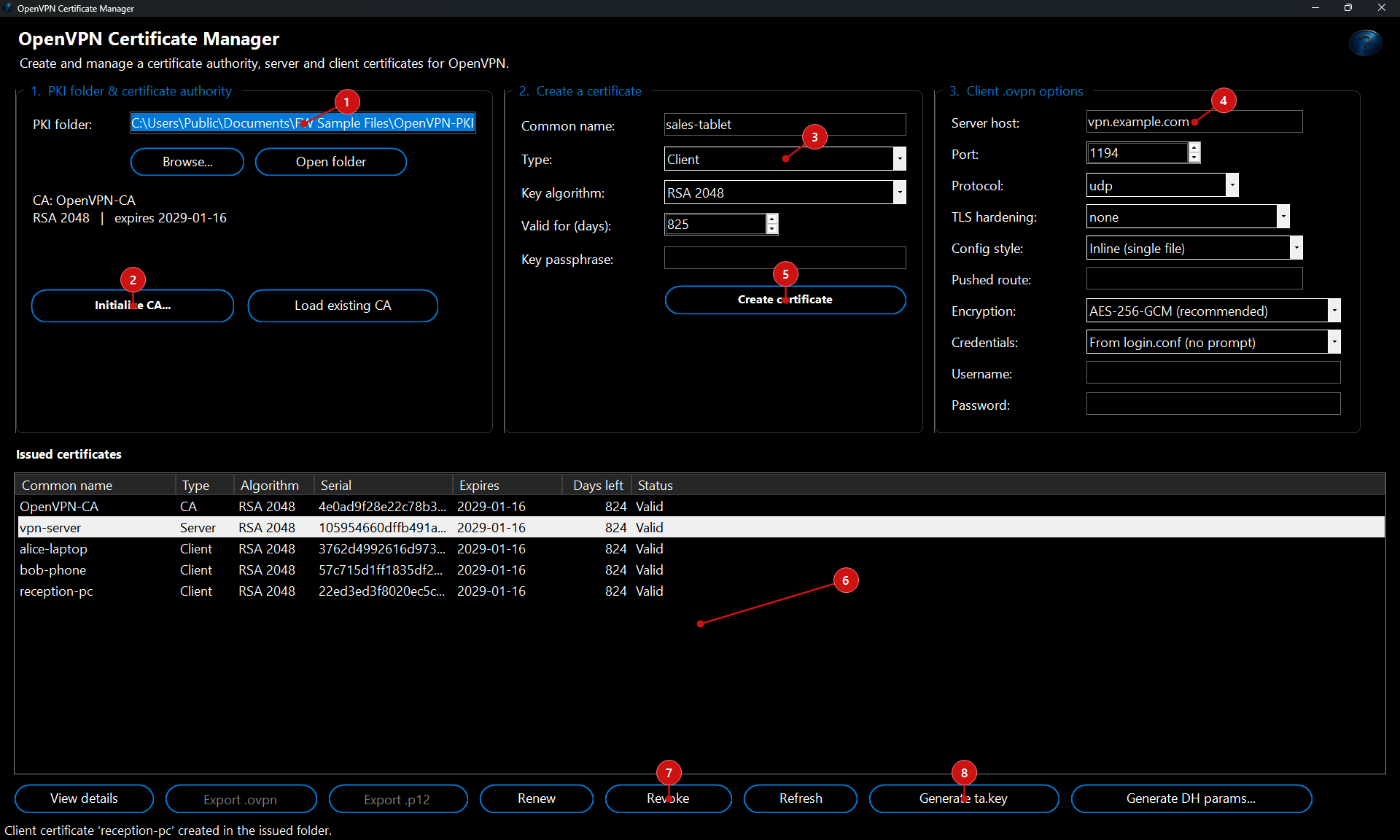 1. Choose a PKI folder.
 In the first box, set the folder that will hold your certificate authority and all issued files (use
Browse to pick one, and
Open folder to view it later). Everything the tool creates —
ca.crt,
ca.key,
ta.key, the issued certificates and the revocation list — lives here, so keep this folder secure and backed up.
2. Create the certificate authority. Click
Initialize CA and give it a name (for example
OpenVPN-CA). It uses the key algorithm and validity you choose in box 2, then writes the CA certificate and key and generates a tls-crypt key (
ta.key) at the same time. The CA status line confirms what was created. If you already have a CA in the folder, click
Load existing CA instead.
3. Create a server certificate. In
Create a certificate, enter a
Common name for your server, set
Type to
Server, pick the
Key algorithm (RSA 2048/4096 or EC secp384r1) and the
Valid for (days), then click
Create certificate. The server’s
.crt and
.key are written to the issued folder for use in your server config.
4. Set the client connection options. In
Client .ovpn options, enter the
Server host clients connect to, the
Port and the
Protocol (UDP or TCP). Pick the
Encryption preset that matches your server —
AES-256-GCM is the recommended modern default (it authenticates the data channel itself), with
AES-256-CBC +
SHA256,
AES-256-CBC +
SHA1 (legacy) and ChaCha20-Poly1305 also available. Set
TLS hardening (tls-crypt, tls-auth or none) only if your server uses a matching control-channel key. Choose the
Config style:
Inline (single file) embeds the CA, certificate and key in one
.ovpn, while
Separate files (ca/cert/key) references them by name so they travel together in a folder. Add a
Pushed route (for example
192.168.88.0 255.255.255.0) if clients should reach a LAN behind the server. Finally, set
Credentials:
None for certificate-only login,
Prompt at connect to have OpenVPN ask for a username and password each time, or
From login.conf (no prompt) to store the credentials in a
login.conf file so the client connects automatically. When
From login.conf is selected, enter the
Username (it defaults to the certificate’s common name) and
Password. These settings are written into every client
.ovpn you generate.
5. Create client certificates. Set
Type to
Client, enter a
Common name (for example a user or device name), optionally set a
Key passphrase to protect the private key, and click
Create certificate. For each client the tool writes a ready-to-import
.ovpn, a
.p12 bundle and the PEM files. With the
Inline style the
.ovpn has the CA, certificate and key embedded; with the
Separate files style it writes the
.ovpn alongside separate
ca.crt,
.crt and
.key files that it references by name, so copy the whole set to the client together. If
Credentials is set to
From login.conf, a
login.conf file (username on the first line, password on the second) is written next to the
.ovpn so the client logs in without a prompt — keep that file secure, as the password is stored in it as plain text.
6. Manage the issued certificates. The
Issued certificates list shows every certificate with its type, algorithm, serial, expiry date, days remaining and status — entries that are expiring soon or expired are highlighted. Select a certificate and use
View details to inspect it,
Export .ovpn or
Export .p12 to save a client’s files (the
.ovpn is rebuilt with your current server options,
Encryption,
Config style and
Credentials — the
Inline style saves one file, while the
Separate files style asks for a folder and writes the
.ovpn together with its
ca/
cert/
key files, and a
login.conf is added whenever the no-prompt credentials option is selected),
Renew to re-issue it with a fresh key and new validity, or
Revoke to add it to the revocation list.
7. Revoke and publish the CRL. Revoking a certificate updates
crl.pem in the PKI folder. Copy that file to your OpenVPN server (and reference it with
crl-verify) so the revoked certificate can no longer connect.
8. Generate keys and parameters as needed. Use
Generate ta.key to create or rotate the tls-crypt/tls-auth static key, and
Generate DH params if your server needs a Diffie-Hellman file (this can take a while; modern setups using EC keys can use
dh none instead).
Refresh re-reads the folder at any time.