Printer Migration - Move printers, drivers, ports and settings from one PC to another in one portable package (Updated Oct 2026)
Description
Printer Migration takes the printers set up on one Windows PC — the queues, their
driver files, the ports and the per-printer settings — and moves them to another machine in a single portable package. It's a job usually done by hand, one driver and one queue at a time, when you get a new PC or a print server is rebuilt.
Under the hood it drives Windows' own printer-migration engine (
PrintBRM), which packages the actual driver files so the target machine doesn't need them installed first. On top of that it adds the things the built-in tool doesn't give you:
pick just the printers you want, a readable
preview of what an import will add or overwrite, a
back-up-first safety net you can roll back to,
TCP/IP port remapping for a different network, printer
inventory reports, and a
scheduled backup.
Before you start — requirements
Nothing extra is needed. The driver packaging uses Windows' built-in
PrintBRM engine (part of Windows), and the per-printer operations use the built-in
PowerShell print commands — there is nothing to install.
Run as administrator. As with the rest of FW Admin Tech Tools Pro, run the app as administrator — installing drivers, creating ports and changing the print environment all need administrative rights, and the Print Spooler service must be running.
Match the architecture. A print driver made for 64-bit Windows can't be installed on 32-bit Windows, or the reverse. The package records the machine it came from and warns you before importing onto a machine of a different architecture (x64 ↔ x86).
A note on modern drivers. Standard (v3) drivers travel completely inside the package. Some newer "type 4" drivers expect the target to obtain the driver package itself (for example from Windows Update); the import will still run, but such a driver may need to be present on the destination.
Where your packages and backups live. Export packages (
.fwprintpkg) are written to a folder you choose (by default
Documents\FW Printer Migrations); rollback snapshots and scheduled backups go to a
Backups sub-folder. Preferences are stored with the product so they're kept when you update the app.
Please use it responsibly. Move printers to and from machines you administer or are permitted to manage.
The main window
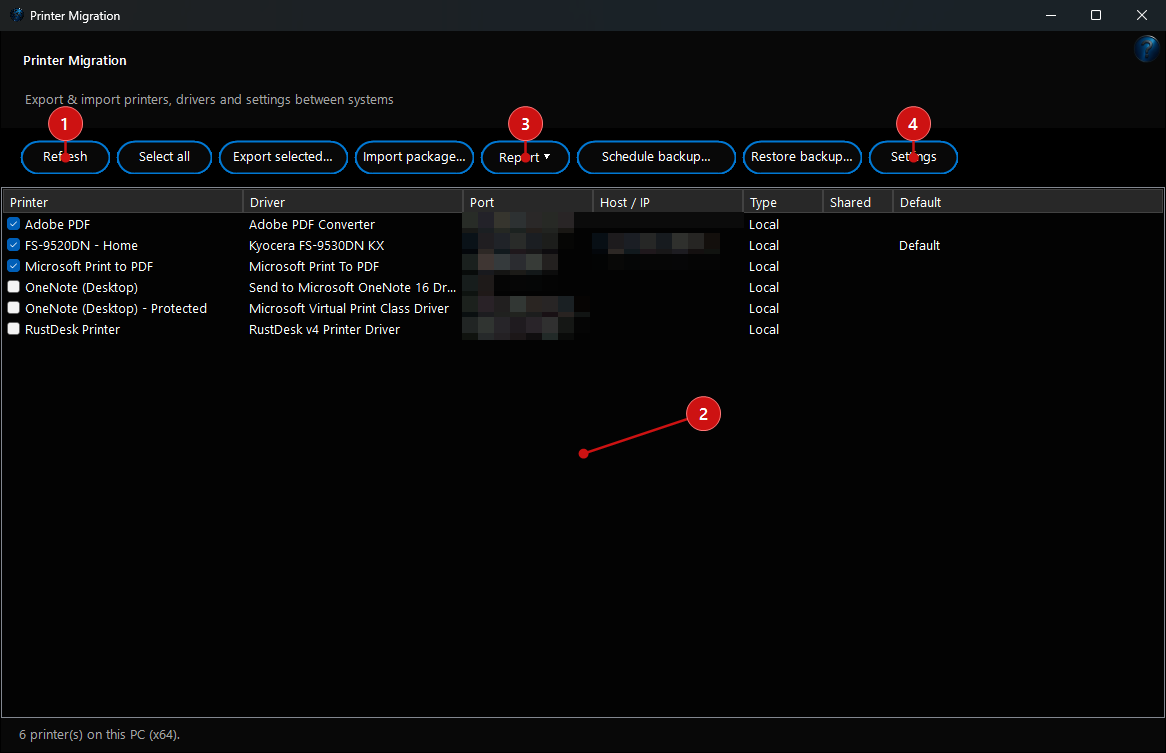
The window lists every printer on this PC with a tick box beside each one, and columns for the driver, the port, the host/IP address (for network printers), whether it's shared, and which one is the default. A toolbar across the top holds everything you do: refresh the list, export the ticked printers, import a package, produce a report, schedule a backup, restore a backup, and open settings.
Selecting and exporting
Tick the printers you want to take with you, press
Export selected, and choose where to save the package.
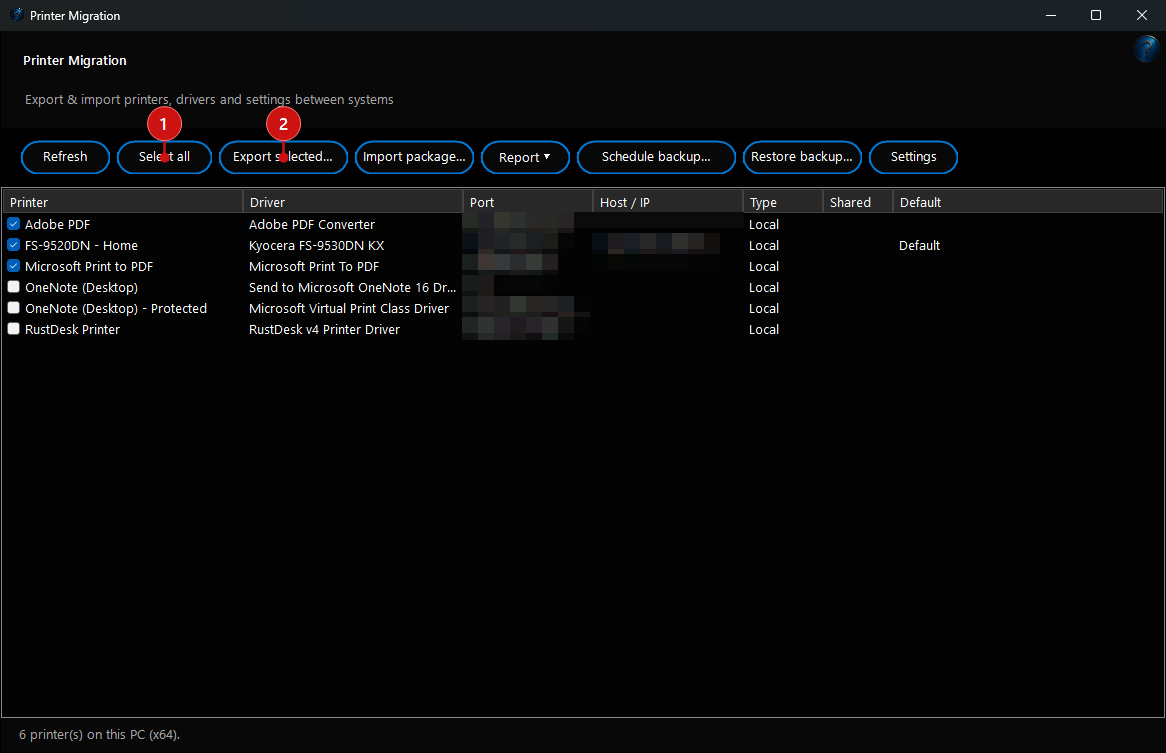
- Pick and choose: Export just the printers you tick — not the whole machine — so you carry across only what's wanted.
- Drivers included: The package bundles the actual driver files, so the destination doesn't need the drivers installed beforehand.
- One portable file: Everything — queues, drivers, ports, print processors and settings — ends up in a single
.fwprintpkg you can copy to a USB stick or a share.
- A readable record: Alongside the driver payload the package carries a plain description of what's inside, which drives the preview and the port remap at the other end.
Importing with a preview
Open a package on the destination PC and you get a preview before anything changes.
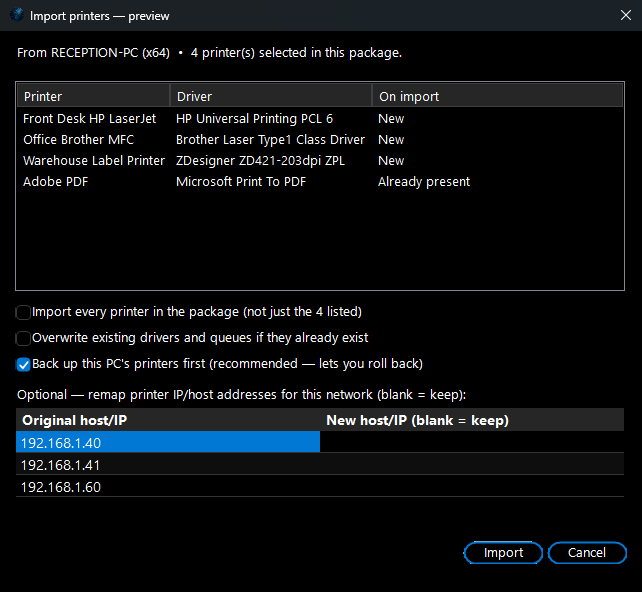
- See it first: The preview lists each printer in the package and marks whether it's New to this PC or already present, so there are no surprises.
- Architecture check: If the package was made on a machine of a different bitness, you're warned before the drivers are touched.
- You decide what happens: Choose whether to overwrite queues and drivers that already exist, and whether to bring in only the listed printers or every printer in the package.
- Default printer kept: The printer that was the default on the source is set as the default here too, when it's one you kept.
Safety, remapping, reports and scheduling
The extras that make it safe to run on a live machine — and useful on its own.
- Back up and roll back: Before an import, the tool can snapshot this PC's current printers. If the result isn't what you wanted, Restore backup puts them back.
- Remap for a new network: When a machine moves to a different subnet, rewrite each printer's TCP/IP address (old host/IP → new) as part of the import, so the queues point at the right hardware.
- Inventory reports: Export the machine's printers — names, drivers, ports, addresses, sharing and defaults — as a CSV or a formatted HTML report.
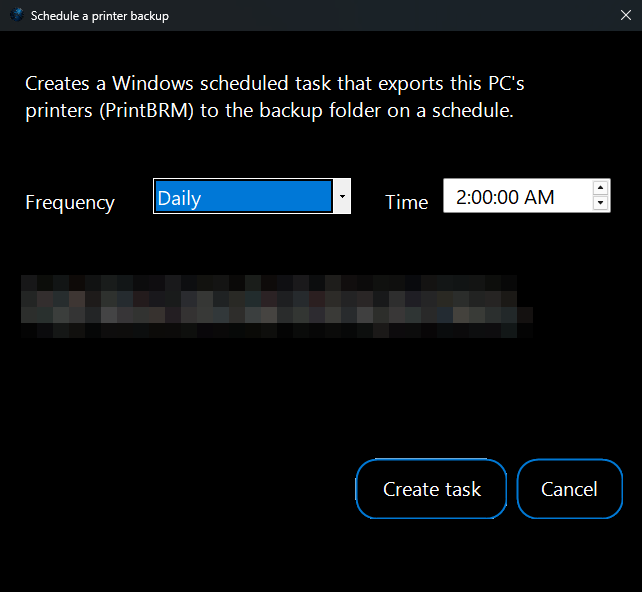
- Scheduled backups: Create a Windows scheduled task that exports this PC's printers to the backup folder on a daily or weekly cadence, so there's always a recent copy to fall back on.