Browser History Viewer - Every browser's history in one place, including history that was deleted and traces of private browsing. (New Nov 2026)
Description
Which websites were visited on this PC? What was searched for and downloaded? And what if someone cleared the history, or used a private (incognito) window? Each browser keeps its own history in its own files, and "Clear history" removes far less than most people think.
Browser History Viewer reads
every browser on the PC at once - Google Chrome, Microsoft Edge, Firefox, Brave, Opera and Opera GX, Vivaldi, Arc, Comet, Yandex, Chromium, Waterfox, LibreWolf, Floorp and Zen, every profile in each - and puts it all in one list:
pages visited (with how you got there and how long each page stayed open),
searches,
downloads (where each file came from and whether it's still there) and
bookmarks.
Then it goes further than ordinary history viewers:
- Deleted history: when history is deleted, the browser usually only marks the space as free. The tool reads that space and brings the addresses back, often with their titles and dates. It also notices when history was deleted from the middle (every visit is numbered, so missing numbers show deletions) and when a browser was used after its newest history entry.
- What's left behind: clearing the history usually leaves cookies, the cache, site storage, saved site icons, open and recently closed tabs and the address bar's typed entries. These show sites that were opened even when the history is gone.
- Private (incognito) browsing: private windows don't save any history, so nothing can bring it back. But Windows remembers the sites the PC looked up until it restarts, and every downloaded file remembers where it came from. The tool lists sites and downloads that no browser has a record of.
It is
read only: it never changes the browsers or their files, and nothing is sent anywhere.
How to use
1. Open
Browser History Viewer (in
Security & Privacy, or type "browser history", "deleted history" or "incognito" in the search box). It starts reading straight away; this takes a few seconds to a minute.
2. The
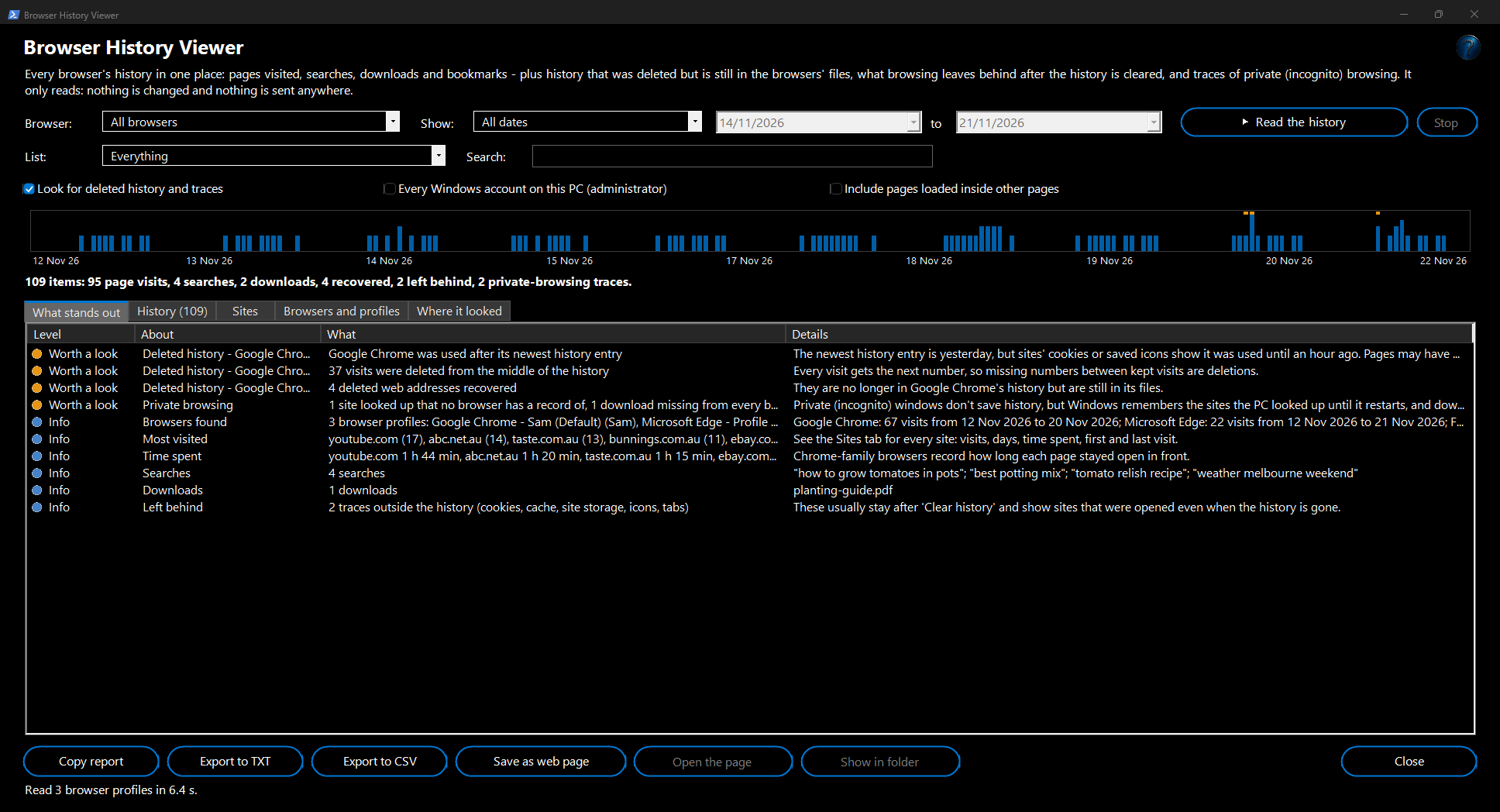
What stands out tab sums it up: deleted history found, private-browsing traces, the most visited sites, time spent, searches and downloads. Amber rows are worth a look.
3. The
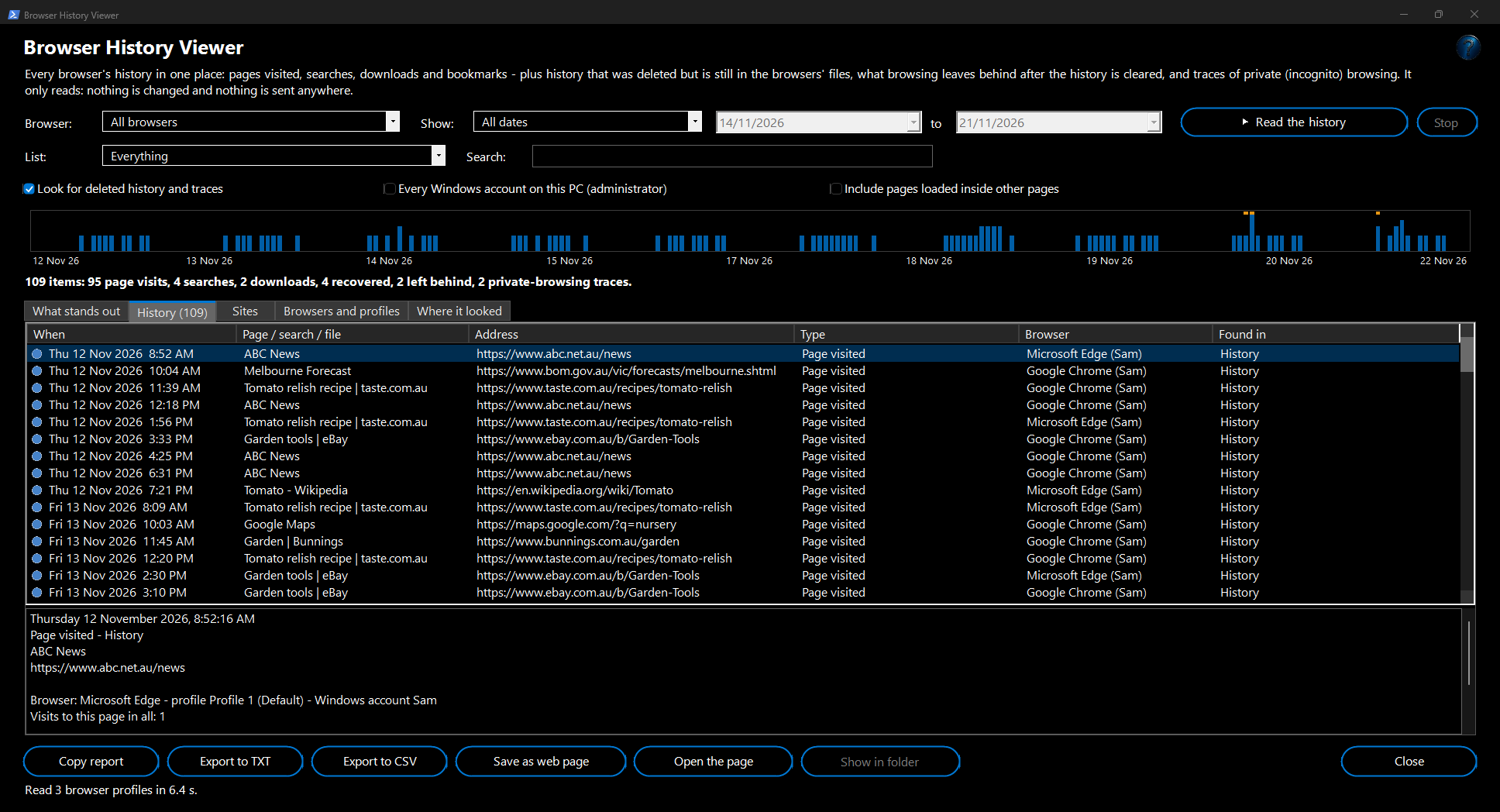
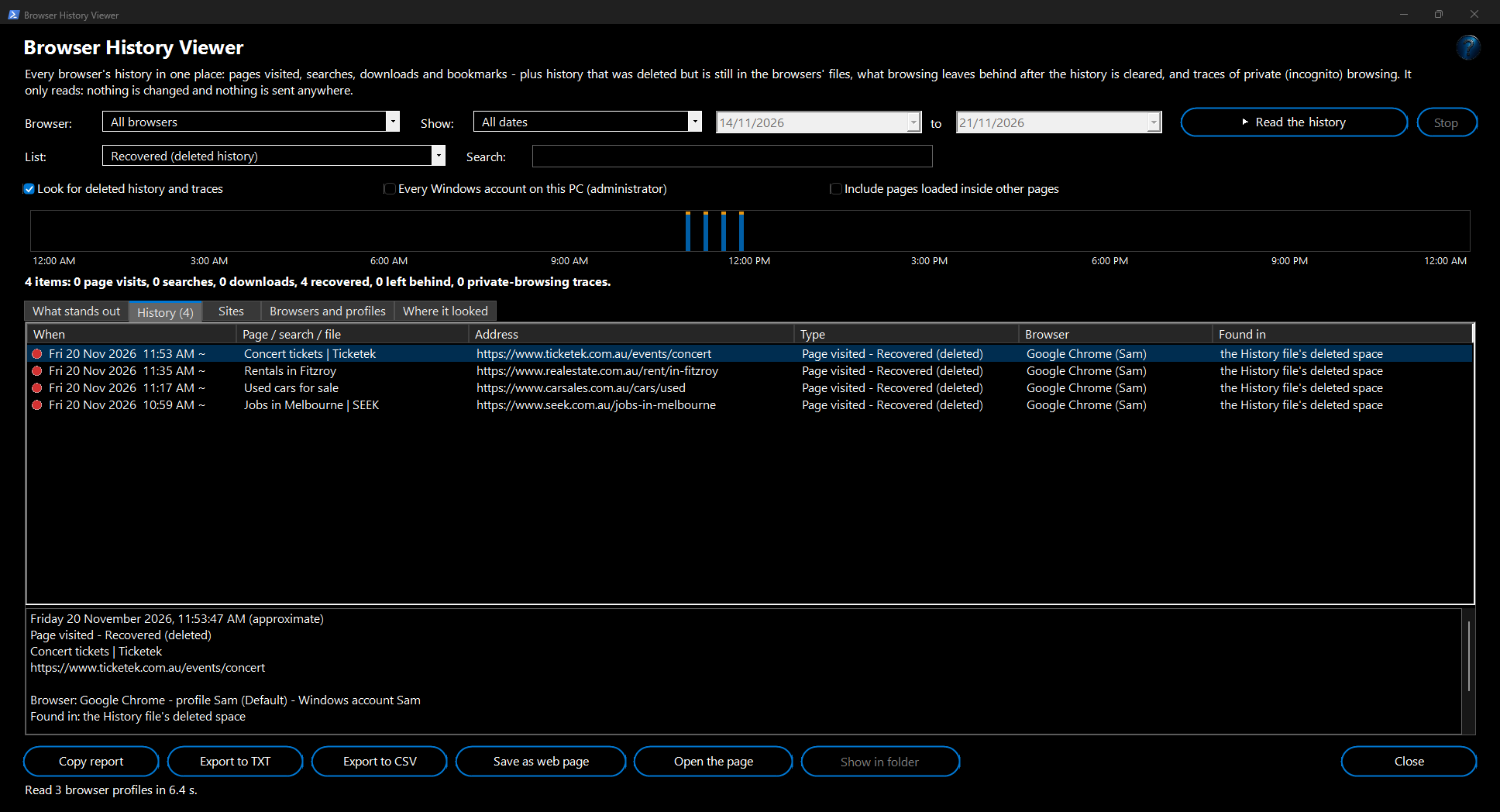
History tab lists everything, newest first. Click a row to see all of it underneath: the full address, when, how you got there, the page it was opened from, how long it stayed open, and where the record was found. Red dots are recovered (deleted) history, amber dots are private-browsing traces.
4. Narrow the list with
Browser,
Show (today, the last 7, 30 or 90 days, or your own dates),
List (pages, searches, downloads, bookmarks, recovered, left behind, private browsing traces) and
Search (any word in the address, title or file name).
5. The bar chart shows browsing over time - orange marks show deleted history or private browsing at that time. Click a bar to jump to it.
6. The
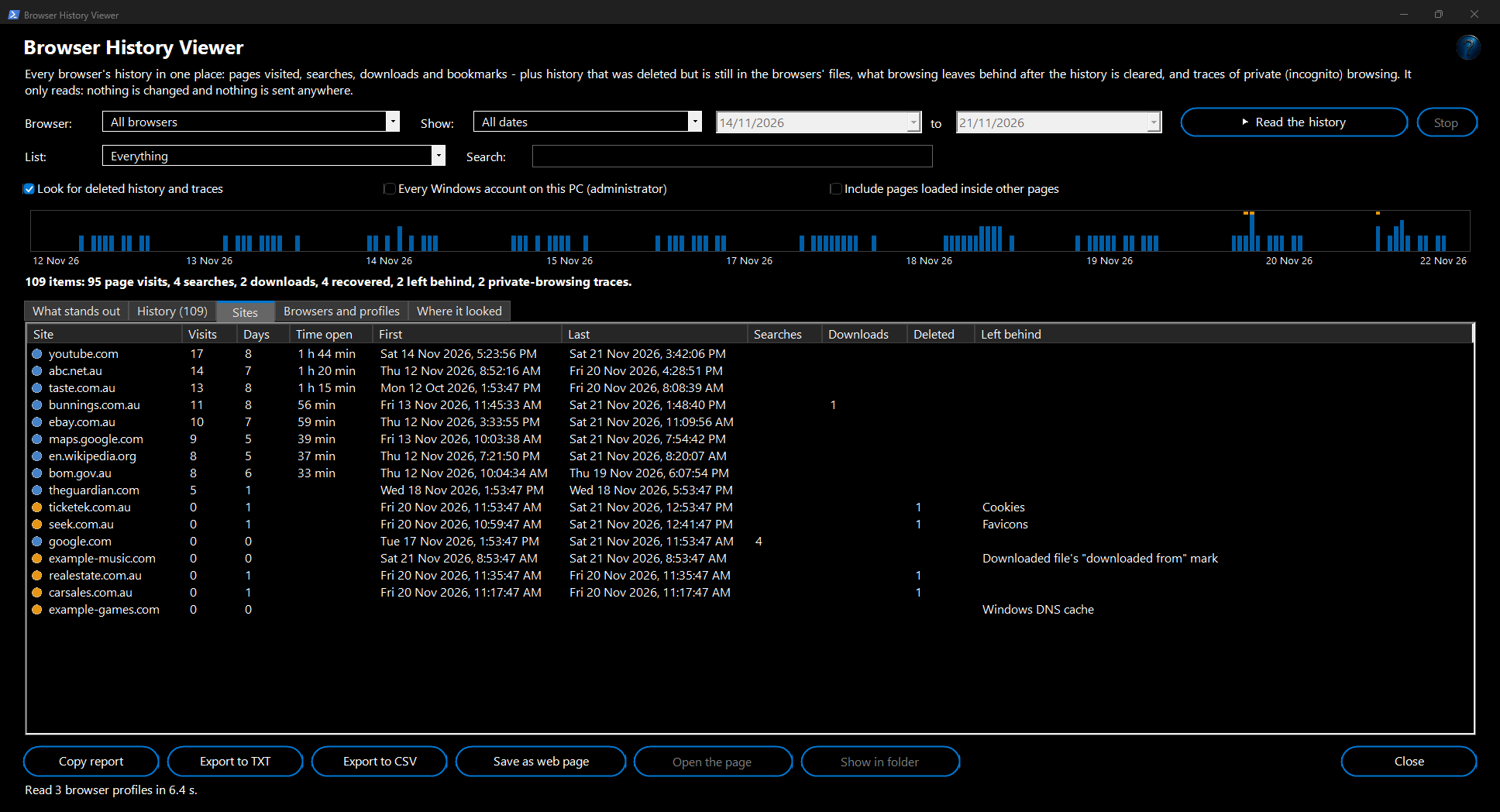
Sites tab adds it all up per site: visits, on how many days, total time open, first and last visit, searches, downloads, deleted entries and what was left behind. Double-click a site to see only its history.
7. Browsers and profiles shows each browser profile found and how far back its history goes;
Where it looked lists every file read and what was found.
8. Right-click a row to copy it, open the page, show a download in its folder or see only that site.
Copy report,
Export to TXT,
Export to CSV and
Save as web page save the results.
Example: the history was cleared
Jordan's teenager says they only did homework last night, but Chrome's history is empty for that evening. Jordan opens Browser History Viewer.
What stands out shows
Google Chrome was used after its newest history entry and
37 visits were deleted from the middle of the history. With
List set to
Recovered (deleted history), the deleted pages are back - concert tickets, used cars and a job site, each with the time it was visited. The
Sites tab shows ticketek.com.au's cookies were still there too.
Example: a private window
Sam finds
album.zip in Downloads, but no browser lists it. Browser History Viewer shows it under
Private browsing traces: Windows saved that it came from
example-music.com, and the site isn't in any browser's history - so it was downloaded in a private window. The DNS list also shows
example-games.com, looked up since the PC last restarted but not in any browser's records.
How it works and what to expect
- It copies each browser's files to a temporary folder and reads the copies, so the browsers are never changed. The copies are deleted afterwards.
- Deleted history is read from the free space inside the history file, the change file beside it ("-wal") and its backup copy ("-journal"). An address whose record is intact comes back with its title and date; one found only in the browser's address index comes back without them. Browsers also remove history older than about 90 days by themselves, so some "deleted" entries were removed by the browser, not by a person.
- Left behind: cookies (only the site and the times - cookie contents are never read), the cache, site storage, saved site icons, the new-tab page's top sites, open and recently closed tabs, typed address-bar entries and, for Firefox, the search box history.
- Private browsing: the Windows DNS cache is emptied at every restart, so restart and those traces are gone. Downloaded files keep their "downloaded from" mark until they're deleted or moved to a drive that can't keep it (such as a USB stick).
- Pages loaded inside other pages (adverts, embedded videos) are left out unless you tick Include pages loaded inside other pages.
- Run as administrator (FW Admin Tech Tools Pro always is) and tick Every Windows account on this PC to read the other accounts' browsers too. Administrator rights also let it copy files an open browser has locked.
- The window can ask for your Windows sign-in first if Ask me to sign in before opening password and recovery key tools is on in Options, because it shows private browsing.
- Your choices (dates, list, tick boxes, tab, the divider and any column widths you drag) are remembered for next time.
Good to know
- Nothing can show the pages visited in a private window while it was open - only the traces above remain.
- Recovered history becomes harder to find as the browser keeps writing over the free space; check as soon as possible.
- Bookmarks show the date they were added, not when they were visited.
- Open the page opens the address in your normal browser, which adds it to that browser's history.
Troubleshooting
- "in use - close the browser and read again" in Where it looked: the open browser has locked that file. Close the browser (check the notification area too) and click Read the history.
- A browser isn't listed: it's installed for another Windows account (tick Every Windows account on this PC), or it keeps its history somewhere unusual (portable browsers).
- No deleted history found: the free space has already been reused, or the browser compacted its files.
- Recovered entries have no date: only the address survived; the rest of the record was overwritten.