O365 Convert Word Docs to PDF - Convert a folder of Word Document to PDF (Updated Nov 2026)
Description
O365 Convert Word Docs to PDF turns every Word document in a folder (.doc, .docx and .docm, including subfolders) into a PDF in one go. With Microsoft Word installed it uses Word, so the PDFs look exactly like the documents do in Word; without Word, the app converts them by itself.
The PDFs keep the same folder layout in the save location, so documents with the same name in different folders never overwrite each other. Your original documents are opened read-only and are never changed. The conversion runs in the background, so the window stays responsive and you can cancel at any time.
How to use
 1.
Next to
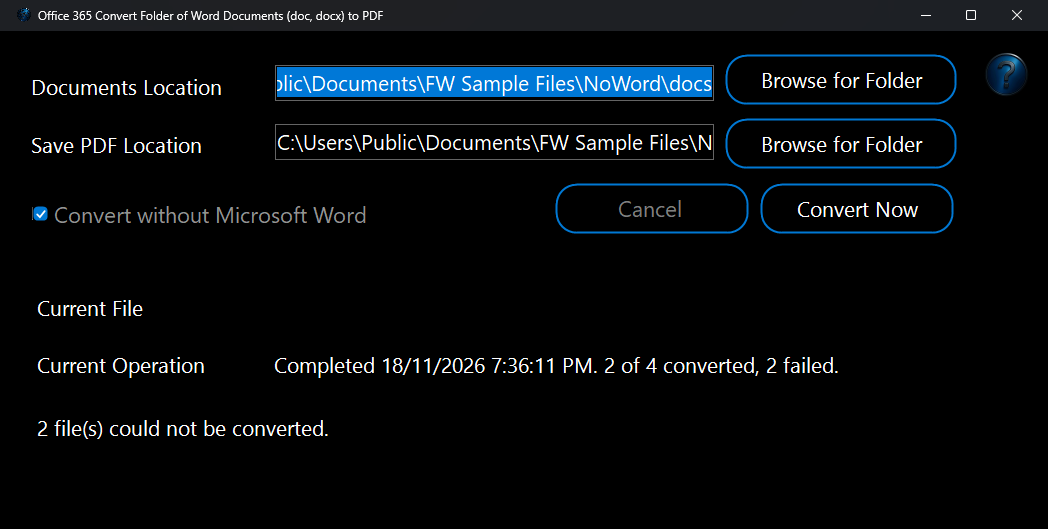
Documents Location, click
Browse for Folder and choose the folder of Word documents you want to convert to PDF. You can also type or paste the folder path into the box.
2. Next to
Save PDF Location, click
Browse for Folder and choose where the PDF files should be saved. The folder is created for you if it doesn't exist yet.
3. Click
Convert Now and sit back while the program does the work. Click
Cancel to stop after the file being converted.
4. Current File shows the document being converted and
Current Operation shows progress, for example "Converting 3 of 12 to PDF". When it finishes, it reports how many documents were converted. Any document that can't be converted (for example a password-protected one) is listed by name, and the rest are still converted.
Note: Microsoft Word isn’t needed — see
Without Microsoft Word below.
Without Microsoft Word
You don’t need Microsoft Word (Microsoft 365 or Office) for this tool.
Word not installed: Convert without Microsoft Word is ticked and can’t be unticked, and the window says the documents are converted by the app itself. Just pick the folders and click
Convert Now.
Word installed: Word is used, as before. Tick
Convert without Microsoft Word to have the app do it instead — for example when Word keeps asking questions or is slow to start. Your choice is remembered.
What to expect: headings, paragraphs, tables and pictures come across; a document with unusual fonts or complex layouts can look slightly different from Word’s own PDF. Sub-folders are kept in the save location. When it finishes, the window says
Converted by the app itself (without Microsoft Word).
Example: a folder
Club newsletters with
newsletter.docx and
Old\old letter.doc gives
newsletter.pdf and
Old\old letter.pdf — on a PC with no Office at all.
If something doesn’t work: the document is password-protected — open it in Word, remove the password, and try again.
the document is damaged or isn’t really a Word document — the file is broken.
Run it automatically with Watch and Process
Have a PDF made of every Word document that arrives in a folder, without opening this window.
How to set it up:
1. Open
Watch and Process Automation, type a
Task Name and pick the
Watch Folder with
Browse… — the folder your files arrive in.
2. In
File Types type
*.docx, *.doc (and
*.rtf or
*.odt if you use them).
3. Click
Add FW Tool…, choose
Convert Word Documents to PDF and choose where to
Save the result. The line
What this step will do at the bottom of the window sums up your choices. Click
OK.
4. Click
Add Task, select the task and click
Start Watching. From now on every new file is handled within a few seconds, while the Watch and Process window is open (it can be minimised).
Example: When you finish a letter, save it into
Documents\Letters\Final. A task watching that folder with this step and
Next to the original file puts
Letter to Sam.pdf beside
Letter to Sam.docx a few seconds later, ready to attach to an email.
Good to know: with Microsoft Word installed, Word is opened and closed in the background for each document, so allow a few seconds per file; without Word, the app converts the document by itself. Password-protected documents can't be converted and are listed in the Activity Log. To lock the PDF too, add
PDF Easy – Protect with a password as the next step — it works on the PDF this step made.
What You Can Do With This Program
Potential Uses for Your O365 Convert Word Docs to PDF Tool:
- Standardizing Document Distribution:
- Easily convert entire folders of Word documents into PDF format for consistent distribution. PDFs ensure that documents are viewed exactly as intended, regardless of the recipient's operating system, software, or fonts, eliminating formatting issues.
- Creating Read-Only Versions for Sharing:
- Generate non-editable PDF versions of contracts, reports, invoices, policies, or academic papers. This protects the original content from unauthorized modifications while sharing.
- Preparing Documents for Printing and Archiving:
- PDF is the industry standard for professional printing. This tool allows you to prepare multiple documents for print production quickly.
- Convert documents for long-term archiving, as PDFs are highly stable and widely supported across different platforms and years.
- Streamlining Workflow for Client/Customer Deliverables:
- For businesses that frequently send out proposals, product sheets, guides, or instructional materials created in Word, this tool automates the conversion to a universally accepted PDF format for client delivery.
- Web Publishing and Downloadable Content:
- Convert batches of Word documents into PDF files suitable for direct download from websites or intranets, providing users with a reliable and consistent viewing experience.
- Compliance and Record Keeping:
- Many industries and regulatory bodies require documents to be submitted or retained in PDF format for audit trails or legal compliance. Your tool automates this conversion for large volumes of documents.
- Batch Processing for Educational or Training Materials:
- Educators or trainers can quickly convert multiple lesson plans, handouts, or course materials from Word to PDF, making them easily shareable with students or trainees.