Outlook Folder Replicator - Copy a mailbox's folder structure, and its emails, to another mailbox (Updated Oct 2026)
Description
Outlook Folder Replicator copies the folder structure of one Outlook mailbox into another, and can copy the emails in those folders too. Pick the folders you want from a tree of the source mailbox, choose where they should go in the destination mailbox (the top of the mailbox or inside any folder), and the tool creates the same folders there, keeping their subfolders and their type (mail, calendar, contacts, tasks or notes).
It works with any mailbox in your Outlook profile, including shared mailboxes and Online Archives. Folders that already exist in the destination are reused rather than duplicated, emails are copied (the originals stay where they are), and a progress bar and colour-coded log show every folder and email as it is processed.
How to use
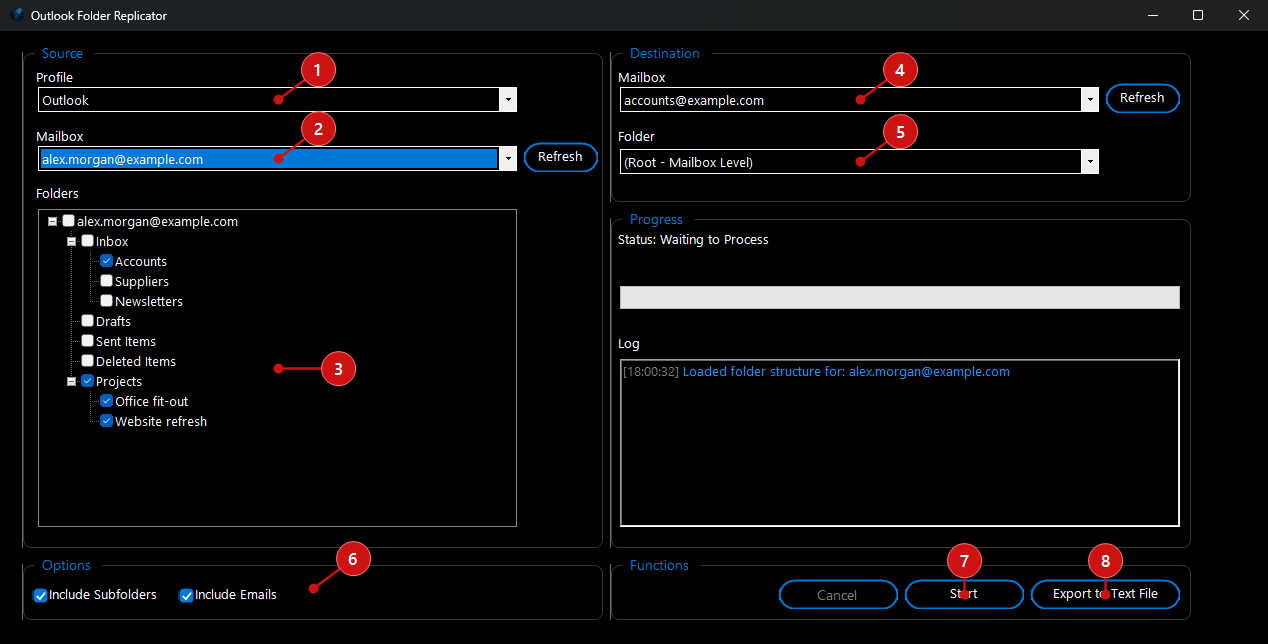 1.
Choose the Outlook
Profile to use. The first time, Outlook asks which profile to open, and the tool remembers it in this list. When the tool opens it needs its own Outlook session, so if Outlook is already open it asks whether it can close Outlook first.
2. Under
Source, pick the
Mailbox to copy from. Its folders are listed under
Folders; click
Refresh to read the mailbox list again.
3. Tick the folders you want to copy. With
Include Subfolders ticked, ticking a folder ticks everything inside it too, and its subfolders are recreated inside it in the destination.
4. Under
Destination, pick the
Mailbox to copy into (use its
Refresh button to re-read the list).
5. Choose the destination
Folder:
(Root - Mailbox Level) puts the copied folders at the top of the mailbox, or pick any folder to put them inside it.
6. Set the
Options:
Include Subfolders copies the ticked subfolders inside their parents, and
Include Emails copies the emails as well as creating the folders. Leave
Include Emails unticked to copy just the empty folder structure.
7. Click
Start and confirm. The progress bar, status line and
Log show each folder created (or found already there) and the emails copied. Click
Cancel to stop part-way.
8. Click
Export to Text File to save the log as a .txt file for your records.
Note: This tool uses the Outlook desktop application, so Outlook needs to be installed and set up with the mailboxes you want to use. Copying many emails can take a while; the emails are copied, never moved, so the source mailbox is left as it was.
What You Can Do With This Program
Potential Uses for Outlook Folder Replicator:
- Setting up a new or shared mailbox:
- Give a new shared mailbox (accounts@, reception@) the same folder layout as an existing one in a few clicks, instead of creating every folder by hand.
- Moving to a new mailbox or account:
- Copy chosen folders and their emails from an old mailbox to a new one, keeping the subfolder structure, when someone changes role, company domain or account.
- Archiving projects:
- Copy a finished project's folders into an Online Archive or another mailbox before tidying up the original.
- Keeping teams consistent:
- Use one well-organised mailbox as the template for others, so everyone files mail the same way.