Download Manager - Download many files at once, with resume, speed control and automatic retries (Updated Oct 2026)
Description
The Download Manager takes a list of download links and fetches them all for you — several at a time, in the background, while you get on with something else. You can bring links in however suits you: import a
text or
CSV file full of URLs, add one by hand, drag-and-drop links onto the window, paste them in, or point the tool at a web page and let it pull every downloadable link off it. You then choose how many downloads run
at the same time, where they are saved, and press
Start.
Under the hood it is a proper download engine, not just a fetcher. It
resumes a download that was interrupted — even if you closed the app and reopened it — rather than starting over. It can split a single big file across
several connections to pull it down faster,
cap the speed so a big batch doesn't swallow your whole connection,
verify a finished file against a checksum, fall back to
mirror URLs, and
retry failures on its own. Every row shows a live progress bar, speed and time-remaining, plus when it started and finished.
Before you start — requirements
Nothing extra is needed. The Download Manager uses only what is already on your PC — there is nothing to install.
Run as administrator. As with the rest of FW Admin Tech Tools Pro, run the app as administrator. Just make sure the folder you download into is one your account can write to (the tool defaults to your
Downloads folder).
Where your queue is saved. Your download list is stored as
downloads.json in
%LOCALAPPDATA%\FWAdminTechToolsPro\TechTools, together with a small
.fwdl file beside each part-finished download. This folder is tied to the product rather than the version, so your queue and any half-finished downloads are kept when you update the app — and picked straight back up next time you open the tool.
The main window
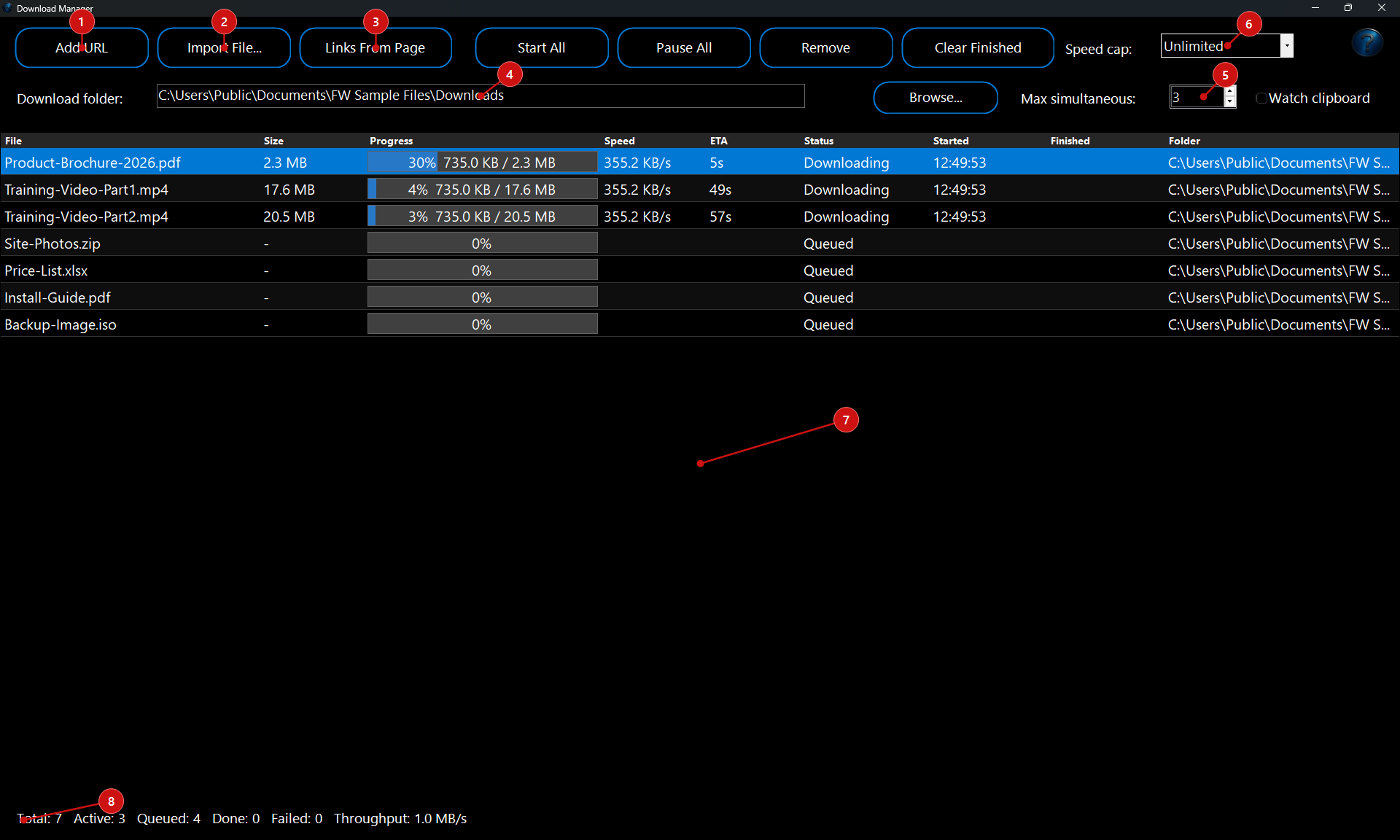
The window has three parts. The
toolbar at the top is where you add downloads and set the batch options (how many run at once, and a speed cap). The
grid in the middle is your list of downloads, one per row, each with its own live progress bar. The
dashboard along the bottom keeps a running tally of the whole batch and the total speed.
Adding downloads
There are several ways to get links into the list — use whichever is handiest.
Add a single link. Click
Add URL to open the add dialog, where you paste a link and set any per-download options (see
The download options below). You can paste several links into the URL box at once and they are all added.
Import a file of links. Click
Import File… and choose a
.txt,
.csv,
.tsv or plain list file. The tool reads one link per line; if a line has commas or tabs it also understands an optional
url, filename, folder layout, so a spreadsheet export works as-is. Lines starting with
# or
// are treated as comments and skipped.
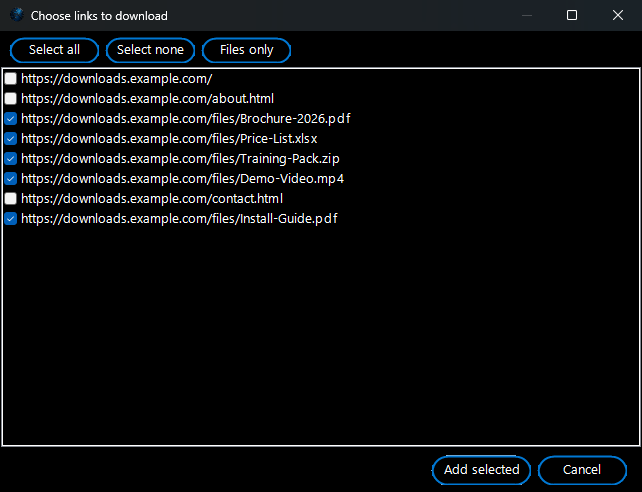
Pull links off a web page. Click
Links From Page, paste a page address, and the tool fetches the page and lists every link it finds. Tick the ones you want (there is a
Files only button that pre-selects the obvious downloads like ZIP, PDF, MP4 and so on) and add them in one go.
 Drag, drop and paste.
You can
drag and drop links (or a list file) straight onto the window, and paste links in. Turn on
Watch clipboard and the tool keeps an eye on your clipboard — copy a download link anywhere and it is added to the list automatically, so grabbing a batch of files is just a series of copies.
Download folder, how many at once, and speed cap
Download folder. The
Download folder box (with its
Browse… button) sets where new downloads are saved. Any single download can be pointed at a different folder from its own options.
Max simultaneous. The
Max simultaneous number box is the heart of the tool — it is how many downloads run
at the same time. Set it to 1 to download one after another, or raise it to run several in parallel (the default is 3). You can change it at any time, even mid-batch, and the tool starts or holds downloads to match.
Speed cap. The
Speed cap drop-down limits the
total download speed across the whole batch, so a big download run doesn't take over your internet connection. Leave it on
Unlimited for full speed, or pick a ceiling. Any single download can also be given its own cap in its options.
The download options
When you add a link (or double-click a row to edit it) you get the options dialog. Most downloads need nothing here but the URL — the rest is there when you want it.
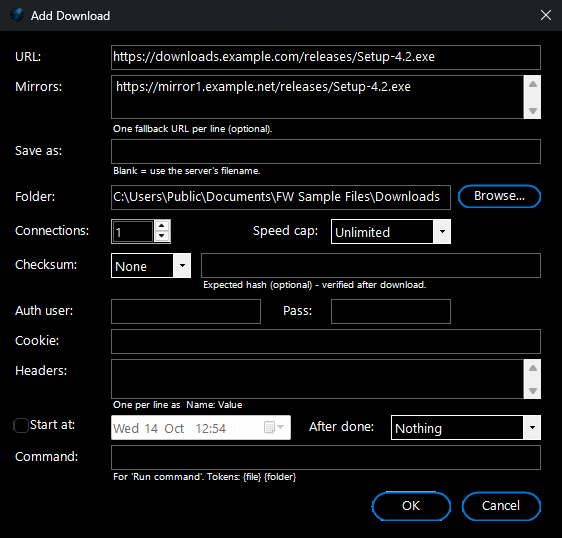
- URL: The link to download. Paste several at once to queue them together.
- Mirrors: Optional fallback links, one per line. If the main link fails, the tool tries each mirror in turn before giving up.
- Save as / Folder: An optional filename (leave it blank to use the server's own name) and the folder to save into.
- Connections: How many connections to split this file across. One is fine for most files; raise it to pull a big file down faster when the server supports it.
- Speed cap: An optional ceiling for this download on its own.
- Checksum: Pick MD5, SHA1 or SHA256 and paste the expected hash, and the tool verifies the finished file — a mismatch is flagged as failed rather than passed off as done.
- Authentication: A user name and password (basic auth), a cookie, and any custom headers (one Name: Value per line) for links that sit behind a login.
- Start at: Tick this to hold the download until a date and time you choose — handy for scheduling a big pull for off-peak hours.
- After done: What to do when the file finishes — open the file, open its folder, unzip it, or run a command (with
{file} and {folder} tokens).
Running your downloads
Press
Start All and the tool works through the list, keeping as many going as your
Max simultaneous setting allows and starting the next one whenever a slot frees up. Each row shows its own progress; the dashboard shows the batch as a whole.
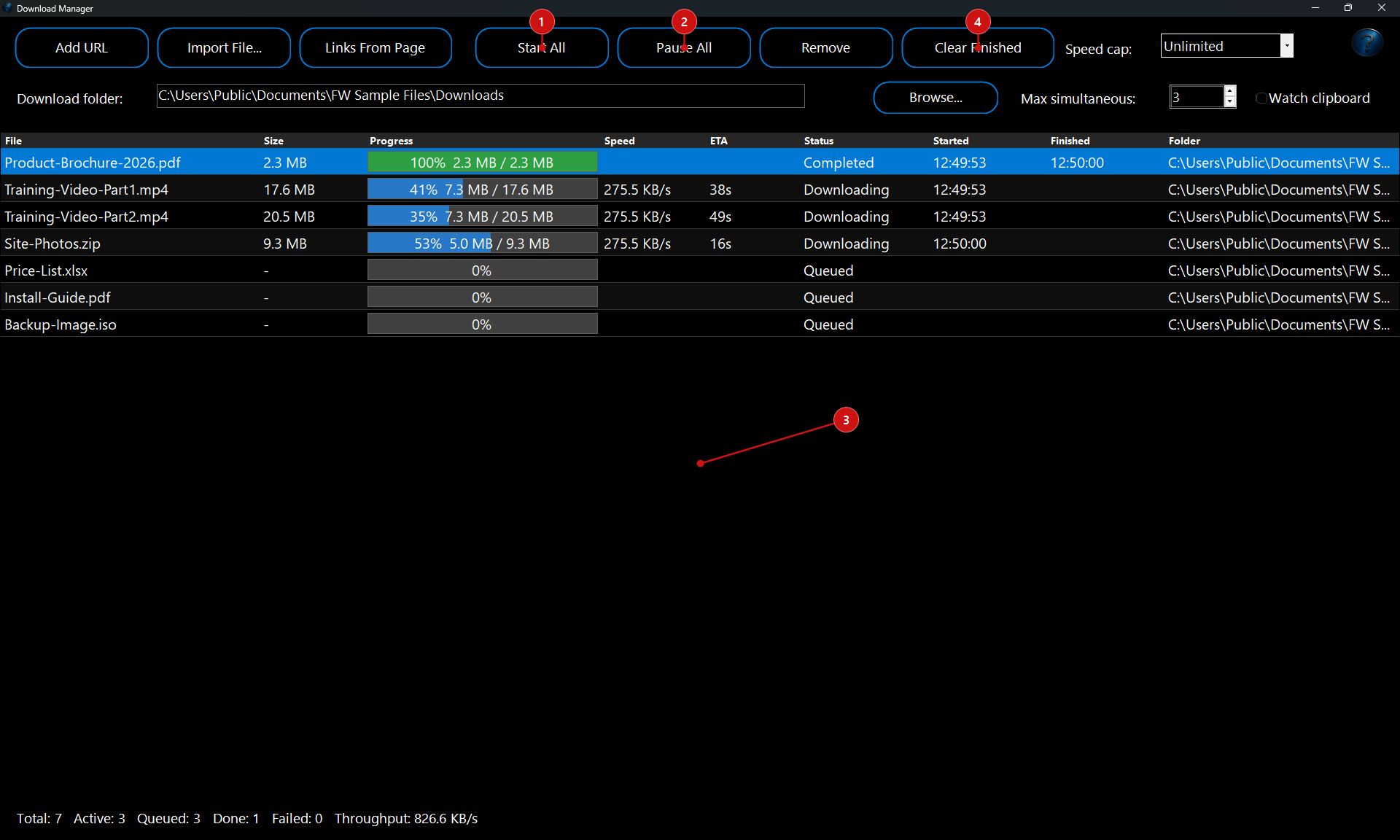
- Start All / Pause All: Begin (or resume) everything, or pause the whole batch. A paused download keeps what it has already fetched.
- Per-download progress: The Progress column is a live bar with the percent and the amount downloaded out of the total; the Speed and ETA columns show the current speed and the estimated time left.
- Start and finish times: The Started and Finished columns record when each download began and completed, so you have a record of the run.
- Right-click a row to start, pause or cancel it, open the finished file or its folder, copy the URL, edit its options, or remove it. Clear Finished tidies the completed and cancelled rows out of the list.
- Runs in the tray: Minimize the window and the tool keeps downloading from the system tray, popping up a notification (with a sound) as each download finishes or fails. Double-click the tray icon to bring it back.
Per-download status. As the batch runs, each row moves through states such as
Queued,
Scheduled,
Connecting,
Downloading (shown as
Downloading x4 when it is split across connections),
Paused, a
Retry … in … countdown when a failure is being retried,
Verifying while a checksum is checked, and then
Completed or
Failed with the reason.
Resume, retry and verify
Resume. If a download is interrupted — you pause it, lose your connection, or close the whole app — the tool keeps the part it already has and carries on from there next time, rather than starting the file again. Downloads split across several connections resume the same way.
Auto-retry. When a download fails, the tool waits a moment and tries again on its own, backing off a little longer between each try, and resuming from where it got to rather than restarting. If the link has mirrors, those are tried too.
Verify. If you gave a download a checksum, the finished file is hashed and compared before it is marked done, so you know a file arrived exactly as it should — and a corrupted or tampered download is caught instead of quietly passing.
Run it automatically with Watch and Process
Drop a list of links into a folder and have every file downloaded automatically: when a text file of web links (one per line) or a saved Internet shortcut (.url) arrives, each link is downloaded into the folder you choose.
How to set it up:
1. Open
Watch and Process Automation, type a
Task Name and pick the
Watch Folder with
Browse… — the folder your files arrive in.
2. In
File Types type
*.txt, *.url.
3. Click
Add FW Tool…, choose
Download Manager – Download the links in a list and choose the folder to
Download into, the number of
Tries for each link, when to
Give up on a link, and what to do
If a file with that name is already there. The line
What this step will do at the bottom of the window sums up your choices. Click
OK.
4. Click
Add Task, select the task and click
Start Watching. From now on every new file is handled within a few seconds, while the Watch and Process window is open (it can be minimised).
Example: Paste the download links from an email into Notepad, one per line, and save the file as
to-download.txt in
Documents\Download Lists. The task downloads each one into
Downloads\Fetched, one after another, and the Activity Log shows, for example,
"3 of 3 downloaded". Dragging a link from your browser onto the folder makes a .url shortcut, which works too.
Good to know: Only http:// and https:// links are downloaded; other text in the file is ignored. Links that fail are tried again (with a short wait), and any that still fail are listed in the log — for example "the site answered 404 Not Found". Files are named the way the website names them. This step downloads one file at a time; use this window for speed limits, several connections, schedules and resuming large downloads.