Network Traffic Replicator - Capture live network packets on an adapter and replay them back onto the network for testing (Updated Oct 2026)
Description:
Network Traffic Replicator captures the packets travelling across a network adapter you choose and can
replicate them — sending one or more copies of each matching packet back onto the network. You pick an interface, optionally narrow things down to a particular
source or
destination IP address, and set how many times each matching packet should be re-sent. As it runs, a
Live Traffic list shows every packet it sees and a
Replicated Traffic list shows every copy it sends, while a status panel keeps a running count of packets captured, matched and replicated. Both lists can be exported to a text file or CSV for a record of the session. It is a straightforward way to generate real, repeatable traffic on a network so you can exercise the equipment and software that watches that network.
Built for safe, controlled testing: The tool is designed to be run on a lab or test segment where you control the traffic. A loop guard (
Ignore our own re-injected packets) stops replayed packets from being captured and replayed again in an ever-growing loop, and if you start with no filter set — which would replicate
every packet on the wire — it warns you first. All of the capture work runs in the background so the window stays responsive, and the live lists are capped so long sessions do not slow down.
Before you start — requirements:
Npcap must be installed. This tool relies on the free
Npcap capture driver (the modern, WinPcap-compatible successor). If it is not installed, no adapters will appear and the tool will offer to open the download page for you. Get it from
https://npcap.com/#download — choose the plain
“Npcap <version> installer” (a .exe, not the SDK, OEM or source), and during setup tick
“Install Npcap in WinPcap API-compatible Mode”.
Run as administrator. Capturing and injecting packets needs elevated rights, so run FW Admin Tech Tools Pro as administrator. Without it, the adapter list may be empty or capture will fail.
How to use:
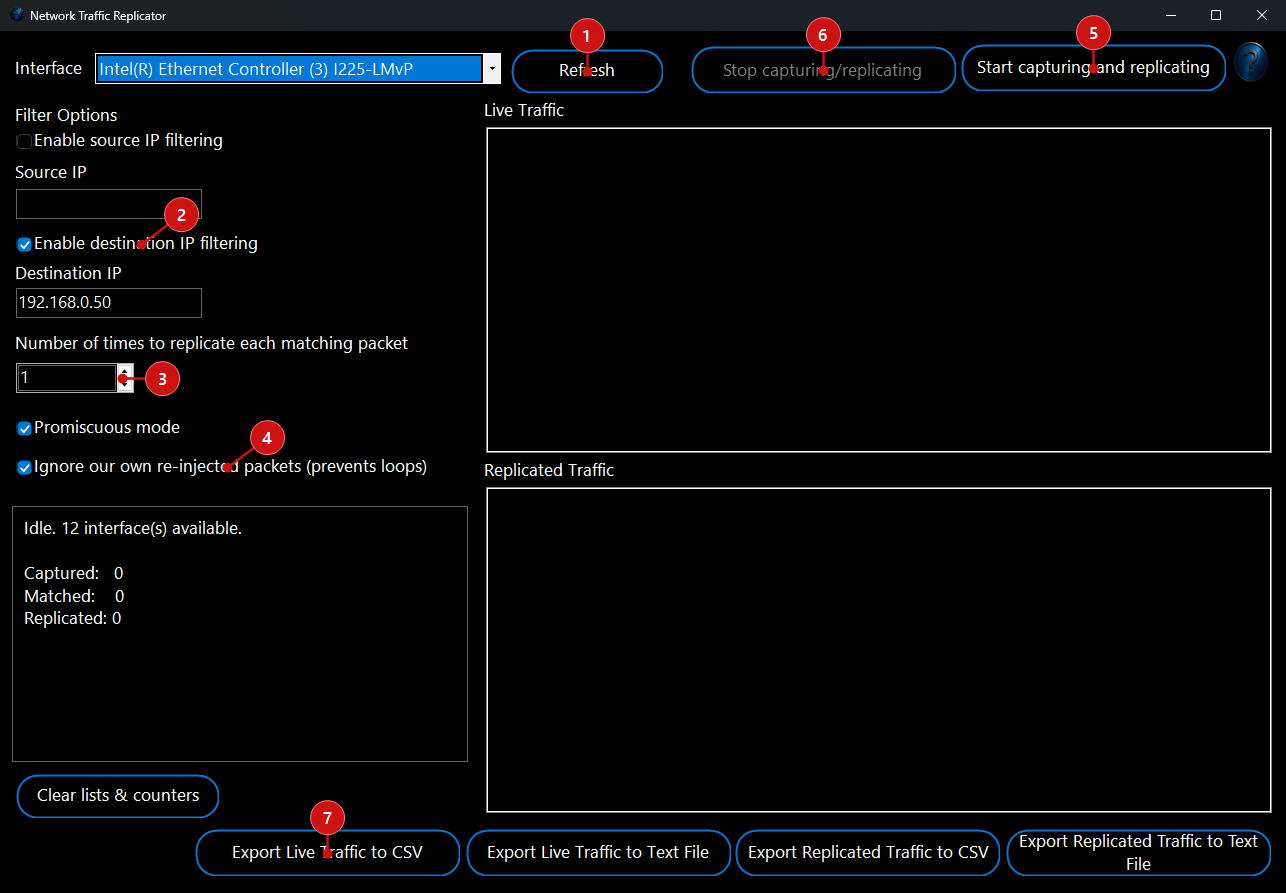 1. Choose a network interface.
 Open the
Interface drop-down at the top and pick the adapter you want to work on. If you plug in an adapter or none are listed, click
Refresh to reload the list. The status box shows how many interfaces were found — if it shows none, Npcap is probably not installed or the app is not running as administrator (see the requirements above).
2. Decide what to replicate (filters). By default
every packet the adapter sees is matched and replicated. To narrow it down, tick
Enable source IP filtering and enter a
Source IP, and/or tick
Enable destination IP filtering and enter a
Destination IP (for example
192.168.1.50). Only packets that match the filters you enable are replicated. Leaving both off means “replicate everything”, and the tool will ask you to confirm because that can put a lot of traffic on the network.
3. Set how many copies to send. In
Number of times to replicate each matching packet, choose how many times each matching packet is re-sent (1 sends a single duplicate; higher numbers multiply the traffic). Start with 1 while you check everything behaves as expected.
4. Set the options. Promiscuous mode (on by default) lets the adapter see traffic that is not addressed to your machine, which is usually what you want when testing a segment. Leave
Ignore our own re-injected packets (prevents loops) ticked — it stops the packets you send from being captured and replayed again in a runaway loop.
5. Start. Click
Start capturing and replicating. The
Live Traffic list fills with the packets being seen (source → destination and protocol), the
Replicated Traffic list shows each copy being sent, and the status box counts packets
Captured,
Matched and
Replicated in real time.
6. Stop when you are done. Click
Stop capturing/replicating to end the session. You can start and stop as often as you like, and change the interface, filters or options between runs.
7. Save a record (optional). Use the export buttons along the bottom to save the
Live Traffic or
Replicated Traffic list to a plain text file or a CSV (with a timestamp, source, destination, protocol and packet size on every row) for your notes or a report.
Clear lists empties both lists and resets the counters when you want a fresh start.
Important safety notes:
- Replaying packets puts real, extra traffic on the network. Use it on an isolated or test segment you control, not a busy production network, where duplicate packets could cause confusion or disruption.
- Keep Ignore our own re-injected packets ticked so a replay cannot feed itself into an amplification loop, and start with a filter and a replicate count of 1 until you are sure of the effect.
- Some virtual adapters (for example a Hyper-V virtual switch) either cannot be captured on or will silently drop injected packets. If replication does not appear to reach anything, try a physical adapter. The tool will warn you if the chosen interface cannot inject packets.
- Only capture and replay traffic on networks you own or are authorised to test.