Hidden Program Finder - Find programs that start by themselves or hide in the background, and turn off the ones you don't want. (New Nov 2026)
Description
The Startup list in Task Manager only shows some of the programs that start by themselves. Programs can also start from scheduled tasks, services, drivers, Windows' sign-in settings and less-known places - and that's exactly where harmful software, unwanted "helpers" and remote access programs installed by scammers like to hide.
Hidden Program Finder looks in
every one of those places, plus every program running right now and the network connections each one makes, and tells you in plain English which ones are
worth a look and why: not signed by their maker, running from a folder programs don't normally live in, named like a Windows program (svchost.exe in the wrong folder, or "svch0st.exe"), hidden, started through hidden PowerShell commands, set up as a hidden scheduled task, added recently, or new since your last check. Anything you don't want can be
turned off - you see exactly what will change first, and everything can be
turned back on.
How to use
1. Open
Hidden Program Finder (in
Security & Privacy, or type "hidden programs", "what starts with windows" or "something keeps starting" in the search box). It checks straight away; this takes about 10 seconds.
2. The coloured banner sums it up: red = warnings to look at first, amber = worth a look, green = nothing worrying found.
What stands out lists the findings, new items since the last check, remote access programs and more.
3. Everything found lists the items.
Show starts on
Only things worth a look; pick
Everything,
New since the last check,
Starts with Windows,
Scheduled tasks,
Services and drivers,
Running now,
Remote access programs and more. New items are in bold.
Hide Windows' and Microsoft's own items (on by default) leaves out Windows' own programs when nothing is wrong with them.
4. Click an item to see why it was pointed out and what to do, followed by the program, its signature, when it starts, which account it runs as and when it was added.
5. Not sure what it is?
Search the web searches for the program's name and maker;
Look up on VirusTotal opens VirusTotal's report for that exact file (only the file's fingerprint is sent, not the file).
6. Click
Turn off... to stop the selected items starting by themselves. A preview shows exactly what will change; click
Apply. Start-up entries are switched off the same way Task Manager does it, scheduled tasks are disabled, services are set to Disabled (from the next restart), hidden programs are moved to the Recycle Bin.
Stop program closes a running program now.
7. Changed your mind? Open the
Turned off here tab, pick the change and click
Turn back on. Every change is also in
Change Journal.
8. Recognise something that was pointed out? Select it and click
I trust this - it won't be pointed out again unless the program file changes.
9. The
Network tab shows which program is connected to which computer, and which programs wait for connections from other computers. Double-click a row to see that program.
Copy report,
Export to TXT,
Export to CSV and
Save as web page keep the results.
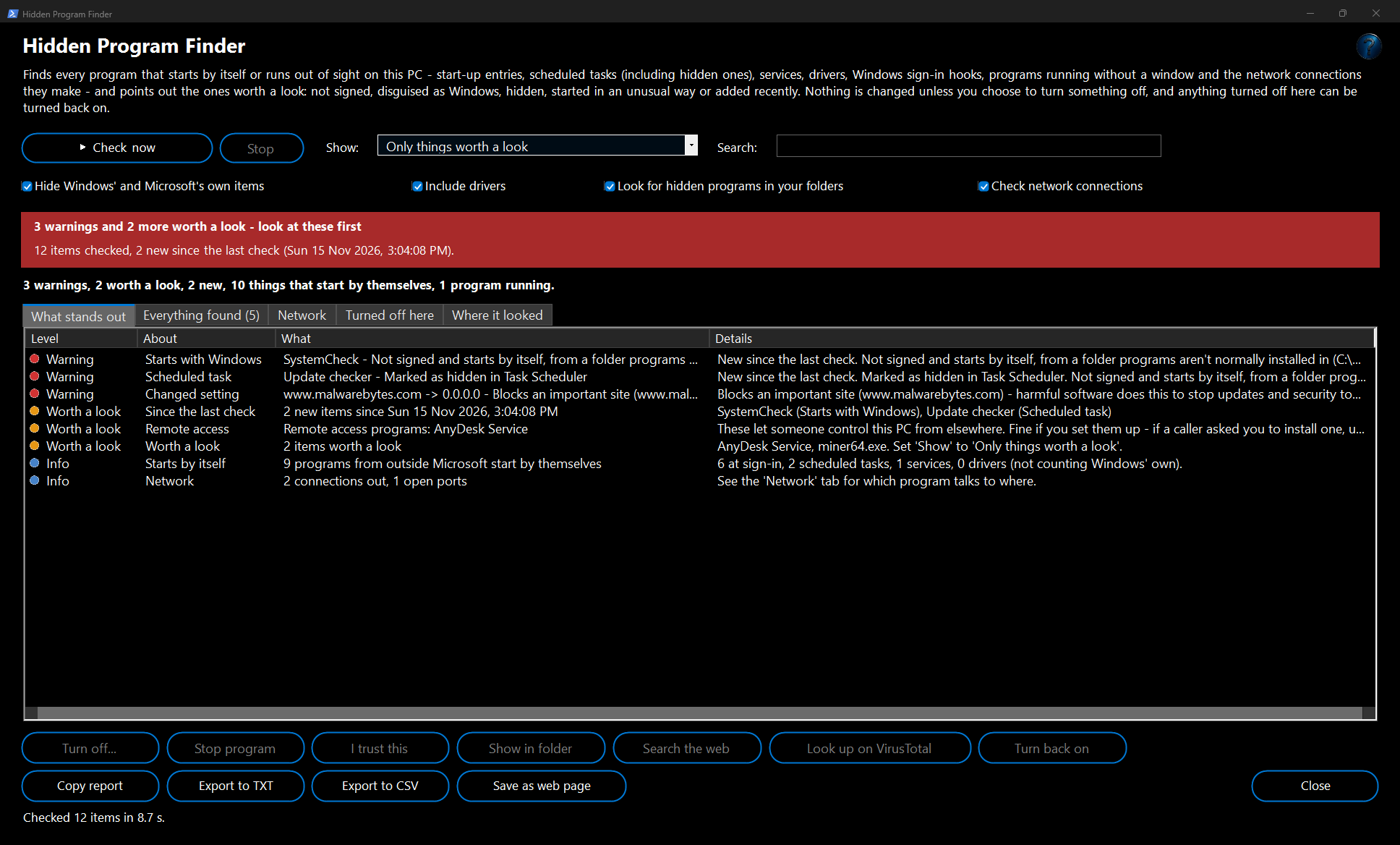
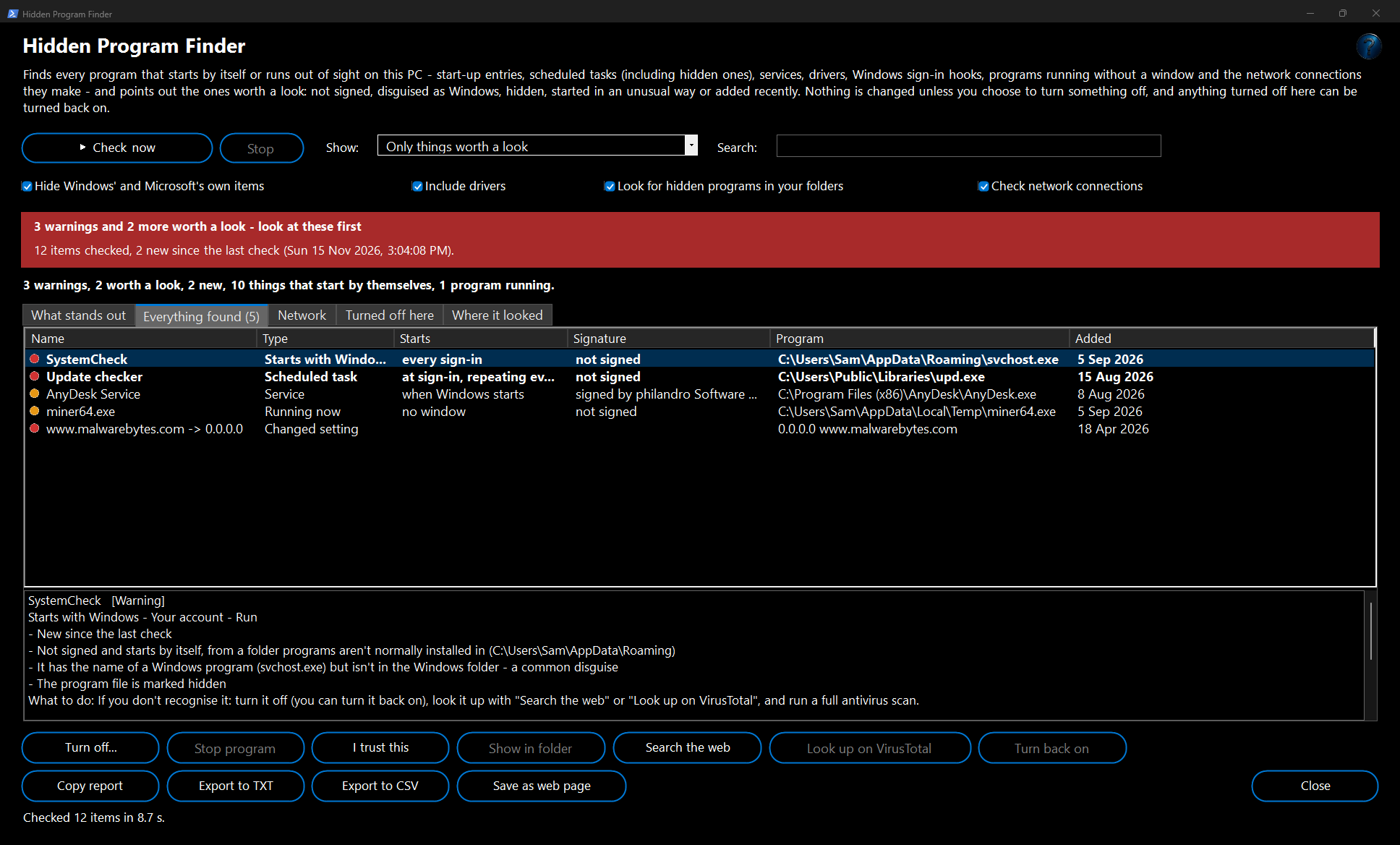
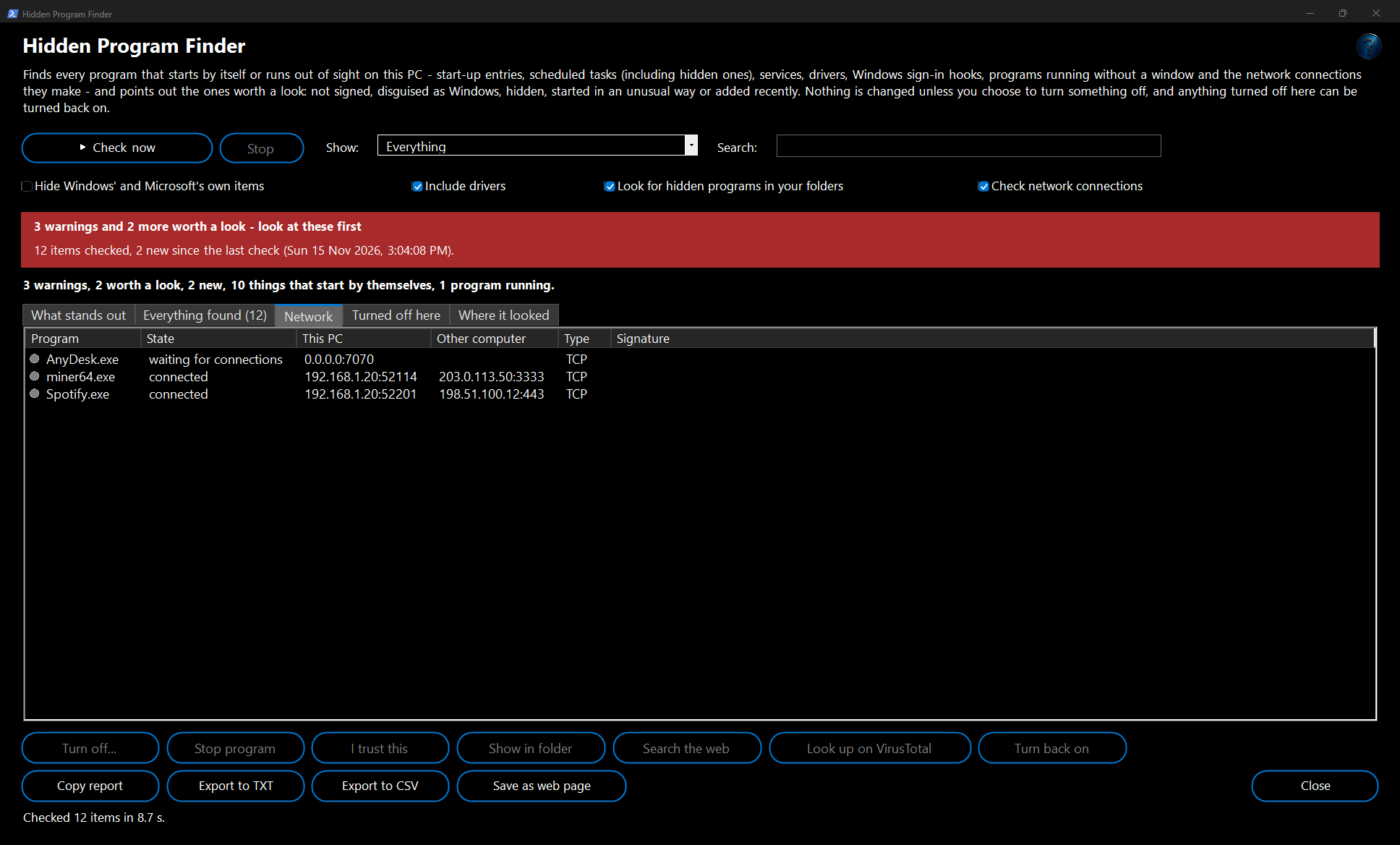
Example: a program pretending to be Windows
Sam's laptop fan runs loudly even when nothing is open. Hidden Program Finder shows a red warning:
SystemCheck starts at every sign-in and runs
C:\Users\Sam\AppData\Roaming\svchost.exe -
It has the name of a Windows program (svchost.exe) but isn't in the Windows folder - a common disguise,
Not signed and
The program file is marked hidden. A
miner64.exe is running from the Temp folder with no window and is connected to another computer on port 3333. Sam selects both, clicks
Stop program for the miner and
Turn off... for the start-up entry, then runs a full antivirus scan. The fan goes quiet.
Example: after a "support" phone call
Alex let a caller "fix" the PC.
What stands out shows
Remote access programs: AnyDesk and
2 new items since last week: the AnyDesk service and a hidden scheduled task
Update checker running a program from C:\Users\Public. Alex turns both off, uninstalls AnyDesk in Settings, and changes passwords from another device.
How it works and what to expect
- Where it looks: Run and RunOnce entries (your account and every account, 64- and 32-bit, policy entries), the Startup folders, every scheduled task (with what triggers it and whether it is marked hidden, plus tasks hidden from Task Scheduler altogether), services and drivers that start by themselves, Windows sign-in hooks (Winlogon Shell and Userinit, programs that run instead of another program, AppInit DLLs, Command Prompt AutoRun, BootExecute, password and security packages, Active Setup, printer port monitors, screen savers), WMI event subscriptions, every running program and its network connections, hidden programs in your AppData, ProgramData, Public and Temp folders, the hosts file and proxy settings.
- Signatures: every program file is checked for a valid digital signature, including Windows' own files that are signed in Windows' catalogues - so Windows' programs aren't wrongly reported as unsigned. Nothing is sent anywhere to do this.
- New since the last check: each check remembers what it found (on this PC only). The next check marks anything added since then in bold - the easiest way to spot something that sneaked in. Running programs come and go, so they are not compared.
- Turning off never deletes a program (except hidden programs you choose to move to the Recycle Bin, which can be restored). Windows' own services and tasks can't be turned off here, so you can't break Windows by accident.
- Run as administrator (FW Admin Tech Tools Pro always is) for a complete check: some tasks, WMI subscriptions and "every account" entries need it, and turning off entries for every account, services or the hosts file needs it too. Where it looked says what couldn't be read.
- The window can ask for your Windows sign-in first if Ask me to sign in before opening password and recovery key tools is on in Options.
- Your choices (Show, the tick boxes, the tab, the divider and any column widths you drag) are remembered for next time.
Good to know
- "Worth a look" doesn't mean harmful. Many small, honest programs aren't signed, and some updaters use hidden tasks. Look it up before turning off something you don't recognise.
- This isn't a virus scanner - it finds what starts and hides, which is where harmful software has to be. Keep your antivirus on, and run a full scan if a warning is found.
- A WMI subscription that is removed can't be put back automatically; its command is kept in Change Journal.
- Search the web and Look up on VirusTotal open your browser only when you click them.
Troubleshooting
- Turn off is greyed out: the item is already off, it's part of Windows, or it needs administrator rights (hover over the button or see the message).
- It comes back after turning it off: something else is putting it back - look for a second item with the same program (a task or service), turn that off too, and run an antivirus scan.
- A service is still running after turning it off: services stop at the next restart.
- VirusTotal says it has never seen the file: that's common for small or brand-new programs - it doesn't mean the file is safe or harmful.