Change Journal - See everything the tools changed on your PC, and undo it (Updated Nov 2026)
Description
Change Journal keeps a record of everything FW Admin Tech Tools Pro changes on your PC: files that were renamed,
moved, copied or deleted, files whose contents were rewritten, and Windows settings that were changed. Each action is
listed with every single change it made, and you can put back the whole action or only the changes you choose —
even after closing the app or restarting your computer. Undo never overwrites anything that has been changed again
since; it leaves it alone and asks you first.
How to use
-
Open Change Journal:
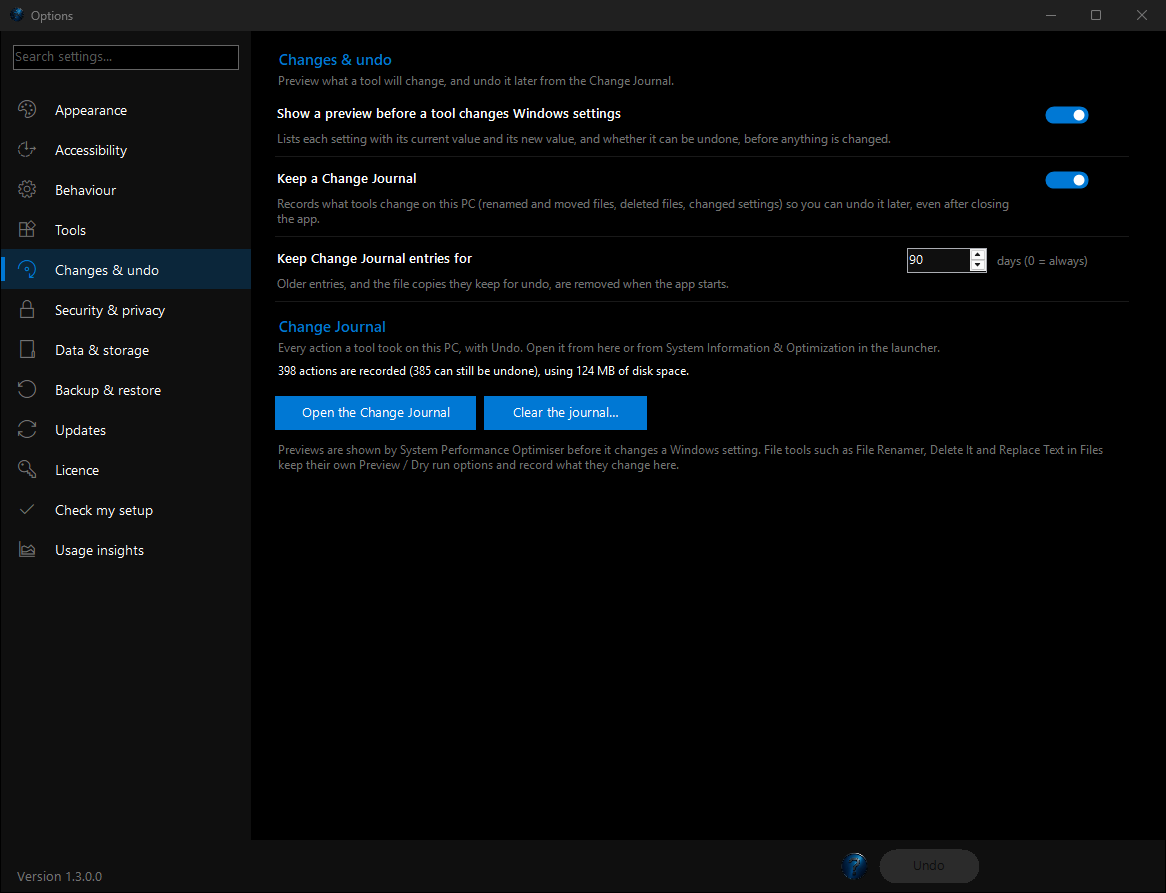
Find it in the System Information & Optimization category, or open Options > Changes & undo
and click Open the Change Journal.
-
Find the action:
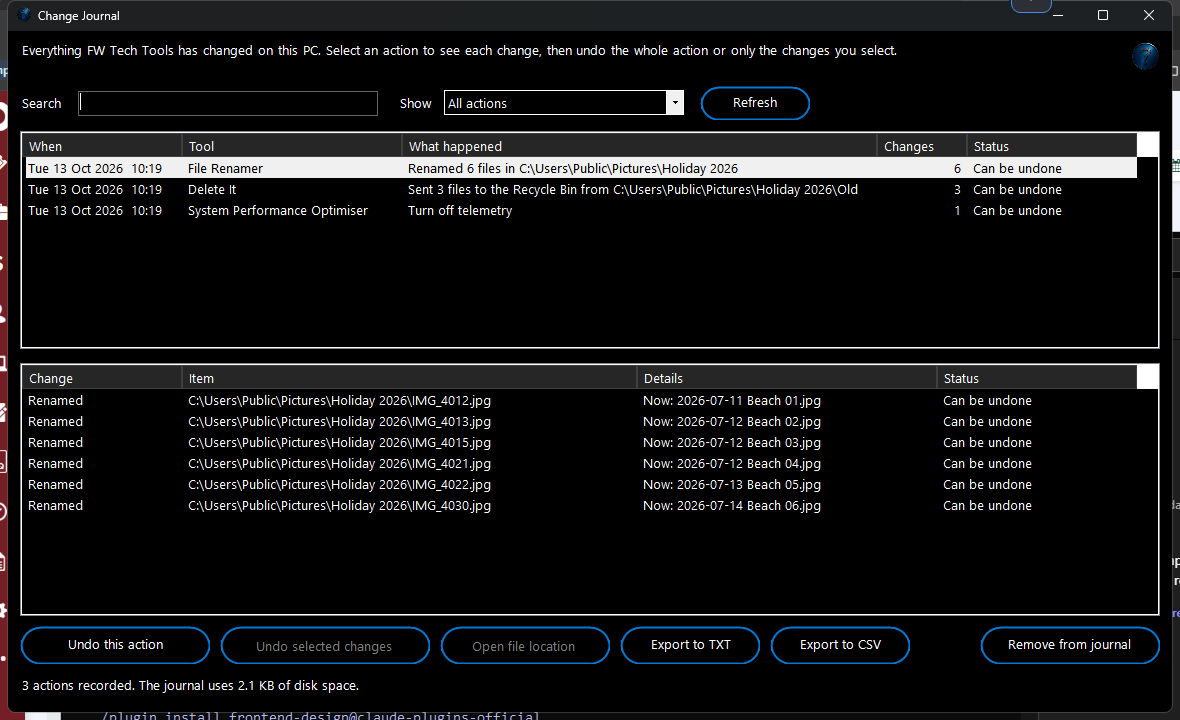
The top list shows each action, newest first: when it happened, which tool did it, what it did, how many changes it made
and whether it can still be undone. Type a file name in Search to find the action that changed it, and use
Show to list only actions that can be undone or ones you have already undone.
-
See every change:
Select an action. The lower list shows each single change it made — for a rename, the old name and the new one; for a
setting, its old value and its new value — and whether that change can be undone. Double-click a change, or click
Open file location, to see the file in File Explorer.
-
Undo:
Click Undo this action to put everything back, or select some changes and click Undo selected changes.
If a file was edited, moved or deleted after the tool changed it, that change is left alone and you are asked whether to
undo it anyway.
-
Keep a record:
Click Export to TXT or Export to CSV to save the selected action and all its changes — handy for your
own records or to show someone exactly what was done. Remove from journal forgets an action without changing
anything on your PC.
Previews before anything changes
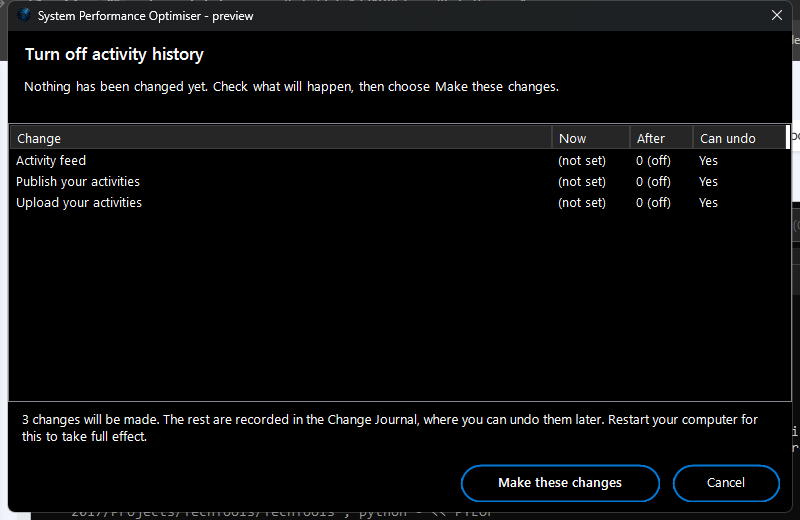
Before System Performance Optimiser changes a Windows setting, a preview lists each setting with its current value, its new
value and whether it can be undone. Nothing changes until you click Make these changes, and settings that are already
set the way you asked are greyed out and skipped.
Settings
In Options > Changes & undo you can turn the previews and the journal on or off and choose how many days
entries are kept (90 by default).
What is recorded and what can be undone:
- File Renamer: every rename — can be undone.
- File Organiser: every file moved or copied into date folders, the folders it created, and any file it replaced — can be undone.
- Delete It and Delete Empty Folders: files and folders sent to the Recycle Bin are restored from it, and removed empty folders are recreated. Files deleted permanently are listed but can't be brought back.
- Update File Attributes: the previous dates and attributes of every file — can be undone.
- Replace Text in Files: a copy of each file before it was changed, and any renamed files — can be undone.
- Zip It: the ZIPs it made, any ZIP it replaced (a copy is kept) and the originals it sent to the Recycle Bin after zipping — can be undone.
- Watch and Process Automation: one entry per pass, named after the task: results its FW tool steps made or replaced, files moved to the Move Processed Files To folder and files sent to the Recycle Bin by Delete After Processing — can be undone. Programs you added yourself aren't recorded.
- Windows Profile Backup: every file a restore replaced (a copy is kept first) and every file it added — can be undone.
- Disk Space Analyser: files and folders deleted to the Recycle Bin — restored from it.
- FTP Commander: renames, Recycle Bin deletes and new folders on this PC — can be undone. Changes on the server have their own Undo history tab in FTP Commander.
- Image Type Converter, Convert Image N Size, Convert HEIC, Convert All Images To One Size, Convert Audio and Convert Video: the files they made, any file they replaced, and originals moved to the Recycle Bin — can be undone.
- Privacy & Telemetry Control: every setting it changed — can be undone.
- System Performance Optimiser: privacy settings, visual effects, the power plan, startup programs, services, scheduled tasks and hibernation — can be undone. Cleaning (temporary files, caches, the Recycle Bin) and network resets are listed but can't be undone.
What You Can Do With This Program
Potential Uses for Change Journal:
- Try Things Safely:
- Rename a folder of photos, organise downloads by date or turn off a Windows setting knowing you can put it all back in a click if you don't like the result.
- Recover From Mistakes:
- Picked the wrong folder or the wrong rename pattern? Find the action, check exactly what it did and undo it — even days later.
- Records for Clients and Audits:
- Export a list of every change made on a PC to TXT or CSV, so you have a record of exactly what was done and when.
- Find Out What Changed a File:
- Search for a file name to see which tool changed it, when, and what it was called before.
|