Outlook Calendar Viewer - Overlay several Outlook mailbox calendars into one combined agenda (Updated Oct 2026)
Description:
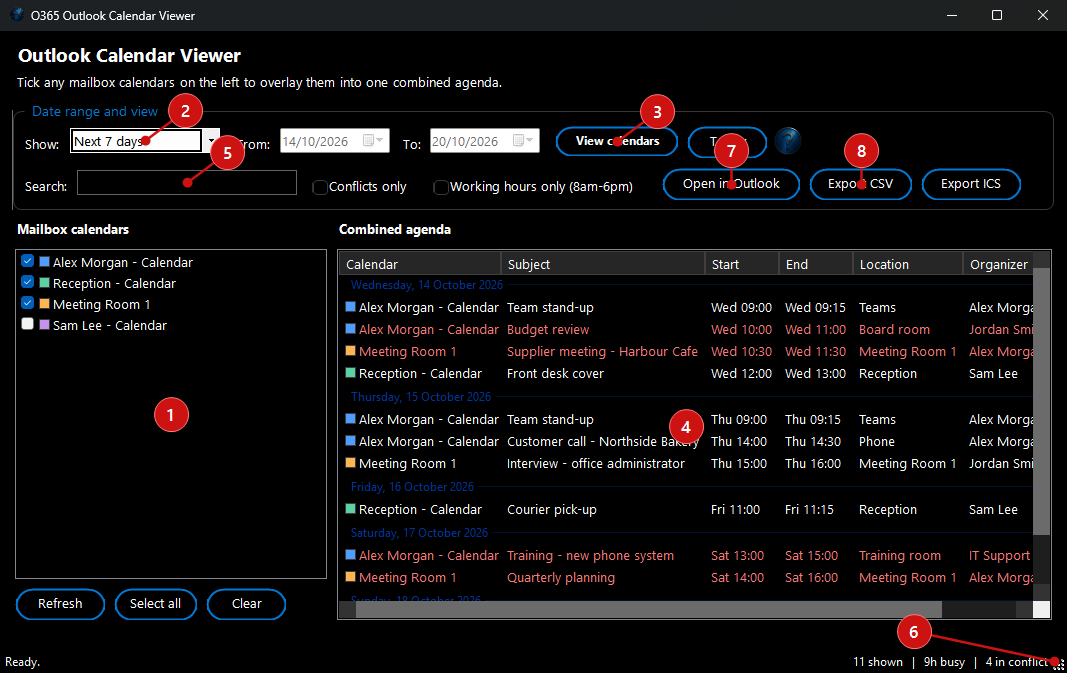
Outlook Calendar Viewer brings the calendars you already have in Outlook — your own, plus any shared, delegated or additional mailboxes you have opened — together into a single, combined agenda. You tick the calendars you want on the left, choose a date range, and the tool overlays every meeting into one list, colour-coded by calendar and grouped by day, so you can see across all of them at a glance. Recurring meetings are expanded into their individual occurrences, overlapping meetings are flagged as clashes, and a status line summarises how many events were found, the total hours booked and how many are in conflict. You can search the combined agenda, narrow it to working hours or clashes only, open any meeting straight in Outlook, and export the whole view to CSV or an iCalendar (.ics) file.
Reads your existing Outlook calendars: The tool works with whatever mailboxes are already set up in your Outlook profile, so there is nothing to sign in to — if a mailbox and its calendar are open in Outlook, they appear in the list ready to be ticked.
How to use:
 1. Pick the calendars to overlay.
 The
Mailbox calendars list on the left shows every calendar found in your Outlook profile, each with its own colour. Tick the ones you want to combine. Use
Select all or
Clear to check or uncheck them in one go, and
Refresh to re-scan Outlook if you have just added a mailbox.
2. Choose the dates to show. In the
Show dropdown pick a quick range —
Today,
Tomorrow,
Next 7 days,
This week or
This month — or choose
Custom range… and set the
From and
To dates yourself. The
Today button jumps straight back to the current day.
3. Build the combined agenda. Click
View calendars. The tool reads the ticked calendars in the background (the window stays responsive and shows its progress) and fills the
Combined agenda on the right. Meetings are grouped under a heading for each day and colour-coded to match the calendar they came from, so overlapping calendars are easy to tell apart. Recurring meetings are shown as their individual occurrences.
4. Read the agenda. Each row shows the
Calendar (with its colour), the
Subject, the
Start and
End times, the
Location, the
Organizer and the
Status (Busy, Tentative, Out of office, Free or Elsewhere). Click any column heading to sort by it. Meetings that clash with another booking are highlighted so they stand out.
5. Narrow down what you see. Type in the
Search box to filter the agenda by subject, location, organiser or calendar name. Tick
Conflicts only to show just the overlapping meetings, or
Working hours only (8am-6pm) to hide anything outside the working day. These filters apply instantly without re-reading Outlook.
6. Check the summary. The status line along the bottom reports how many events are shown, the total hours booked as busy, and how many meetings are in conflict — a quick health-check of how full the combined schedule is.
7. Open a meeting in Outlook. Double-click any row (or select it and click
Open in Outlook) to open that meeting in Outlook itself, where you can see the full details or make changes.
8. Export the view. Click
Export CSV to save the combined agenda as a spreadsheet-friendly file for reporting or records, or
Export ICS to save it as a standard iCalendar file that can be imported into another calendar.