Outlook Advanced Rules - Build powerful email rules for Outlook that go far beyond the built-in ones (Updated Oct 2026)
Description:
Outlook Advanced Rules lets you build rich email rules for the Outlook desktop application without wrestling with the limited built-in rules wizard. Each rule is made of
conditions (what the email must match) and
actions (what to do with it). You can match on the sender address, sender name or domain, the To / Cc / Bcc recipients, the number of recipients, the subject, the body, attachments (has any, how many, or a particular file type), email size, read or unread state, priority, category, whether it contains embedded pictures, and the received date, age or day of the week — and text conditions can use plain text, wildcards or full regular expressions. A single text condition can even hold several values separated by a semicolon (for example a list of sender addresses or domains); the email matches if any one of them does, and any duplicate entries you type are removed automatically. Then you choose actions: move, copy or delete, mark read or unread, assign a category, set the priority, flag for follow up, forward, reply or reply all, save a draft reply or forward without sending, attach the email to a brand-new email, or save its attachments to a folder. A plain-English summary shows exactly what each rule will do before you run it.
Run one folder, or many at once: You can run all your enabled rules against a single folder you pick at the top,
or give each rule its own saved source mailbox and folder and let
Run all (rule folders) process every rule against the right place in one click — so a single run can sweep several different mailboxes and folders together, without re-selecting a folder each time. The two modes are explained in detail below.
Safe, flexible and built to grow: You run rules on demand against any folder you pick — including shared mailboxes you add by address — and a
Preview only mode reports what would happen and changes nothing until you are ready. You can also
Test on selected email to see which rules match one message before touching a whole folder. Every run can save a CSV log of the emails it matched (open it with
View logs), rule sets can be exported and imported between machines, and an optional auto-run timer or
Live monitor can re-check a folder every few minutes (as a safe monitor when Preview is on, or to apply automatically when it is off). Because all of the Outlook work runs in the background, it behaves well on a desktop or on a server session.
How to use:
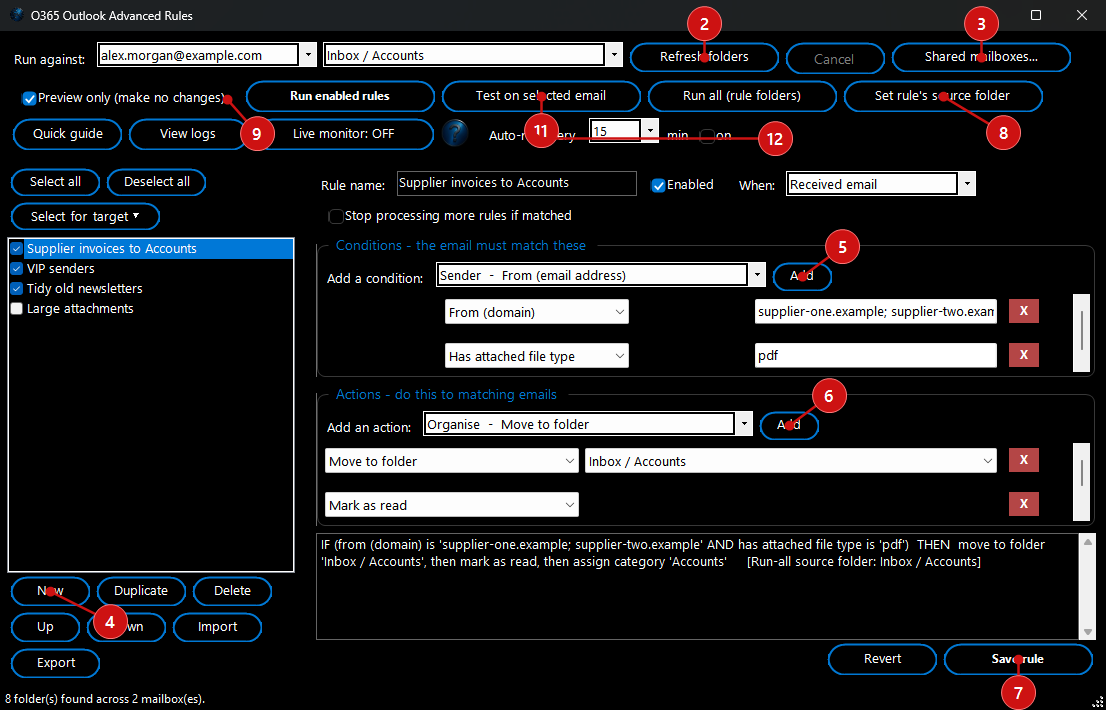 1. Open Outlook first.
 The tool drives the Outlook desktop application, so Outlook needs to be installed
and running. If Outlook is closed when you try to load folders or run rules, the tool will ask you to open it first — start Outlook, then continue.
2. Point it at a folder. At the top, use
Refresh folders to load your mailboxes, then pick a
mailbox and a
folder from the
Run against drop-downs (the Inbox is selected for you when it is found). This is the folder that
Run enabled rules and
Test on selected email work against.
3. Add shared mailboxes (optional). Shared and delegate mailboxes are not always listed automatically. Click
Shared mailboxes, enter the email addresses you have permission to open (separated by a semicolon, for example
admin@yourdomain.com; accounts@yourdomain.com), and they will appear in the mailbox list after the next refresh.
4. Create a rule. Click
New on the left and give the rule a clear
Rule name. Leave
Enabled ticked so it runs — rules that are unticked are skipped. The
When box notes whether the rule is meant for received or sent email. Tick
Stop processing more rules if matched if, once this rule acts on an email, you want the tool to stop applying any later rules to that same email.
5. Add conditions. In the
Conditions box, choose a condition from the list and click
Add. Set its operator (for example
contains,
equals,
matches wildcard or
matches regex) and its value, and tick
not to reverse it. A text value can hold several entries separated by a semicolon — for example
invoice@a.com; billing@b.com or
supplier1.com; supplier2.com — and the email matches if
any of them do; the tool removes duplicate entries for you. Add as many conditions as you need, for example “from domain is a supplier” and “has attachments”. The plain-English summary at the bottom always shows how they combine.
6. Add actions. In the
Actions box, choose an action and click
Add, then fill in any detail it needs (a folder to move to, a category name, an address to forward to, and so on). You can add several actions to one rule.
7. Check the summary and save. The line at the bottom reads the rule back in plain English, for example “IF from address contains 'invoice' AND has attachments THEN move to Accounts, then mark as read”. When it looks right, click
Save rule. Rules are stored automatically and reload next time you open the tool.
8. Give each rule its own folder (for Run all). Select a rule, choose the mailbox and folder it should act on in the
Run against drop-downs, then click
Set rule's source folder. The rule now remembers that mailbox and folder, and the summary shows the saved location. This is what lets
Run all (rule folders) send each rule to the right place — do this for every rule you plan to include in a Run all.
9. Preview before you apply. Keep
Preview only ticked and click
Run enabled rules (or
Run all (rule folders)). The tool scans and reports how many emails each rule would affect — without changing anything — and saves a CSV log of the matches you can open with
View logs.
10. Run for real. When you are happy with the preview, untick
Preview only and run again to apply the actions. You will be asked to confirm, because this changes your mailbox.
11. Test a single email. Select any email in Outlook and click
Test on selected email to see exactly which of your rules match that one message — a quick way to check a rule is written correctly before running it on a whole folder. (See the note below on how Test differs from an actual Run.)
12. Auto-run, monitor, import and export. Tick
Auto-run every N min or use
Live monitor to re-check the folder on a timer (a safe monitor while
Preview only is on, or an automatic apply when it is off). Use
Quick guide for an in-app reminder, and
Export /
Import beneath the rule list to save a rule set to a file and load it on another machine.
Run enabled rules vs Run all (rule folders) — how they differ:
These two buttons both apply your enabled rules, but they decide
which folder each rule runs on in different ways. Choosing the right one is the key to using the tool well.
- Run enabled rules — runs every ticked rule against the one folder currently selected in the Run against drop-downs at the top. All of the rules share that single folder. Use it when you want to sweep one place (say, your Inbox) with several rules at once. If a rule was built for a different mailbox, it still runs here against the folder you picked, not its own.
- Run all (rule folders) — runs each ticked rule against its own saved source folder (the one you attached with Set rule's source folder). One click can therefore process many different mailboxes and folders in a single pass, because every rule already knows where it belongs. Use it when your rules span several mailboxes or folders and you don't want to keep re-selecting a folder for each one. Any rule that doesn't yet have a saved folder is reported so you can set it — so remember step 8.
In short:
Run enabled rules = many rules, one folder you choose now.
Run all (rule folders) = many rules, each on the folder it was saved with. Both honour
Preview only, so you can safely preview either before applying.
Why a rule can pass Test but not act on a Run: Test on selected email checks a message against your rules wherever it happens to sit, so it tells you whether the rule
logic matches. A real
Run is stricter: it only acts on an email when the rule is
Enabled and the email is actually inside the folder being run against. So if Test says a rule matches but a Run leaves the email untouched, check that the rule is ticked and that you are running against the folder the email is really in (for a Run all, that the rule's saved source folder is the one holding the email).