Memory Editor - Find, watch, edit and freeze values in a running program's memory, with tools most editors don't have (Updated Oct 2026)
Description:
The Memory Editor lets you look inside a running program and work with the values it holds in memory — find a number, watch it change, and (when you choose to) edit or freeze it. It's the kind of tool developers, testers and tinkerers use to understand how a program behaves, reproduce a bug at a known state, or adjust a value in software you own.
You start by
attaching to a process, then
scan for a value: an exact number, a
range, or — when you don't know the number — an
unknown initial value that you narrow down by how it moves (increased, decreased, changed, unchanged…). Matches go into a
watch list where you can read them live, set them, or
freeze them. On top of the basics it adds things you won't find together anywhere else: a live
value timeline, a
dashboard, a change
heatmap, a
structure dissector, a restart-proof
pointer scan, and
find what writes.
Before you start — requirements:
Nothing extra is needed. Scanning, watching, editing and freezing all use built-in Windows facilities — there is nothing to install. Only "find what writes" uses the Windows debugger, which is also already there.
Run as administrator. As with the rest of FW Admin Tech Tools Pro, run the app as administrator so it has the rights to read another process's memory.
Use the 64-bit build for 64-bit programs. A 32-bit tool cannot reach a 64-bit program's memory, so run the app as 64-bit to inspect modern (64-bit) software. It will tell you if a target is out of reach.
Read-only until you say otherwise. The Memory Editor attaches read-only. Editing and freezing are off until you tick
Enable editing, which asks you to confirm — and it refuses to write to protected Windows system processes.
Where your tables and presets live. Saved tables (
.fwmem) go wherever you choose; preferences are stored under
%LOCALAPPDATA%\FWAdminTechToolsPro\TechTools, tied to the product rather than the version, so they're kept when you update the app.
Please use it responsibly. This is a debugging and inspection tool. Use it on software you own or are permitted to test — not to gain an unfair advantage in online games or to tamper with other people's software.
The main window:
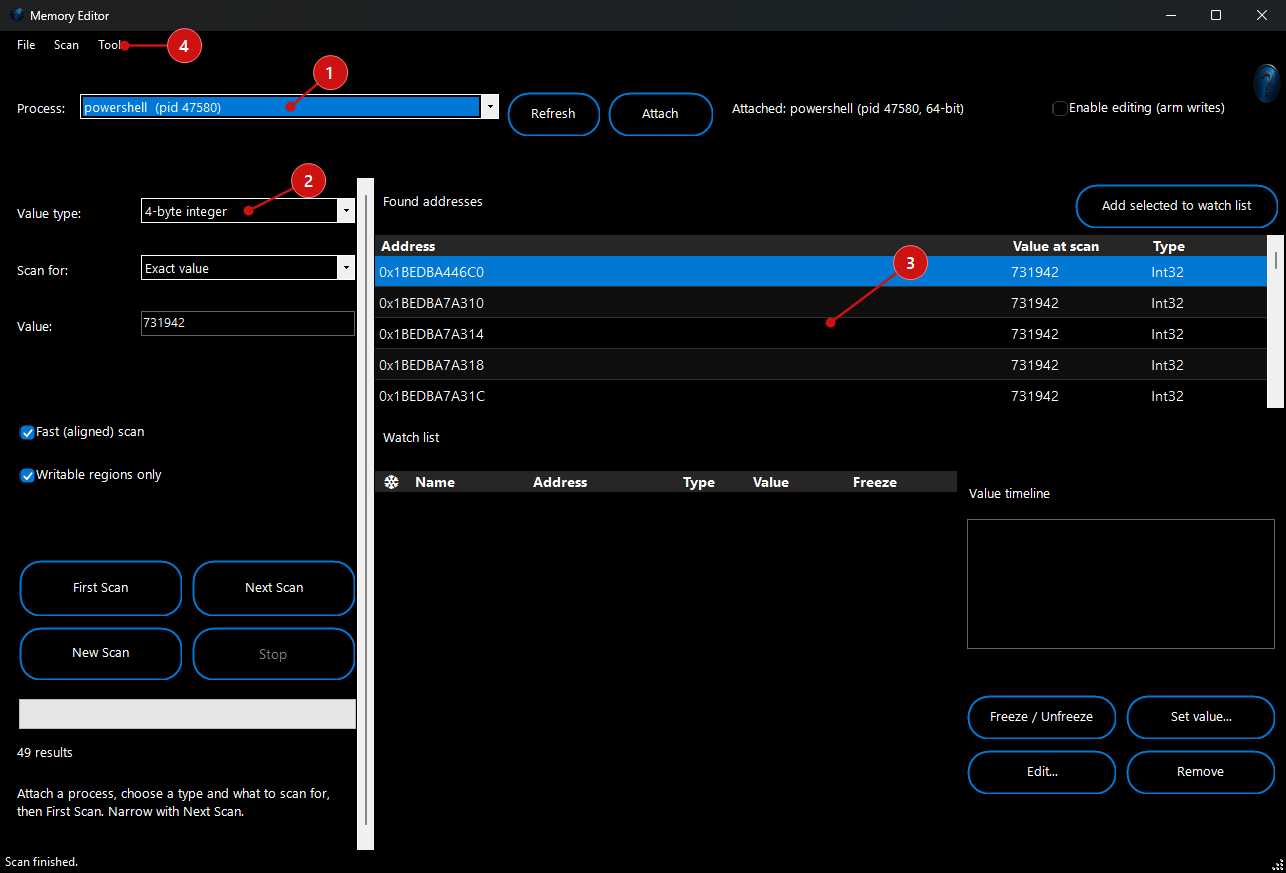
The window has four parts.
1. The
top bar is where you pick a process and attach, and where you arm editing.
2. The
scan panel down the left is your search.
3. The middle holds the
found addresses above and your
watch list below, with a live
value timeline beside it.
4. The
File / Scan / Tools menu across the top holds the table commands and the advanced tools.
Scanning for a value:
Pick a
value type, choose what to
scan for (1), enter the
value (2) and press
First Scan (3); the result count (4) shows how many addresses match. Then narrow with
Next Scan until you have the address you want.
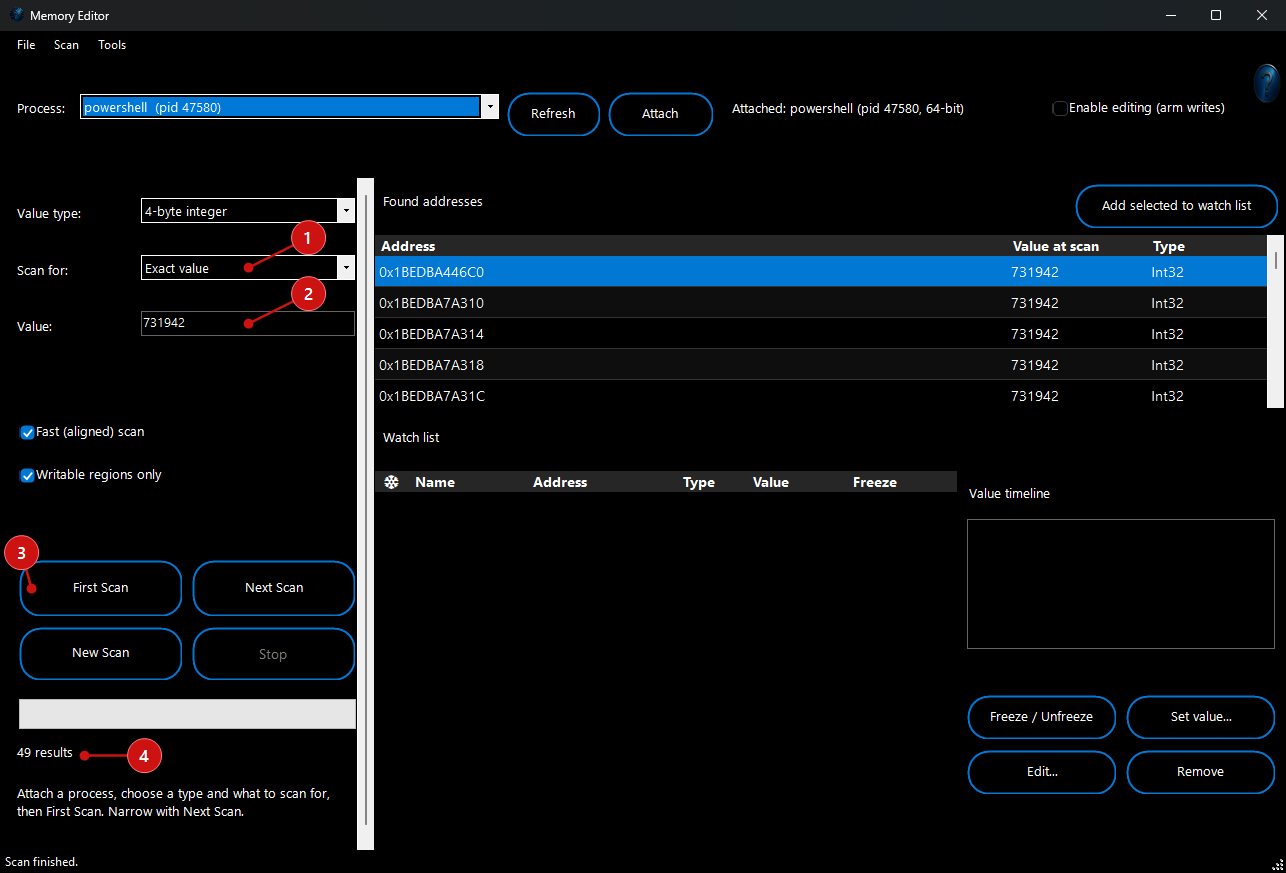
- Value types: Byte, 2- / 4- / 8-byte integers, float, double, text, and an array of bytes (AOB) with
?? wildcards.
- What to scan for: An exact value, a range (between two numbers), greater or less than, or unknown initial value when you have no idea of the number yet.
- Narrow it down: After a first scan, use increased, decreased, changed, unchanged, or increased/decreased by to whittle thousands of matches down to the one you're after — and Undo last scan if you narrow too far.
- Fast and focused: Aligned scanning and a writable regions only filter keep scans quick; everything runs in the background with a progress bar and a Stop.
Watching, editing and freezing:
Select matches and click
Add selected to watch list (1) to keep an eye on them (2), change them, or hold them steady with
Freeze / Unfreeze (3).
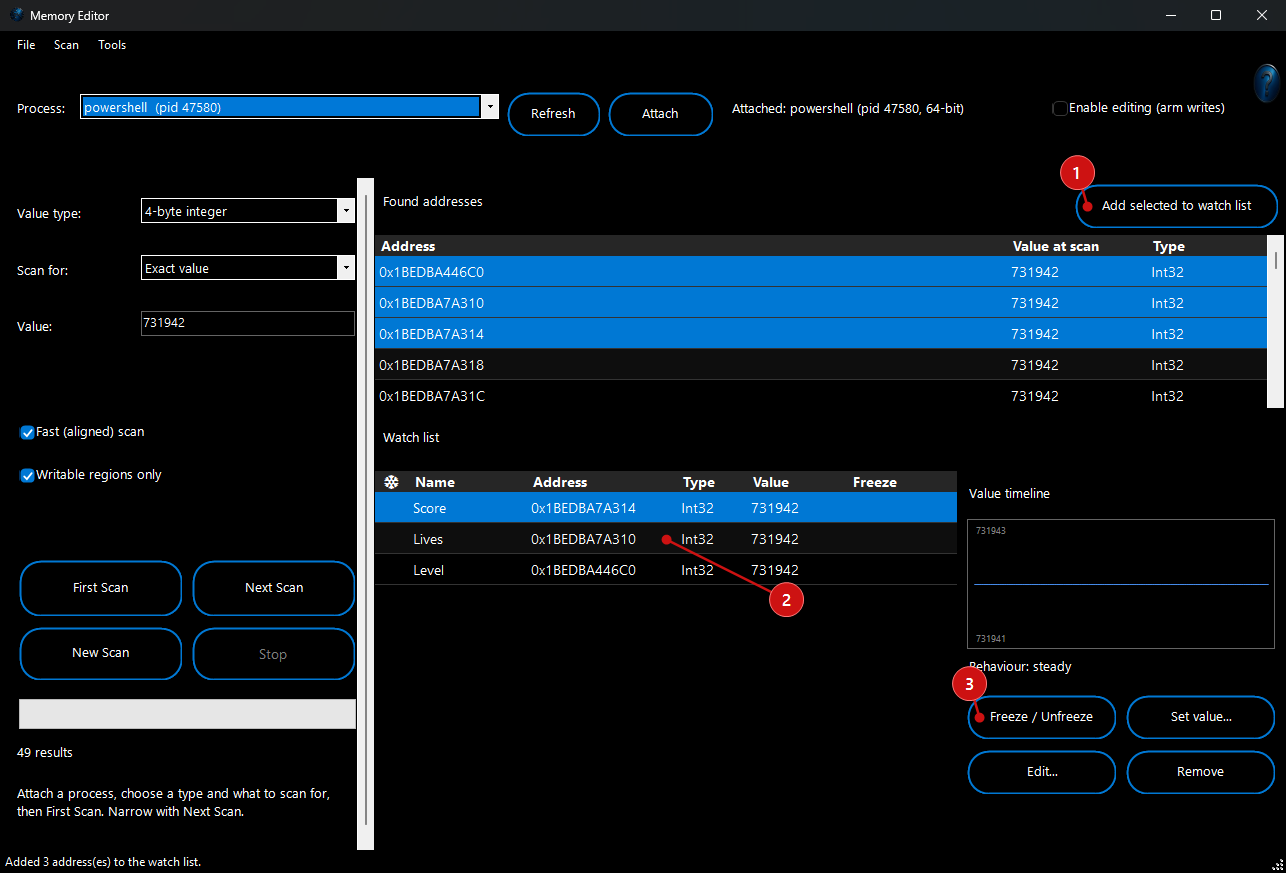
- Live values: Each watch entry shows its current value, updating continuously, with a name and description you can give it.
- Set a value: Once editing is armed, type a new value and write it straight to memory.
- Freeze: Hold a value steady — at a constant, at the result of a formula (for example keep health equal to max health), or only while a condition is true. Formulas can reference other entries by name in
[square brackets].
- Value timeline: The selected entry draws a live sparkline of its recent history, with a plain-language read of what it's doing (steady, rising, falling, a toggle, or oscillating).
The advanced tools:
This is where the Memory Editor goes past the usual. The
Tools menu opens each of these.
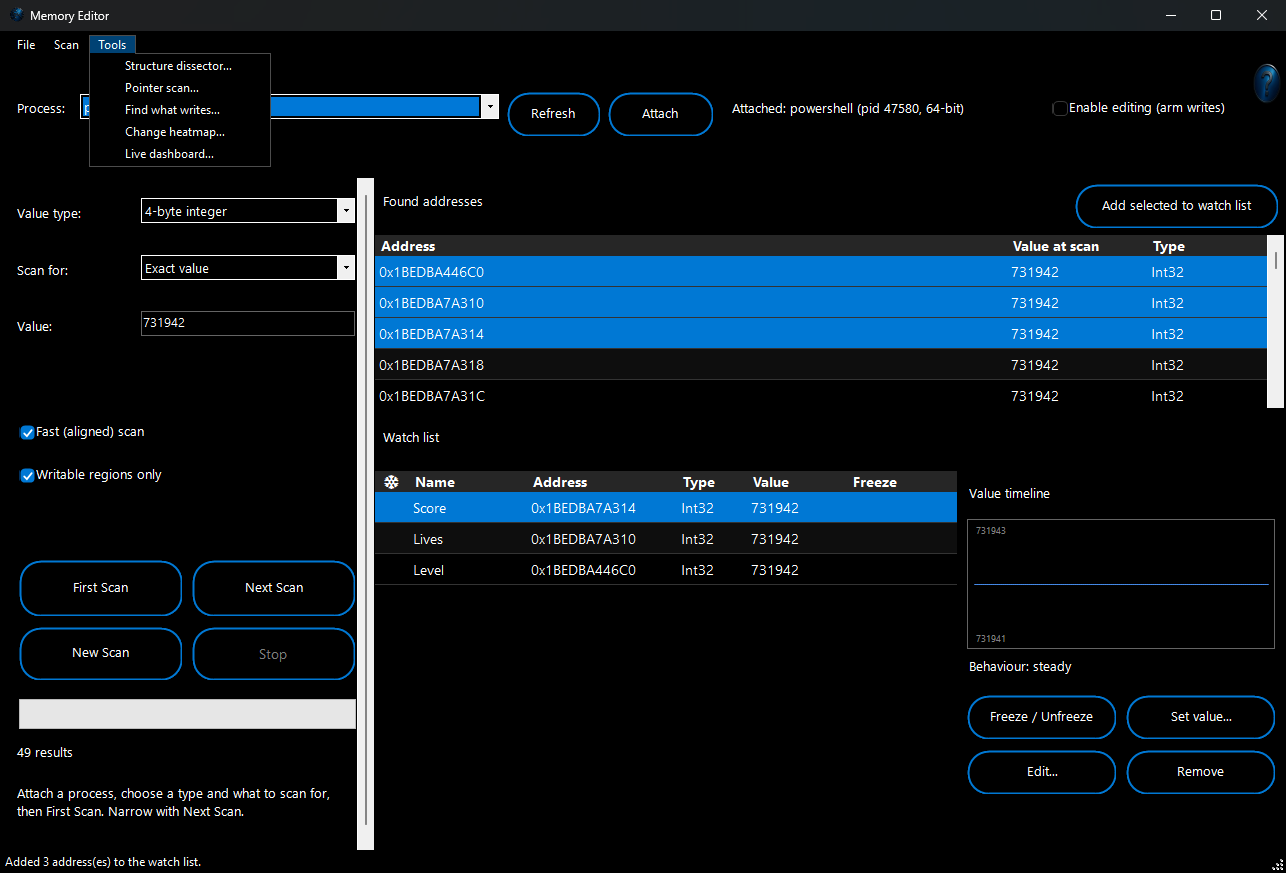
- Pointer scan: Finds stable module+offset pointer paths to a value, so a watch keeps working after the program restarts (where a raw address wouldn't). Revalidate re-checks the paths after a relaunch and keeps the ones that still land on the target.
- Structure dissector: Reads a block of memory and labels each field — pointer, float, integer or text — so you can spot things like a set of x / y / z coordinates or a name string at a glance.
- Find what writes: Sets a hardware breakpoint on an address and lists the exact code locations (module+offset) that write to it, with hit counts — the fast route to the logic behind a value.
- Change heatmap: Snapshot memory, do something in the program, then compare — a heatmap shows where the activity is, and ranks the busiest regions to point your next scan.
- Live dashboard: A wall of tiles, one per watched value, each with its current value and a live sparkline — turn the tool into a monitor for a program's internal counters.
Tables and Cheat Engine import:
Save your work. Save the whole watch list as a portable
.fwmem table — names, addresses, types, freezes and pointer paths — and load it back later.
Bring tables across. Import an existing
Cheat Engine .CT table and the entries it can map (address, type, description and pointer chains) come straight in.