FTP Commander - Upload, publish and back up websites and server files over FTP, FTPS and SFTP (Updated Nov 2026)
Description
FTP Commander moves files between this PC and a web host or server - to put a website online, update it, back it up, or swap files with someone. It shows your PC on the left and the server on the right: drag files from one side to the other. It sends several files at once, carries on where it stopped after a dropped connection, checks every file arrived complete, and keeps a copy of anything it replaces or deletes on the server, so
every change can be undone.
It also does the jobs that take most of the time with other FTP programs:
Publish sends only what changed since last time with one click, the
Tamper check spots files someone else put on your website,
Auto-upload sends files the moment you save them, and the
Connection doctor finds out why a connection doesn't work and says what to change.
Website backups keep a dated copy of your website every day or week and can put any version back, the
Space map shows what fills up your hosting, pictures can be sent as smaller copies, and the web address of what you upload is copied, ready to paste.
FTP, FTPS and SFTP: these are three ways of connecting.
FTP is the oldest and sends your password unencrypted - use it only when nothing else is offered.
FTPS is FTP with encryption (TLS), usually on port 21.
SFTP is a different, encrypted protocol that runs over SSH, usually on port 22. Your web host's welcome email or control panel says which one to use, and gives the server address, user name and password.
How to use
1. Click
Site Manager..., then
New site. Give it a name, pick the
Protocol, and type the
Server (for example
ftp.example.com - without "ftp://"),
User name and
Password. Optionally put the website's folder in
Server folder (often
/public_html) and your copy of the website in
This PC folder. Click
Save and connect. (Already use FileZilla or WinSCP? Click
Import... to bring all your sites across.)
2. The first time, a
security check may ask whether you trust the server. FTPS servers show a certificate and SFTP servers a "host key" - a kind of fingerprint. If you were expecting to connect to this server, click
Trust it and remember; you are only asked again if it changes.
3. The left side shows a folder on this PC and the right side the server. Double-click folders to open them;
Up goes back. Renaming, deleting (to the Recycle Bin) and new folders on the left side are recorded in
Change Journal, so you can undo them there.
4. Select files or folders and click
Upload → or
← Download - or drag them from one side to the other. You can also drag files straight from File Explorer onto the server list. Folders go with everything in them.
5. Watch the
Transfers tab: each file shows its progress, speed and result. When it finishes, the server list refreshes by itself.
Example: You have a small website in
C:\Websites\Example shop and your host gave you
ftp.example.com, user
jordan and a password. Add the site in the Site Manager with
Server folder /public_html and
This PC folder C:\Websites\Example shop, click
Save and connect, select everything on the left except the
.git folder and click
Upload →. Three files go up at a time; a minute later the Transfers tab says
12 of 12 done and the website is online.
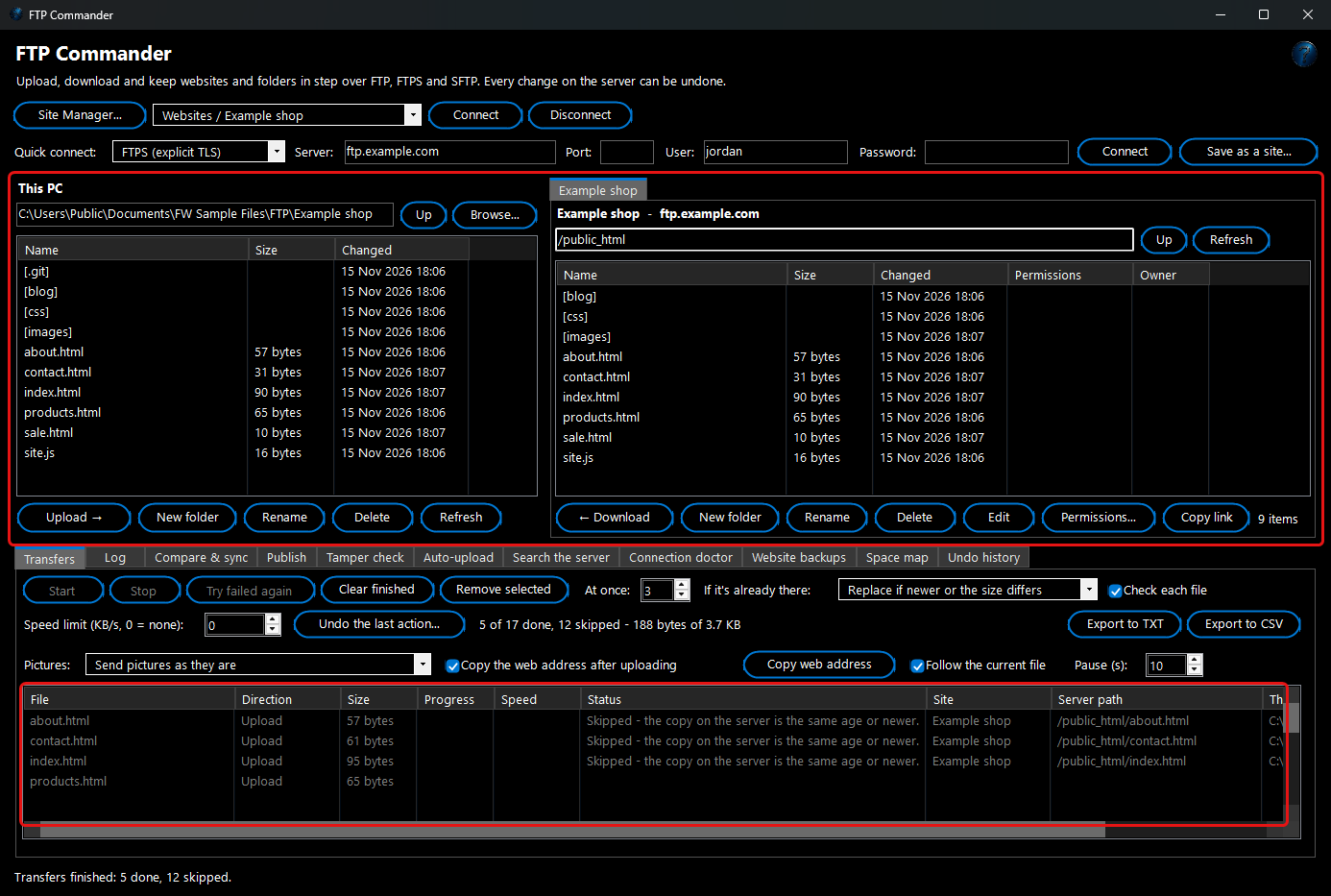
Transfers: several at once, and what happens to files already there
- At once - how many files are sent at the same time for this site (1 to 10, 3 to start with). More is faster for many small files. A change is used straight away - while files are moving, the extra transfers start within a second, and if you lower it the extra ones stop after the file they are sending - and it is remembered for that site. The box is for the site whose files are moving in the list (for example during a Publish), otherwise the site in the open connection tab. If the server says it allows fewer connections, FTP Commander uses fewer by itself and remembers that for the site - nothing fails.
- If it's already there - what happens when the file already exists: Ask me, Replace it, Replace only if newer, Replace if the size differs, Replace if newer or the size differs, Skip it, Keep both (add a number) or Resume (carry on where an earlier transfer of that file stopped). With Ask me you can tick Do the same for every other file in this run.
- Check each file (on by default) - after each transfer the size is compared, and the contents too when the server can give a checksum (a fingerprint of the file). A file that doesn't match is sent again; if it still doesn't match it is marked as failed. The Status column says how each file was checked.
- Stop and carry on - Stop cuts off the files being sent; Start carries them on from where they stopped instead of starting again. If the connection drops, each file is tried again up to three times by itself. If you close FTP Commander with transfers unfinished, they are waiting on the Transfers tab next time.
- Speed limit - in KB per second for all transfers together, so the internet stays usable for everyone else (0 = no limit).
- Follow the current file (on by default) - the Transfers list scrolls by itself so you can always see the file being sent right now. See Keep the file being sent in view just below.
- Undo the last action... - puts back what the last transfer replaced or deleted, and removes the files it added. See Undo below.
Faster SFTP uploads: many small files packed into one
Every file sent on its own costs several short messages back and forth with the server, so a website of thousands of small files (pages, scripts, icons) spends most of its time waiting rather than sending. With SFTP, FTP Commander can send them as one zip file and unpack it on the server instead - often several times faster.
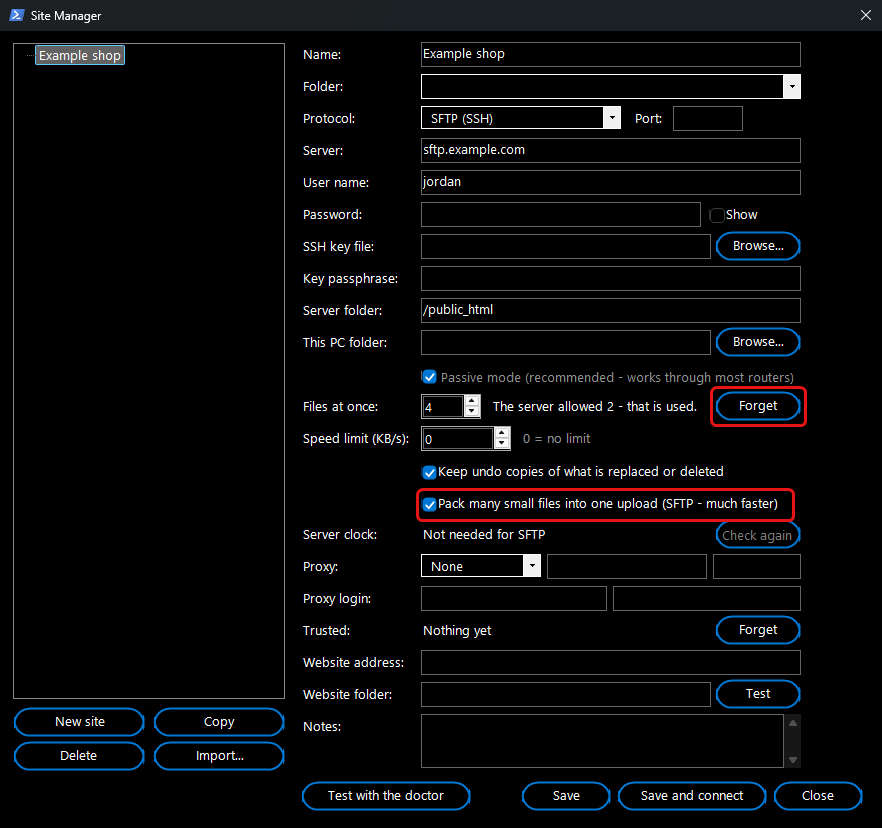
How to use it: nothing to do - it is on for every SFTP site. To switch it off for a site, open the
Site Manager, pick the site and untick
Pack many small files into one upload (SFTP - much faster), then
Save.
Example: you upload a new website of 1,200 small pages and pictures to
/public_html. The Transfers list shows them going up together, each line saying
Uploaded in one zip with 999 other files - SHA256 checksum matches, and the upload finishes in a fraction of the time.
How it works and what to expect:
- Only when it can't change the result: SFTP only, at least 20 small files (up to 1 MB each), and only when the server can unpack zip files (it checks once, quietly). Otherwise files are sent one by one, as before.
- Every file keeps its own date and time on the server, and every file is checked afterwards (size, and the checksum when Check each file is on). A file that doesn't match is sent again on its own.
- A file that replaces one already on the server goes one by one when Undo copies are on, so its undo copy is still kept first. New files are packed. Files you send with Ask me, Keep both or Resume also go one by one.
- The zip file is removed from the server straight after it is unpacked. If unpacking doesn't work for any reason, the files are simply sent one by one and the log says why.
Keep the file being sent in view (Follow the current file)
When you send a lot of files, the Transfers list gets longer than the window. With
Follow the current file ticked you don't have to scroll to see what is happening: the list moves by itself so the file being sent now sits about a third of the way down, with the files that have just finished above it and the next ones waiting below it.
1. Click the
Transfers tab at the bottom of the window.
2. On the third row of settings, check that
Follow the current file is ticked. It is ticked the first time you use FTP Commander.
3. Beside it,
Pause (s) is how many seconds the list waits before it follows again after you have scrolled it yourself. It starts at 10. Click the small arrows or type a number from 2 to 600.
4. Start your upload or download as usual. The list now follows the file being sent.
5. Want to look at another file? Just scroll with the mouse wheel, drag the scroll bar, click in the list or press an arrow key. The list stops following straight away and stays where you put it.
6. Leave the list alone and watch the line of text above it: it counts down, for example
"Working: 3 at once - 12 of 300 done - following again in 7 s". At 0 the list goes back to the file being sent.
Example: You are uploading 300 holiday photos to
/public_html/gallery. The list keeps showing the photo being sent, for example
beach-045.jpg. You want to check that
beach-001.jpg at the top went up, so you scroll to the top and read its Status column. Then you stop touching the list, and 10 seconds later it is back on the photo being sent, by now
beach-052.jpg.
How it works / what to expect
- It only changes which part of the list you see. It never changes which files are sent, their order, or the rows you have selected.
- It only moves when the file being sent is about to leave the middle of the list, so it doesn't jump on every file.
- It follows only while the transfers are running. When you click Stop, or when every file has finished, the list stays where it is.
- Your choices (the tick and the Pause seconds) are saved the moment you change them and are used again the next time you open FTP Commander.
Troubleshooting
- The list keeps jumping away while I'm reading it - make Pause (s) bigger (for example 30) to get more time, or untick Follow the current file so the list never moves by itself.
- The list doesn't move at all - check Follow the current file is ticked, and look at the line above the list: if it says "following again in ...", it is waiting because you touched the list - wait for the countdown. If the transfers are stopped or finished, there is nothing to follow.
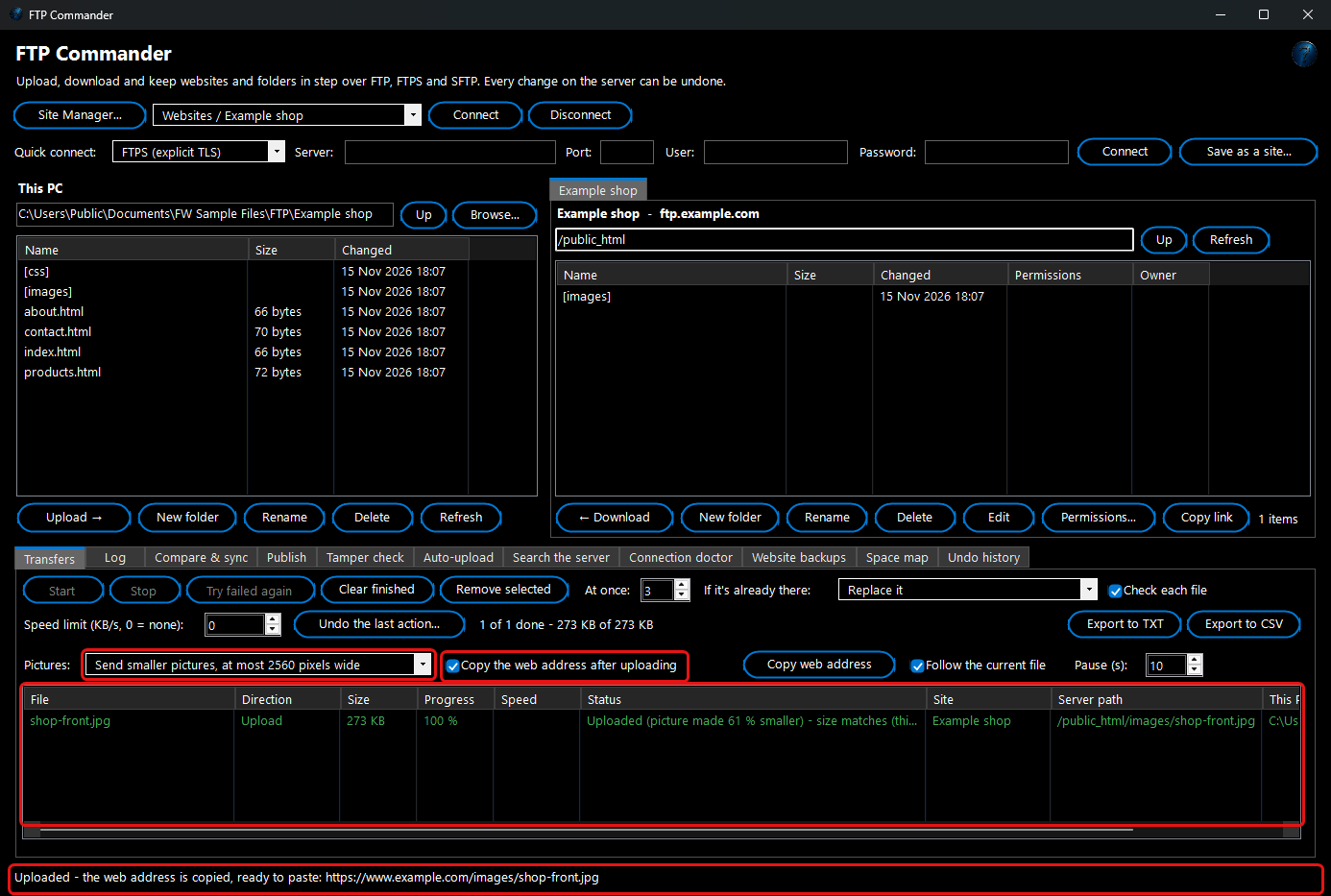
Smaller pictures on upload
Photos straight from a phone or camera are often several megabytes each, which makes a web page slow to open. Under
Pictures on the Transfers tab you can choose to send a
smaller copy of each JPEG and PNG picture instead -
the picture on your PC is never changed:
- Send pictures as they are - the normal choice; nothing is changed.
- Send smaller pictures (same size on screen) - the copy keeps its width and height. It is turned the right way up (phones often save photos sideways with a "turn me" note), the location (GPS) and camera details are removed, JPEGs are saved at quality 82 and as "progressive" (they appear at once and then sharpen), and PNGs are compressed without changing a single pixel.
- ... at most 2560 pixels wide or at most 1920 pixels wide - as above, and wider pictures are made narrower (the height follows). 1920 is plenty for a full-screen picture on most websites.
A copy is only sent when it is at least 3 % smaller; otherwise the original goes up. Tiny pictures (under 8 KB) and other files are always sent as they are. The Status column says how much smaller each picture was. Publish profiles have the same choice (
Edit... >
Pictures). Compare, Publish and the Tamper check know the smaller copy on the server belongs to your picture, so it isn't reported as "different" or sent again - and a two-way sync never brings the smaller copy back over your original.
Example: You upload
shop-front.jpg (6.9 MB, 3200 pixels wide) with
at most 2560 pixels wide. The website gets a 2560-pixel copy of about 280 KB without your location in it;
shop-front.jpg on your PC is unchanged.
The web address of what you upload
Uploaded a picture or a PDF to send someone the link? In the Site Manager, type the
Website address (the one people type in a browser, for example
https://www.example.com). With
Copy the web address after uploading ticked on the Transfers tab, the address of what you uploaded is copied as soon as the upload finishes - paste it into an email or a message. Several files = one address per line.
The
Website folder is the server folder that
is that address. Leave it empty and FTP Commander works it out from the usual names (
public_html,
htdocs,
httpdocs,
wwwroot,
www...):
/home/jordan/public_html/files/price-list.pdf becomes
https://www.example.com/files/price-list.pdf. If your host uses another name, type the folder.
Test opens the website address to check it answers.
Copy link (under the server list) and
Copy web address (Transfers tab) copy the address of any selected file.
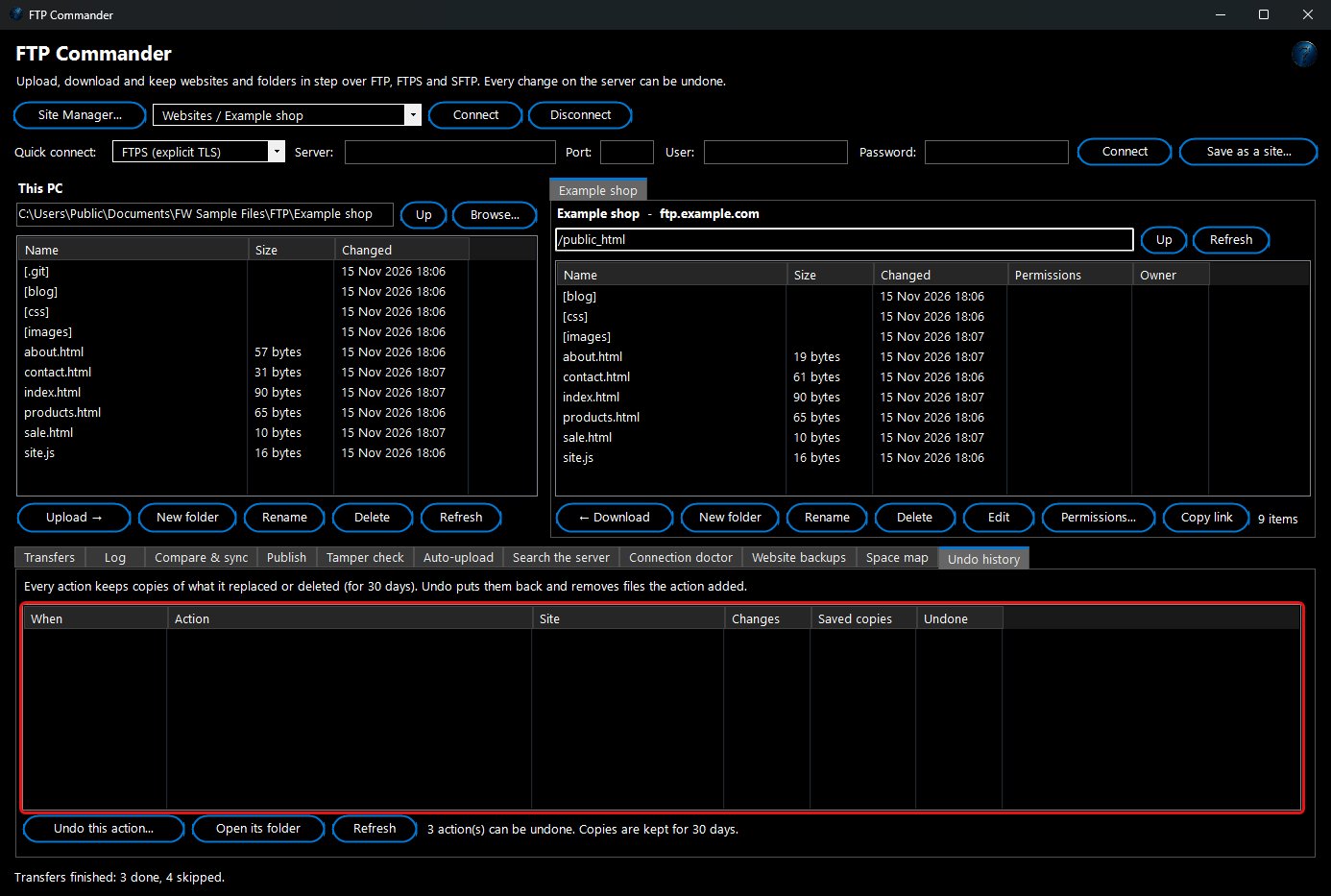
Undo: every change on the server can be put back
Before FTP Commander replaces or deletes a file on the server, it downloads a copy into a dated folder on this PC. It also notes every file an action added. The
Undo history tab lists each action - an upload, a sync, a publish, a delete - with its date;
Undo this action... puts the replaced and deleted files back and removes the files it added. A file that was changed again since then is left alone and listed, so Undo never overwrites newer work. Files replaced on this PC by a download are kept the same way. Copies are kept for 30 days (and the oldest are removed when they pass 4 GB). You can switch this off per site in the Site Manager (
Keep undo copies).
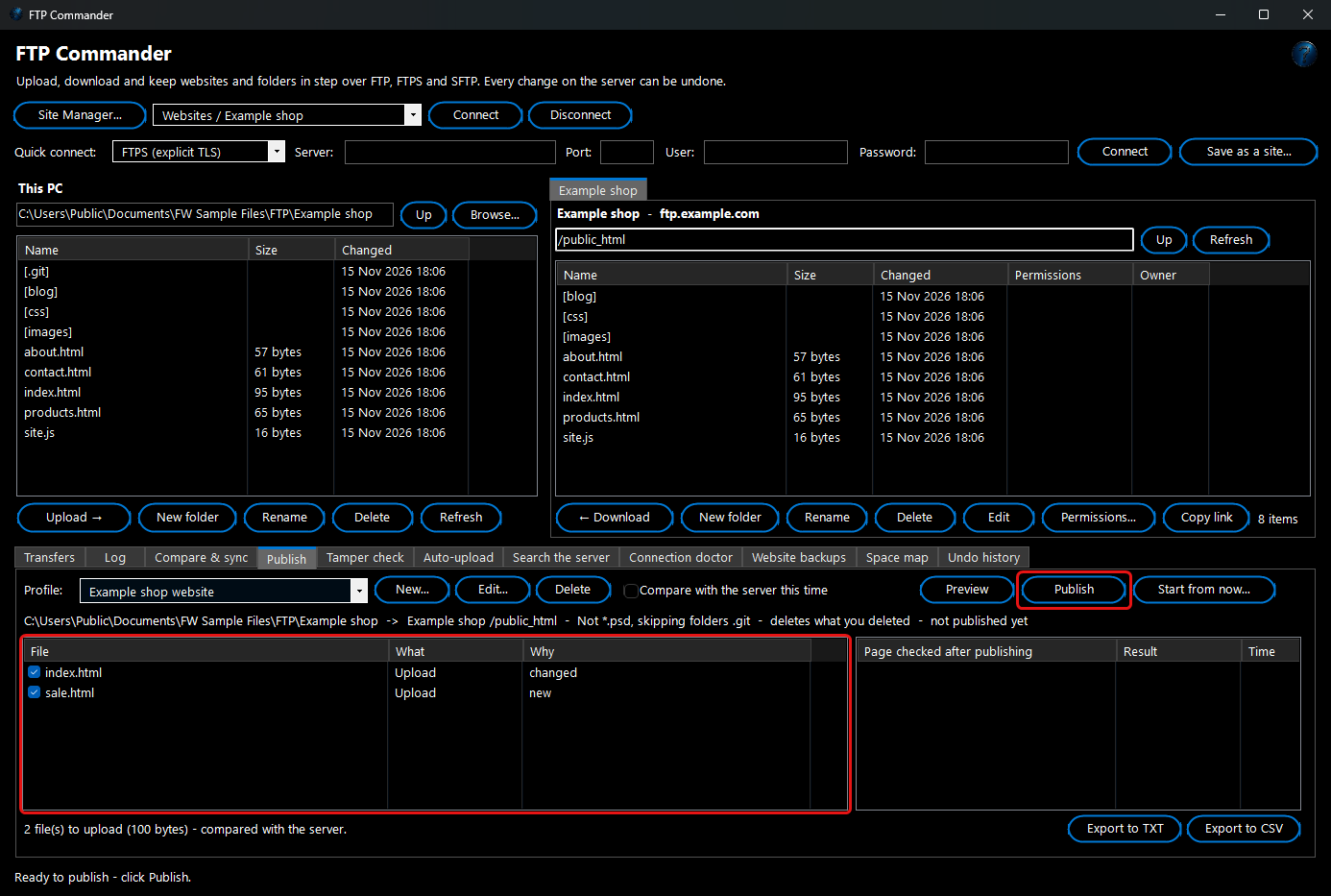
Publish: one click sends only what changed
A
publish profile links a folder on this PC to a folder on a site, with rules for which files go up. On the
Publish tab click
New..., pick the site and the two folders, and click
Filter... to leave out files that don't belong on the website (the built-in
Website files only filter skips Photoshop files, temporary files and folders such as
.git and
node_modules). Tick
Delete files on the server that I deleted on this PC if you want removed pages to disappear from the website too. Under
Pages to check afterwards, type a few web addresses of your site.
1. Click
Preview: the list shows each file that will be uploaded or deleted, and why (
new,
changed since the last publish). Untick anything you want to leave out.
2. Click
Publish. The files go up through the Transfers tab, each one checked.
3. Afterwards each page under
Pages to check afterwards is opened, and the list on the right shows whether it still works - a page that broke shows in red straight away, and
Undo history can put the previous files back.
4. FTP Commander also checks that the website really shows what you sent: up to three of the pictures, scripts or style sheets that went up are downloaded from your website's address (the first page under
Pages to check afterwards) and compared with what was sent. They appear in the same list as
OK - the website shows the file you just sent or, in red,
Problem - the website shows a different copy. If none of them match, a message tells you.
Why the website might not change: on many servers the folder you see when you connect is NOT the folder the website runs from - the website is in a folder inside it, such as
/public_html,
/httpdocs,
/wwwroot or a folder named after the site. If
Folder on the server in the profile points one level too high, every file uploads without an error and every page still opens, but visitors keep seeing the old website. Click
Connect for the site and open folders until you find the one holding your website's pages (for example
Default.aspx or
index.html, next to a
bin or
images folder), then pick the profile, click
Edit... and type that folder under
Folder on the server. Changing the folder makes the next Preview compare your folder with the server, so everything that differs goes up once.
Why it is fast: the first publish compares your folder with the server. After that FTP Commander remembers what it uploaded, so the next publish only looks at this PC and sends what changed - it doesn't have to read every folder on the server, which can take minutes on a big website. Tick
Compare with the server this time if someone else may have changed files on the server.
Website already online? Click Start from now... first. The very first publish compares your folder with the server, so a file that is on your PC but was never meant for the server (an old page, a test file) would go up.
Start from now... avoids that: nothing is uploaded or deleted - the files on your PC that the profile's filter lets through are simply remembered as already on the server. It asks how many days back to leave out (for example
1: files you changed today or yesterday still go up at the next publish). From then on,
Preview lists only the files you change, without reading the server. Don't tick
Compare with the server this time afterwards unless you want old files compared again.
Example: You change the opening hours on
contact.html and add
sale.html. Pick your profile, click
Preview (it lists exactly those two files) and
Publish. Ten seconds later both are online and the page check shows your home page and contact page open.
Publish by itself every hour, day or week
A publish profile can also publish on its own, so changes you save on your PC reach the website without you clicking anything.
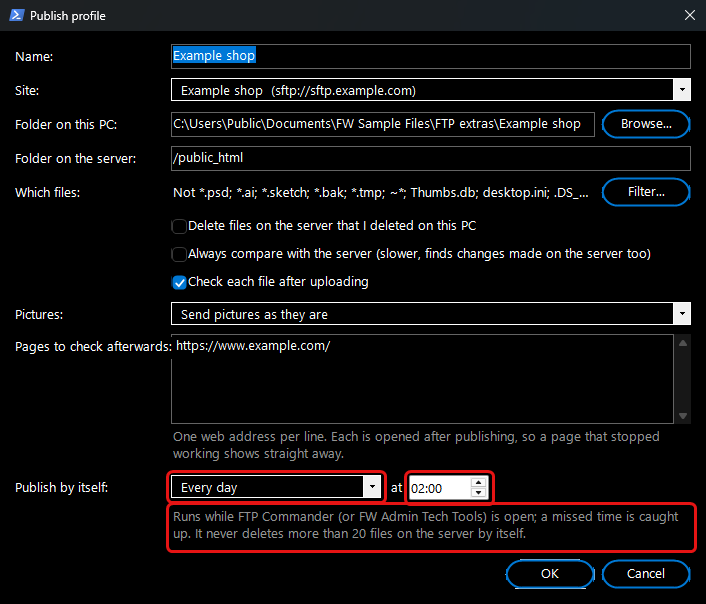
1. On the
Publish tab pick the profile and click
Edit....
2. Under
Publish by itself choose
Every hour,
Every day or
Every week, and the time (for every hour: the minute past the hour; for every week: the day too).
3. Click
OK. The
Publish tab now shows, for example,
publishes every day at 02:00 (next 17 Nov 02:00), and later how the last scheduled publish went.
 Example:
you keep your shop's price list in
prices.html and update it during the day. Set the profile to
Every day at
22:00: each night the changed pages go up, the pages under
Pages to check afterwards are opened, and the next morning the Publish tab says
last time 16 Nov 22:00: OK.
How it works and what to expect:
- It runs while FTP Commander - or FW Admin Tech Tools - is open on this PC. If the PC was off or the program closed at that time, it runs a few minutes after you open it again.
- A scheduled publish does exactly what Preview and Publish do: only what changed is sent, each file is checked, Undo copies are kept, and the pages are checked afterwards.
- For safety it never deletes more than 20 files on the server by itself. If you deleted more on your PC, they wait: open FTP Commander, click Preview on the Publish tab, check the list and click Publish.
- If it doesn't work (for example a changed password, or a page that stopped opening) you get a notice, and it tries again after 30 minutes, up to three times, then at the next scheduled time.
- A new or changed schedule starts at its next time - it doesn't publish straight away because today's time has already passed.
Tamper check: has someone changed my website?
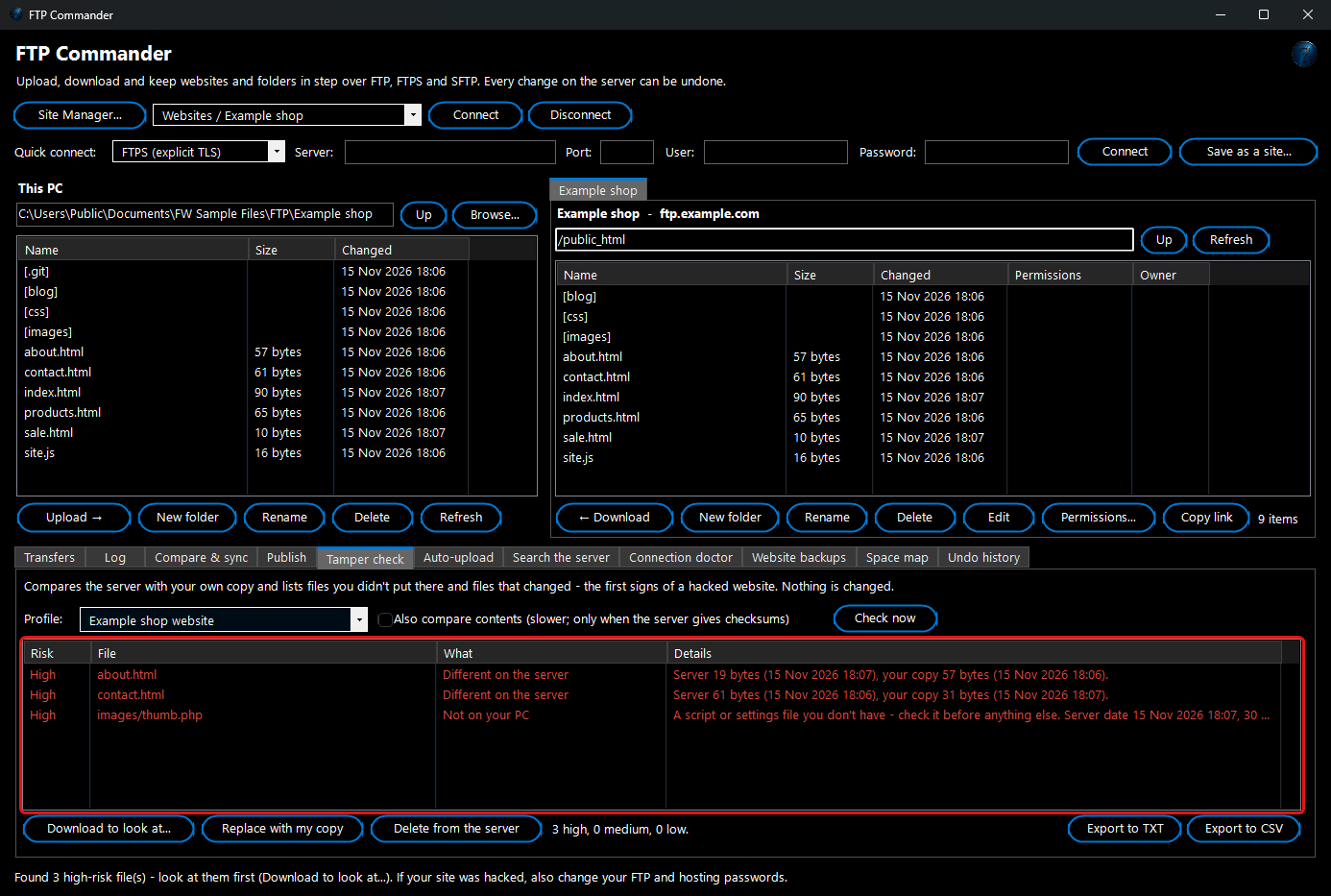
Hacked small websites are common, and the first sign is usually a file you didn't put there - often a
.php script hidden among the pictures. The
Tamper check compares the server with your own copy (a publish profile's folders) and lists:
- Not on your PC - a file on the server you don't have. Scripts and settings files (.php, .js, .htaccess and similar) are High risk; other files Medium.
- Different on the server - the server's copy isn't the same size as yours (or, with Also compare contents, has different contents).
- Changed on the server since you published - same size, but dated after your last publish.
- Missing on the server (Low) - on your PC but not on the server.
Nothing is changed by the check. Then:
Download to look at... saves the selected files into
Documents\FTP Commander checks with
.txt added, so they can be read but not run;
Replace with my copy uploads your version;
Delete from the server removes files you don't have (a copy is kept, so Undo can put them back). If you find something you didn't put there, also change your FTP and hosting passwords.
Website backups: a copy of your site every day or week
Your web host may keep backups - or may not, or may charge to restore one.
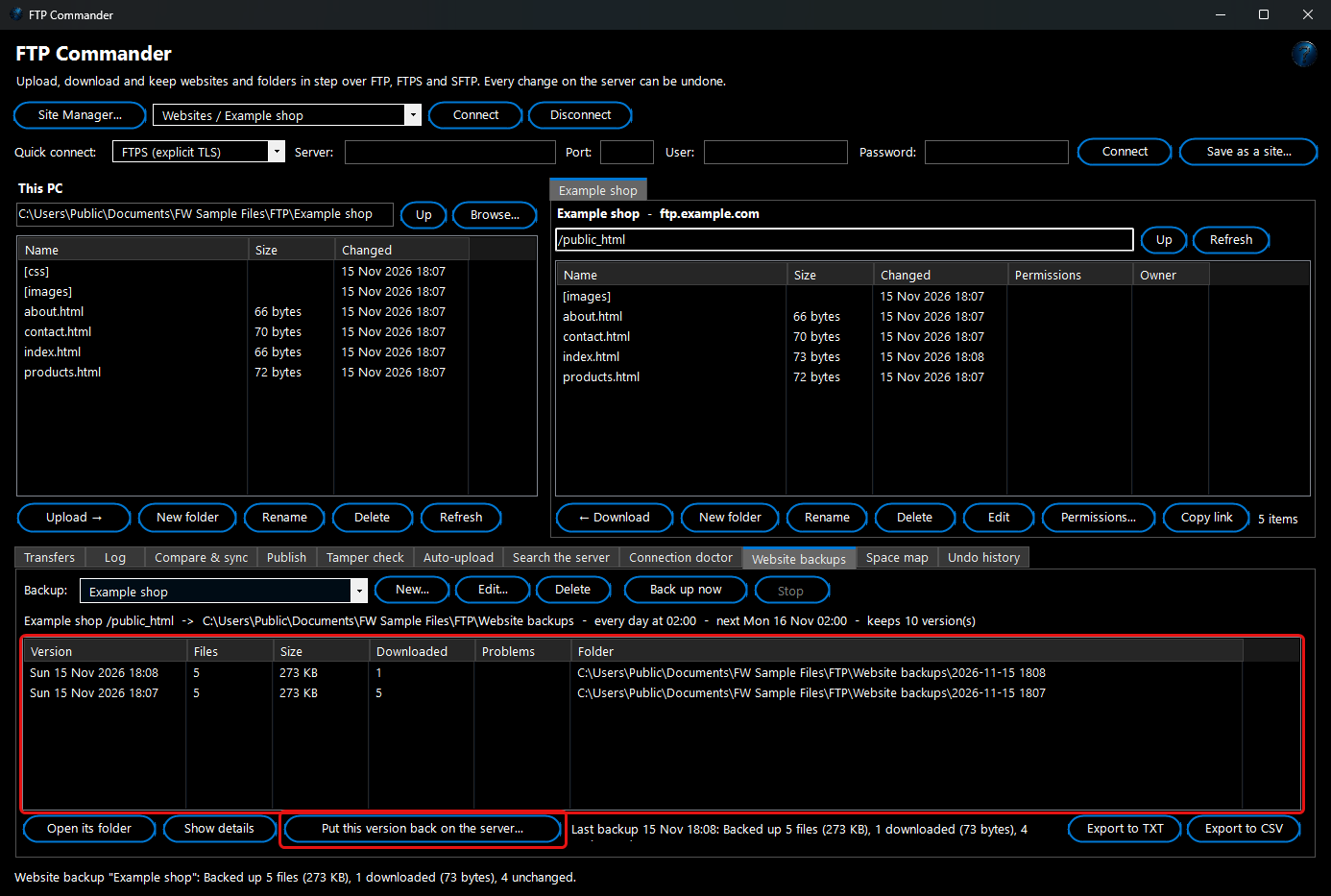
Website backups keep your own copies on this PC (or an external drive), one dated folder per backup, each holding the whole website as it was at that moment.
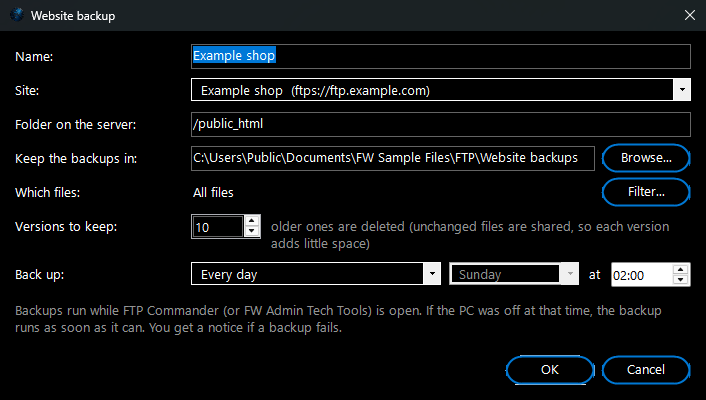
1. On the
Website backups tab click
New.... Give it a name, pick the
Site, type the
Folder on the server (for example
/public_html) and choose where to
Keep the backups (for example
Documents\Website backups\Example shop).
2. Choose how many
Versions to keep (10 to start with) and when to
Back up:
Every day or
Every week at a time, or
Only when I click Back up now.
Filter... can leave out folders such as
cache. Click
OK.
3. Click
Back up now to make the first version. The list shows each version with its date, how many files it has and how many had to be downloaded.
4. To look at an old version, select it and click
Open its folder (the website's files are in its
files folder).
Show details opens a short report of that backup.
5. To go back to a version, select it and click
Put this version back on the server.... You are asked whether files added since then (for example files a hacker added) should be deleted too. The
Compare & sync tab then lists every file that would be uploaded or deleted - nothing is sent until you click
Sync ticked files, and the files it replaces are kept, so Undo can reverse it.
Example: A daily backup of
/public_html at 02:00, keeping 10 versions. On Tuesday a plugin update breaks the home page. You select Monday's version, click
Put this version back on the server..., answer
No (keep the new files), check the list - three changed files - and click
Sync ticked files. The site is back as it was on Monday.
How it saves time and space: only files that are new or changed since the previous version are downloaded. A file that is the same (same size and date on the server) is taken from the previous version on this PC - on an NTFS drive (the usual Windows drive) it is even
shared between the versions, so it uses no extra space. Ten versions of a 2 GB website usually take little more than 2 GB. Because files are shared, copy a file out of a backup before changing it.
When backups run: while FTP Commander - or FW Admin Tech Tools - is open, a backup runs at its time without FTP Commander's window being open. If the PC was off or the program closed at that time, the backup runs as soon as it can (within a few minutes of opening). If a backup fails, a notice says why (for example a changed password), it is tried again an hour later (up to three times), and the
Website backups tab shows the last result in red. Older versions beyond the number to keep are deleted - only the dated folders the backup made itself, never anything else in that folder.
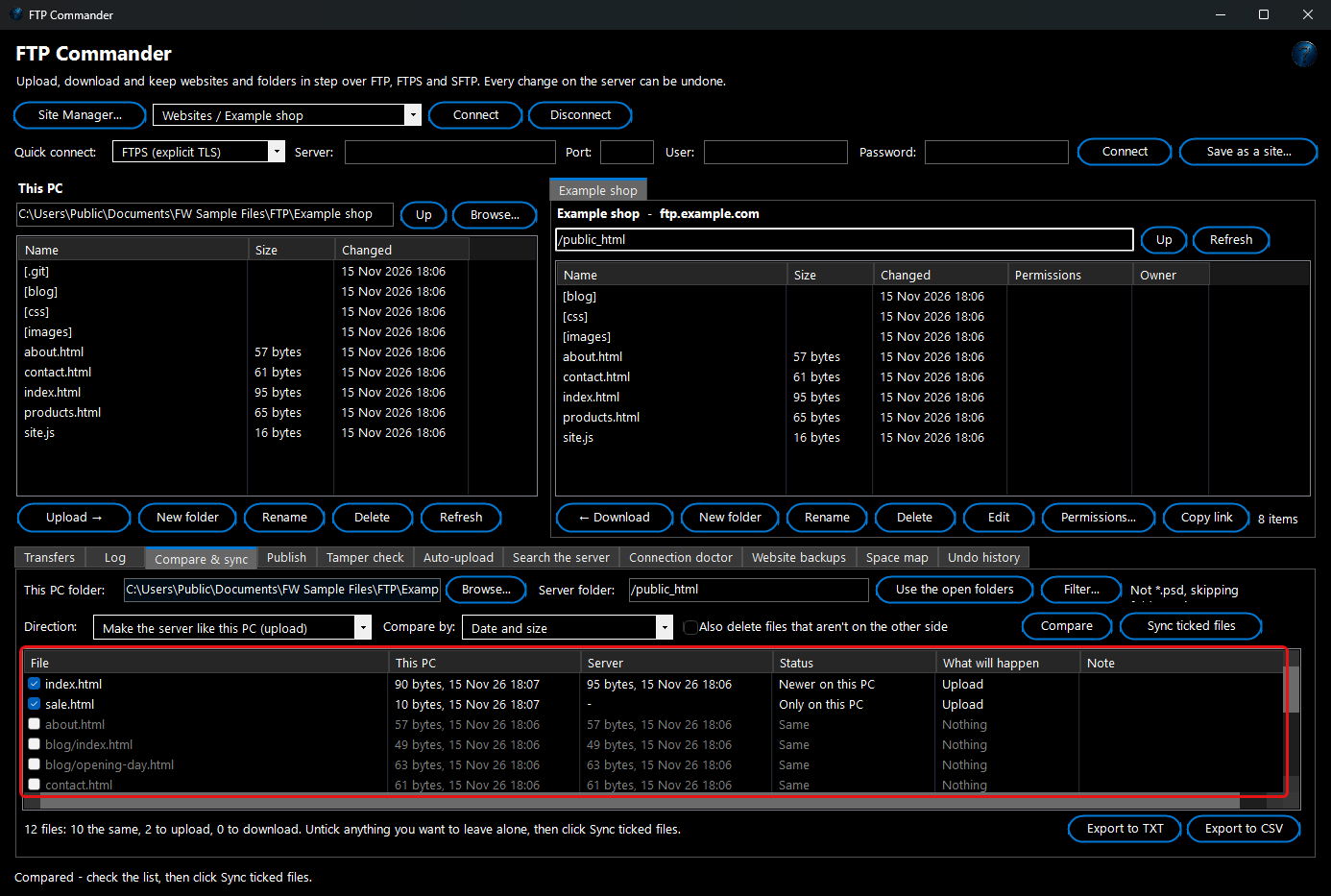
Compare and sync
On the
Compare & sync tab, pick a folder on this PC and a folder on the server (or click
Use the open folders), choose the
Direction and click
Compare. Every file is listed as the same, only on one side, newer on one side or different, with
What will happen. Untick anything you want to leave alone, then click
Sync ticked files.
- Make the server like this PC uploads; Make this PC like the server downloads; Both ways copies each change to the other side. A file changed on both sides since the last two-way sync isn't ticked - double-click it to see both copies side by side and pick one (see below).
- Compare by date and size (quick), size only, or contents (checksums - slower, and only on servers that can give them).
- Also delete files that aren't on the other side makes an exact mirror. Deleted files can be put back with Undo.
- Server clocks: some older servers list file dates in their own time zone. FTP Commander checks that the first time it matters (it uploads a tiny test file, reads its date and deletes it), so "newer" means newer.
See both copies side by side before anything is overwritten
When a file changed on this PC
and on the server, you can look at both before choosing which one to keep - so you don't lose someone else's change.
1. On the
Compare & sync tab click
Compare.
2. Double-click a file in the list (a file marked
Changed on both sides, or any file that is on both sides). If you tick such a file and click
Sync ticked files, the same window opens for it.
3. This PC's copy is on the left and the server's on the right, lined up line by line. Amber lines are different, red lines are only on this PC, green lines are only on the server.
Next change and
Previous change jump between them; both sides scroll together. You can drag the divider - it stays where you put it.
4. Click
Keep this PC's copy (it is sent to the server),
Keep the server's copy (it comes to this PC) or
Decide later (nothing changes and the file is unticked). Then click
Sync ticked files.
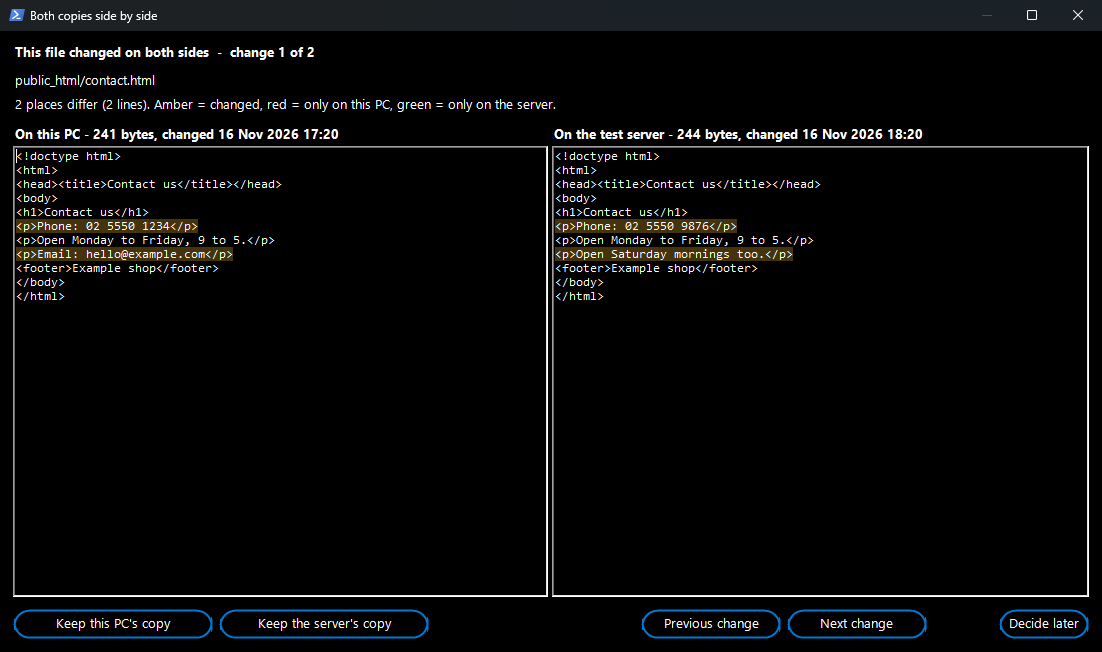 Example:
you changed the phone number on
contact.html, and a colleague added Saturday opening hours to the copy on the server. Side by side you see both changes, keep the server's copy, then add your new phone number to it and sync again - nothing is lost.
Good to know: only text files are shown as text (web pages, styles, scripts, text and similar, up to 3 MB). For pictures, programs and other files the window shows the size and date of each copy. Whichever copy is replaced is kept for Undo.
The advanced filter
Wherever you see
Filter... (Compare, Publish, Auto-upload, Search) you can choose exactly which files take part:
- Only these files and Never these files - patterns separated by ";", for example *.html; *.css or *.psd; *.tmp. A pattern with a "/" matches a path, for example images/*.png or images/**/*.png (any folder depth).
- Skip these folders (for example .git; node_modules; cache) and Skip hidden files (names starting with a dot).
- Size between (for example 10 KB and 50 MB), Changed in the last or Not changed for a number of days, Changed after / before a date, and Only go a number of folder levels down.
- Path matches (regular expression) for advanced users.
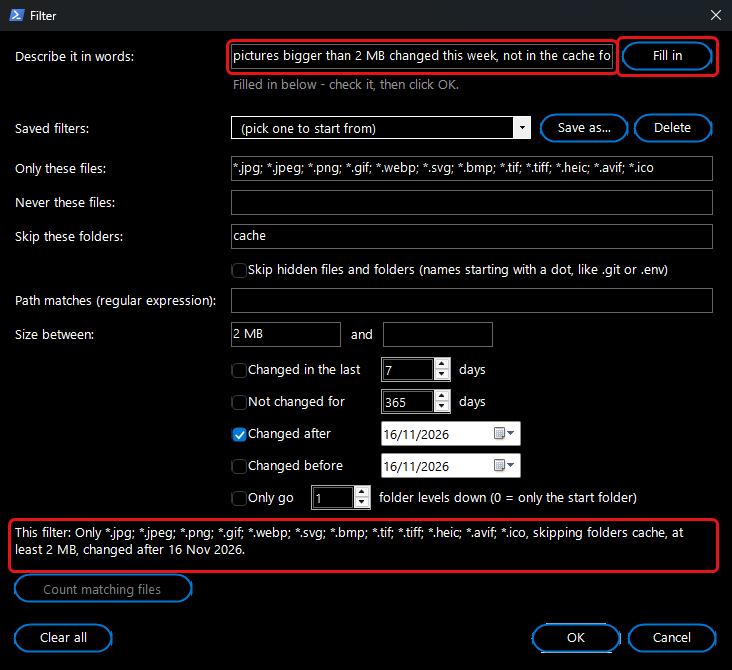
Describe it in words: instead of filling in the boxes, type what you want in the box at the top of the filter window and click
Fill in (or press Enter). The boxes below are filled in for you; check the line under them, then click
OK.
Example: type
pictures bigger than 2 MB changed this week, not in the cache folder and click
Fill in.
Only these files gets the picture types,
Size between gets 2 MB,
Changed after gets the start of this week and
Skip these folders gets
cache.
 Words it knows:
- Kinds of file: pictures, documents, PDFs, Word documents, spreadsheets, videos, music, web pages, styles, scripts, code, archives (zip), fonts, text files, logs, backups - or any extension, such as *.psd or png files.
- Sizes: bigger than 2 MB, smaller than 500 KB, between 1 and 5 MB, big (over 10 MB), small (under 100 KB), empty.
- Dates: today, yesterday, this week / month / year, in the last 3 days, since 1 March 2026, before Monday, older than a year, not changed for 30 days.
- Leaving things out: not, except, without, skip - for example documents except pdfs or skip the node_modules folder.
- Folders and names: in the images folder, named invoice, starting with draft, this folder only, no hidden files.
Nothing is guessed: if some words aren't understood, the note under the box lists them and they are left out.
The line under the boxes says the filter in plain words,
Count matching files shows how many files it lets through, and
Save as... keeps it for next time.
Ready-made filters (under
Saved filters):
Website files only,
Pictures,
Changed in the last 7 days,
Big files,
Documents and
ASP.NET website: pages, scripts, bin, images. The ASP.NET one is for a Visual Studio website project: it sends pages (
.aspx), master pages, user controls, handlers,
Global.asax, the
bin folder,
Scripts,
Content (styles),
fonts,
images,
sitemap.xml and
robots.txt - and never source code (
.vb,
.cs - it is already compiled into
bin), project files,
web.config (so the live site's own settings are never overwritten), debug files (
.pdb), the
obj,
.vs,
App_Data and
Temp folders, or dated copies such as
2025-12-22_Site.Master. Use it in a publish profile together with
Start from now... to send only what you change.
Auto-upload
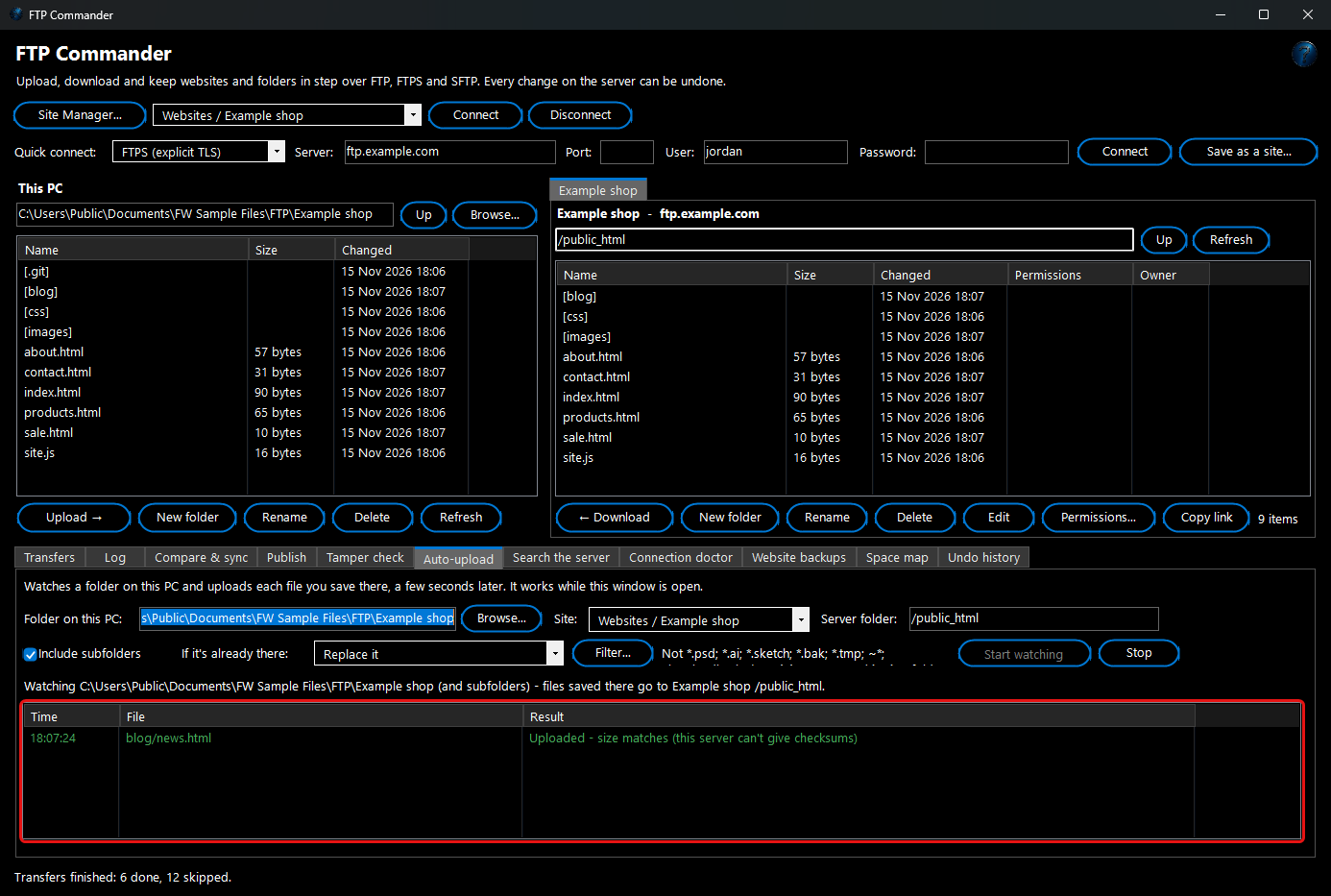
On the
Auto-upload tab, pick a folder on this PC, a site and a server folder, and click
Start watching. Every file you save in that folder (and its subfolders, if ticked) is uploaded a few seconds later - it waits until the program saving it has finished. Each one appears in the list with its result. This works while FTP Commander is open; files you delete on this PC are not deleted on the server. To upload files automatically even when FTP Commander is closed, use Watch and Process (below).
Example: You edit your website in a text editor. Start watching
C:\Websites\Example shop with
/public_html: each time you press Save, the page is on the server about three seconds later.
Space map: what is filling up my hosting?
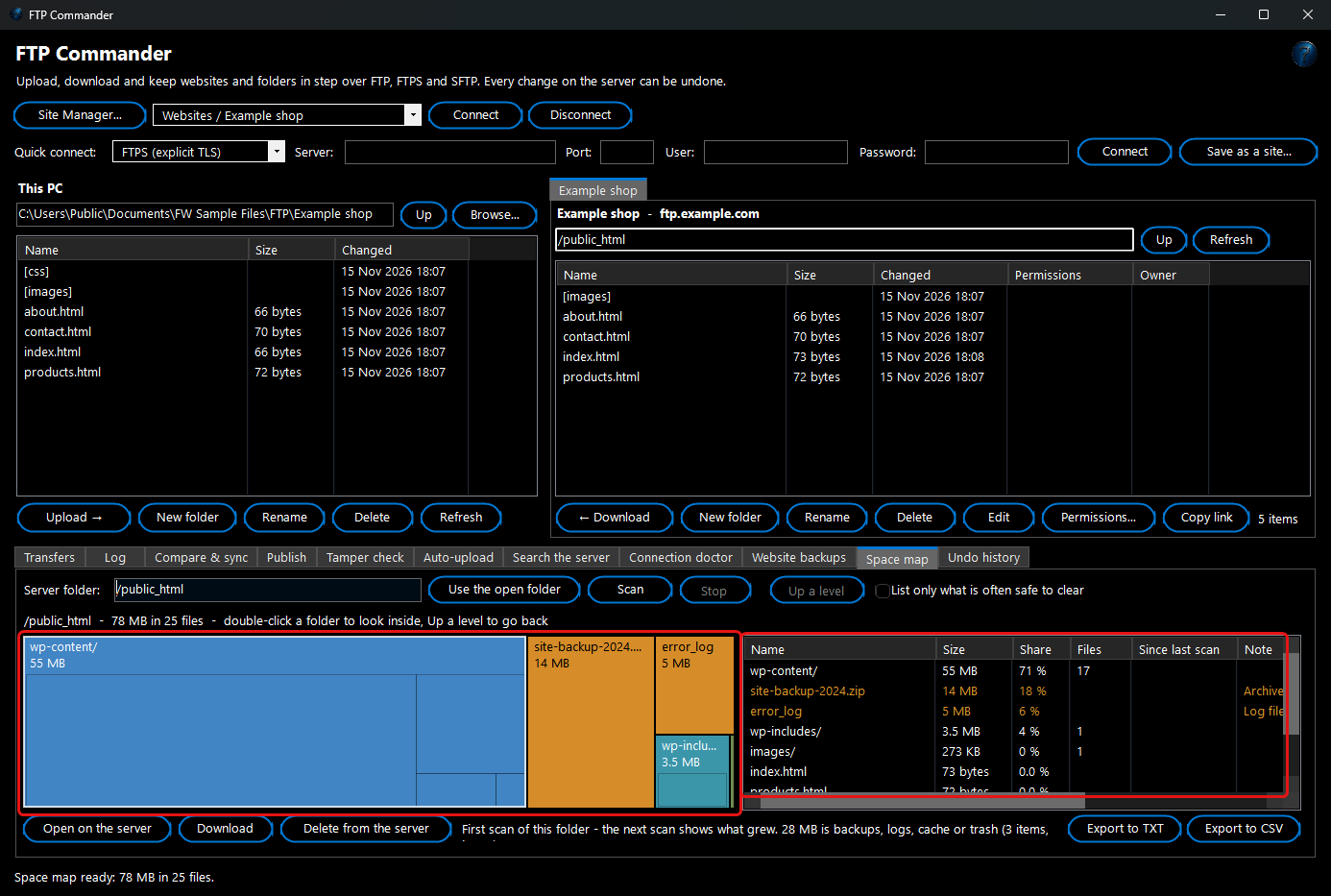
Hosting plans have a space limit, and when it is full uploads and emails start failing. The
Space map tab shows what uses the space on the server:
1. Connect to the site, open the folder to look at (or type it in
Server folder) and click
Scan. Every folder below it is read - on a big website that takes a few minutes;
Stop ends it.
2. The map shows each folder and file as a box - the bigger the box, the more space it uses. Folders show their own biggest contents faintly inside. Point at a box to see its size and share; double-click a folder to look inside it, and
Up a level to go back. The list on the right shows the same items with their size, share, number of files and how much they grew since the last scan.
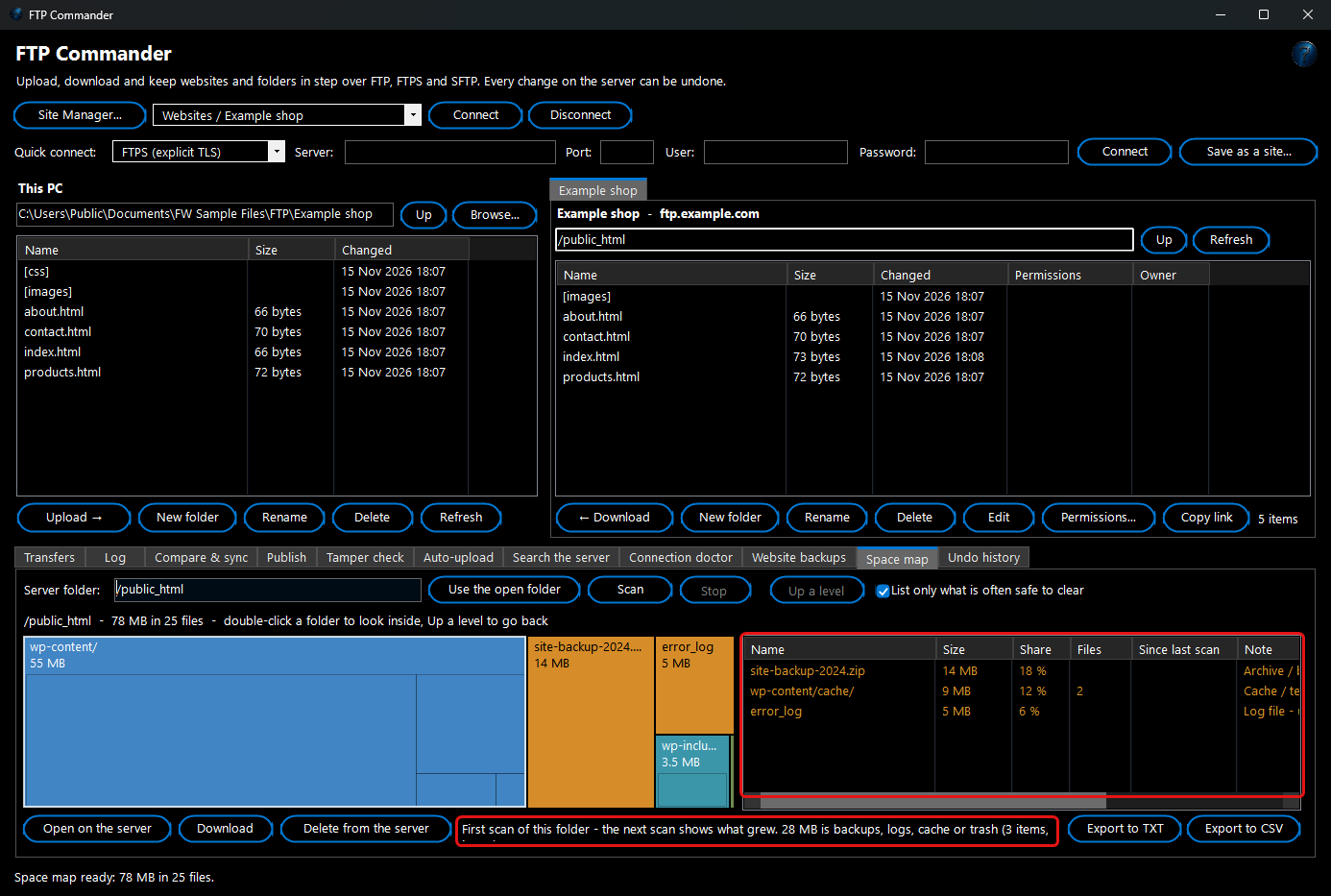
3. Items that are
often safe to clear are amber: backup archives (
.zip,
.tar.gz,
.sql and similar), log files (
error_log,
.log), cache and temporary folders, and trash. Tick
List only what is often safe to clear to see just those. They are only marked - nothing is ever removed by itself. Check before you delete: keep a copy of an old backup somewhere else first.
4. Select items to
Open on the server,
Download them, or
Delete from the server (a copy is kept first, so Undo can put them back).
Example: Your host says the account is 95 % full. The scan of
/public_html shows a big amber box
site-backup-2024.zip (an old backup a plugin left behind) and a 5 MB
error_log. You download the zip to keep it, delete both, and the account has room again. The next scan says what grew since today, so a log that keeps growing stands out.
Connection doctor
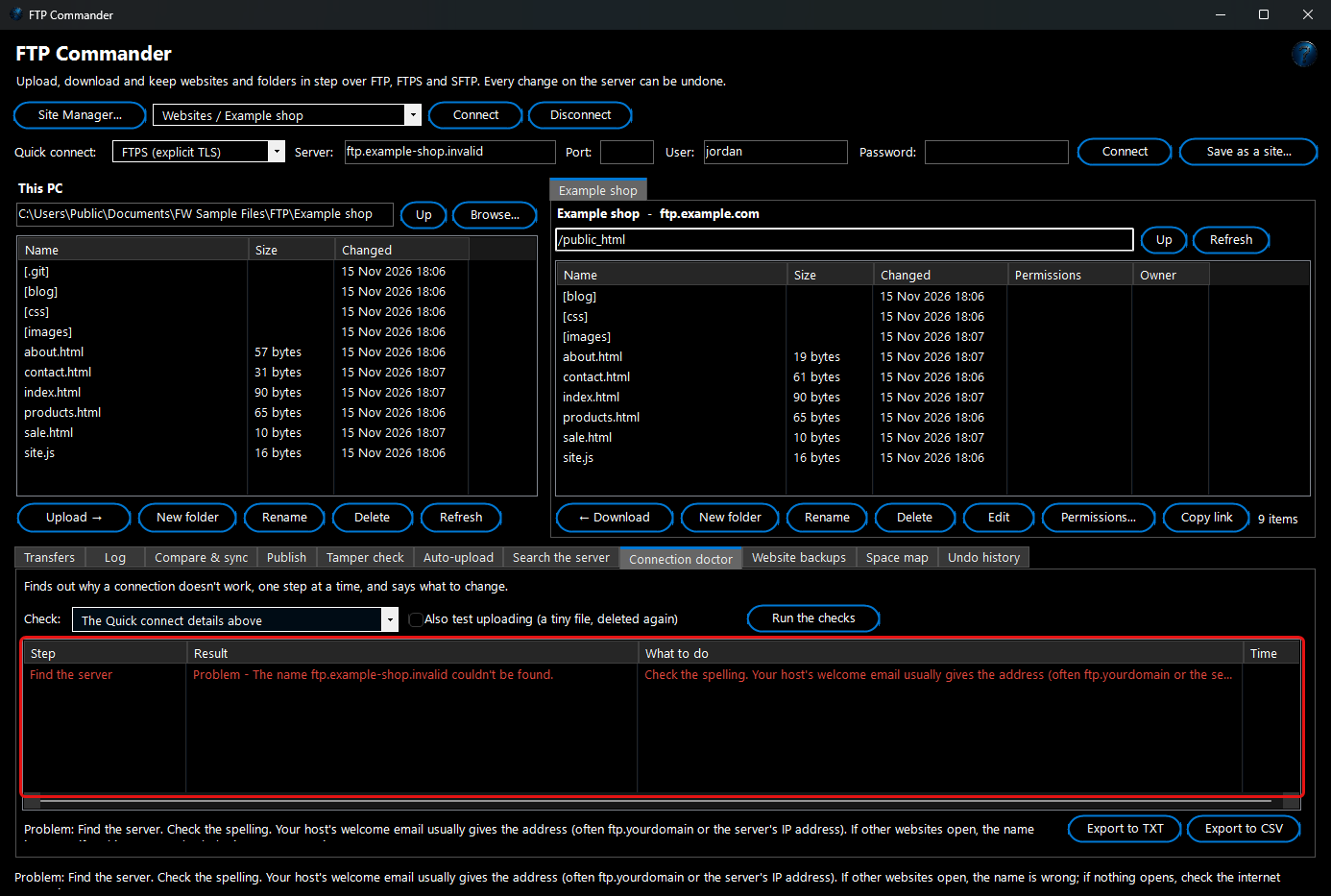
Can't connect? On the
Connection doctor tab, pick the site (or
The Quick connect details above) and click
Run the checks. It tests one thing at a time and stops at the first problem, so the advice is about
that problem: whether the server name can be found, whether the port answers, whether it is really an FTP or an SFTP server (a very common mix-up), encryption, the login, and listing a folder - first in passive mode, then in active mode.
Also test uploading uploads a tiny test file and deletes it again. Each step says in plain words what to change, for example "Change Protocol to SFTP (SSH)" or "It works in active mode - change Passive mode in the site settings".
More
- Edit - select a file on the server and click Edit: it opens in its usual program on this PC, and every time you save it, it is uploaded again (with an undo copy). This works while FTP Commander is open.
- Search the server - finds files by name (for example *.php or invoice) through every folder below the one you choose, with More options... for size and dates. Open its folder and Download act on the results.
- Permissions... - sets who may read, write and run a file on Linux servers, as three digits: 644 for a normal file, 755 for a folder or a script.
- Several servers at once - each connection opens in its own tab.
- Site Manager - sites in folders, a start folder on each side, passive or active mode, files at once, a speed limit, an SFTP key file (OpenSSH format), a proxy (HTTP or SOCKS5) and the website address (for copying web addresses). Import... brings in your FileZilla and WinSCP sites, with their saved passwords where those programs kept them readable. Forget next to Files at once clears a lower number the server allowed before, and Pack many small files into one upload (SFTP) is on by default.
- Export to TXT / CSV on every list.
Run it automatically with Watch and Process
Watch And Process Automation can upload every new file in a folder to one of your sites by itself - also when FTP Commander is closed.
1. Add the site in FTP Commander's Site Manager and connect to it once (so a certificate or host key is trusted).
2. In Watch And Process Automation, make a task that watches a folder, for example
C:\Exports\For the website.
3. Click
Add FW tool... and pick
FTP Commander. Choose the
Site, the
Folder on the server, what to do
If the file is already there, whether to check the file after uploading, and whether
Pictures are sent as smaller copies. When the site has a website address, the step's result in the log includes the file's web address.
4. Start watching. Each new file is uploaded; the file on this PC isn't changed. Replaced server files are kept for Undo, as in the FTP Commander window.
Example: your accounting program saves price lists into
C:\Exports\For the website. A task with the FTP Commander step and folder
/public_html/downloads puts each new price list on the website within moments.
How it works and what to expect
- Passwords are saved protected for your Windows account on this PC - they can't be read on another PC or by another Windows user. They never appear in the log.
- FTP Commander only connects to the servers you add. Page checks after publishing open the addresses you typed.
- Downloads arrive as name.fwpart and get their real name only when complete, so a half-downloaded file never replaces a good one.
- File dates are kept: uploaded files get their date on this PC (where the server allows it), downloaded files their date on the server - that is what makes Replace only if newer and Compare reliable.
- The connections for browsing (each server tab) and for transfers are separate, so you can keep looking around while files are sent.
- Smaller picture copies are made once and kept on this PC (unused ones are removed after 180 days), so the same picture isn't worked on again at every publish.
- Website backups, the space map's last totals and everything else FTP Commander keeps stay on this PC - nothing is sent anywhere except to your own servers.
Troubleshooting
- Publish says it worked, but the website hasn't changed - the profile is probably sending to the wrong folder on the server; see Why the website might not change in the Publish section. If the check says the website shows the file you sent but your browser doesn't, press Ctrl+F5 to load the page fresh.
- I raised At once but it still sends fewer - the server refused the extra connections, so FTP Commander stepped down by itself (the status line says so). Ask your host how many FTP connections you may use at the same time.
- The transfer list keeps jumping away from the file I am looking at - that is Follow the current file. Make Pause (s) longer to get more time to look, or untick Follow the current file on the Transfers tab.
- "The server name couldn't be found" - type only the name, for example ftp.example.com, without ftp:// or a folder. Check the spelling against your host's email.
- "The user name or password wasn't accepted" - copy and paste them from your host. Some hosts use your full email address as the user name, or need an FTP account made in the hosting control panel first.
- It connects but the folder list never appears - a firewall is blocking FTP's second connection. Run the Connection doctor: it tries passive and active mode and says which works. FTPS or SFTP often avoid the problem.
- "Nothing answered on port..." or "This is an SSH / SFTP server" - the protocol or port is wrong. SFTP normally uses port 22, FTP and FTPS 21, implicit FTPS 990.
- The security check appears again - the server's certificate or host key changed. That happens when a host renews it; if you didn't expect it, ask your host before trusting it.
- "This is a PuTTY key (.ppk)" - open the key in PuTTYgen, choose Conversions > Export OpenSSH key and pick the exported file in the Site Manager.
- Fewer files go at once than I chose - the server allows fewer connections; FTP Commander lowered the number and remembered it. The Site Manager shows it next to Files at once. If your host now allows more (for example after you moved to a bigger plan), click Forget there and Save: your own number is tried again.
- A scheduled publish didn't run - it runs while FTP Commander or FW Admin Tech Tools is open. Open it and a missed publish runs within a few minutes. The Publish tab shows when it last ran and how it went.
- "Files you deleted were NOT deleted on the server" - a scheduled publish never deletes more than 20 files by itself. Click Preview on the Publish tab, check the list and click Publish.
- Some of my words weren't understood in the filter - the note lists them. Use the words shown in Words it knows above, or type in the boxes directly.
- The side-by-side window shows only sizes and dates - the file isn't a text file (or is over 3 MB). Compare the dates and sizes, or open both copies in the program that made them.
- The log says small files are sent one by one - this SFTP server can't unpack zip files (or doesn't allow commands). Nothing is wrong; the files go up the normal way.
- Dates look a few hours out - the server lists times in its own time zone. Site Manager > Server clock > Check again, or compare by size.
- "Website backup didn't work" - the notice and the Website backups tab say why. A changed password: update it in the Site Manager. A full or missing backup drive: free space or plug the drive in, then click Back up now.
- A backup didn't run at its time - backups run while FTP Commander or FW Admin Tech Tools is open. Open it and a missed backup runs within a few minutes.
- The copied web address doesn't open - check the Website address in the Site Manager and set the Website folder (the server folder that is the website, for example /public_html).
- A picture wasn't made smaller - it was already as small as it gets (the original was sent), or it is a type other than JPEG / PNG, or under 8 KB.
- Undo says "Left alone" - that file was changed again after the action, so Undo didn't overwrite the newer version. Its saved copy is in the action's folder (Open its folder).