RAM Optimiser - See what's using your memory and reclaim it, on demand or automatically (Added Oct 2026)
Description
RAM Optimiser is a dedicated tool for keeping an eye on memory and freeing it up when it matters. Trim idle processes on demand, go further with a Standby List purge that reclaims cached-file memory a plain trim never touches, or hand it over to a configurable auto-clean timer that reacts to a schedule, a usage threshold, or both — aware of when you're actively working and whether you're on battery. A live graph and exportable history show you the pattern over time, a leak detector flags a process that keeps growing and never gives memory back, and a floating edge-docked widget keeps the current reading one glance away without the main window open.
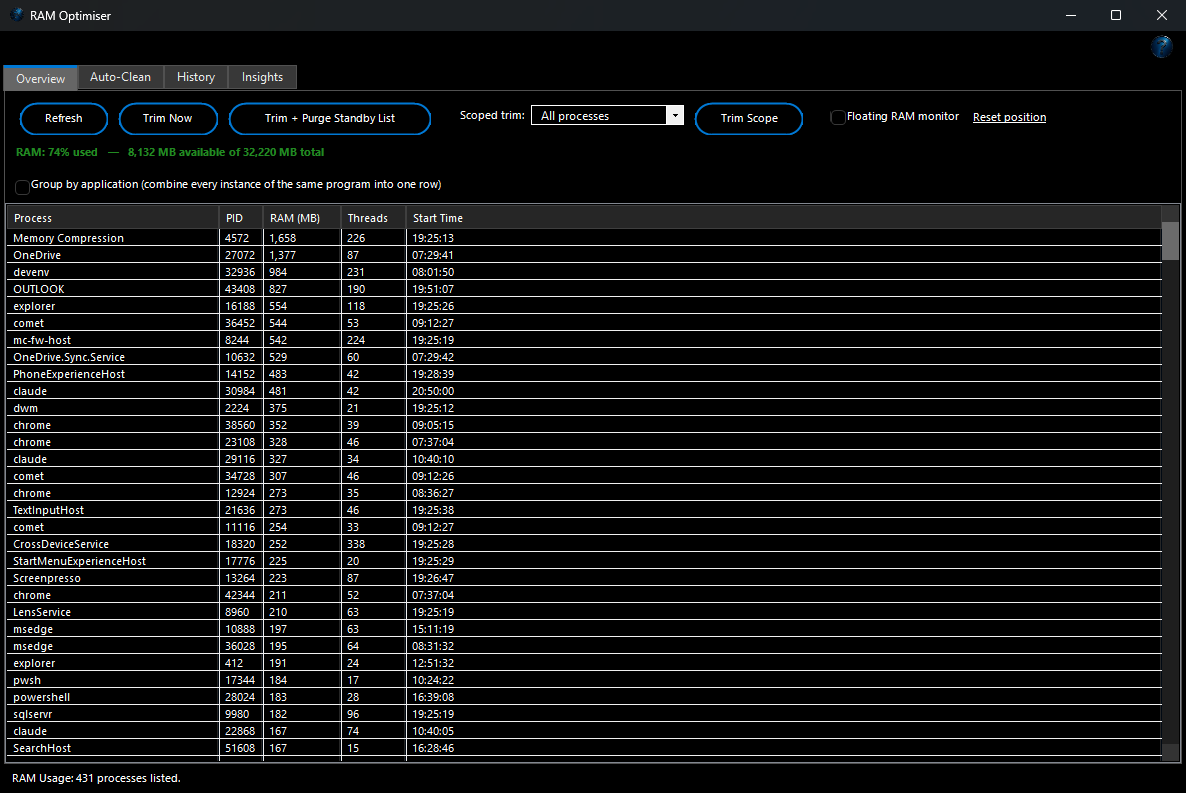
Overview tab
A live list of every running process by RAM use, with a Group by application toggle that combines every instance of the same program (all your browser's processes, for instance) into one row. From here:
- Trim Now: the standard working-set trim — safe and fully reversible, Windows simply writes idle pages back and reloads them on next use.
- Trim + Purge Standby List: also reclaims Windows' cached-file memory, which a plain trim leaves alone — this is usually the bigger jump in "available" memory. Needs administrator rights.
- Scoped trim: instead of touching every process, trim just the heaviest N, or everything except whatever's currently in the foreground — both gentler than an across-the-board trim.
- Exclude from auto-trim: right-click any process (a game, a DAW, a VM — anything you never want auto-trimmed) to keep it out of the automatic timer, without affecting a manual trim.
Auto-Clean tab
- Fixed interval: trim every N minutes.
- Usage threshold: also trim the moment RAM use crosses a percentage you set, instead of waiting for the next scheduled run.
- Idle-aware: only auto-trim after a set number of minutes with no keyboard or mouse input, so it never interrupts something you're actively doing.
- Battery-aware: backs the fixed-interval trim off to a third as often on battery power (a threshold-triggered trim still runs normally, since real pressure outweighs the extra paging cost).
- Possible memory leaks: a read-only list of processes that have grown steadily and never meaningfully shrunk over 10+ minutes — a heads-up, not an automatic action; trim just that one process from the list if you want to.
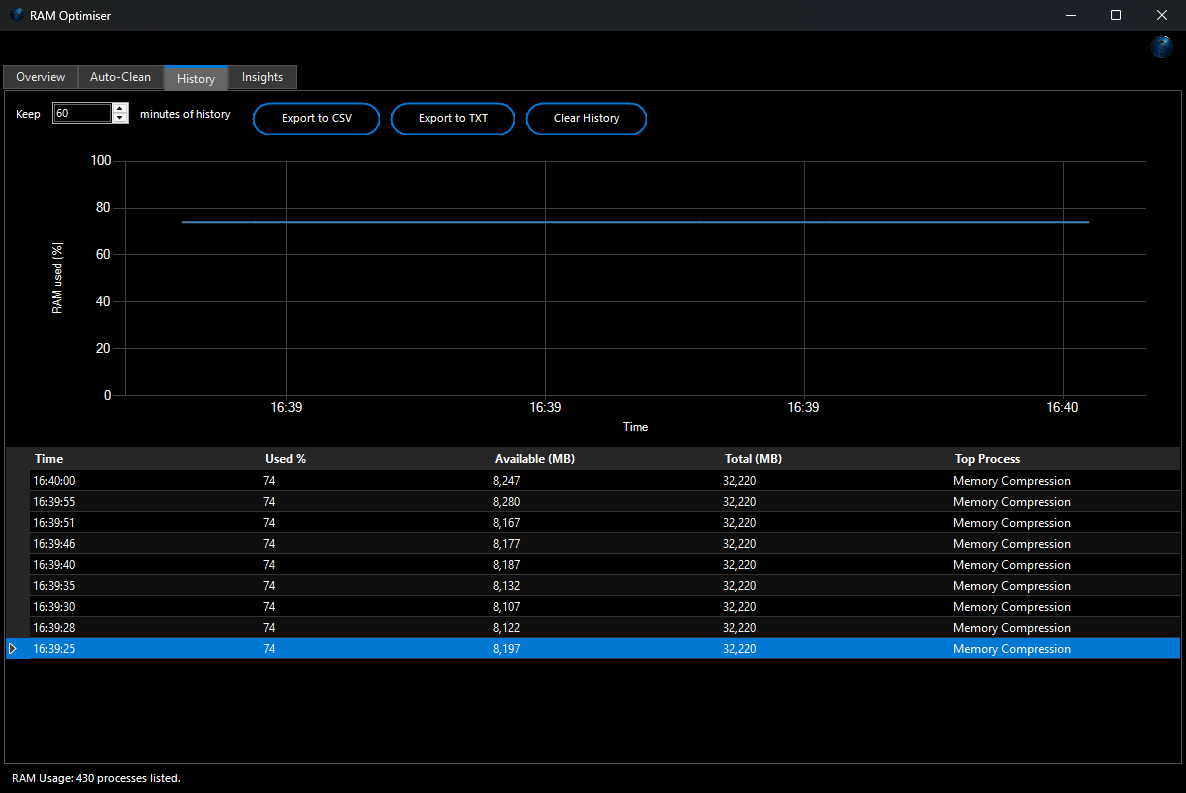
History tab
A live, scrolling graph of RAM usage over whatever window you choose (minutes to a full day), backed by a logged table of every sample — time, usage %, available and total memory, and the top process at that moment — with Export to CSV and Export to TXT buttons for digging into a pattern later (why does the PC slow down every afternoon?).
Insights tab
- Pagefile: allocated size, current and peak usage this session, and whether it's Windows-managed or a custom size — pagefile misconfiguration is a distinct, separate cause of "feels slow" from physical RAM running low.
- Startup apps' RAM footprint: how much RAM your currently-running startup programs are using right now, with a button straight through to System Performance Optimiser's Startup Programs tab to actually disable the heavy ones.
- Would more RAM help? a plain-language, honestly-labelled rough indicator based on how often usage has crossed 85% while being tracked — not a scientific recommendation, just a sense of whether you're actually RAM-constrained.
Floating RAM monitor
Tick Floating RAM monitor on the Overview tab for a small always-on-top widget showing the current RAM% (colour-coded) with a one-click trim on hover. Drag it anywhere on any monitor: it stays exactly where you put it and opens in the same place next time (if that monitor is no longer connected, it moves onto one that is). Click it without dragging to bring the main window back up, or right-click it for Open RAM Optimiser, Trim RAM now, Reset position and Hide widget. Reset position next to the tick box puts it back on the right-hand edge of your main screen.

What You Can Do With This Program
Potential Uses for the RAM Optimiser Tool:
- Reclaim Memory Properly: Go beyond a basic trim with a Standby List purge for the cached-file memory a plain "free up RAM" button leaves behind.
- Set It and Forget It: Let an idle- and battery-aware auto-clean timer handle things in the background, triggered by schedule, usage threshold, or both.
- Catch a Runaway Process: Spot a process that keeps growing and never gives memory back, before it eats your whole machine.
- Diagnose a Slow Afternoon: Export a usage history to CSV and work out exactly when and why memory pressure builds up.
- Protect What Matters: Exclude a game, a DAW or a VM from auto-trim so it's never interrupted, while everything else still gets cleaned up.
- Keep an Eye on It Without the Window Open: Put the floating monitor wherever suits you and trim with one click whenever you notice usage climbing.
- Trim Smarter, Not Harder: Target just the heaviest processes or whatever's in the background, instead of disrupting everything at once.
- Work Out If You Actually Need More RAM: Get an honest, usage-based read before spending money on an upgrade.
|