Disk Space Analyser - See exactly what is using space on a drive or folder, and clean up with confidence (Updated Oct 2026)
Description:
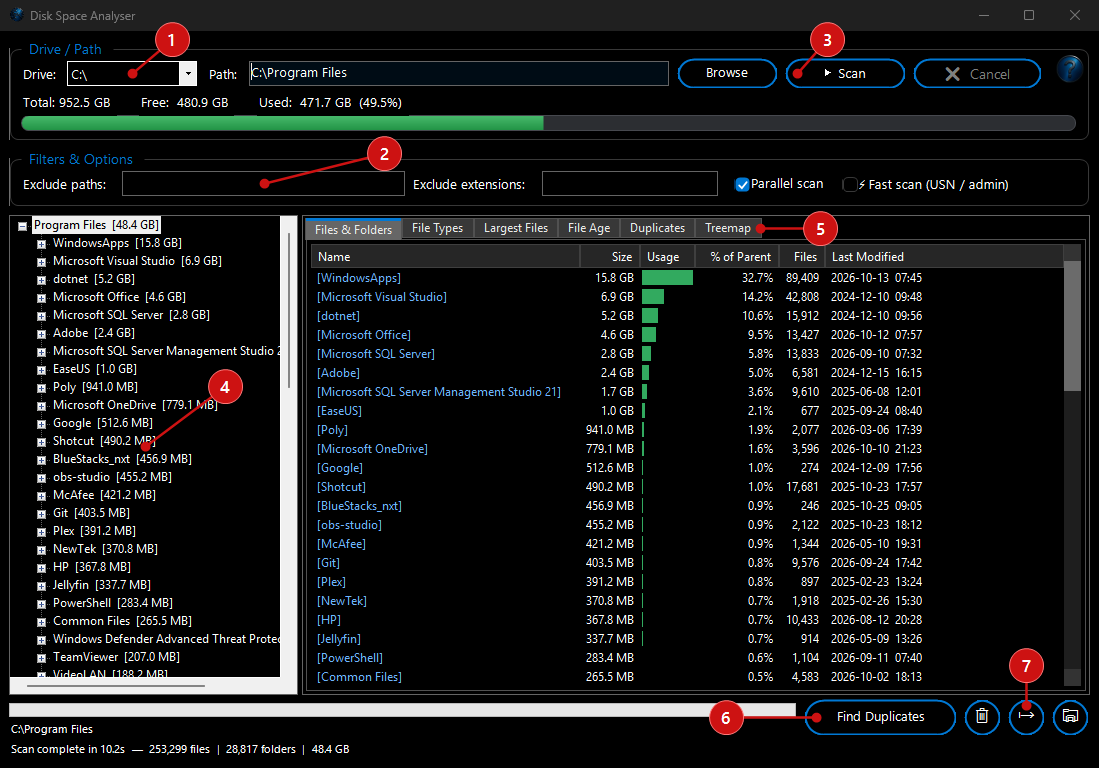
Disk Space Analyser scans a Windows drive or folder and shows you exactly where your space has gone. You pick a drive or path, run the scan, and then explore the results in a folder tree alongside a set of tabs that break the same data down in different ways — files and folders, file types, largest files, file age, duplicates and a visual treemap. It shows the total, free and used space for the selected drive, lets you exclude paths and file types, and can run a fast scan on NTFS drives when started with administrator rights. When you have found what is taking up room, you can find duplicate files, export the results to CSV, open items in Explorer, or send files you no longer need to the Recycle Bin.
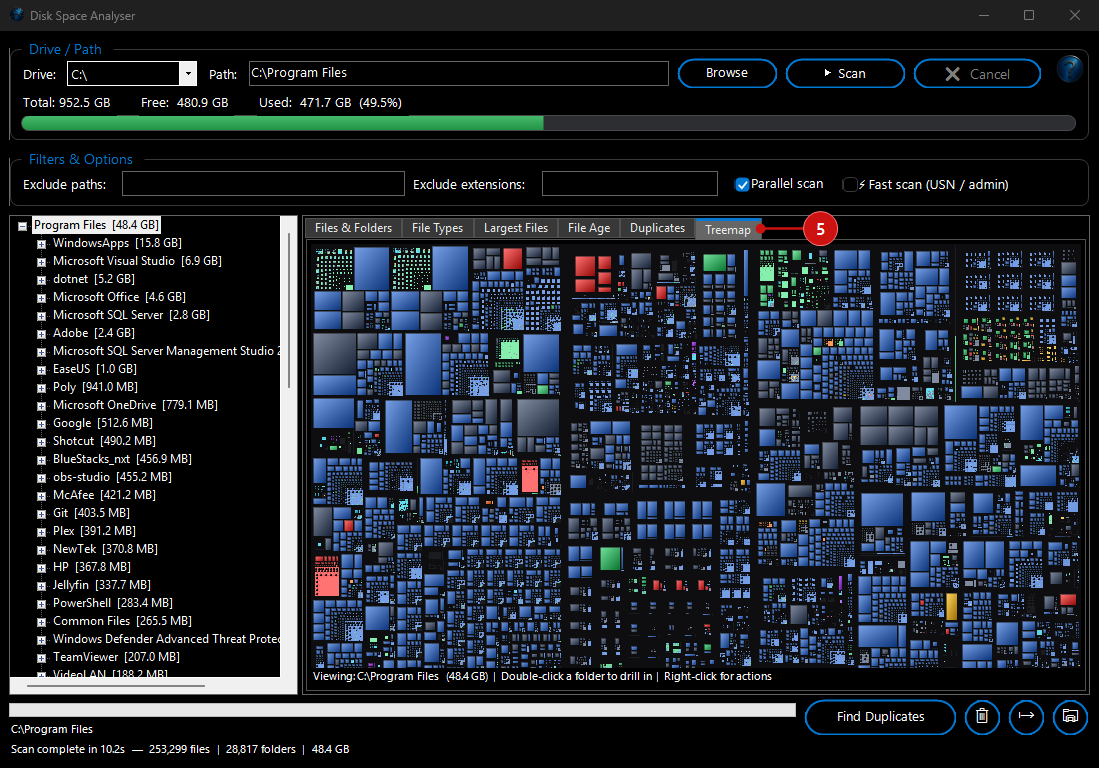
Duplicate detection and treemap: The tool can group identical files by content and show you how much space is wasted on duplicates, and the treemap gives you a birds-eye picture of a folder where the size of each block matches how much space it uses — recently refined for more accurate file-to-block mapping.
How to use:
 1. Choose a drive or path.
 Pick a drive from the drive list, or type or paste a folder path into the
Scan path box. Use
Browse to select a folder instead. For the selected drive you will see the
Total,
Free and
Used space, with a bar showing how full it is.
2. (Optional) Set filters and options. Use
Exclude paths to skip folders you don’t want counted, and
Exclude extensions to skip certain file types. Leave
Parallel scan ticked for faster scanning on modern drives.
Fast scan (USN / admin) reads the NTFS index for a much quicker pass on large volumes — it becomes available when the program is run as administrator on an NTFS drive.
3. Start the scan. Click
Scan to begin. The progress bar, current path and status line show how the scan is going, and you can click
Cancel at any time to stop it.
4. Explore the folder tree. When the scan finishes, the left-hand tree lists your folders. Click a folder to expand it and drill down; the tabs on the right update to show the contents of whatever you have selected.
5. Read the results tabs. Switch between the tabs to look at the same data in different ways:
- Files & Folders — the items in the selected folder with their size, a bar showing their share of the space, percentage of the parent, file count and last-modified date.
- File Types — a breakdown by extension showing how many files of each type there are, their total size and their share of the scan.
- Largest Files — the biggest files found, with their size, last-modified date and full path.
- File Age — files grouped by how recently they were changed, using the ranges “< 7 days”, “7 – 30 days”, “1 – 3 months”, “3 – 12 months”, “1 – 2 years”, “2 – 5 years” and “> 5 years”.
- Duplicates — groups of identical files with the file size, the space wasted per group and the full path (see step 6).
- Treemap — a visual map where each block’s size reflects the space it uses. Hover over a block to see what it is, double-click a folder to drill into it, double-click the background to go back up, and right-click a block for the same actions as the lists.
6. Find duplicate files. Click
Find Duplicates to look for files whose contents are identical. The tool first groups files by size, then compares the content of same-size files to confirm a true match, and reports each group along with the space you would recover by keeping just one copy.
7. Act on what you find. Right-click an item for quick actions —
Open in Explorer,
Open File,
Copy Full Path, or
Delete (Recycle Bin). The delete option asks you to confirm and sends the item to the Windows Recycle Bin so it can be restored if needed. The toolbar buttons let you open the current item in Explorer or open the file directly as well.
8. Export the results. Click
Export to save the results to a CSV file (named
DiskScan_ followed by the date and time) that you can open in a spreadsheet for reporting or record-keeping.