Auto Run - Launch a whole set of programs, one after another, in the order and timing you choose (Updated Oct 2026)
Description
Auto Run is a staggered startup launcher. Instead of opening the same handful of programs by hand every time you sit down to work, you build a list once and let Auto Run open them for you — one after another, each on its own delay so your machine is not hit by everything at once. A single list can mix
internal tools (any of FW Admin Tech Tools Pro's own tools) with
external programs (a browser, your email client, an editor, a folder, a document — anything on your PC). You arrange them in the order you want, give each one a delay, and press
Start.
Everything is organised into named
profiles, so you can keep a “Morning” set, a “Client work” set and a “Dev” set and switch between them. Profiles are saved in your user profile and survive app updates.
Before you start — requirements
Nothing extra is needed. Auto Run uses only what is already on your PC — there is nothing to install.
Run as administrator. As with the rest of FW Admin Tech Tools Pro, run the app as administrator. Because the app itself is elevated, Auto Run deliberately launches your
external programs
de-elevated (as your normal user) by default, so things like drag-and-drop and file associations keep working the way they should. Any single program can be set to run elevated instead (see
Editing an item below).
Where your profiles are saved. Your launch lists are stored as
autorun.json in
%LOCALAPPDATA%\FWAdminTechToolsPro\TechTools. This folder is tied to the product rather than the version, so your profiles are kept when you update the app.
The main window
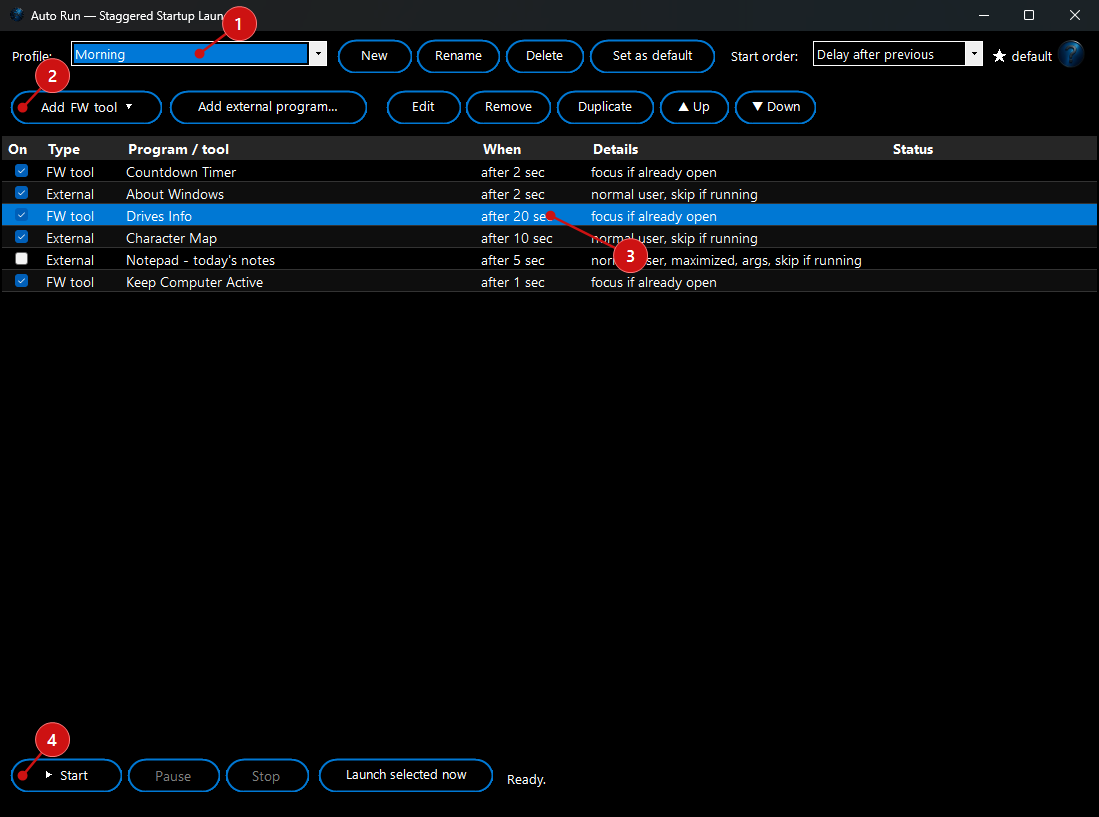
The window has four parts.
1. The
profile bar at the top chooses which launch list you are working with and how it is timed.
2. The
add and edit bar adds FW tools and external programs and arranges the list.
3. The
launch grid in the middle is your ordered sequence of programs, with each item's delay, options and status.
4. The
run bar along the bottom starts, pauses and stops the sequence and shows a live countdown to the next launch.
Building your launch list
There are two ways to add something to the list, one for each kind of item.
Add an FW tool. Click
Add FW tool to drop down every tool inside FW Admin Tech Tools Pro, grouped by category with the same names as the main window. Point to a category and pick a tool, and it is added to the sequence. This is how you have Auto Run open several of the suite's own tools for you.
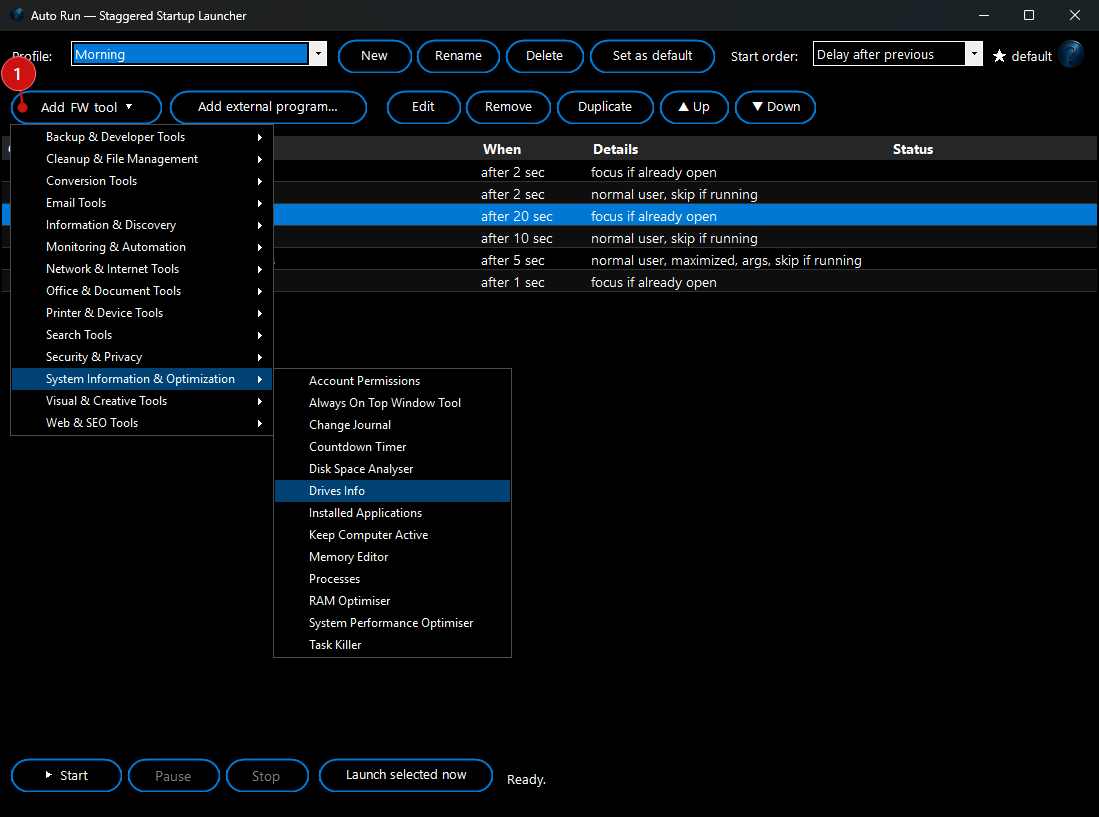 Add an external program.
Click
Add external program… and browse to any program, shortcut (
.lnk), batch file or document. You can also
drag and drop one or more files straight onto the grid to add them quickly.
Arrange and manage the list. The order of the grid is the order things launch, so use
Up and
Down to reorder.
Edit opens an item's options,
Remove deletes it, and
Duplicate copies it. The
On tick-box on each row lets you keep an item in the list but skip it this run without deleting it.
Profiles and start order (timing)
Profiles. Use the
Profile drop-down to switch between saved lists, and
New,
Rename and
Delete to manage them.
Set as default marks the profile you want to reach for first (it is shown with a star). Every change is saved automatically.
Start order. The
Start order drop-down chooses how each item's time is measured, and it is remembered per profile:
- Delay after previous: Each item waits its own delay after the one before it launches. This is the natural “one after another” model — set each gap and the sequence walks down the list.
- Offset from Start: Each item opens at its delay measured from the moment you press Start (for example one at +10 seconds, one at +45 seconds, one at +2 minutes). In this mode the sequence is automatically ordered by those offsets.
Either way, each item's delay is a number plus a unit (
seconds or
minutes) that you set when you edit it, shown in the grid's
When column.
Editing an item — the options
Double-click a row (or select it and click
Edit) to open its options. What you see depends on whether it is an FW tool or an external program.
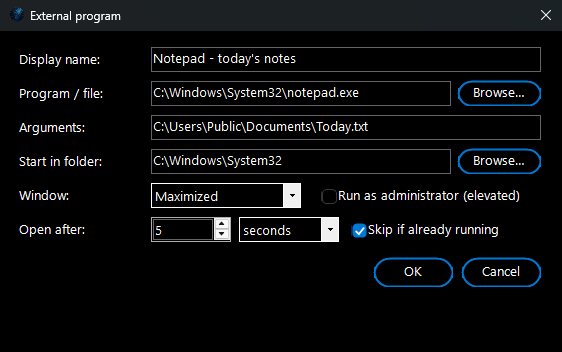 For every item:
- Display name: The friendly name shown in the grid.
- Open after: The delay for this item — a number and a unit (seconds or minutes). Its meaning follows the profile's Start order (a gap after the previous launch, or an offset from Start).
External programs also have:
- Program / file: The program, shortcut, batch file or document to open (use Browse… to pick it).
- Arguments: Any command-line arguments to pass to the program.
- Start in folder: The working folder the program starts in (defaults to the program's own folder).
- Window: Open the program Normal, Minimized or Maximized.
- Run as administrator (elevated): Off by default, so the program runs as your normal user (recommended). Tick it only for programs that genuinely need elevation.
- Skip if already running: If the program is already open, don't start another copy.
FW tools instead have: a
Focus if already open option — when the tool is already open, Auto Run brings its window to the front instead of opening a second copy.
Running your sequence
Press
Start and Auto Run works down the list, opening each item when its time arrives. The status line (1) and each row's
Status (2) keep you informed, and a live countdown shows how long until the next launch.
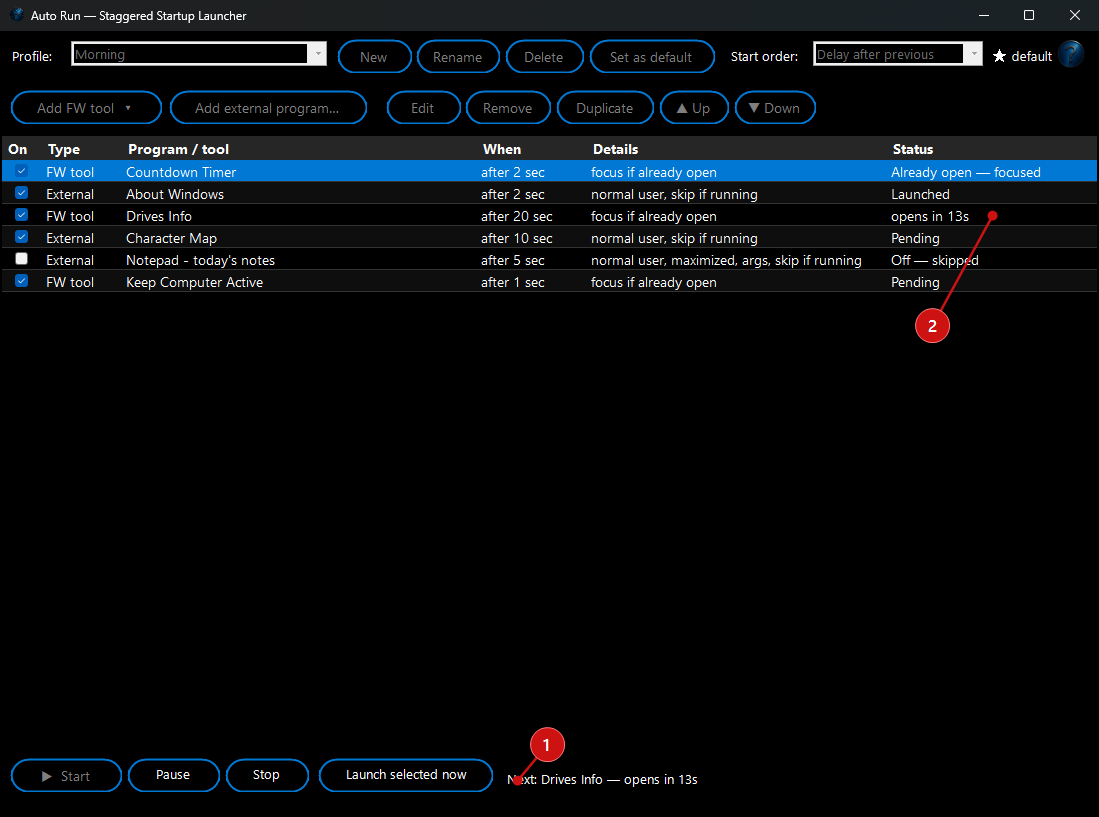
- Start: Begin the sequence for the current profile (only enabled items run).
- Pause / Resume: Freeze the countdown and hold, then pick up exactly where you left off.
- Stop: End the run. Anything not yet opened is simply left un-opened.
- Launch selected now: Open the highlighted item immediately, without waiting for its delay — handy for testing a single entry.
Per-item status. As the run progresses, each row moves through states such as
Pending, a live
“opens in…” countdown,
Launching, and then a result:
Launched,
Already open — focused (an FW tool that was already running),
Already running (an external program that was already open),
Missing file, or
Failed with the reason. Items whose
On box is unticked show
Off — skipped.
Skip if already running
Auto Run checks before it opens anything, so re-running a list is safe. For an
FW tool that is already open it brings the existing window to the front rather than opening a duplicate; for an
external program that is already running it simply skips it. Both behaviours are controlled per item, so you can still force a fresh copy where you want one.