Reverse Engineer EXE - Inspect, triage and decompile a Windows executable before you trust it (Updated Oct 2026)
Description
Reverse Engineer EXE is a static analysis and triage tool for Windows executables, DLLs, drivers and ActiveX controls — built for developers and IT/security-minded users who need to understand an unfamiliar binary before running it, or who've lost the source to their own old .NET program and want it back. For managed .NET assemblies it's a genuine decompiler, producing real, readable C# (using the same open engine behind tools like ILSpy). For native Windows binaries it doesn't decompile, but gives you a thorough structural and behavioural picture instead: headers, imports, entropy, signature and more. It's honest about that distinction rather than pretending to decompile everything.
How to use
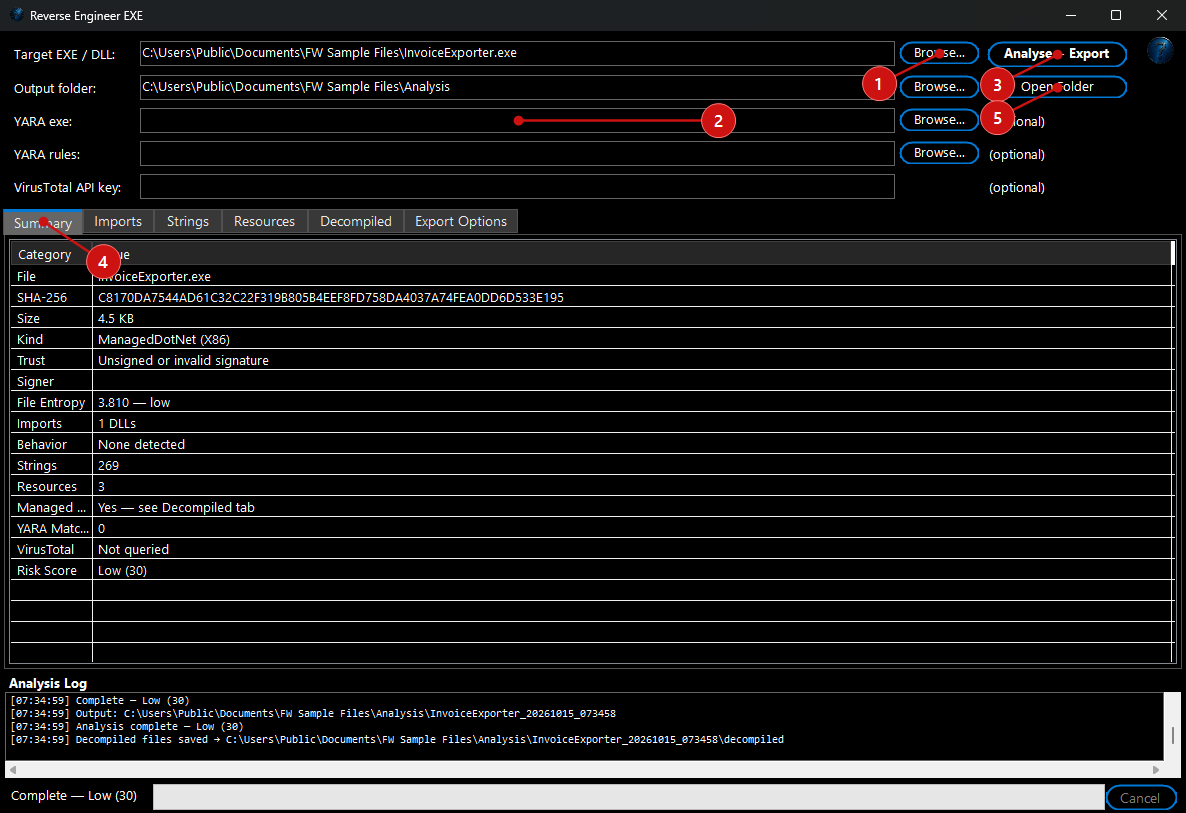 1.
Drop or browse to an
.exe,
.dll,
.sys or
.ocx file, and pick an output folder for the reports.
2. Optional: turn on a YARA scan (it auto-detects
yara.exe and a default rule set if you have them, or you can point it at your own) and/or a VirusTotal hash lookup (paste in your own API key — it's kept in memory only and never saved to disk).
3. Click
Analyse + Export. Progress is logged live and the scan can be cancelled at any time.
4. Read the results across the tabs:
Summary,
Imports (a tree of every DLL and function the file calls),
Strings,
Resources, and — for managed .NET assemblies —
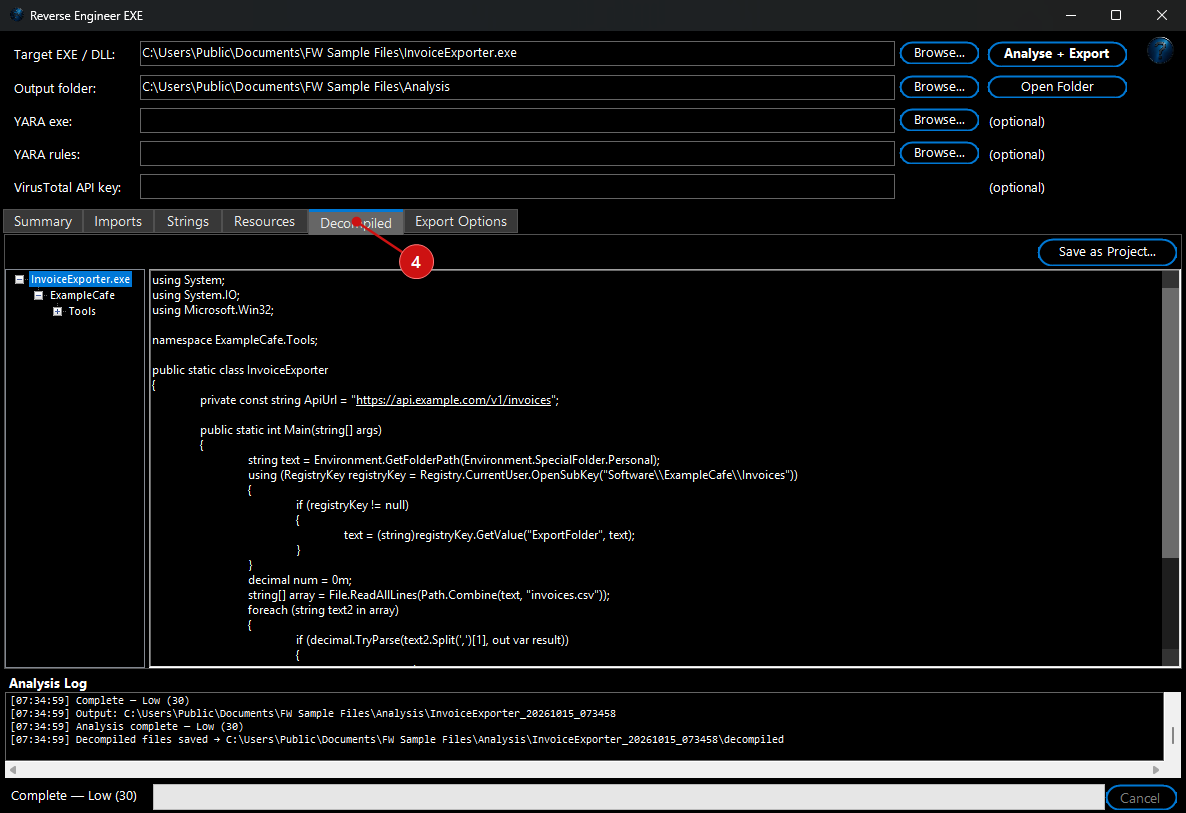
Decompiled, a clickable tree of real decompiled source files.
 5.
Use
Save as Project… to write the whole decompiled source tree out as proper, folder-structured .cs files, or
Open Folder to jump straight to the exported reports.
What it checks
- Digital signature: a real Authenticode check via Windows' own WinVerifyTrust API — trusted, signed-but-not-trusted, or unsigned/invalid — plus the certificate's subject, issuer, thumbprint, serial number and validity dates.
- Behaviour hints: the import table is matched against 10 categories of Windows API calls — networking, cryptography, registry, persistence/services, process injection, anti-debug, file operations, dynamic API loading, screen capture/keylogging and credential access — each backed by the exact API names found, like
CreateRemoteThread or WriteProcessMemory flagging possible process injection.
- Entropy analysis: measures each PE section for the high randomness that usually means packed or encrypted code.
- Risk score: a single 0–100 score combining signature trust, entropy, behaviour hits, and any YARA/VirusTotal detections.
- YARA and VirusTotal (both optional, both bring your own tool/key): run your own or a default YARA rule set against the file, or look its SHA-256 hash up on VirusTotal without uploading the file itself.
Decompiling managed .NET assemblies
If the file is a managed .NET executable or DLL, the Decompiled tab gives you its real namespace/class structure as genuine C# source — not pseudocode — which you can browse file by file or export as a complete project folder.
Exporting
Export a run as JSON, Markdown, HTML, plain text or XML, or as standalone files — strings, an entropy report, a trust report, an imports report, a behaviour report, a resource report, the decompiled C# for a managed assembly, an IOC summary, and a STIX threat-intel bundle for sharing with a security team.
Run it automatically with Watch and Process
Have every program you download checked automatically — who signed it, how risky it looks and what it can do — and risky ones moved out of the way before you open them by mistake.
How to set it up:
1. Open
Watch and Process Automation, type a
Task Name and pick the
Watch Folder with
Browse… — the folder your files arrive in.
2. In
File Types type
*.exe, *.msi, *.dll.
3. Click
Add FW Tool…, choose
Reverse Engineer EXE – Check downloaded programs and choose
Treat it as risky when (high risk, medium or high risk, or also when it isn't signed by a trusted publisher), what to do
Then (
Only warn me, or
Move it to a quarantine folder and pick the
Quarantine folder), and whether to
Save a report as a text file or web page and where. The line
What this step will do at the bottom of the window sums up your choices. Click
OK.
4. Click
Add Task, select the task and click
Start Watching. From now on every new file is handled within a few seconds, while the Watch and Process window is open (it can be minimised).
Example: Watch your
Downloads folder for
*.exe, *.msi with
The risk is medium or high and
Move it to a quarantine folder Downloads\Quarantine. A setup file signed by a well-known company stays where it is and the log shows, for example,
"Low risk (10), signed by Contoso Ltd". An unsigned program that looks packed or tries to read passwords is moved to
Quarantine and the log shows an orange
"RISKY – …" line.
Good to know: The check is the same as this window's analysis and the risk score is a guide, not a virus scan — keep your antivirus on. Some well-known programs score Medium because of what they are able to do (for example web browsers use the network and other programs' memory). Windows' own system files are signed in a different way and can show as "not signed"; this step is meant for downloads. A file moved to quarantine isn't touched by any later step or by the task's Move To folder. Nothing is uploaded anywhere.