Browser Extension Backup - Back up, check and move the extensions in all your browsers (Updated Nov 2026)
Description
Extensions (also called add-ons) are the small extras you add to a web browser: an ad blocker, a password manager, a dictionary, a dark mode. When you move to a new PC, reset your browser or switch from Chrome to Edge, they are easy to lose - and it is hard to remember them all. Browser Extension Backup lists every extension in every browser on your PC, saves the list with a link to add each one again, checks them for safety, and helps you move them to another browser.
It works with Google Chrome, Microsoft Edge, Brave, Vivaldi, Opera, Opera GX and Firefox, and with every
profile in them (a profile is a separate set of bookmarks, passwords and extensions inside one browser, such as "Personal" and "Work"). It only
reads - it never adds, removes or changes anything in a browser.
How to use
1. Open the tool. The
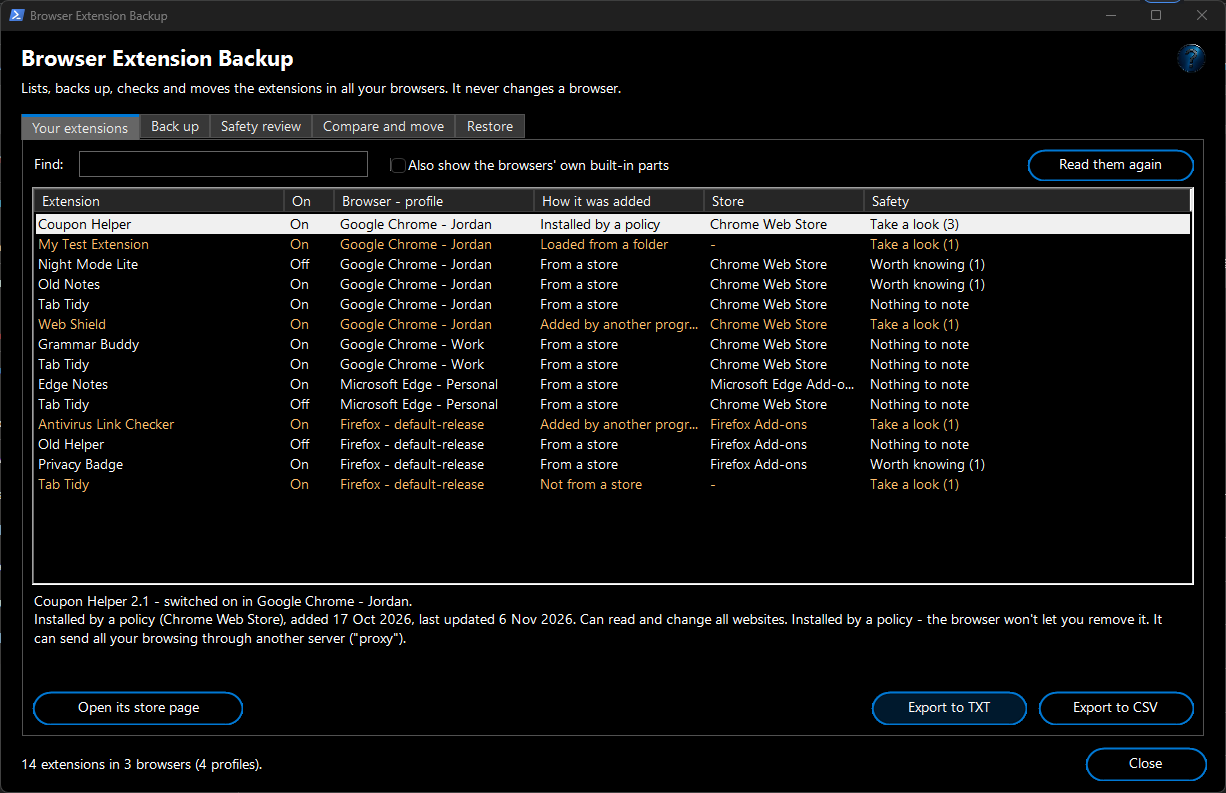
Your extensions tab lists every extension, with its browser and profile (as the browser names them), whether it is switched on, how it was added, its store and a safety note. Click one to read what it does and when it was added;
Find narrows the list.
2. On the
Back up tab, tick the browsers and profiles to save, choose a folder under
Save the backup in (a USB drive or your OneDrive folder is ideal for a new PC) and click
Back up now.
3. To add them again - on this PC after a reset, or on a new one - open the backup's
Restore checklist.html in the browser you want them in, click
Add next to each extension and tick it off. Or use the
Restore tab (below).
Example: You are moving to a new laptop. Plug in a USB drive, open Browser Extension Backup, choose the drive (say
E:\) on the
Back up tab and click
Back up now. You get
E:\Browser extensions 2026-11-06 0930 with a folder for each browser and profile - for example
Google Chrome\Jordan and
Firefox\default-release - and
Restore checklist.html. On the new laptop, open that page in Chrome: it lists your 17 Chrome extensions with an
Add button for each, so ten minutes later they are all back.
What the backup contains
- Restore checklist.html - one page with every extension, grouped by browser and profile, and an Add button that opens its page in its store (or Find, which searches the store for it by name). Tick boxes remember what you have done. Extensions that were switched off are marked was switched off, so you can switch them off again after adding them. It opens without an internet connection (adding an extension needs one).
- Extensions.txt and Extensions.csv for each profile and for everything together - easy to read, or to open in Excel.
- Firefox add-on files (ticked by default): each Firefox add-on's own file. In Firefox, click it on the checklist page, or open about:addons, click the gear button and choose Install Add-on From File.
- Chrome, Edge, Brave, Vivaldi and Opera extension files (advanced, off by default): a copy of each extension's files, for one that has disappeared from its store. Switch on Developer mode on the browser's extensions page, click Load unpacked and pick its folder. Copies like this don't update themselves, so adding from the store is better whenever you can.
- Read me.txt with these instructions in plain words.
Safety review
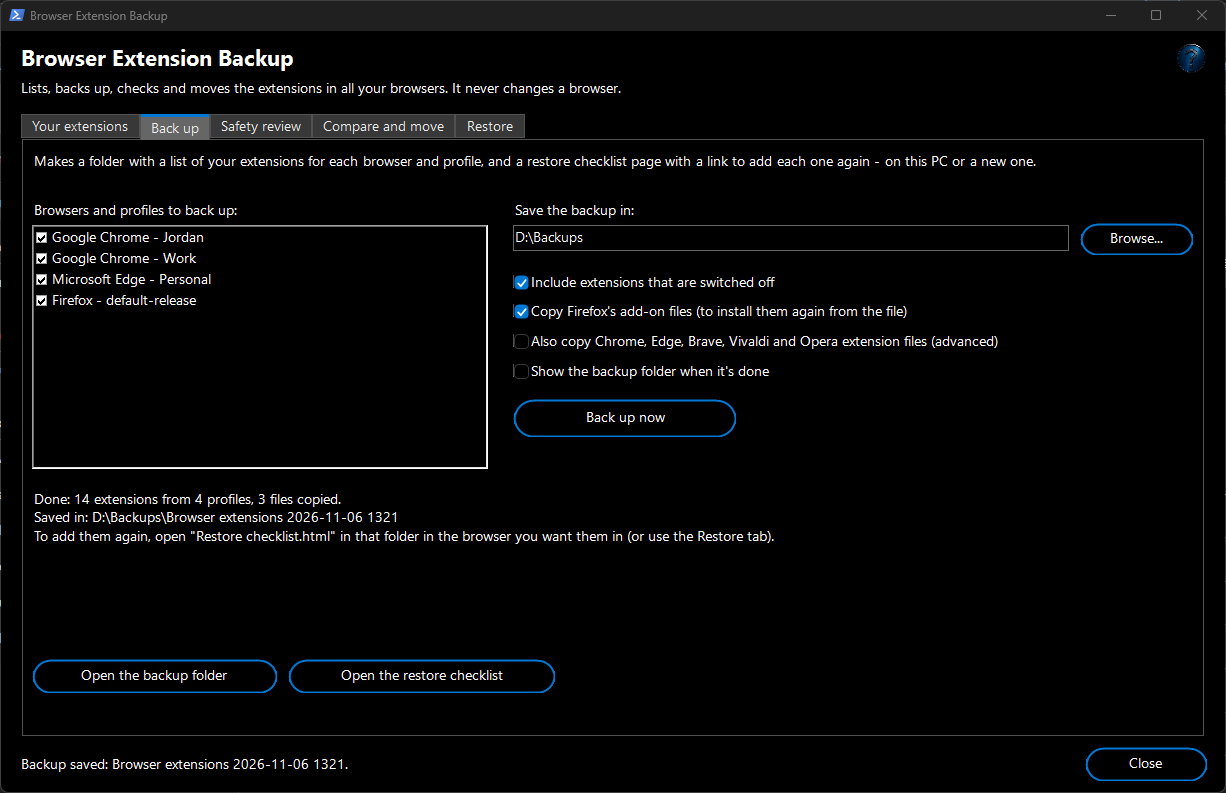
Most extensions are fine, but some can see everything you do online, and unwanted ones (adware) are a common way PCs get messed up. The
Safety review tab lists the extensions worth a second look and says, in plain words, what to do. A note doesn't mean an extension is harmful - it says what to check.
- Installed by a policy - the browser won't let you remove it, and may say Managed by your organization. On a work or school PC that is normal; on your own PC it is often adware.
- Added by another program - for example by your antivirus or password manager, which is fine; if you don't recognise it, switch it off or remove it.
- Loaded from a folder (developer mode) - not checked by a store and never updated.
- No longer in its store - click Check the stores online: it asks the Chrome Web Store, Microsoft Edge Add-ons and Firefox Add-ons whether each extension is still listed. Stores take extensions down when they break the rules, often for collecting your data or carrying malware. Only the extensions' IDs are sent.
- Can read and change everything on every website, or has strong permissions (a proxy, the debugger, managing your other extensions, talking to a program on the PC) - normal for some tools, such as ad blockers and VPNs, but be sure you trust it.
- Not updated in two years or more - possibly abandoned.
- Not signed by Mozilla (Firefox) - loaded in an unusual way.
To switch an extension off or remove it, click it and click
Copy the extensions page address, paste it into that browser's address bar (for example
edge://extensions) and press Enter.
Move your extensions to another browser
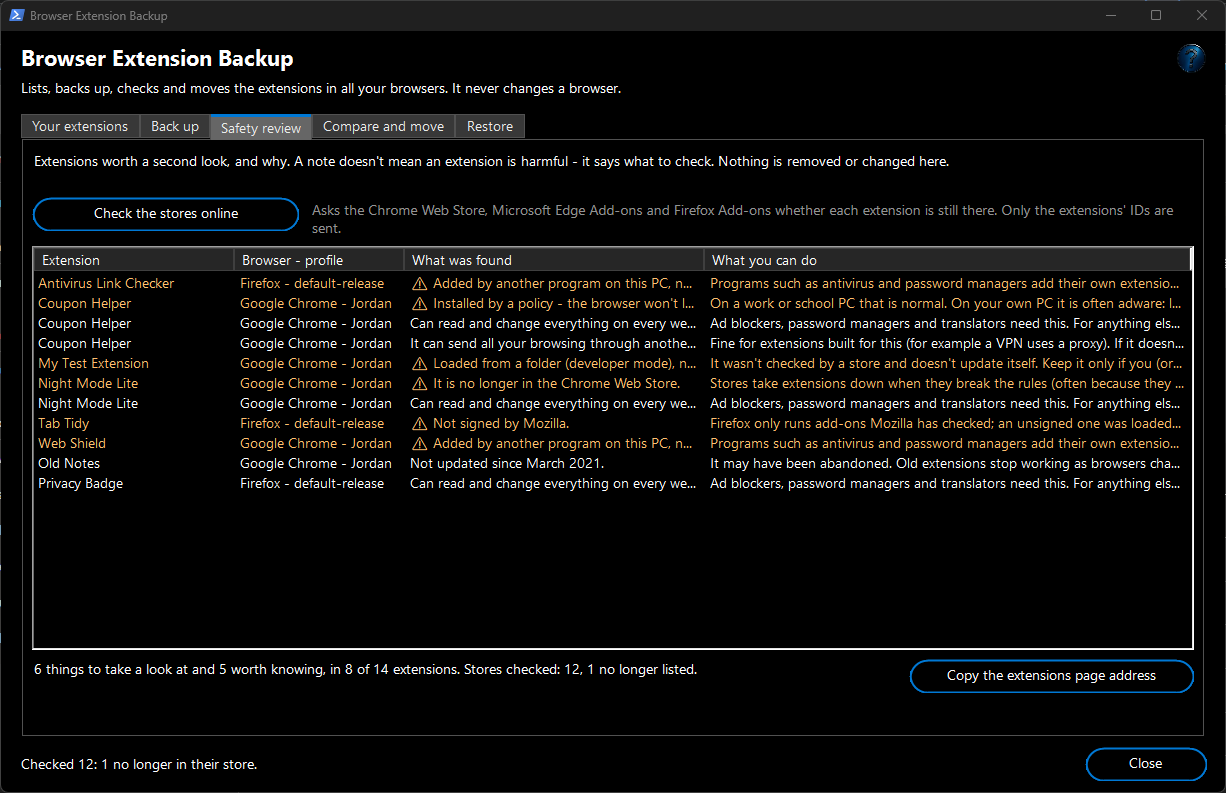
1. On the
Compare and move tab, pick where your extensions are now under
Copy from (for example
Google Chrome - Jordan) and where you want them under
To (for example
Microsoft Edge - Personal). A backup from your old PC works too: click
Add a backup....
2. Click
Compare. The list shows what is missing from the second (untick
Only show what's missing to see everything), with a note on how to add each one.
3. Tick the ones you want and click
Open the ticked ones in the second browser. Their store pages open in that browser and profile; click the store's
Get or
Add button on each.
Chrome Web Store extensions also work in Edge, Brave, Vivaldi and Opera. The first time, Edge asks you to
Allow extensions from other stores - click
Allow. Opera needs its
Install Chrome Extensions add-on first. Firefox has its own add-ons, so for Firefox the tool searches Firefox Add-ons for the same name.
Restore from a backup
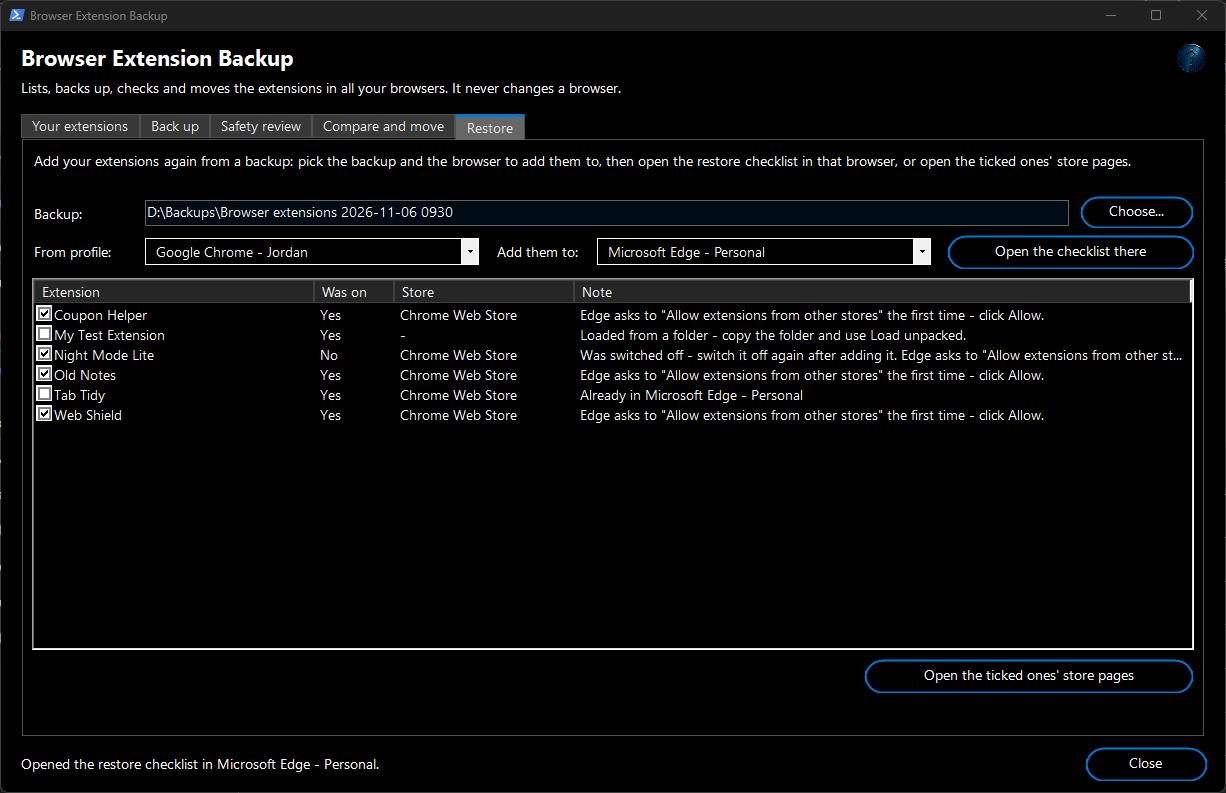
On the
Restore tab, click
Choose... and pick a backup folder (named
Browser extensions and a date). Pick the profile under
From profile and the browser to add them to under
Add them to. Extensions that are already there say so and aren't ticked. Click
Open the checklist there to open the restore checklist in that browser, or
Open the ticked ones' store pages to open them straight away.
How it works and what to expect
- Nothing in any browser is changed. Extensions are only ever added on the store's own page, by you.
- The browsers can stay open while you use it.
- An extension's own settings (for example an ad blocker's lists) aren't in the backup. Sign in to the browser with sync turned on and they come back with the extension.
- Each backup is a new folder named with the date and time, so older backups are never overwritten.
- The browsers' own hidden parts (such as their PDF viewer) and themes are left out. Tick Also show the browsers' own built-in parts to see the hidden parts in the list.
- Extensions installed by a policy come back by themselves wherever that policy applies, so the checklist says so instead of offering a link.
- Export to TXT and Export to CSV on the first tab save the list as it is shown.
Troubleshooting
- A browser isn't listed - only browsers used by your Windows account are found. Open the browser once so it creates its profile, then click Read them again.
- An extension shows Find instead of Add - its exact store page isn't known (for example a Firefox add-on before Check the stores online); Find searches the store for its name.
- "Couldn't be checked" in the safety review - there was no internet connection, or the store didn't answer. Try again later.
- Edge won't add a Chrome Web Store extension - click Allow extensions from other stores in the bar at the top of the store page, then Get.
- "That folder isn't a browser extension backup" - pick the folder named Browser extensions and a date (the one with Restore checklist.html in it), not the folder above it.