File & Photo Detective - What does a file really give away? Photo locations, authors, hidden text, earlier versions and warning signs. (New Nov 2026)
Description
Files carry far more than you see. A phone photo usually holds the exact spot where it was taken (often accurate to a few metres - enough to show your home), the date and time, the phone or camera model and sometimes its serial number. A Word document keeps the names of everyone who wrote and changed it, the company it was made for, how many minutes it was worked on, comments, and words that were deleted with Track Changes on. A PDF can still contain every earlier version of itself, and black boxes that only cover text instead of removing it. A file can even pretend to be something it isn't: an "invoice.pdf" that is really a program.
File & Photo Detective reads all of this and tells you, in plain English,
what each file gives away and whether it shows
warning signs. Then, if you like, it makes a
clean copy without the hidden details, ready to share. The original file is never changed.
It reads pictures (JPEG, PNG, HEIC, WebP, TIFF, GIF, camera RAW), Word, Excel and PowerPoint files (new and old formats), PDFs, programs (EXE, DLL, MSI), shortcuts, videos and sound files, zip files, emails (.eml and Outlook .msg) and text files. Everything is read on your PC - nothing is sent anywhere.
How to use
1. Open
File & Photo Detective (in
Security & Privacy, or type "photo location", "metadata" or "what does this file give away" in the search box).
2. Drop files or folders anywhere on the window, or click
Add files... or
Add a folder.... With
Include sub-folders ticked, a folder's sub-folders are checked too.
3. The list on the left shows each file, what it
really is (worked out from its contents, not its name) and a short summary. A red dot means warning signs, amber means it gives details away, blue means notes only.
4. Click a file. The coloured banner sums it up. The
What it gives away tab lists every finding with
What to do; hover over a row to read all of it.
5. The
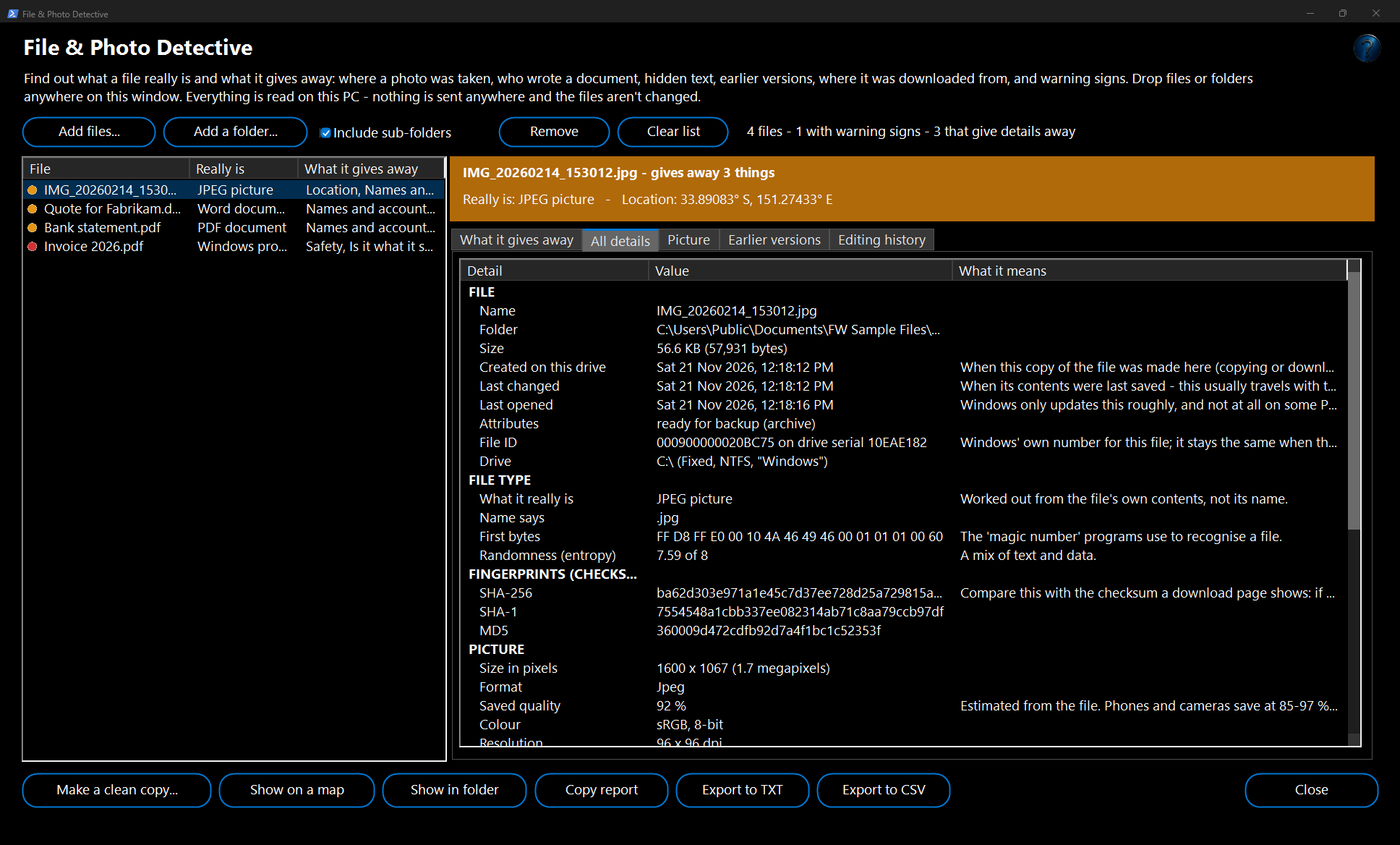
All details tab lists every value found, grouped (file, downloaded from, fingerprints, camera, location, document properties, comments, tracked changes and more). Personal details are shown in amber.
6. For pictures, the
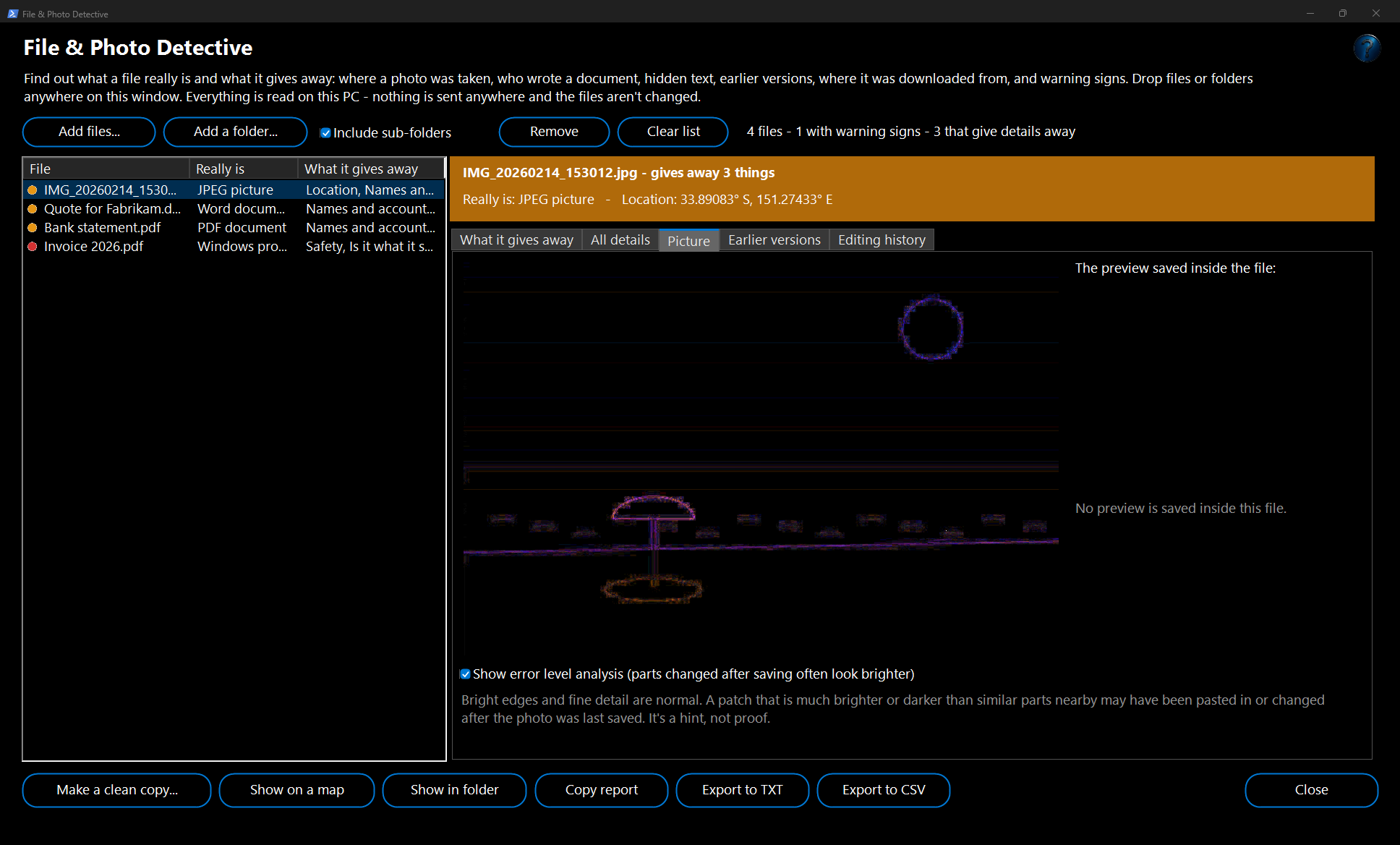
Picture tab shows the picture and the small preview saved inside the file. Tick
Show error level analysis to look for edited areas in a JPEG.
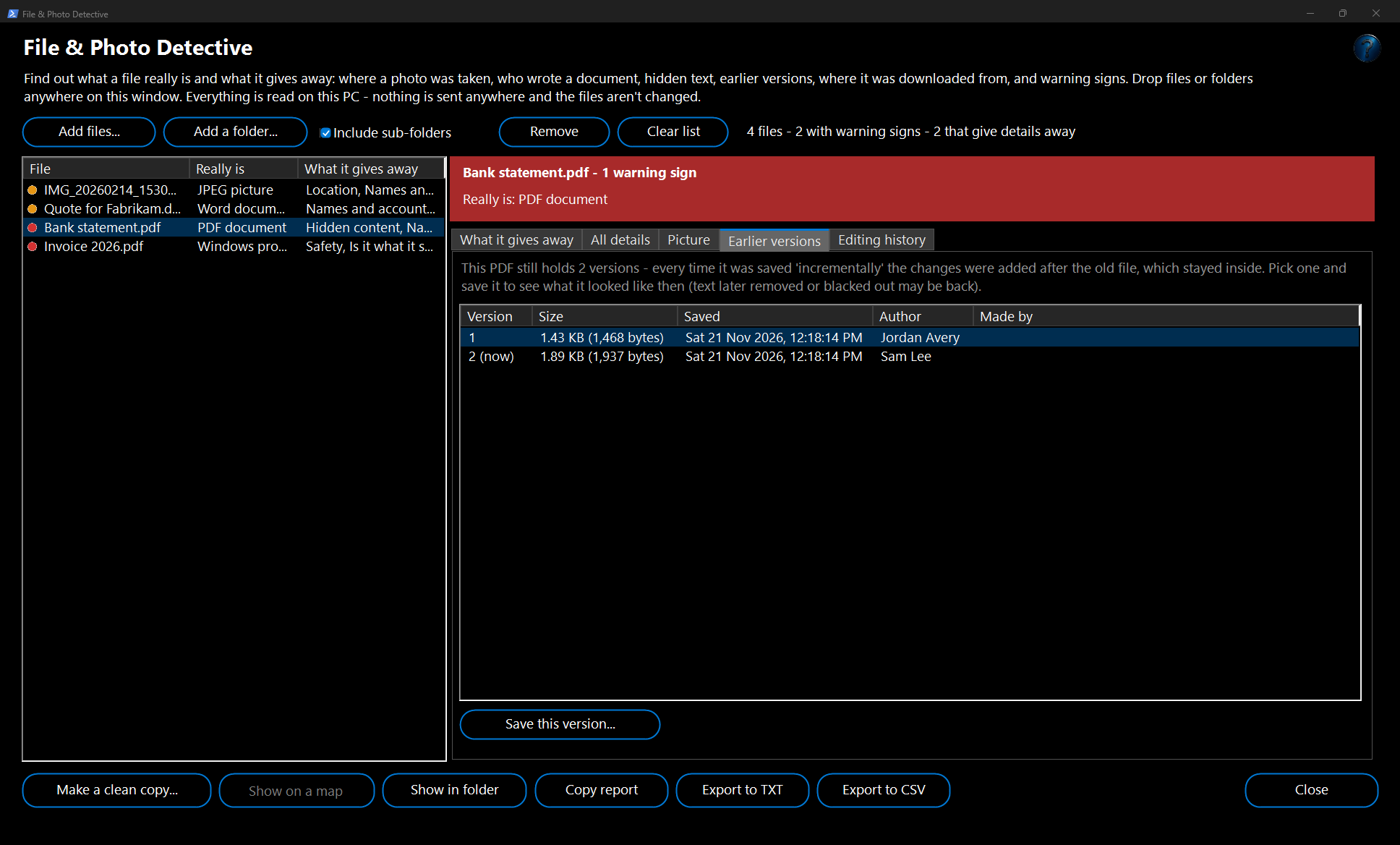
7. For PDFs, the
Earlier versions tab lists every version saved inside the file. Pick one and click
Save this version... to see what it looked like then.
8. Click
Make a clean copy... to save a copy without the hidden details (pictures, PDFs, Word, Excel and PowerPoint). The copy is added to the list and checked straight away, so you can see what's left.
9. Show on a map opens the place a photo or video was taken in OpenStreetMap.
Copy report,
Export to TXT,
Export to CSV and
Save as web page save the results (CSV saves the findings, or every detail when you're on the
All details tab; the web page holds every file in the list and opens in any browser, ready to print or send). Right-click a file to check it again, show it in its folder, copy its path, make a clean copy or remove it from the list; right-click any other list to copy a row or all of them.
What it finds
- Location: GPS position (with height, which way the camera faced and how fast it was moving), places written in by apps, and GPS inside photos that were pasted into Word, Excel or PowerPoint files - few programs ever show those. Videos from phones and drones carry their location too.
- Names and accounts: photographer, camera owner, copyright, document authors and "last saved by", company and manager, comment authors and their email addresses, PDF authors from every saved version.
- Your PC and network: Windows user names hidden in template paths, links and program debug paths, network computer names, and the computer name and network card a shortcut was made on.
- Device: camera and lens model and serial numbers (one serial links every photo from the same camera), phone model, recording device, the drive a shortcut's file was on.
- Hidden content: tracked changes with the deleted words, hidden text, white text, comments, speaker notes, hidden and "very hidden" Excel sheets, hidden rows, embedded files, macros, invisible "watermark" characters in text, and blacked-out PDF text that can still be read.
- Editing history: the programs that saved it, Photoshop / Lightroom edit histories, when it was saved after being taken, total editing time in Office, the number of editing sessions, earlier versions inside a PDF, and a hidden preview that doesn't match the photo (the photo was cropped or changed, and the preview may still show what was removed).
- Made by AI?: AI picture programs' settings and prompts saved in the file, "made with AI" marks, and Content Credentials (C2PA).
- Where it came from: the exact web address and page a file was downloaded from (Windows saves this beside every download), plus what the file name says (WhatsApp, Facebook, a screenshot, a particular phone).
- Safety and "is it what it says?": programs disguised as documents or pictures, two endings ("photo.jpg.exe"), letters reversed with a hidden character, macros, PDF JavaScript and actions, shortcuts that run hidden commands, unsigned or tampered programs, a program that was renamed, zip bombs, and emails whose replies go somewhere else or that failed the sender checks.
- Fingerprints: SHA-256, SHA-1 and MD5 checksums to compare with a download page.
Example: a photo for the school newsletter
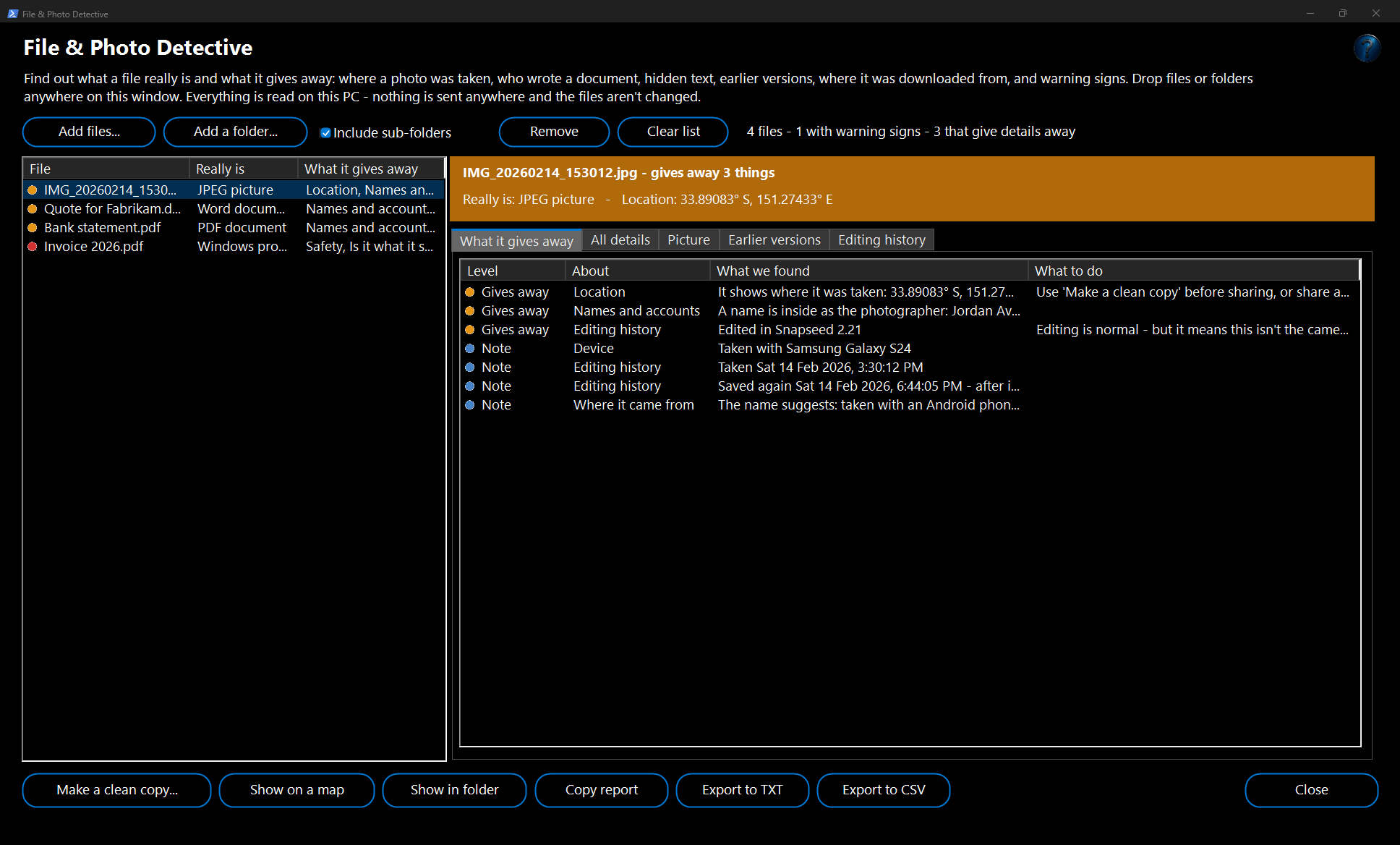
Jordan wants to email a beach photo to the school newsletter. File & Photo Detective shows
It shows where it was taken: 33.89083° S, 151.27433° E,
A name is inside as the photographer: Jordan Avery and
Edited in Snapseed.
Show on a map opens the exact beach. Jordan clicks
Make a clean copy..., which saves
IMG_20260214_153012 (clean).jpg next to the original. The clean copy appears in the list with
nothing worrying found, and that's the one Jordan sends.
Example: a quote before it goes to the customer
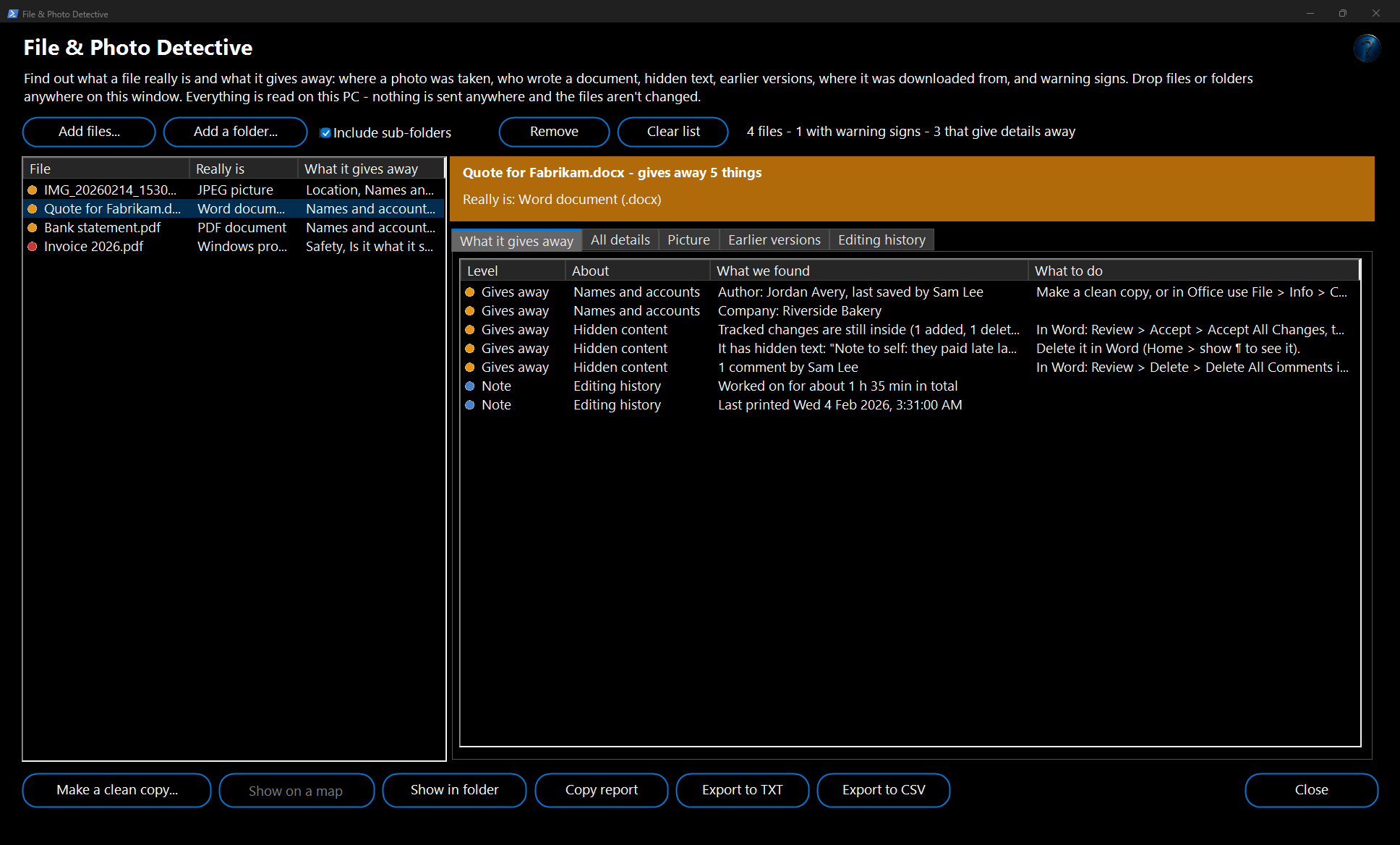
Sam is about to send
Quote for Fabrikam.docx. The tool shows
Tracked changes are still inside, with the deleted words
"$1,800 (we can go down to $1,500)", a hidden note
"Note to self: they paid late last time", a comment by Sam and the company name. Sam accepts all changes and deletes the comment and note in Word (Review > Accept > Accept All Changes; Review > Delete All Comments), then makes a clean copy to remove the names.
Example: an "invoice" in an email
An unexpected email attachment is called
Invoice 2026.pdf. The tool shows a red warning:
It isn't really a .pdf file - it's a Windows program (EXE). Disguising a program as a document is a common trick, so the file is deleted without being opened.
How it works and what to expect
- It only reads files. The clean copy and saved PDF versions are new files; the original is never changed. Each clean copy is recorded in Change Journal.
- What a clean copy removes: for pictures, the camera details, GPS, names, dates, edit history, comments, AI settings and the hidden preview (the picture itself and its colours stay the same; it's turned the right way up). For PDFs, the author, title, the programs that made it, XMP details, comment authors' names and every earlier version. For Word, Excel and PowerPoint, the author, last saved by, company, manager, editing time, printed date, template path, custom properties, commenters' account names and the details of pictures inside. Comments, tracked changes and hidden text stay in Office files - remove those in Office, as the findings say.
- Folders: up to 5,000 files are added at once and checked a few at a time; very large files skip the fingerprints. When you click a file, it's read again in full.
- Error level analysis saves the photo again in memory and shows how much each part changes. Edges and fine detail are always bright; a patch that is much brighter or darker than similar parts nearby may have been pasted in. It's a hint, not proof.
- Your choices (sub-folders, the tab you were on, the divider and any column widths you drag) are remembered for next time.
Good to know
- Social media and WhatsApp usually remove photo details when you share there, but email, cloud links, USB drives and "send as a file" keep everything.
- "Nothing worrying found" means none of the things this tool knows about were found - it can't promise a file is safe. Keep your antivirus on.
- Some Windows files are signed in a separate catalogue and show as not signed even though they're genuine.
- Show on a map only sends the position to OpenStreetMap when you click it.
Run it automatically with Watch and Process
File & Photo Detective is also a step in
Watch and Process Automation, so every new file in a folder can be checked by itself.
1. Open Watch and Process Automation and add (or edit) a task for the folder to watch.
2. Click
Add FW tool... and choose
File & Photo Detective.
3. Choose what to save:
A report (a .txt file of what the file gives away),
A clean copy, or
Both. Leave
Only for files that give something away or show warning signs ticked to skip files with nothing to report.
4. Choose where the results go (next to the file, or another folder) and what to do if one already exists, then save the task.
Example: a task watches
C:\Users\Public\Pictures\To share with
Both. Dropping
Beach.jpg in saves
Beach - what it gives away.txt and
Beach (clean).jpg beside it; a photo with no hidden details is skipped, and the log says
nothing worrying found.
Good to know: the incoming file isn't changed. Files with warning signs are shown in orange in the log. Results the step makes are never checked again.
Troubleshooting
- "Couldn't be read: another program has it open": close the file in the program that has it open and add it again.
- No location is shown for a phone photo: the phone's camera wasn't allowed to use location, or the photo was shared through an app that removes it.
- "A clean copy can only be made of pictures, PDFs and Word / Excel / PowerPoint files": for other files, remove the details in the program that made them.
- The picture or preview isn't shown: some formats (camera RAW, icons) can be checked but not shown.
- Error level analysis is greyed out: it only works on JPEG photos.