PDF Easy - A complete PDF workshop: organise, edit, redact, sign, flatten, protect, compare, annotate and OCR (Updated Oct 2026)
Only need this one tool? It’s also sold on its own as
FW PDF Easy in the Microsoft Store — a one-time purchase with no subscription and no in-app purchases.
Description:
PDF Easy is an all-in-one workshop for PDF documents. Open one or several at once in tabs, then reach for whichever tool you need: reorganise pages, edit text on the page, permanently redact sensitive details, sign, protect, archive, number, compare, mark up and more — all in one window. Each tool opens on the page you're viewing and returns you there when it's done.
The big idea is that your changes are held
in memory as you work, with full undo / redo, and nothing is written to disk until you choose
Save or
Save As. That means you can stack up edits — redact a few names, add a watermark, drop in a signature, number the pages — and only commit them when you're happy, with a prompt to save on the way out if you forget.
Under the hood PDF Easy is built on a professional PDF engine (Syncfusion Essential PDF, used under its Community licence), so redaction really strips the content, signatures are genuine, and the pages you save are proper, standards-friendly PDFs.
Before you start — requirements:
Nothing extra is needed for the core tools. Opening, editing, redacting, protecting and saving all work out of the box.
Run as administrator. As with the rest of FW Admin Tech Tools Pro, run the app as administrator, and save into a folder your account can write to.
Inline preview. Pages are shown with an embedded viewer; on a build without it the tools still work — you open a file, act on it, and save — you just don't get the live page preview.
OCR language data (optional). Making a scanned PDF searchable needs a
tessdata folder (with
eng.traineddata) alongside the app, which ships with the tool.
Where your presets live. Saved redaction and mark presets, your signature library and your preferences are stored under
%LOCALAPPDATA%\FWAdminTechToolsPro\TechTools — tied to the product rather than the version, so they're kept when you update the app.
The main window:
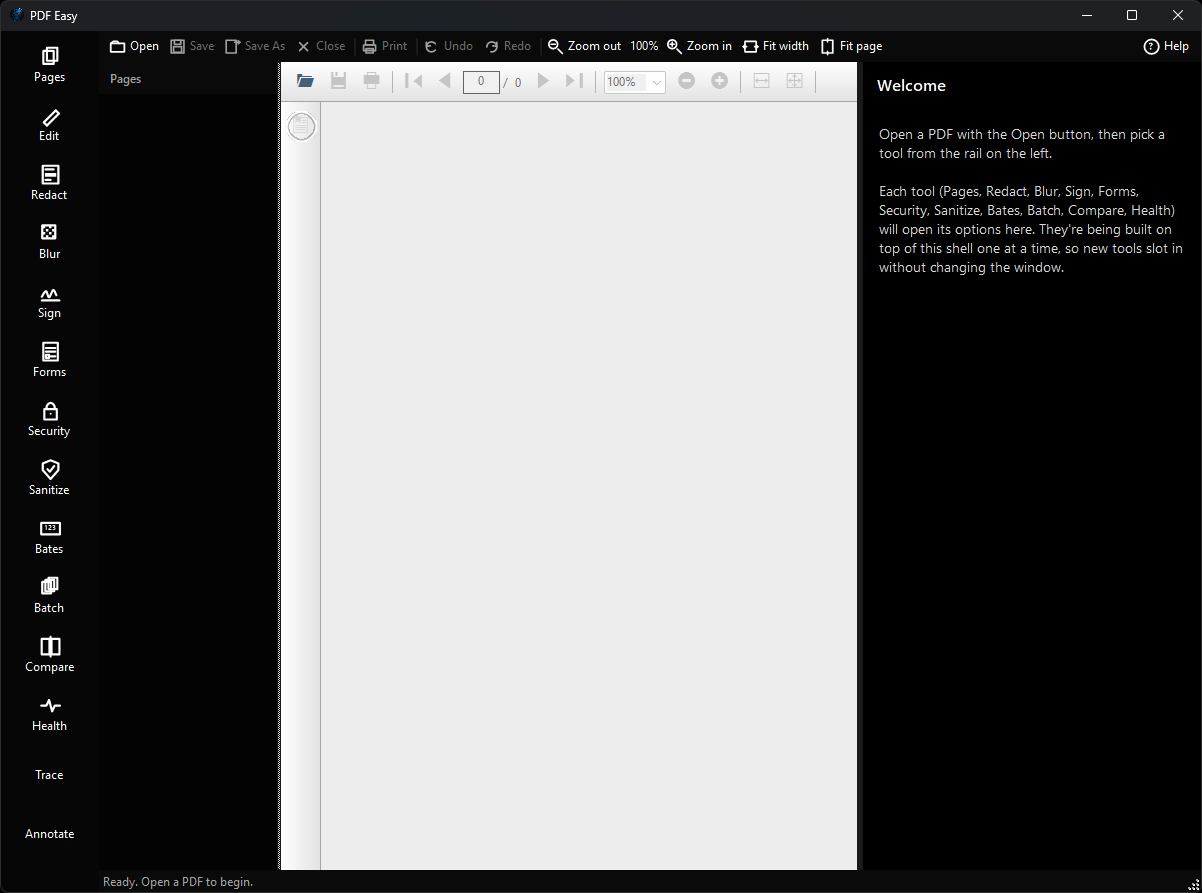
The window has four parts. The
tabs along the top hold each open document. The
tool rail down the left switches between tools, each of which opens its own options panel on the right. A strip of
page thumbnails lets you jump around and pick pages, and the
page preview in the middle shows the current page, centered. A top command bar handles Open, Save, Print, Undo / Redo and zoom.
The all-in-one editor:
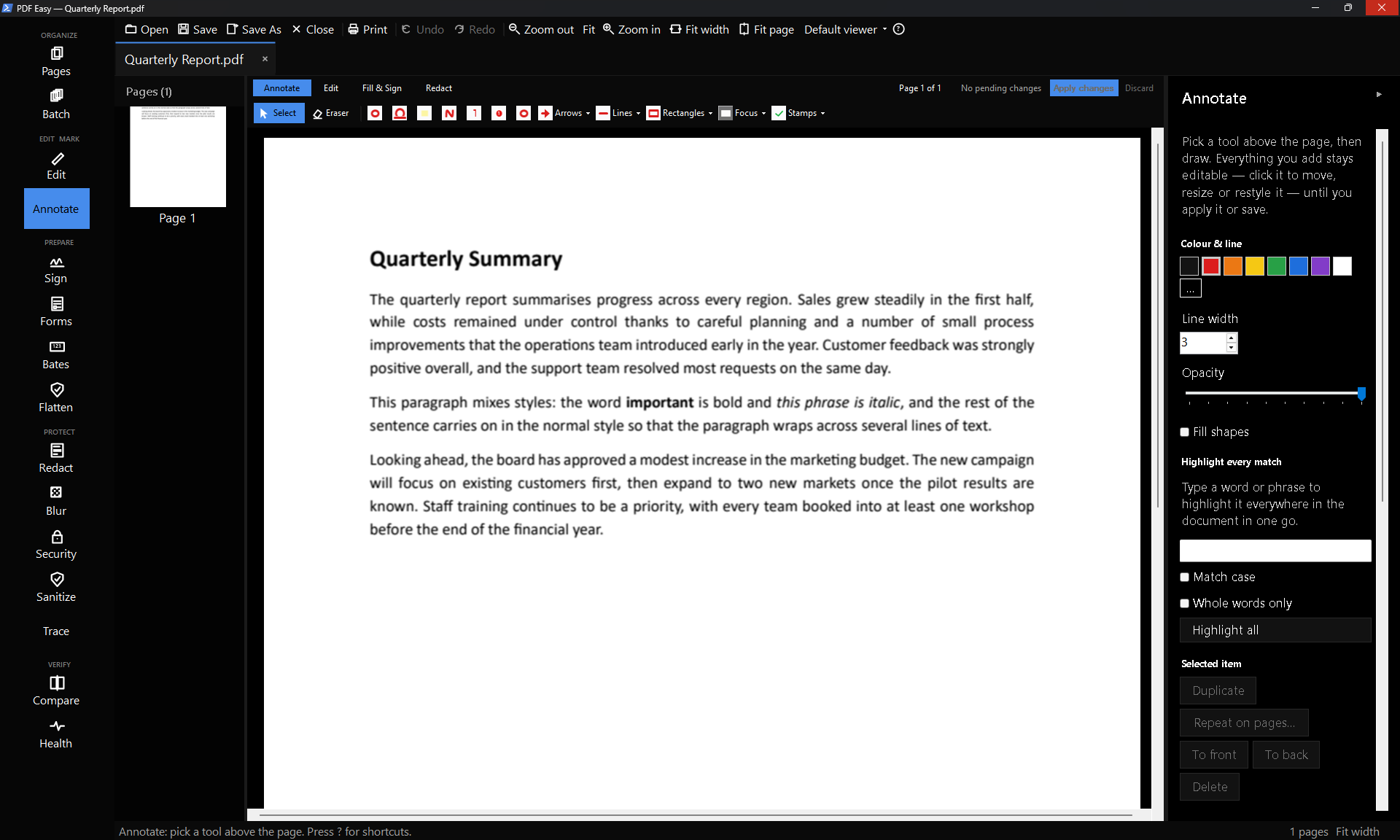
Annotating, editing, filling & signing and redacting all happen in one place: a smooth, continuously scrolling view of every page, right in the PDF Easy window. Pick
Annotate,
Edit,
Fill & Sign or
Redact along the top of the page (or from the tool rail) and the matching tools appear; everything you've already added stays on the page in every mode, so you can draw an arrow, fix a typo, sign and black out an account number in one sitting and see it all together. Every change stays live — click it to move, resize or restyle it, or press
Delete — until you apply it, save, print or use another tool, and
Undo works right across the document. Scrolling is smooth even on long documents: pages appear instantly and sharpen a moment later.
- Replace text: Drag across words that are already on the page and type the new wording. The old words are removed from the file, the cover matches the paper, and the new text comes out in the same size and colour as the original.
- Type straight onto the page: Click and type — the box grows as you go, and the result is real, searchable PDF text, not a picture.
- Smart whiteout: Covers automatically match the colour of the paper underneath, so a correction on cream or grey paper doesn't stand out.
- Fill & Sign: Your saved signatures and initials, today's date in the format you choose, and ticks, crosses, dots, circles and strike lines for flat forms that have no fields.
- Initial every page & sign the last — in one click: Your initials go on the bottom of every page and your signature on the last page, ready to nudge if you need to.
- Highlight every match / find & mark for redaction: Type a word or phrase and every occurrence in the document is highlighted, or marked for redaction so you can check each one before anything is removed.
- Repeat on pages: Copy any stamp, mark or signature to every page, odd or even pages, or a page range — and undo all the copies in one step.
- Changes list: Every change you haven't applied yet is listed by page; click one to jump straight to it, or apply or discard them all.
- Never lose your work: Unapplied changes are kept as a draft as you go. If PDF Easy closes before you've saved, open the same file and they're offered back — still editable.
- Keyboard shortcuts: One key per tool (press ? to see them all), plus copy and paste in place, duplicate, and arrow-key nudging.
Organising pages:
The
Pages tool is where you shape the document. Merge another PDF in, pull pages out, drop pages you don't want, rotate, reorder and split — then save the result.
- Add / merge: Append or insert the pages of another PDF.
- Remove & extract: Delete the selected pages, or pull them out into a new file.
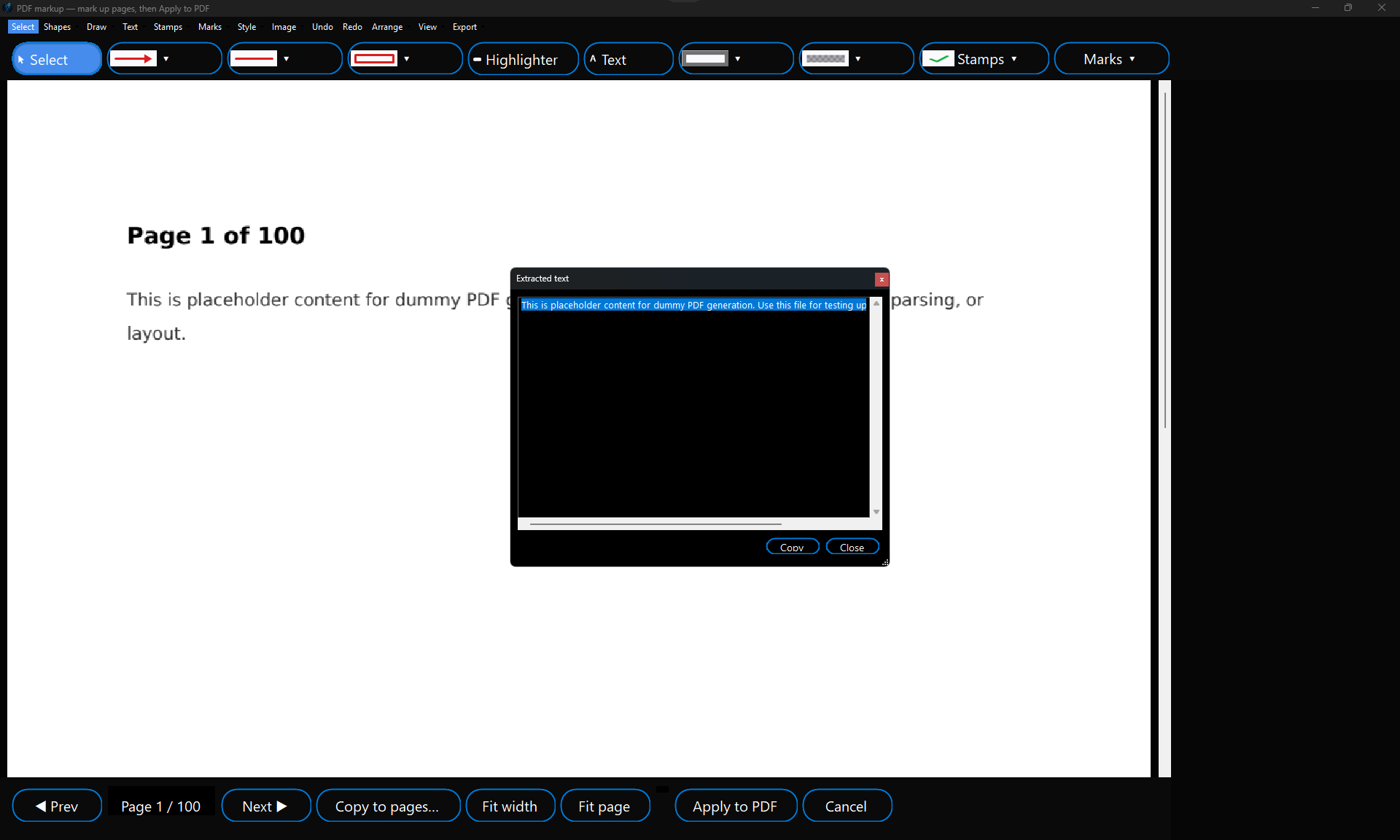
- Extract text: Save the text of all or the selected pages as a TXT or CSV file, or copy it, as tidy paragraphs in reading order. Words hidden under a blur or whiteout come out as [covered]. Scanned pages need Make scanned pages searchable (OCR) first.
- Rotate & reorder: Turn pages left or right and move them up or down into the order you want.
- Split: Break a big document into files of however many pages each.
Editing and find & replace:
The
Edit tool changes the words that are already in your PDF, puts new content on the page, and finds and replaces text across the document.
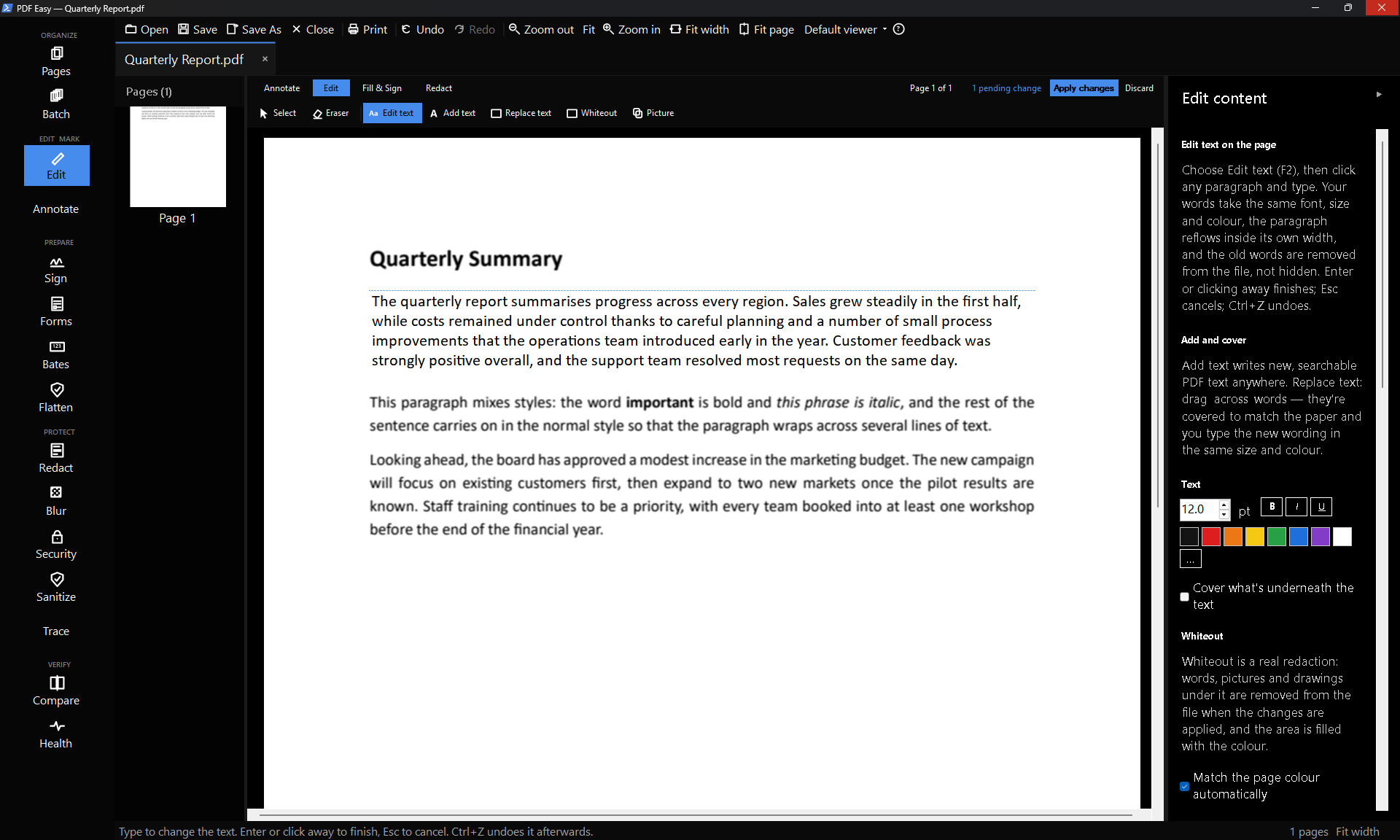
- Edit text on the page: Choose Edit text (or press F2), move the mouse over the page — the paragraph you'd edit is outlined — and click where you want to type. Add, delete or retype words as you would in a word processor. Press Enter or click away to finish, Esc to cancel, and Ctrl+Z to undo.
- Looks like it was always there: Your words use the same font, size, colour and line spacing as the text around them, bold and italic words keep their style, and the paragraph reflows inside its own width — left-aligned, centred, right-aligned and justified paragraphs all stay that way.
- The old words are really gone: When you apply the change, the original words are removed from the file — not hidden under a box — and the new words are real, selectable and searchable text.
- Never overlaps anything: If your new wording needs another line, it uses empty space below the paragraph. If something is in the way, PDF Easy offers to make that text slightly smaller so it fits, or you can keep editing.
- Fonts: If a paragraph uses a font that isn't installed on your PC, PDF Easy tells you before you start and suggests the closest match, or you can pick any installed font. If you type a character the font doesn't have, it tells you and offers a font that has it.
- Type on the page: Add new text where you want it, style it (bold, italic, underline, size and colour), and even make a single word bold within a sentence.
- Images and white-out: Drop in an image, or cover something with a filled box that matches the paper colour.
- Find & replace: Search the document (with match-case and whole-word), see how many matches there are, and replace them all. Each replacement is made the same way as Edit text: the old words are removed and the new ones written in the same font, size and colour. Before anything changes you're told how many matches will be replaced, which ones can't be and why.
Edit text — what it can't do:
Edit text works on PDFs that contain real text, such as documents exported from Word, Google Docs or LibreOffice. It can't change scanned pages or words that are part of a picture — use Add text and Whiteout there. A paragraph that is partly under a blur, whiteout or other mark saved into the page is left as it is, so the covered words stay hidden; the other paragraphs on that page can still be edited. Next to a redaction box, a line that would get longer is only allowed to grow into empty space, never under the box. New wording is written in the matching font installed on your PC, because the copy of a font stored inside a PDF can't be used for new text; if that font isn't installed, the lines you change will be in the font you choose and may look slightly different. A paragraph reflows only inside its own width and into empty space directly below it: it never moves other content, never continues onto the next page and doesn't flow around pictures. Lists, table cells, headers and footers are edited one line at a time. Right-to-left text (such as Hebrew or Arabic), vertical or sideways text, and text on turned pages can't be edited yet, and you can't start a new paragraph inside an existing one. PDFs whose author has turned off editing can't be changed. Unusual letter spacing isn't copied to the lines you change, and some screen readers may read edited lines after the rest of the page.
Redact and blur:
Redaction in PDF Easy is real — the underlying content is
stripped, not just covered — so what you hide can't be recovered from the file. That applies to every redaction style, including Pixelate and Blur: the words are removed and can't be copied or searched, no earlier version of the page is kept inside the file, pictures under the box are cleared, comments and links inside the box are removed, and even the spacing of the removed letters is wiped. Pixelate and Blur are strong enough that nothing can be read, even over a single line. The same goes for Blur, Pixelate and Black bar marks in Annotate and for Whiteout: everything that hides part of a page is a real redaction. For PDFs marked up with earlier versions,
Remove hidden text (Health & Privacy, also offered when you save) deletes words that were left under old blurs and whiteouts, without changing how the page looks.
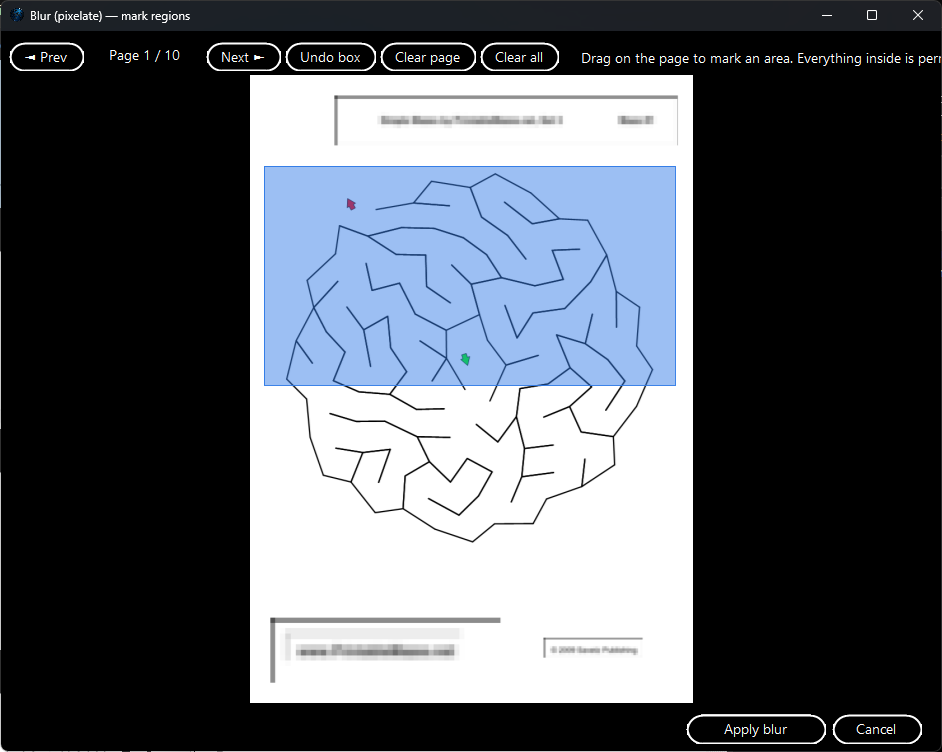
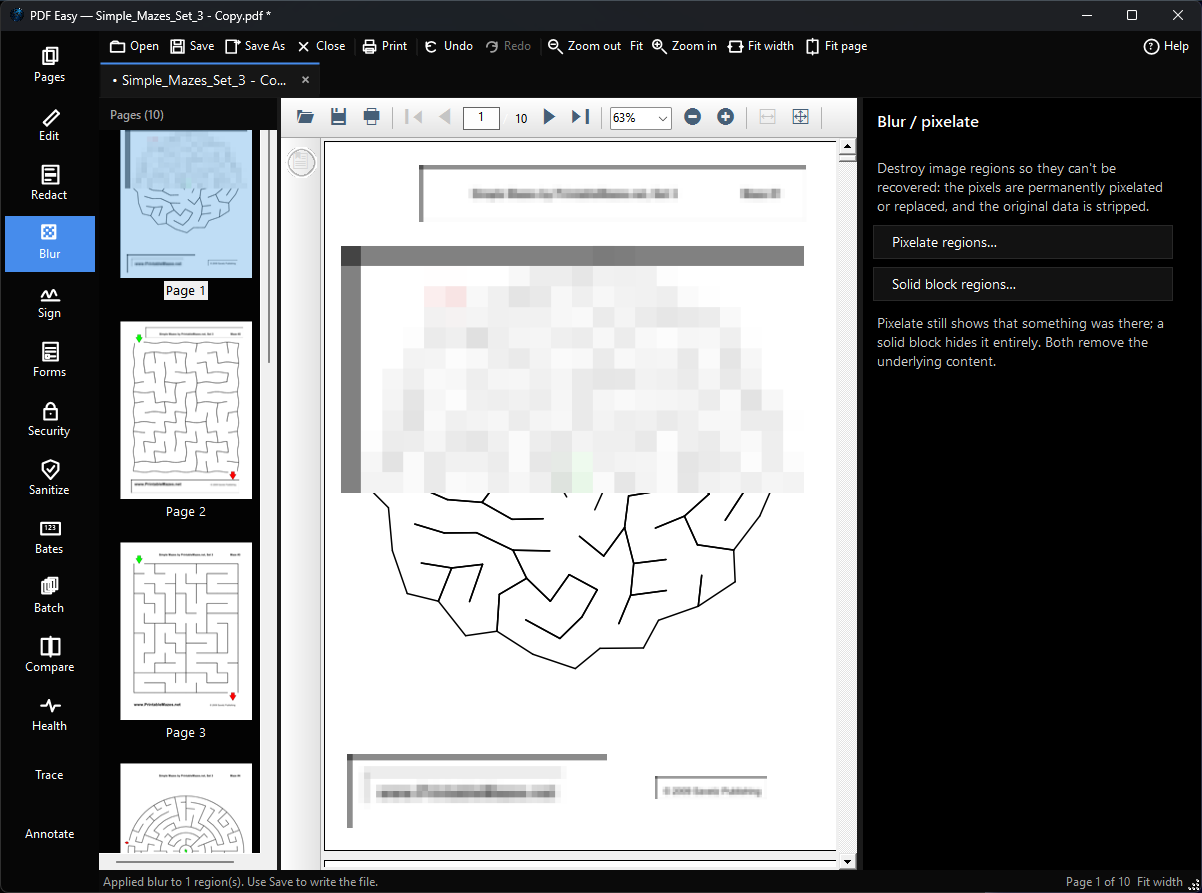
- Mark and redact: Draw boxes over the regions to remove, and apply — the content is permanently stripped and replaced with a solid block.
- Auto-redact by pattern: A searchable, worldwide pattern library finds things like emails, phone numbers, card numbers and national IDs for you. Mark the matches on the pages to check them one by one before anything is removed, or redact them all at once. Search it, tick what you want, build up a selection, and save it as a preset for the kinds of documents you handle every day.
- Pixelate, blur or a solid block — mixed freely in one pass: Where you'd rather soften than black out, a mode picker in the marking dialog lets you choose Redact, Pixelate, a genuine soft Blur, or a Solid block for each region as you draw it, so a single marking session can mix and match exactly the treatment each region needs instead of running it separately for every kind. Each box shows a live preview of the actual effect — not a placeholder — while you're still marking, so you see exactly what you'll get before you apply.
Sign and forms:
Sign on screen or with a certificate, and fill in interactive forms.
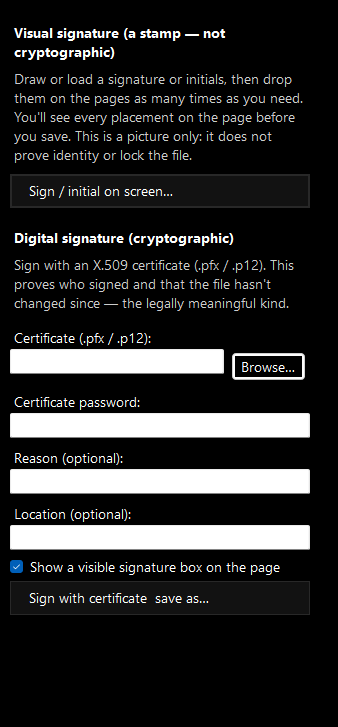
- Sign on screen: Draw your signature or drop in an image of it, place it on the page, and sign more than once before you save. Save up to 30 signatures to a quick-pick library that survives app updates.
- Certificate signature: Apply a genuine cryptographic signature with an X.509 certificate, so a recipient can verify who signed and that the file hasn't changed since.
- Forms: Fill in a PDF's form fields and, if you like, flatten them so the values are locked into the page.
- Add or edit form fields: Build a form from scratch or add to one that already has fields, right on the page. Drag out a text box, checkbox, dropdown, list box, radio group or signature field wherever you want it, typing in the choices for dropdowns, list boxes and radio groups as you place them. Afterwards, click any field — new or already in the document — to move it, resize it with on-page handles, or delete it; a radio group's options move and resize together as one.
Flatten:
The
Flatten tool bakes interactive form fields and annotations — comments, stamps, markup and signatures — into the page as fixed content, so they can no longer be moved, edited or removed and the file renders the same in every viewer. It's also a quick way to “repair” an awkward or very large PDF: re-writing the pages often produces a lighter file that opens and previews more cleanly — including in the markup editor.
- Flatten now: Flatten the open document in place. The change is held in memory with full undo, and nothing is written to disk until you Save.
- Flatten to a new file: Leave the open document untouched and write a flattened copy to a new file.
Protect, sanitise and archive:
- Encrypt: Lock a copy with AES-256, with an open password and permissions for printing, copying, editing and annotating.
- Scrub metadata & sanitise: Strip hidden document data (author, title, keywords and XMP), and optionally flatten forms and annotations, before sending a file out.
- Convert to PDF/A: Save an archival, self-contained copy with fonts embedded, at a conformance level of your choice.
Bates numbering and batch:
- Bates numbering: Stamp sequential numbers (e.g. ABC-000001) onto every page, with your own prefix, padding, position and colour.
- Batch: Apply one operation — Bates numbering, a watermark, a metadata scrub, a flatten or encryption — across a whole list of files at once, with the Bates counter carrying on across the set.
Compare, health and forensic tracing:
- Compare: Put two versions of a document side by side, right in the PDF Easy window, and highlight the differences — not just text, but changed images and signatures too. A whole-document summary opens in a side panel.
- Health & privacy: A deep pre-flight check for hidden data, scanned pages with no text layer, non-embedded fonts, links, signatures, encryption and page-consistency issues, grouped by severity.
- Forensic watermark: Issue a traceable copy per recipient, with a covert tracer embedded across the page text and metadata, so a leaked copy can be traced back to whom it was issued — and a “trace a file” check reads the tracer back.
Annotate and OCR:
Annotate. The
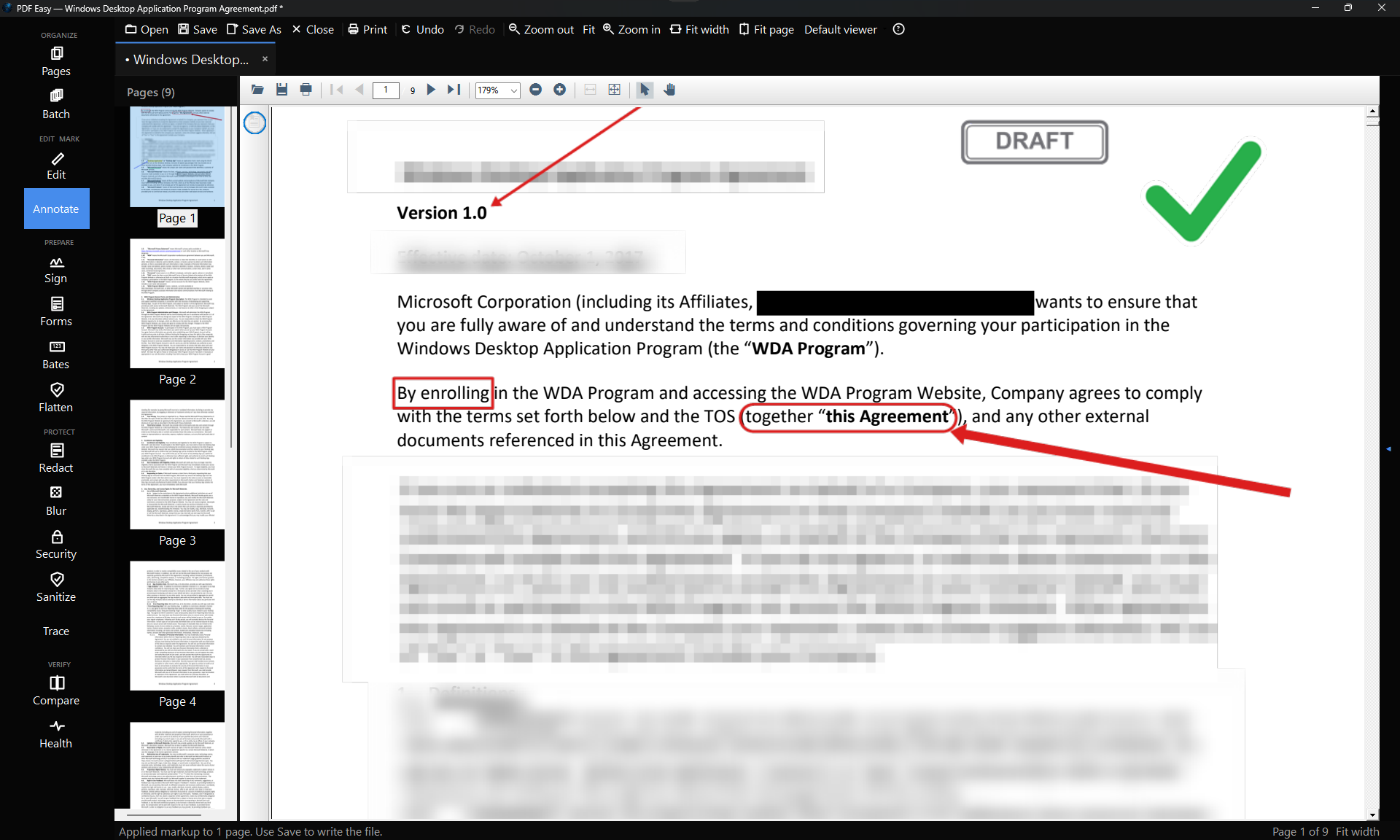
Annotate mode of the all-in-one editor gives you the full markup toolset right on your pages, and lays your marks over the pages as an overlay, so the page's real text stays underneath (search, redaction and OCR keep working). Scroll through the whole document as you mark it up, fit the pages to the width or to the whole page, and zoom with Ctrl + mouse-wheel. The classic markup editor is still one click away in the Annotate panel for
Safe to Share and OCR text recognition.
The editor gives you the complete markup toolset: arrows in many styles (open, double-headed, block, diamond, dot, curved, barbed, chevron, arc and bar-end) and lines (straight, dashed, dotted, double, wavy and dimension); a whole family of rectangles — plain, rounded, dashed, dotted, filled, drop-shadow box, callout-style card and double-border — plus ellipses, a
speech-bubble callout with a pointer tail you can drag to aim anywhere, a highlighter and a natural-feeling freehand pen for handwriting (smooth strokes that are fuller when you write slowly and finer when you write quickly, and that follow your pen's pressure on a tablet); text with its own style dialog (font, size, bold / italic / underline, left / centre / right alignment, colour, an optional background and an
outline / halo that keeps it readable on any background), and auto-numbered
step badges; blur, pixelate or a solid
black bar to hide sensitive details, and a
spotlight (rectangle or ellipse) that dims everything outside a region to draw the eye to one spot; stamps and text / image watermarks. Precision helpers make it quick — pick a colour straight off the page with the
eyedropper, hold
Shift while drawing for perfect horizontals, verticals, squares and circles, and each tool remembers the colour and width you last used with it.
Safe to Share — auto-redaction across the whole document. One tap reads the page with OCR and finds things you usually don't want to share — emails, phone numbers, card numbers (validated with a Luhn check so real cards aren't missed), ID and long numbers, IP addresses, and API keys or tokens. On a multi-page PDF you choose the scope first —
this page,
all pages, or a range like
1-20, 35, 40-50 — so a 100-page document doesn't have to be done page by page; a progress bar scans the chosen pages and you can cancel at any time. Review the findings (grouped by page, each shown masked so the list itself doesn't reveal them), tick exactly what to cover by category or item, pick a black bar, blur or pixelate, and apply. When you apply to the PDF, the covered details are redacted for real — removed from the file, not just hidden under the bar. Blur and pixelate get a verification pass that re-reads the covered areas and offers to upgrade to solid bars if anything is still legible.
Cover the whole document once. Place a watermark, a stamp (
DRAFT,
CONFIDENTIAL…), a header, a disclaimer or any mark on one page, then
Copy to pages puts an exact copy on
all pages or a page range you choose — so you don't have to stamp a long document by hand. Watermarks fit each page automatically, and every property (image, wording, angle, opacity) comes across intact.
OCR. Make searchable runs OCR over a scanned, image-only PDF and adds an invisible text layer, so search, find & replace and the auto-redact library all work on it. It uses the suite's own recognition engine, with a professional OCR engine as a fallback.
 Saving your work:
Every tool applies its change to the working document in memory, so you can keep going and undo anything.
Save writes over the original;
Save As writes a new file; and if you try to close with unsaved changes, PDF Easy offers to save first. Copies produced by protect, sign, redact, PDF/A and the forensic tracer are always written as separate files, so your working document is never overwritten by mistake.