App Installer & Updater - Update apps, install in bulk, set up a new PC (Updated Oct 2026)
Description:
Out-of-date apps are one of the easiest ways for a PC to get into trouble, and setting up a new PC means hunting down a dozen installers. App Installer & Updater uses Windows Package Manager (winget), which is built into Windows 10 and 11, to do both in a few clicks: it shows which apps have newer versions and updates the ones you tick, installs apps in bulk from a catalogue with ready-made sets, and saves this PC's app list so a new PC can be set up from it.
Nothing is installed or updated until you've seen a preview of exactly what will happen. If winget isn't on the PC, the tool says so and opens App Installer in the Microsoft Store for you.
How to use:
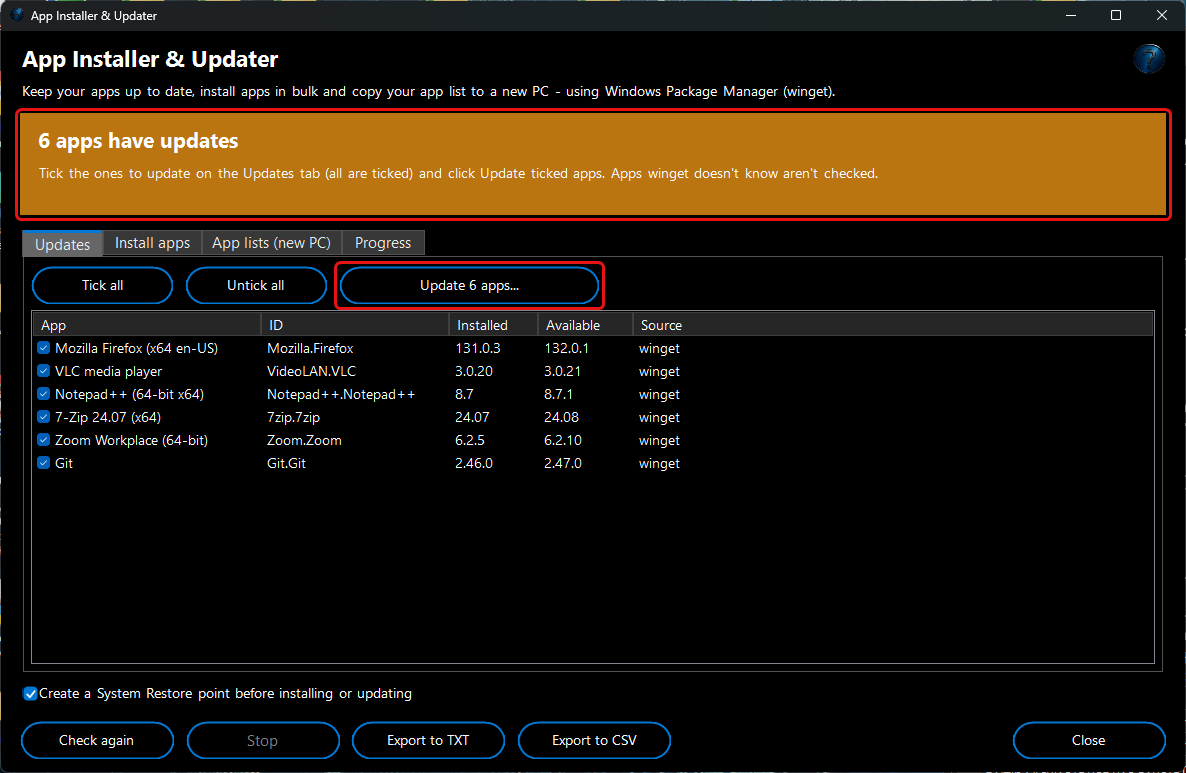
1. Open the tool. It asks winget which apps have updates; the banner shows the result -
All apps are up to date (green),
N apps have updates (amber) or
winget isn't available (red, with a
Get App Installer button).
2. Updates lists each app with its installed and available version, all ticked. Untick any you want to leave alone, then click
Update N apps….
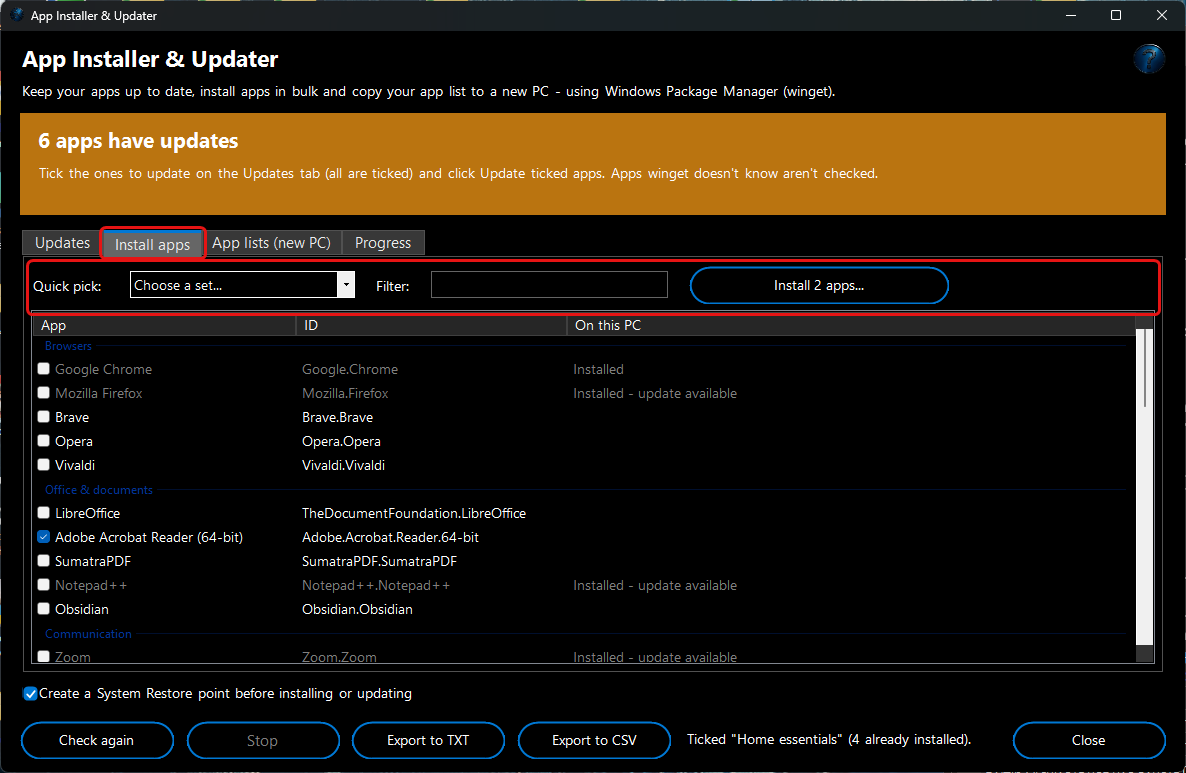
3. Install apps is a catalogue of popular apps grouped as Browsers, Office & documents, Communication, Media, Utilities, Remote support, Security & passwords, Tech & developer and Runtimes. Choose a
Quick pick - Home essentials, Office PC, Tech toolkit or Developer - or tick apps yourself (the filter box narrows the list), then click
Install N apps…. Apps already on the PC are shown in grey.
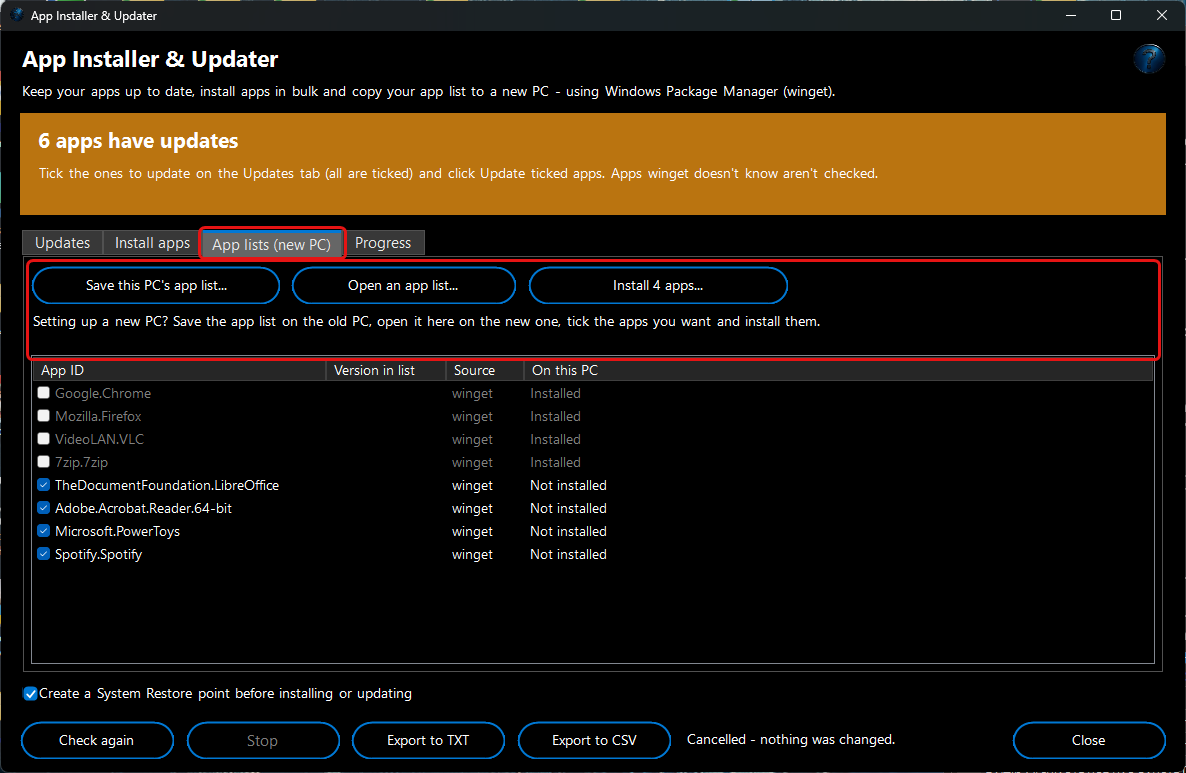
4. App lists (new PC): on the old PC click
Save this PC's app list…; on the new PC click
Open an app list…, tick the apps you want (apps not yet installed are ticked) and click
Install N apps…. The list uses winget's own format, so
winget import can read it too.
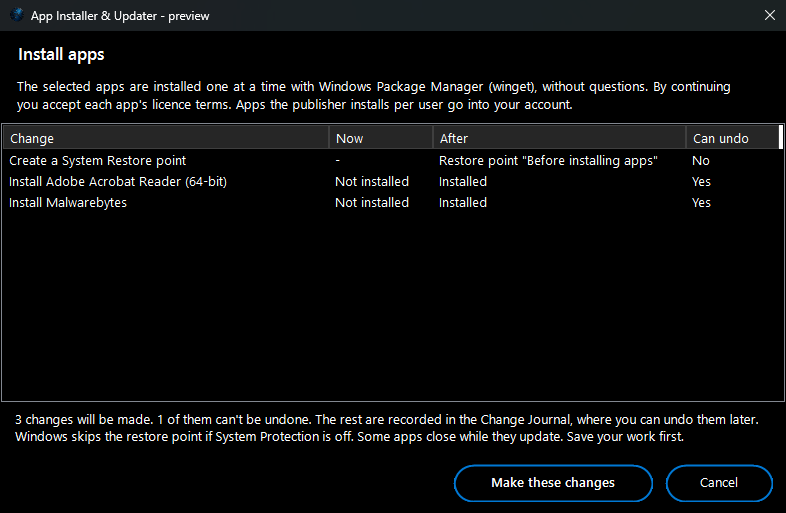
5. Before anything happens a preview lists every app. Leave
Create a System Restore point before installing or updating ticked for a safety net. The
Progress tab shows what winget is doing, and
Stop stops after the current app.
6. Every install and update is recorded in the Change Journal, where a newly installed app can be uninstalled again.
7. Export to TXT and
Export to CSV save the update list, catalogue or app list for your records.