BitLocker & Recovery Key Manager - Never get locked out of your own PC (Updated Oct 2026)
Description:
Many PCs encrypt their drive with BitLocker without the owner knowing - and after a BIOS or firmware update, a hardware change or a Secure Boot change, Windows can suddenly ask for a 48-digit recovery key. Without it, the files on that drive are gone. BitLocker & Recovery Key Manager shows whether your drives are encrypted, checks that each one has a recovery key and that the key has been backed up, and lets you save the keys somewhere safe in one click.
It also shows whether Windows and Microsoft Office are activated, so a technician has one standard check to run before any firmware or boot work. Checking doesn't change anything.
How to use:
1. Run FW Admin Tech Tools as administrator and open the tool (Security & Privacy). If you've turned on
Ask me to sign in with Windows before opening the password and recovery key tools in Options > Security, Windows asks you to sign in first - and again before keys are shown, copied or saved. Options > Security can also close the tool when it's left idle.
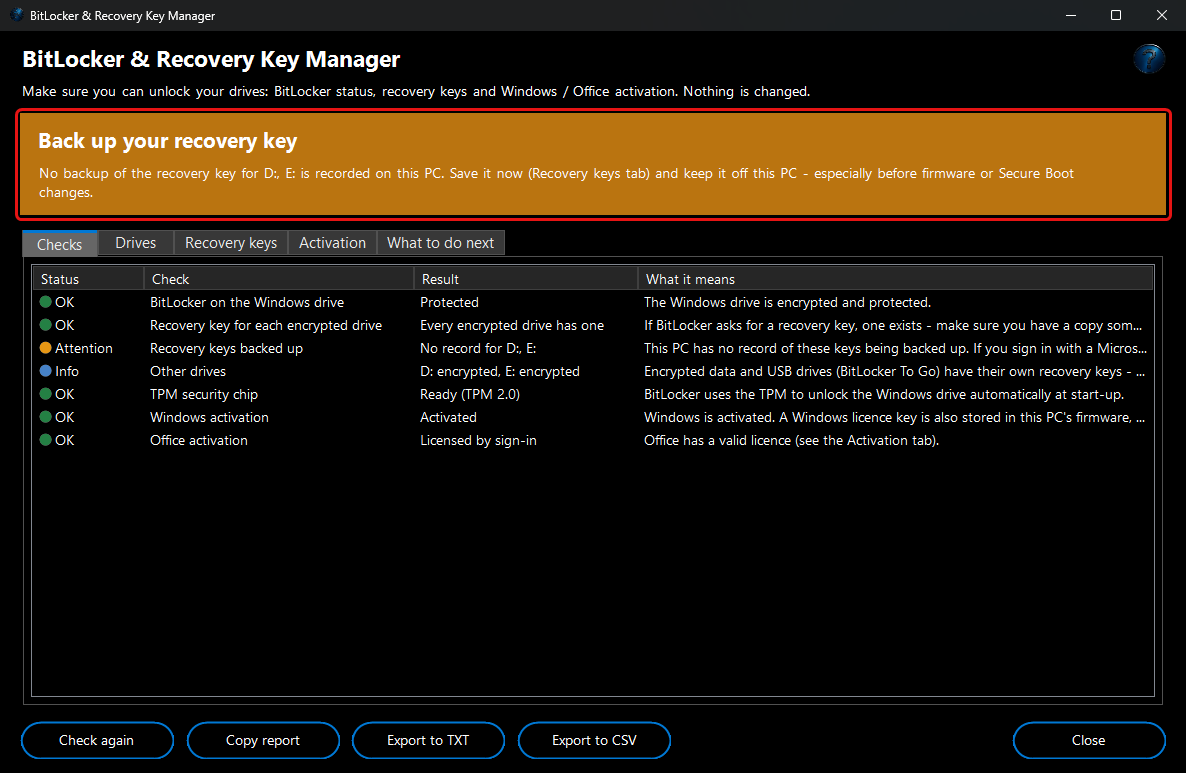
2. Read the coloured banner:
Recovery keys are safe or
No recovery key needed (green),
Back up your recovery key,
BitLocker protection is suspended or
Activation needs attention (amber), or
No recovery key (red).
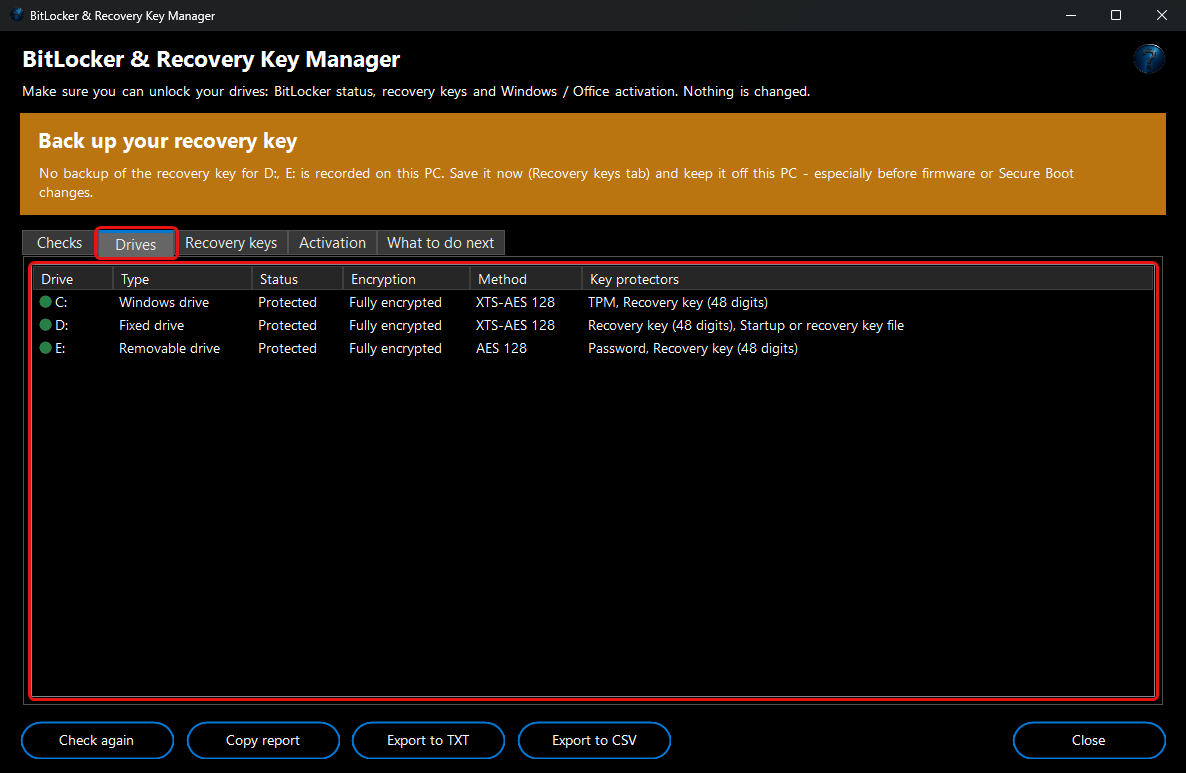
3. Drives lists every drive with its BitLocker status, encryption progress, encryption method and key protectors (TPM, PIN, password, recovery key and so on).
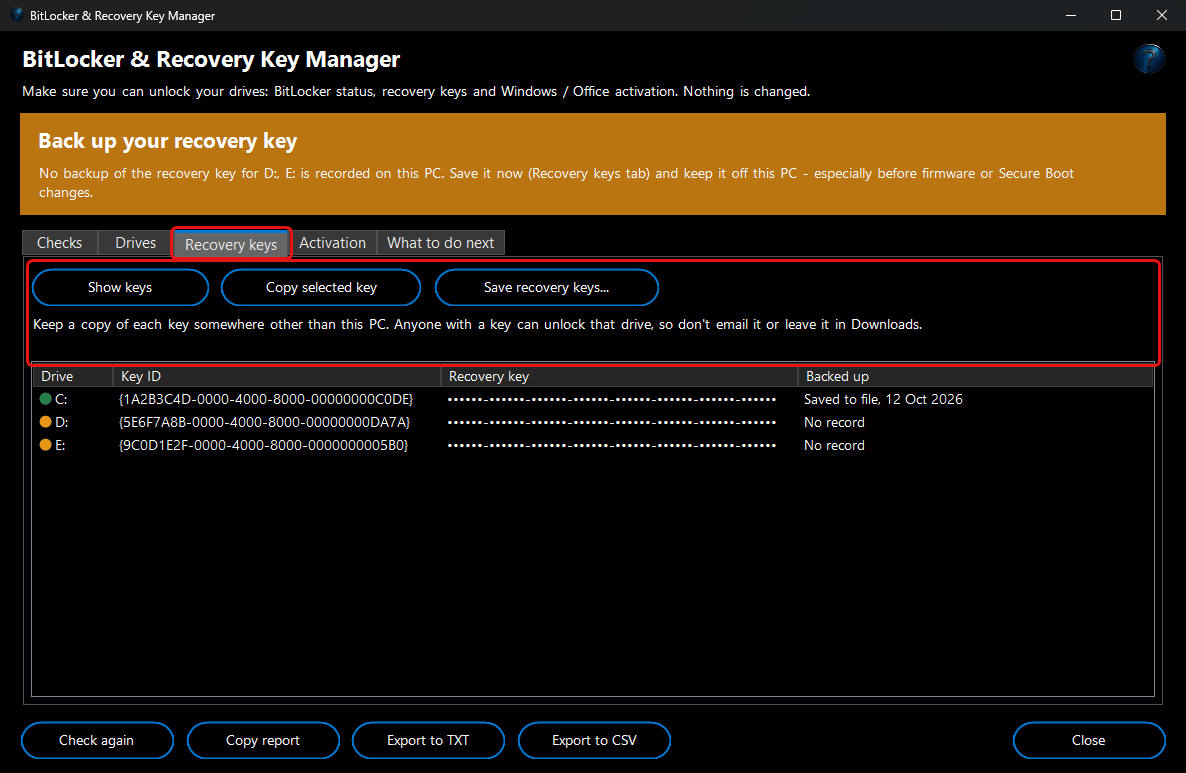
4. Recovery keys lists each key's ID - the one Windows shows when it asks for a key - and whether a backup is recorded. The keys stay hidden until you click
Show keys, and hide again when you leave the tab.
Copy selected key keeps the key out of clipboard history;
Save recovery keys… saves them all to a text file and warns you if you're saving a drive's key onto that same drive.
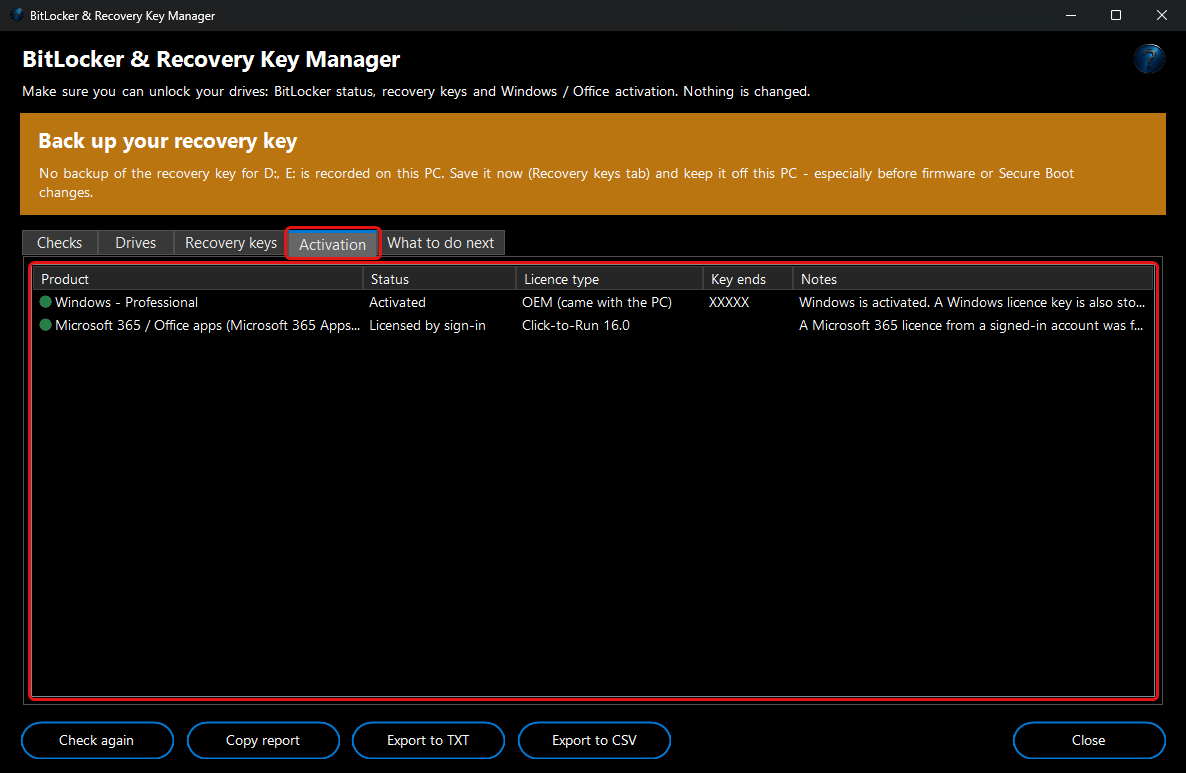
5. Activation shows Windows and Office activation, the licence type (retail, OEM, volume, Microsoft 365 sign-in) and the last five characters of the product key.
6. What to do next lists the steps for this PC.
7. Copy report,
Export to TXT and
Export to CSV give you a report for a ticket or client. Reports never contain the recovery keys.