Privacy & Telemetry Control - make Windows less nosy, in plain English (Updated Oct 2026)
Description:
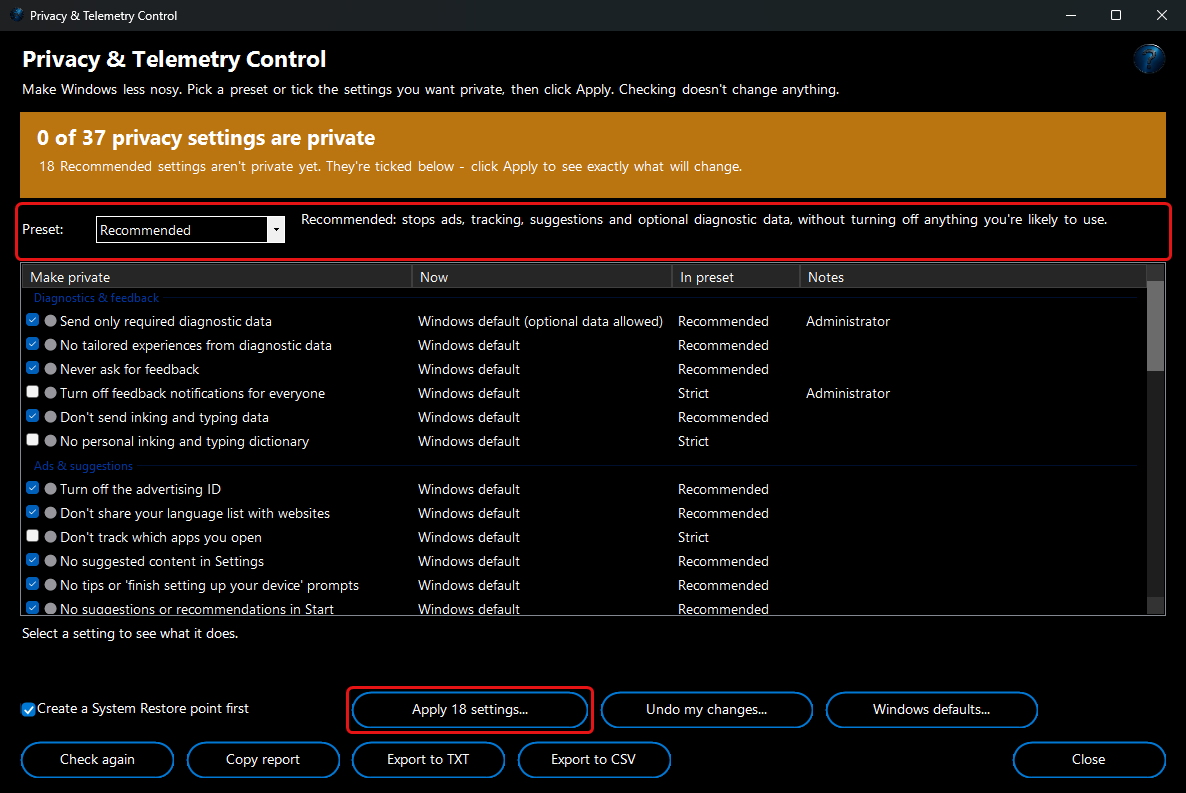
Windows sends diagnostic data to Microsoft, shows you ads and suggestions, keeps your activity and search history, and lets apps read your contacts, calendar and location. The settings that control all this are spread across a dozen pages of Settings, some only exist as policies, and Windows adds new ones with almost every release. Privacy & Telemetry Control puts them in one list, each explained in plain English - what it does and what (if anything) stops working.
Pick a preset, or tick exactly what you want. Before anything changes you see every setting's current and new value, a System Restore point is created first, and every change is recorded so
Undo my changes puts it all back in one click. Checking doesn't change anything.
How to use:
1. Open the tool. It reads this PC's privacy settings (nothing is changed) and the banner shows how many are already private.
2. Choose a
Preset:
Recommended stops ads, tracking, suggestions and optional diagnostic data without turning off anything you're likely to use;
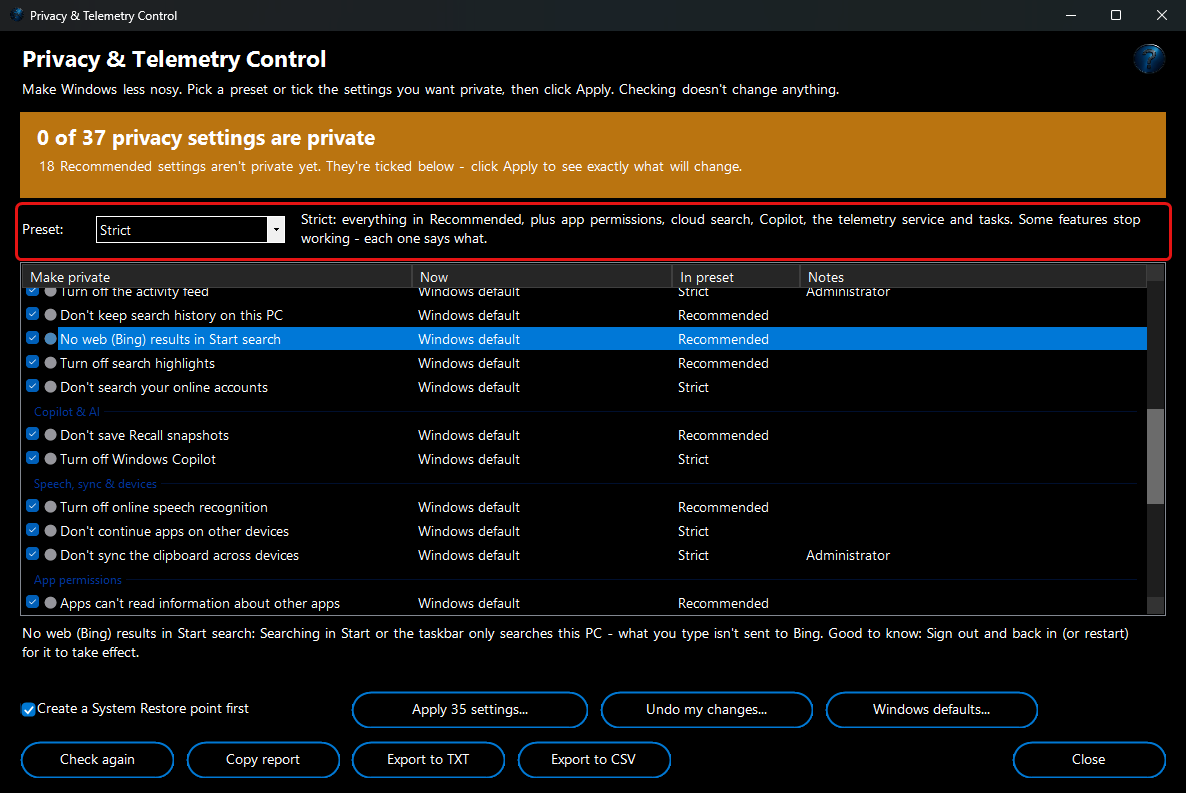
Strict goes further (app permissions, cloud search, Copilot, the telemetry service and scheduled tasks) and some features stop working - each setting says which. Ticking or unticking a setting yourself switches to
Custom.
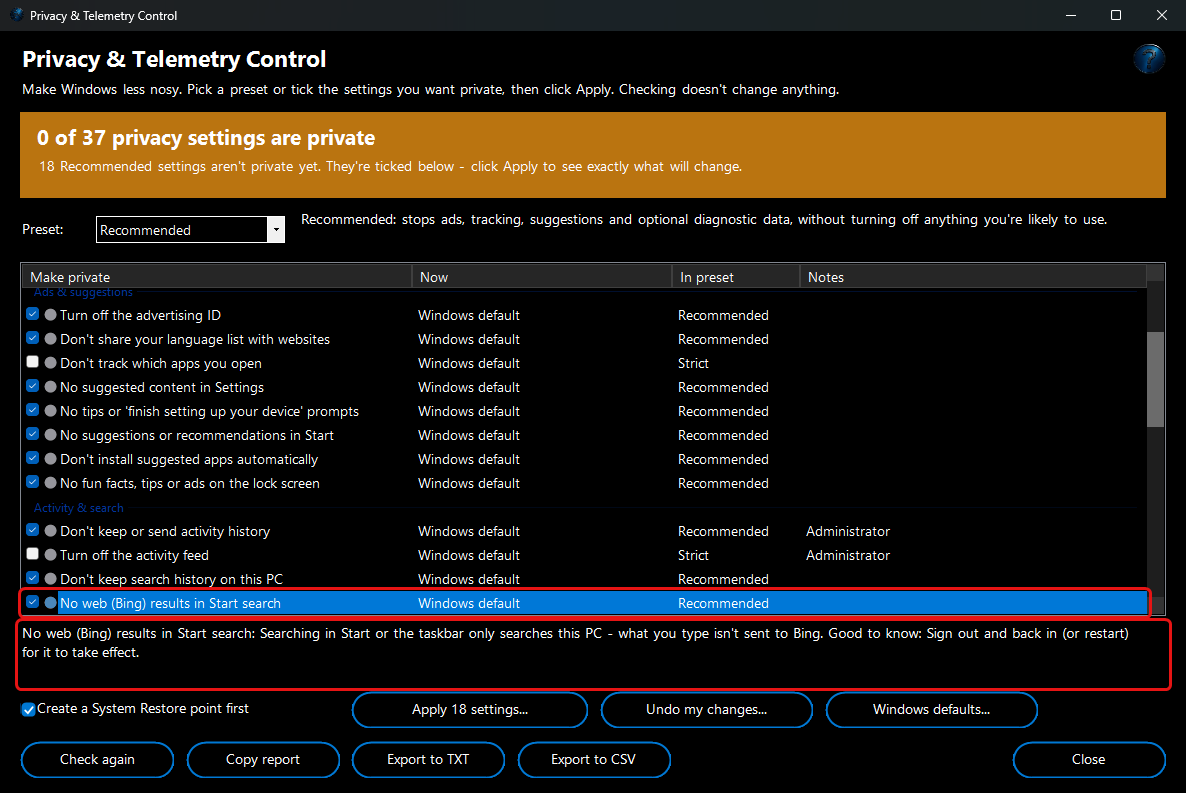
3. Select a setting to read what it does underneath the list. The
Now column shows its current state,
In preset shows whether Recommended or Strict includes it, and
Notes shows the settings that need administrator rights.
4. Click
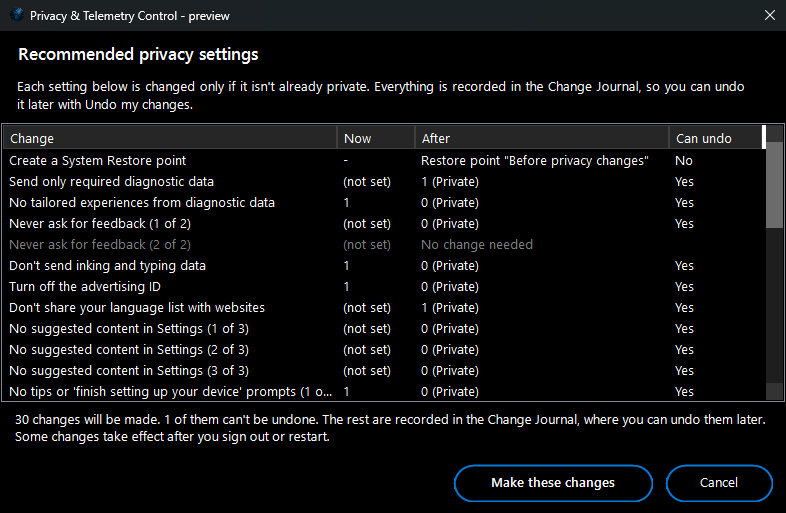
Apply. A preview lists every change - the current value, the new value and whether it can be undone. Settings that are already private are skipped. Click
Make these changes to go ahead. Keep
Create a System Restore point first ticked for an extra safety net.
5. Changed your mind?
Undo my changes puts back every setting this tool changed, as it was before.
Windows defaults puts every setting in the list back the way Windows ships it. Both show a preview first.
6. Some settings take effect after you sign out or restart.
Copy report,
Export to TXT and
Export to CSV save the list for a record or a ticket.