Windows Update Doctor - Why won't Windows update? (Updated Oct 2026)
Description:
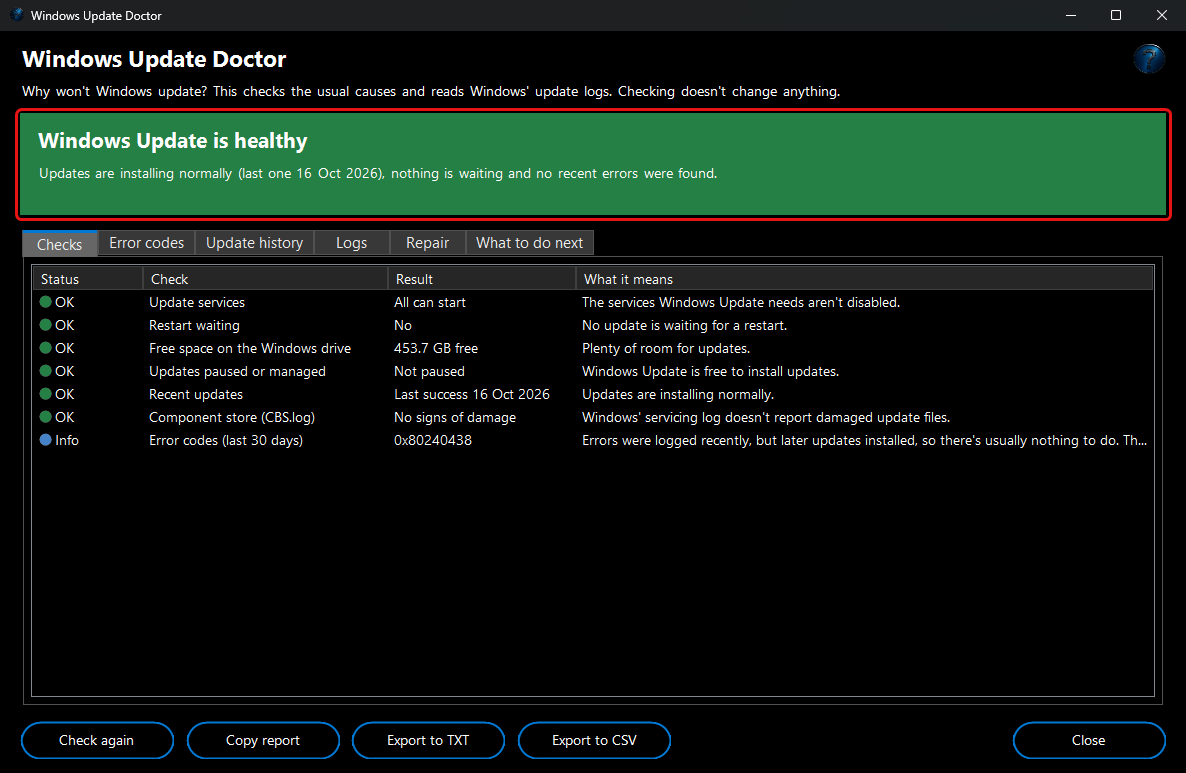
Failed updates are one of the most common PC problems, and Windows' own messages rarely say why. Windows Update Doctor finds out in one click. It checks the usual causes - disabled update services, a restart that's waiting, too little disk space, paused updates - and reads Windows' update history, event log, servicing log (CBS.log) and feature-update setup logs for error codes. Each code is explained in plain English with the fix that usually works.
You get a green, amber or red answer at the top, the evidence behind it for IT staff, and a guided reset of the Windows Update components when nothing else works. Checking never changes anything; the reset only runs after you have seen exactly what it will do.
How to use:
1. Open the tool. The checks start straight away. Run FW Admin Tech Tools as administrator for the full check and to use the reset.
2. Read the coloured banner:
Windows Update is healthy (green),
Restart to finish updating,
Updates are paused or
Mostly healthy (amber), or
Updates are failing,
Windows Update is turned off,
Not enough disk space or
Update files are damaged (red).
3. The
Checks tab lists each check with what it means. Hover over a row to read the full explanation.
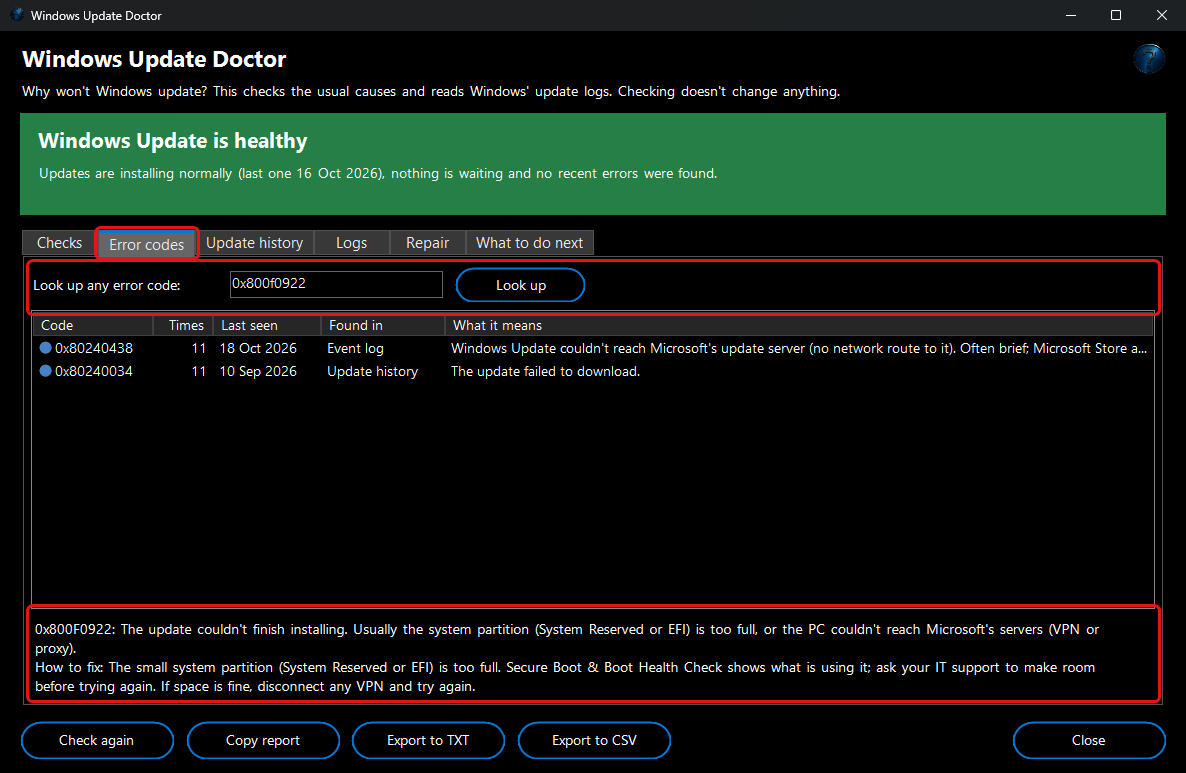
4. Error codes lists every update error code found on the PC, how often it happened, when and where it was found, and what it means. Select a code to see how to fix it, or type any code (for example 0x800f0922) into
Look up any error code.
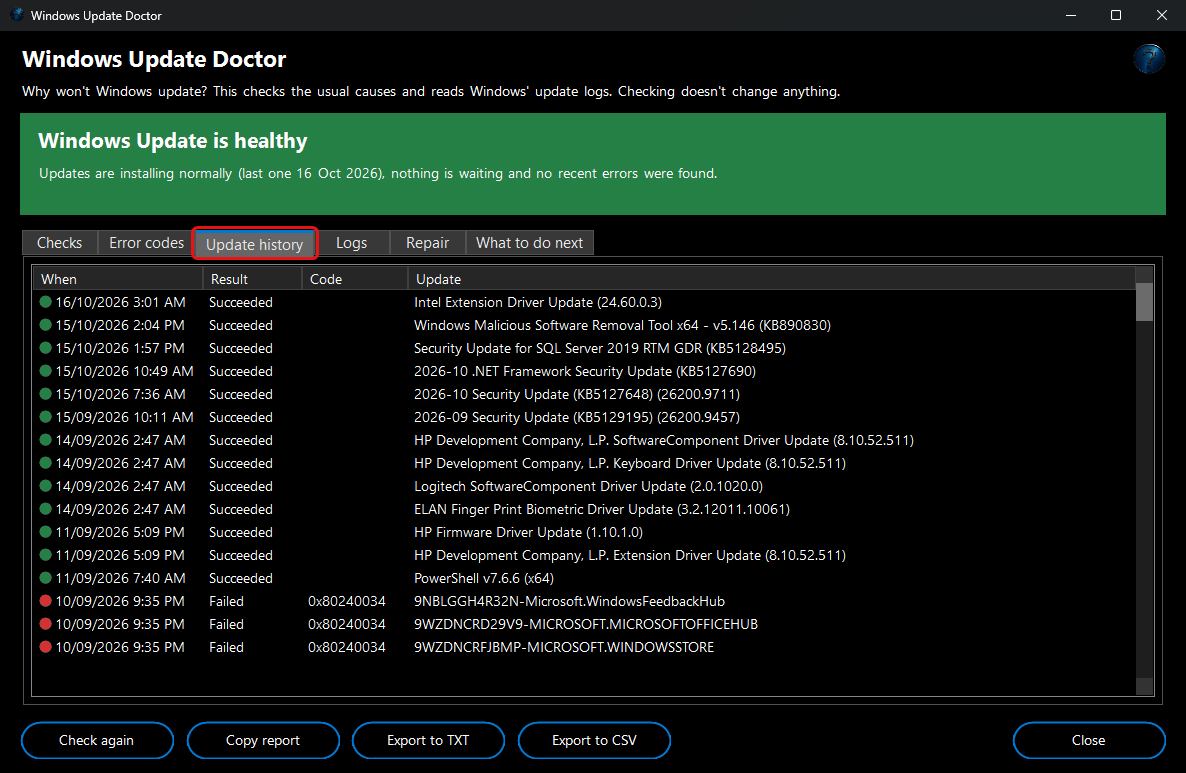
5. Update history shows every update Windows has tried, with the result and error code.
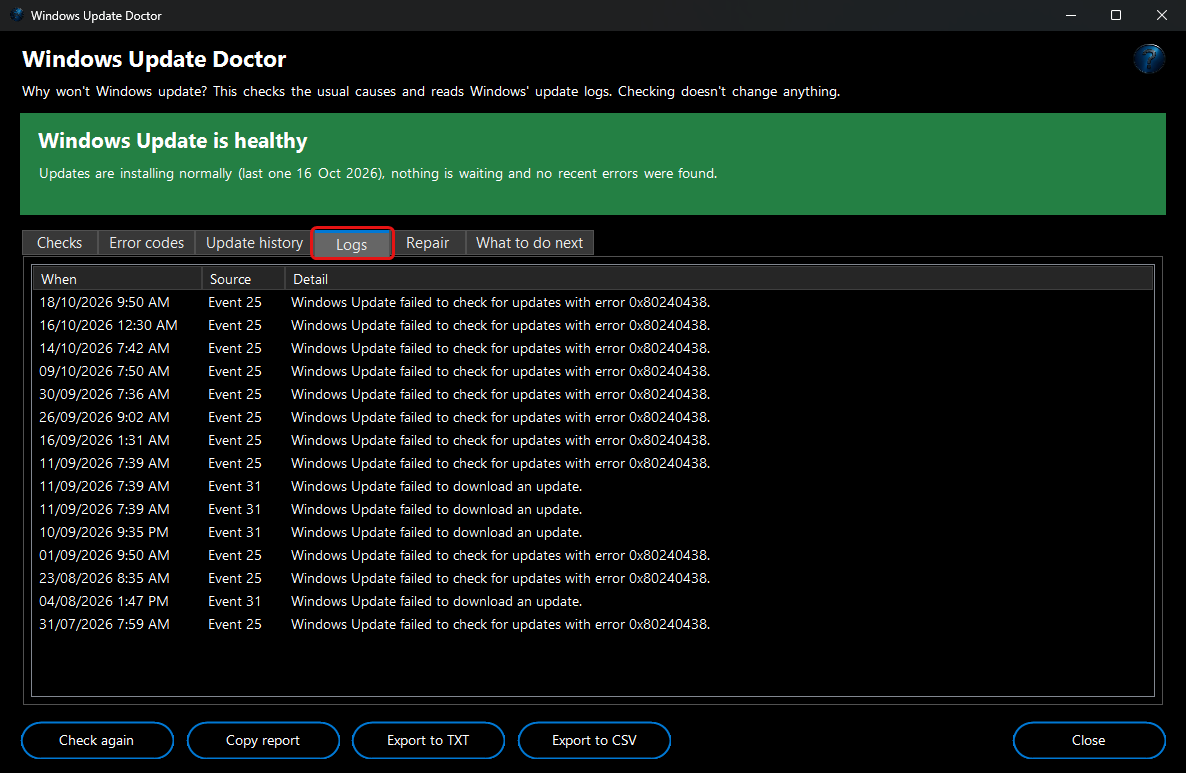
Logs shows the matching lines from the event log, CBS.log and setup logs.
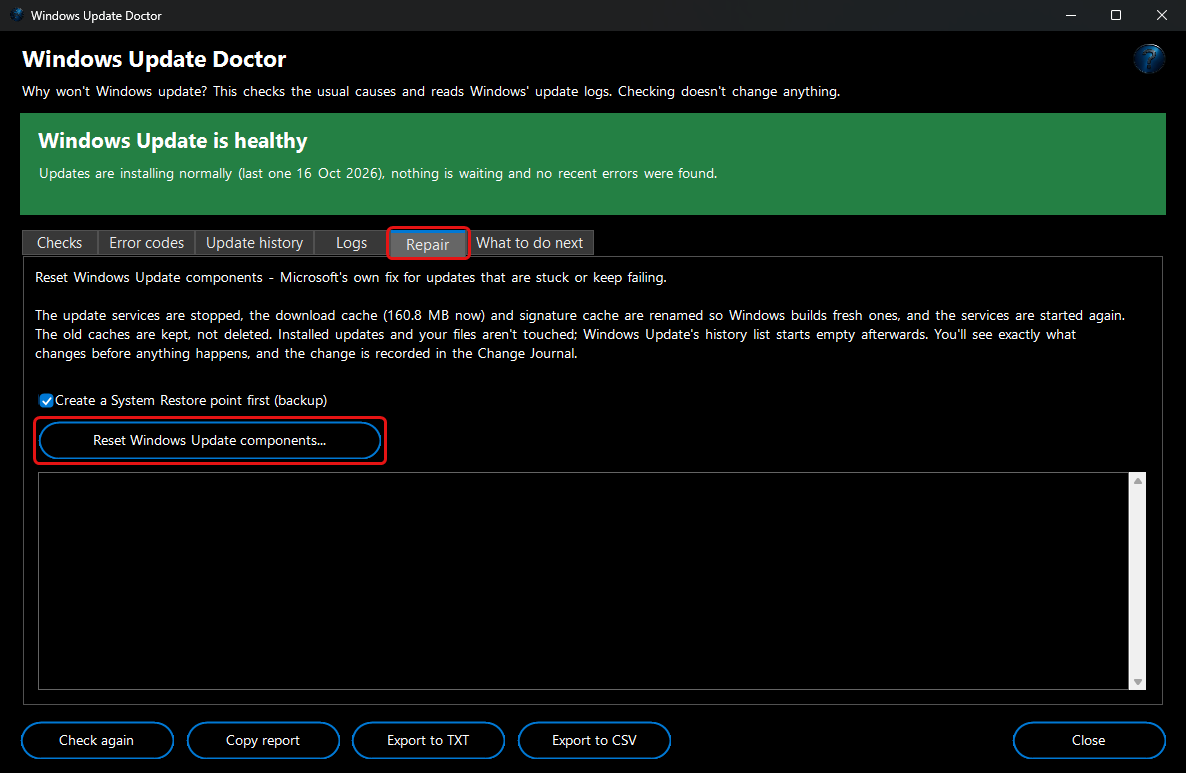
6. Repair resets the Windows Update components - Microsoft's own fix for updates that are stuck or keep failing. Leave
Create a System Restore point first ticked, click
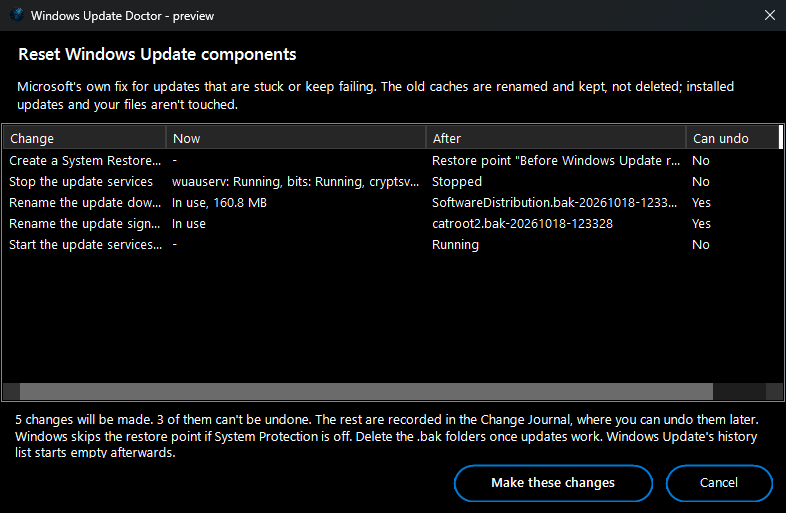
Reset Windows Update components…, check the preview, then choose
Make these changes. The update caches are renamed and kept, never deleted, and the reset is recorded in the Change Journal.
7. What to do next lists the steps for this PC, simplest first.
8. Use
Copy report,
Export to TXT or
Export to CSV (the list on the current tab) to keep the results or send them to a client or support person.