Options - every setting in the app, what it does and when to change it (Updated Nov 2026)
Description
The Options window is where you make FW Admin Tech Tools Pro your own: the colours and theme, how big the text is, whether tools remember what you typed last time, how much the app keeps on your PC, how your settings are backed up, and how updates and your licence work. It also has Check my setup, which checks that everything the tools rely on is installed, with a fix button where there is one.
Nothing in Options can harm your PC or your files. Every change takes effect straight away (there is no Save button), almost every change can be undone with the Undo button, and every setting has a small reset arrow that puts it back to how the app came.
How to open Options
1. In the main window (the launcher), look at the list of categories on the left. Options is the last one, at the bottom.
2. Click Options, then click Options in the list on the right. The Options window opens on the Appearance page.
3. From any tool window you can also press Ctrl+K to open the command palette and type options (choose Open Options), or type the name of a setting, such as text size, to jump straight to it. The first time you open the About window, Options opens too, so new users see what can be changed.
How the Options window works
1. The page list (left): click a page to show its settings. A small coloured dot after a page's name means you have changed at least one setting on that page from the way the app came.
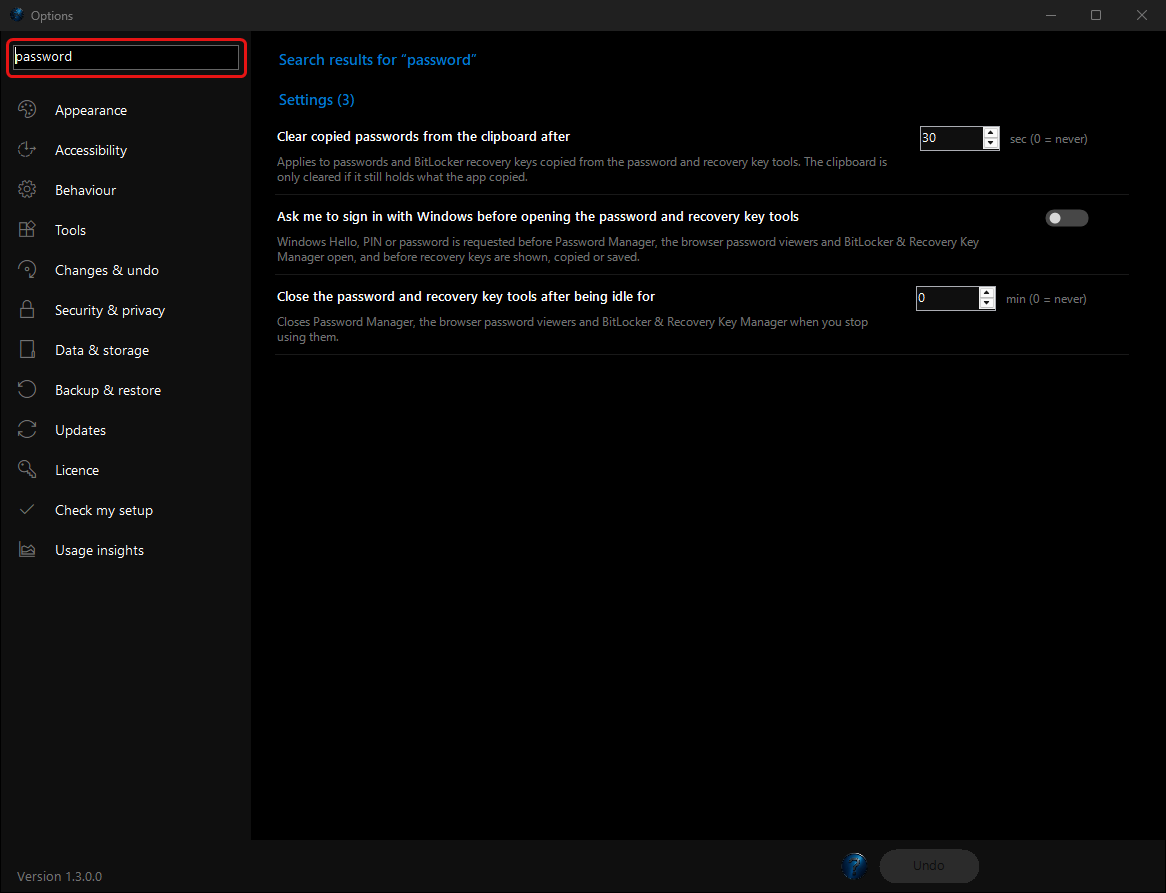
2. Search settings... (top left): type a word such as password, dark or backup. Every matching setting, button and page from all the pages is listed together, and you can change them right there. Press Esc or clear the box to go back to the page you were on.
3. Each setting is one row: its name in bold, a sentence underneath saying what it does, and the control on the right (an on/off switch, a list to choose from, a number or a box to type in). Change it and it works immediately.
4. The reset arrow (↺) appears at the end of a row once you've changed it. Hover over it to see the original value, click it to put the setting back.
5. Undo (bottom right) takes back your last change in Options, including a whole-page reset. Click it again to go back further. It is greyed out when there is nothing to undo.
6. Reset this page... (bottom right) appears when you have changed something on the current page. It lists exactly which settings will go back to their defaults, and what each one changes from and to, before it does anything - and you can still press Undo afterwards.
7. The bottom bar also shows a short message after you do something (for example Theme: Dark Mode), the version you're running (bottom left) and the help icon, which opens this page inside the app.
Example
You find the text in the tool windows a little small. Open Options, click Accessibility, and change Text size in tool windows from 100 to 125 %. The preview underneath grows straight away, and so does the text in any tool window you already have open. If you don't like it, click the reset arrow at the end of the row, or press Undo.
Appearance
Changes how every window in the app looks.
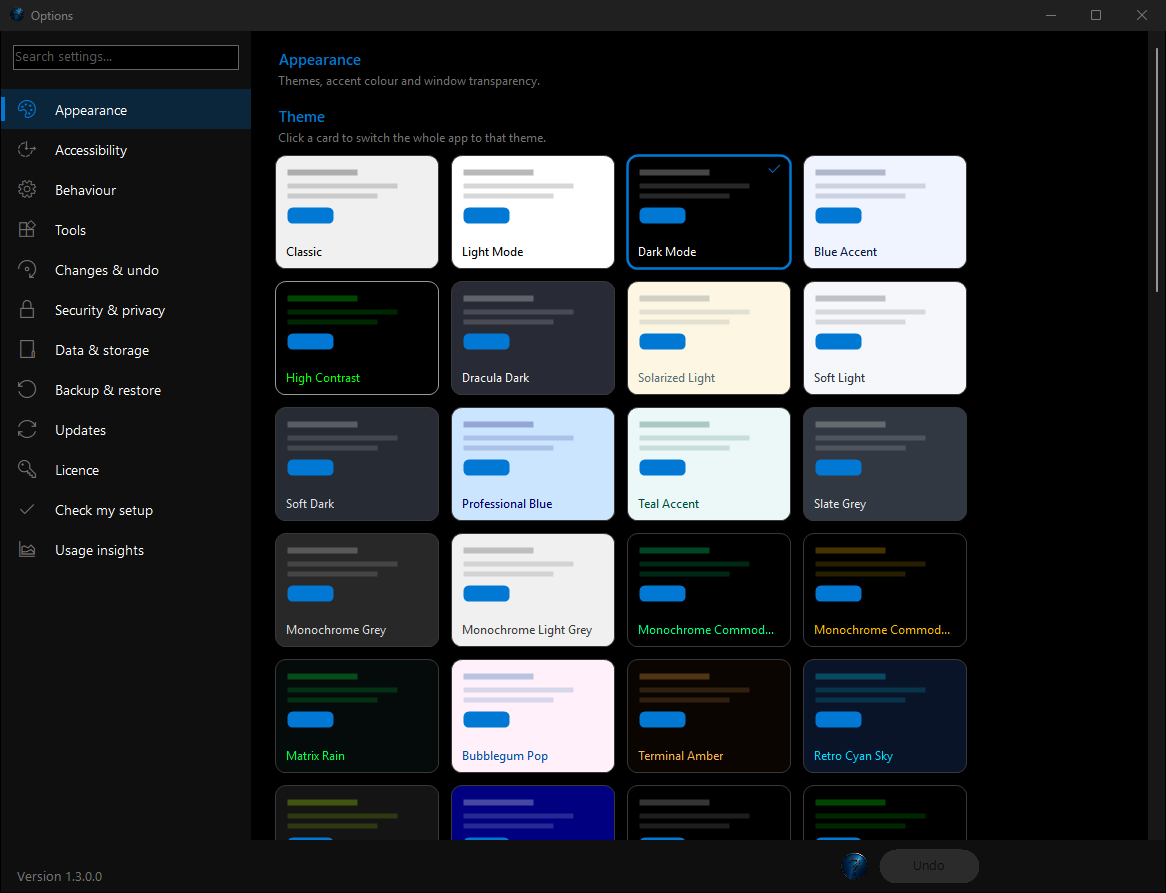
Theme - each card is a complete colour scheme (background, text and highlight colours). Click a card and the whole app changes to it at once, including tool windows that are open; the card you're using has a tick. Light themes such as Light Mode and Soft Light suit bright rooms, dark ones such as Dark Mode and Dracula Dark are easier on the eyes at night, and High Contrast makes text stand out as much as possible.
New theme... opens the theme editor so you can pick your own background and text colours and give the theme a name. Duplicate current starts the editor from the theme you're using, so you only change what you want. Your own themes also get Edit current and Delete current buttons (the built-in themes can't be changed or deleted).
Copy theme code and Paste theme code... - a theme code is a short piece of text, starting with FWT1:, that holds a theme's colours. Copy it to share your theme with someone else or to set up another PC the same way; paste one to add that theme. Codes from the Customise panel on this website work too, so the app and the website can match.
Accent colour - the colour of buttons, highlights, selections and focus rings. Automatic uses the theme's own colour; click a colour circle or Custom... to choose one. The line underneath tells you how easy the colour is to see against your theme (for example 4.6:1 - easy to see); pick another if it says it is hard to see.
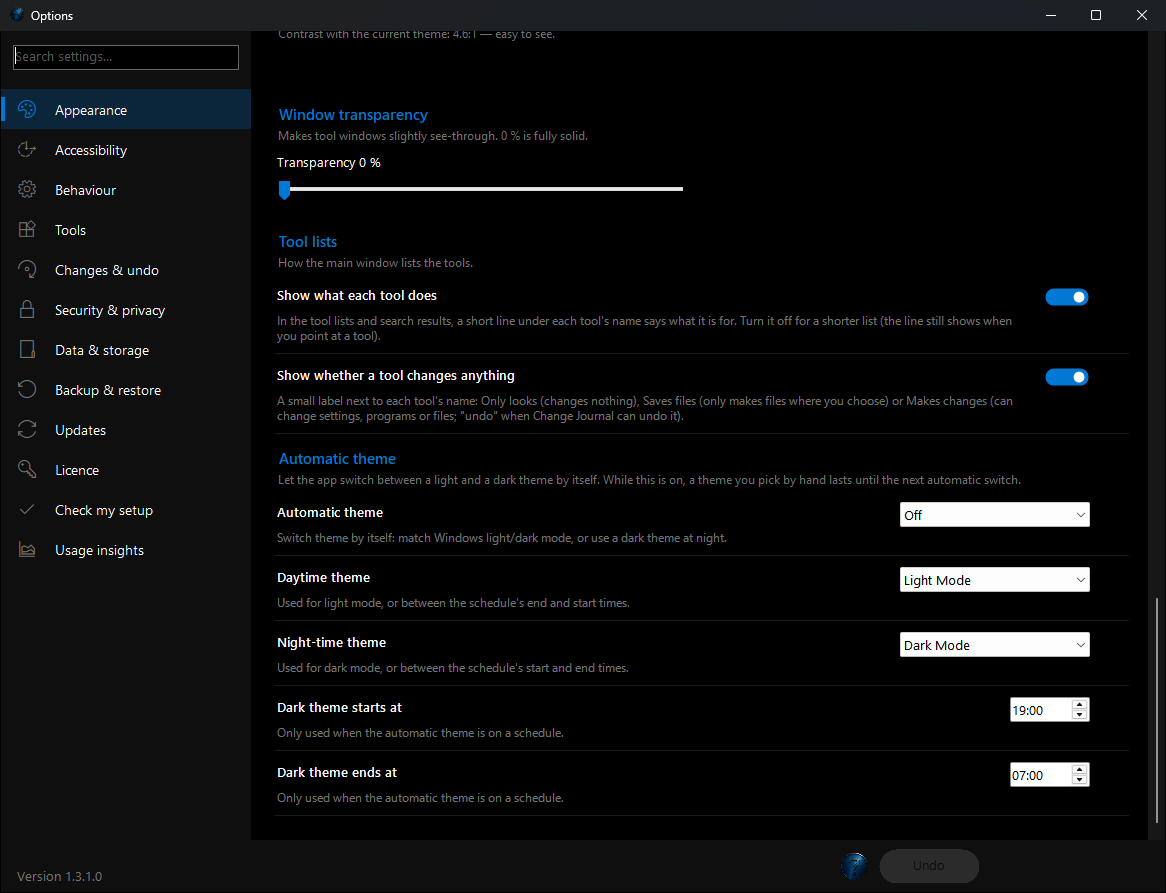
Window transparency - makes tool windows slightly see-through, from 0 % (solid, the default) up to 50 %. Useful when you want to keep an eye on something behind a tool window.
Show what each tool does (default On) - puts a short line under each tool's name in the tool lists and search results, saying what the tool is for, for example Find out what is filling up a drive or folder, biggest first under Disk Space Analyser. Turn it off for a shorter list that fits more tools on the screen; the line still appears when you point at a tool. A list that is open changes as soon as you click.
Show whether a tool changes anything (default On) - a small label next to each tool's name: Only looks (green) means it only shows you information and changes nothing; Saves files (blue) means it makes or saves files where you choose but doesn't change Windows, your programs or your settings; Makes changes (amber) means it can change settings, programs or files, or send things such as emails, when you tell it to. Makes changes · undo means its changes are recorded, so you can undo them in the Change Journal. Point at a tool to read the same explanation. Example: Drives Info says Only looks, Convert Video says Saves files and File Renamer says Makes changes · undo.
Automatic theme (default Off) - lets the app change theme by itself. Follow Windows uses your daytime theme while Windows is in light mode and your night-time theme while it is in dark mode. On a schedule uses the night-time theme between Dark theme starts at (default 19:00) and Dark theme ends at (default 07:00). Daytime theme (default Light Mode) and Night-time theme (default Dark Mode) choose which themes are used. While this is on, a theme you click by hand lasts until the next automatic switch.
Example
You want a light theme during the day and a dark one in the evening. Set Automatic theme to On a schedule, leave Daytime theme on Light Mode, choose Matrix Rain as the Night-time theme and set Dark theme starts at to 18:30. From 6:30 pm every window switches to Matrix Rain, and back to Light Mode at 7:00 am.
Accessibility
Makes the app easier to read and use.
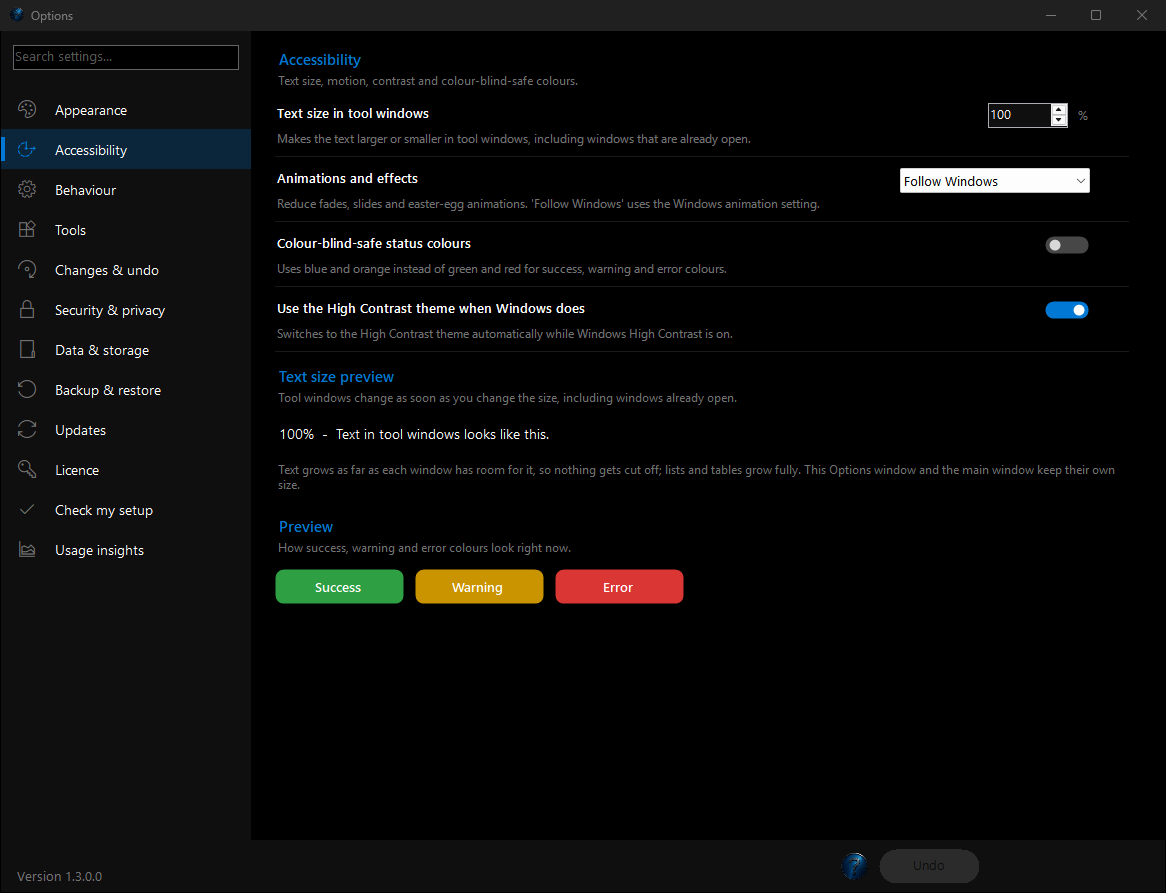
Text size in tool windows (default 100 %, from 80 to 160 % in steps of 5) - makes the text in tool windows larger or smaller, including windows that are already open. Text grows as far as each window has room for it, so nothing gets cut off; lists and tables grow fully. The Options window and the main window keep their own size. The Text size preview underneath shows the size you've chosen.
Animations and effects (default Follow Windows) - Reduce cuts down fades, slides and easter-egg animations; Full always shows them; Follow Windows does whatever the Windows setting Animation effects (Settings > Accessibility > Visual effects) says.
Colour-blind-safe status colours (default off) - uses blue and orange instead of green and red for success, warning and error colours, which are easier to tell apart for the most common kinds of colour blindness. The Preview at the bottom of the page shows the three colours as they look now.
Use the High Contrast theme when Windows does (default on) - while a Windows contrast theme is switched on, the app uses its own High Contrast theme too, and goes back to your theme when you turn it off.
Behaviour
How the app starts, and its hidden fun.
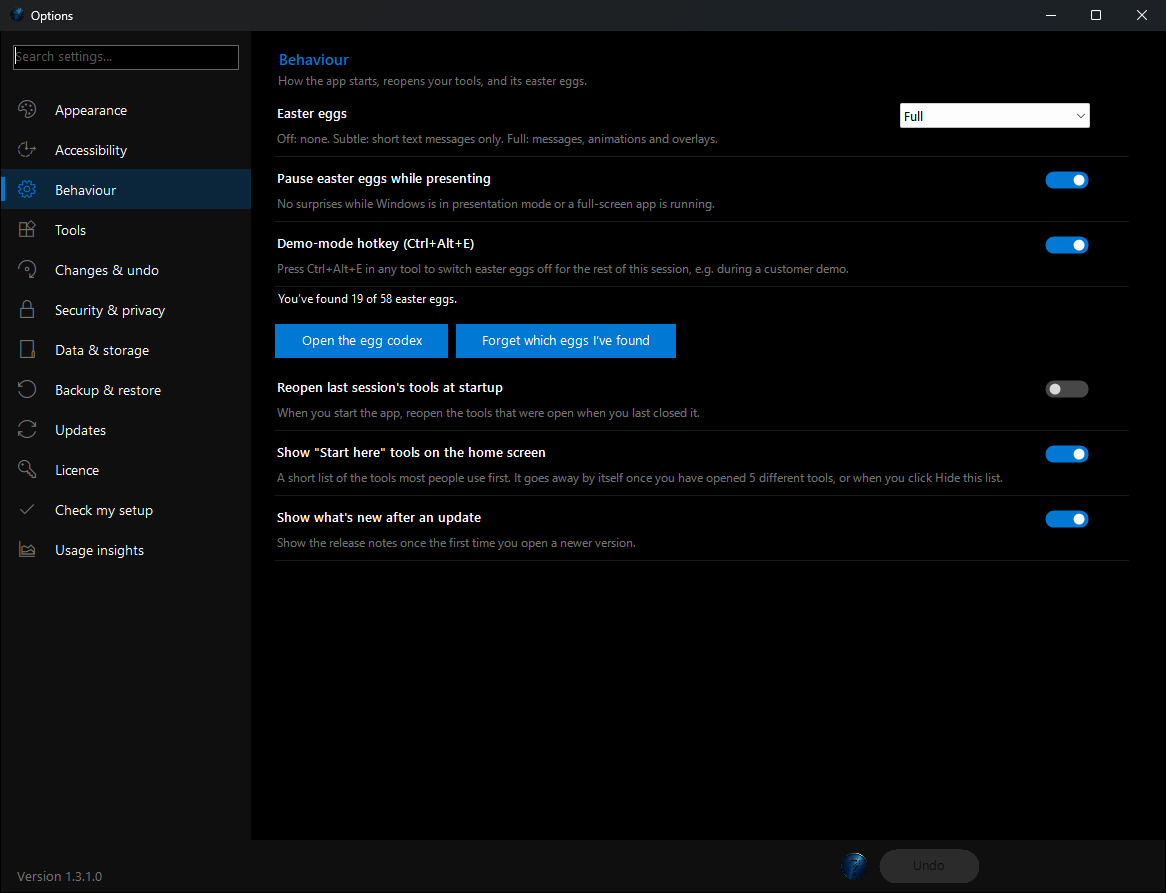
Easter eggs (default Full) - the app hides little surprises that appear when you do certain things. Off switches them off completely, Subtle shows short text messages only, Full also shows animations and overlays. The line underneath tells you how many you've found so far.
Pause easter eggs while presenting (default on) - no surprises while Windows is in presentation mode or a full-screen program, such as a video or a slide show, is running.
Demo-mode hotkey (Ctrl+Alt+E) (default on) - while this is on, pressing Ctrl+Alt+E in any tool switches easter eggs off until you close the app. Handy just before you show the app to someone.
Open the egg codex shows the easter eggs you've found, with hints for the others. Forget which eggs I've found starts the hunt again (it asks first).
Reopen last session's tools at startup (default off) - when you start the app, the tools that were open when you last closed it open again, so you can carry on where you left off.
Show what's new after an update (default on) - the first time you open a newer version, the main window shows what changed. You can see it again at any time from About > What's New in the launcher.
Show "Start here" tools on the home screen (default on) - while you are new to the app, the home screen shows New here? Start with these: eight tools most people use first, each with a short reason, for example Speed up a slow PC for System Performance Optimiser. Click one to open it. The list goes away by itself once you have opened 5 different tools, or straight away when you click Hide this list. Turn this setting back on to see it again while you are still new.
Tools
Settings that affect every tool window.
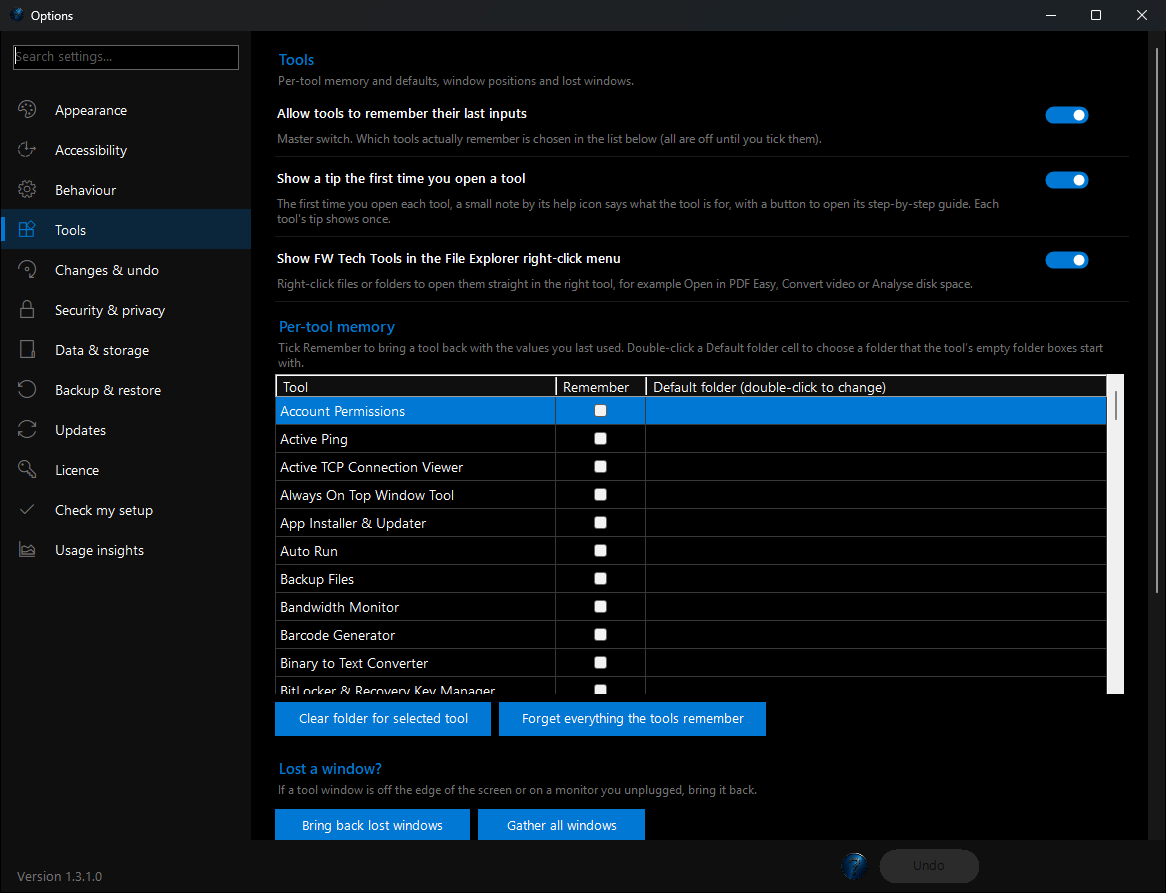
Allow tools to remember their last inputs (default on) - the main switch for Per-tool memory below. Turn it off and no tool remembers anything, whatever is ticked in the list.
Show a tip the first time you open a tool (default on) - the first time you open each tool, a small note appears under its ? help icon: what the tool is for, Open the guide (the step-by-step help for that tool) and Got it. It doesn't get in the way of typing, closes with the tool, and shows only once for each tool. Don't show these tips in the note turns this setting off.
Show FW Tech Tools in the File Explorer right-click menu (default on) - right-click a file, a folder or the empty space inside a folder in File Explorer and choose FW Tech Tools to open it straight in the right tool, for example Open in PDF Easy, Convert video or Analyse disk space. On Windows 11 the menu may be under Show more options. Turn it off if you don't want the extra menu item.
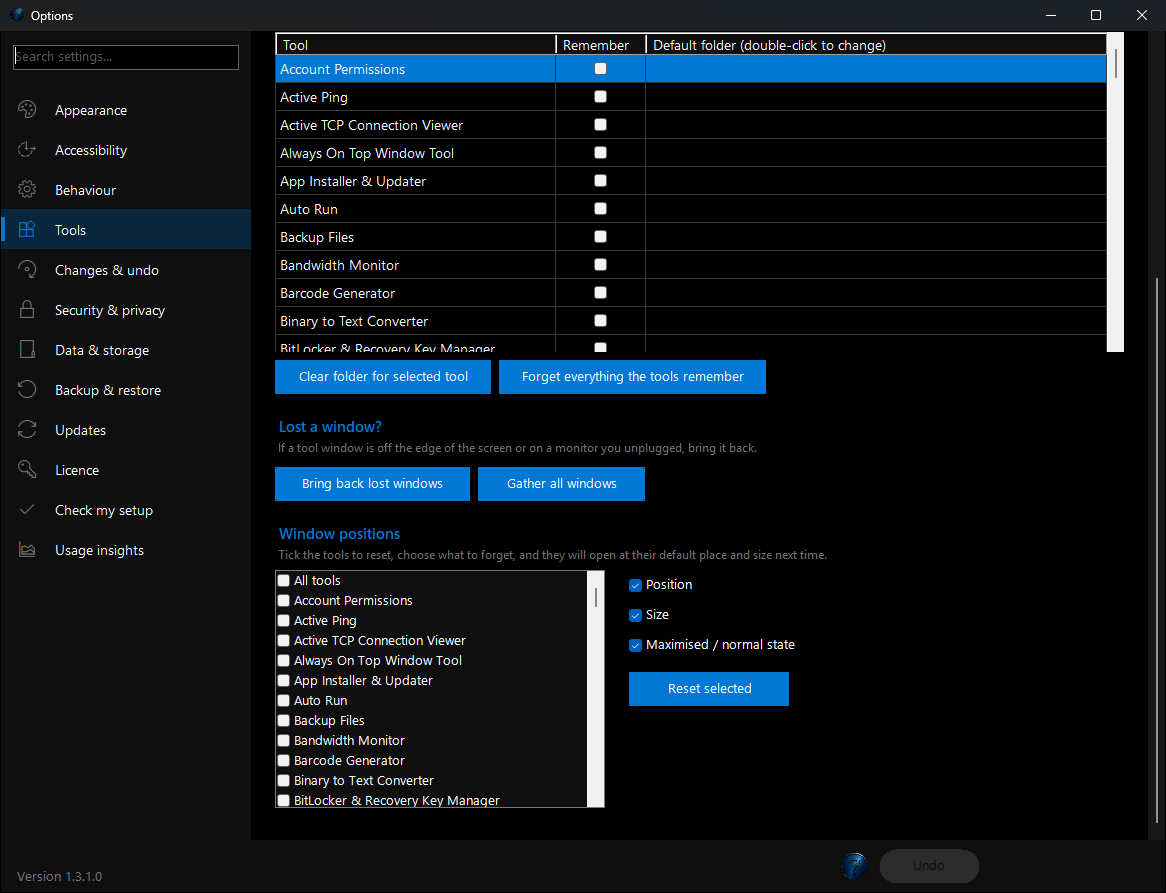
Per-tool memory - the list shows every tool that can remember what you typed. Tick Remember for a tool and the next time you open it, its boxes and choices are filled in with the values you used last time. Every tool starts unticked. Double-click a tool's Default folder cell to choose a folder that the tool's empty folder boxes start with - for example your Downloads folder for the converters. Clear folder for selected tool removes that folder; Forget everything the tools remember clears every remembered value, default folder and tick (it asks first).
Lost a window? - if a tool window opens off the edge of the screen, or on a second monitor that is no longer plugged in, Bring back lost windows moves every window that can't be seen back onto a screen you have. Gather all windows moves every open tool window onto your main screen, even ones you can see.
Window positions - every tool remembers where its window was, how big it was and whether it was maximised. To forget that, tick the tools in the list (or All tools), choose what to forget with Position, Size and Maximised / normal state, and click Reset selected. The tools open in their default place and size the next time.
Example
You always convert videos from the same folder. Tick Remember for Convert Video, then double-click its Default folder cell and choose C:\Users\Public\Videos. Next time you open Convert Video the folder box already says C:\Users\Public\Videos and your last format and quality are selected.
Changes & undo
Some tools change things on your PC - they rename, move or delete files, or change Windows settings. These settings make sure you can see a change before it happens and take it back afterwards.
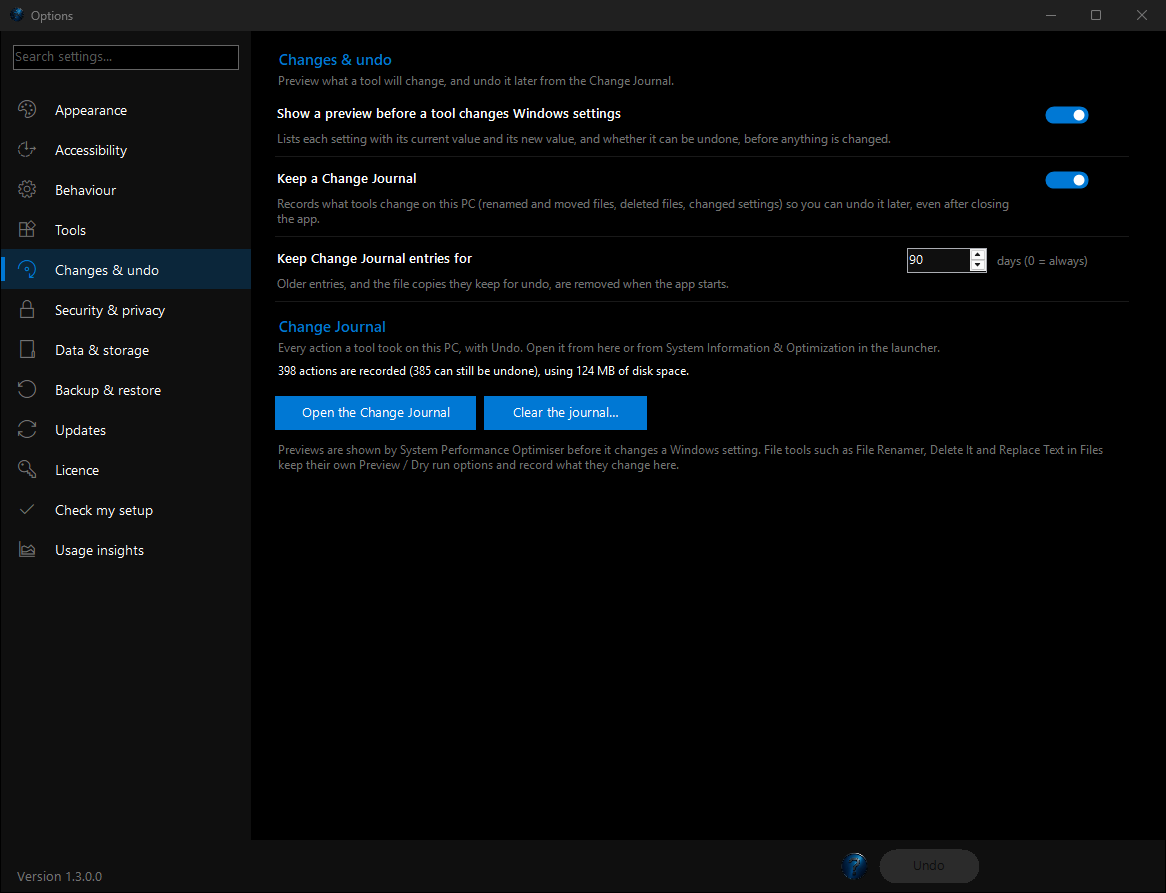
Show a preview before a tool changes Windows settings (default on) - before a tool such as System Performance Optimiser changes a Windows setting, you see a list of every setting it will change, its current value, its new value and whether it can be undone. Nothing changes until you agree. We recommend leaving this on.
Keep a Change Journal (default on) - the Change Journal records what tools change on this PC (renamed and moved files, deleted files, changed settings), and keeps the copies needed to put them back, so you can undo a change later - even after closing the app or restarting the PC.
Keep Change Journal entries for (default 90 days; 0 = always) - older entries, and the file copies they keep, are removed when the app starts, so the journal doesn't keep growing.
The Change Journal section shows how many actions are recorded, how many can still be undone and how much disk space they use. Open the Change Journal opens the Change Journal tool, where you choose an action and click Undo. Clear the journal... removes every entry: nothing on your PC changes, but none of those actions can be undone afterwards.
File tools such as File Renamer, Delete It and Replace Text in Files also have their own Preview or Dry run option, and record what they change in the journal.
Example
Last week you used File Renamer on a folder of holiday photos and now want the old names back. Click Open the Change Journal, select the File Renamer entry from that day and click Undo. Every photo gets its original name back.
Security & privacy
Extra protection for the tools that show passwords and BitLocker recovery keys, and the app's own records.
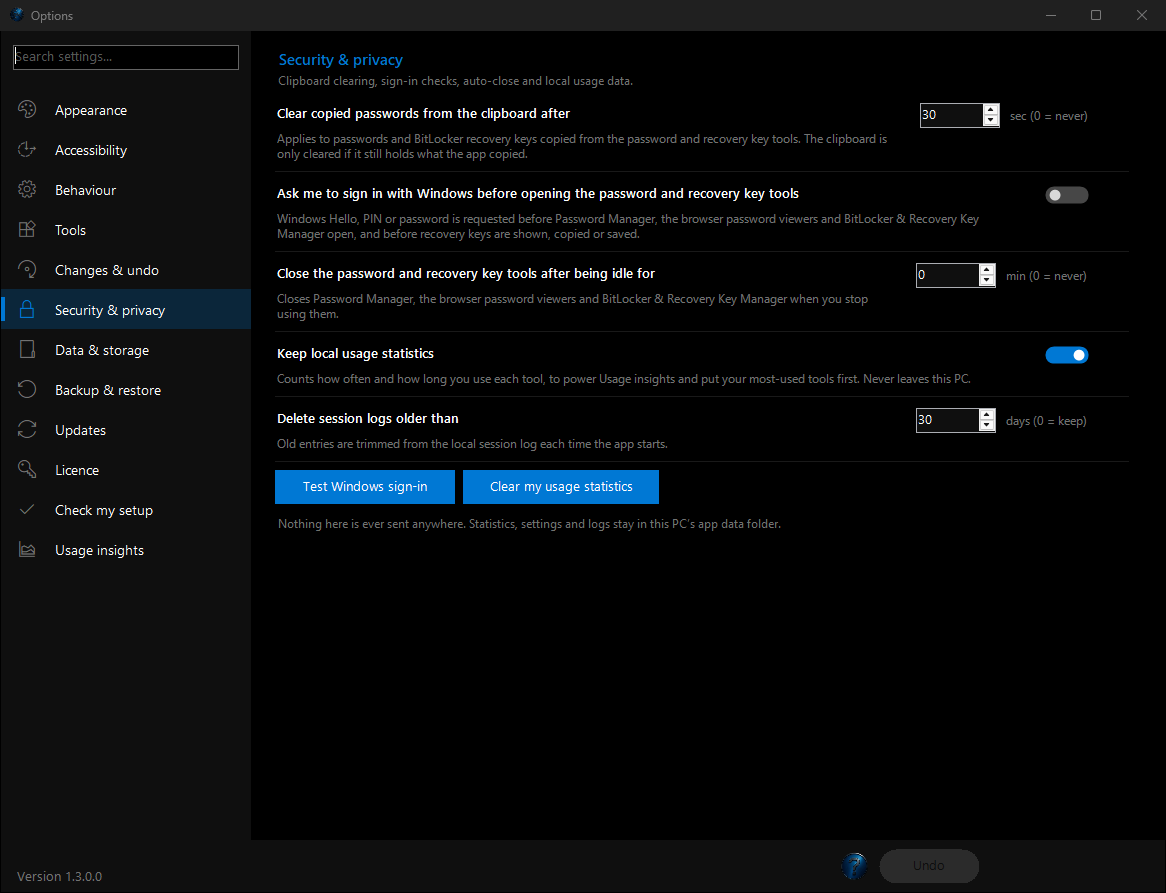
Clear copied passwords from the clipboard after (default 30 seconds; 0 = never) - when you copy a password or a BitLocker recovery key from Password Manager, the browser password viewers or BitLocker & Recovery Key Manager, it is removed from the clipboard after this many seconds. It is only removed if the clipboard still holds what the app copied, so it never wipes something you copied afterwards. Copied passwords are also kept out of Windows clipboard history.
Ask me to sign in with Windows before opening the password and recovery key tools (default off) - Windows asks for your Windows Hello face or fingerprint, PIN or password before those tools open, and before a recovery key is shown, copied or saved. Turn it on if other people use your PC. Test Windows sign-in shows the sign-in box so you can check it works on this PC.
Close the password and recovery key tools after being idle for (default 0 = never; up to 120 minutes) - closes those tools when you stop using them, so they aren't left open if you walk away.
Keep local usage statistics (default on) - counts how often and how long you use each tool. This powers Usage insights and puts your most-used tools first in the Ctrl+K command palette. The numbers never leave your PC. Clear my usage statistics deletes them.
Delete session logs older than (default 30 days; 0 = keep) - old entries are removed from the app's own session log each time it starts.
Nothing on this page is ever sent anywhere. Statistics, settings and logs stay in the app's folder on your PC.
Data & storage
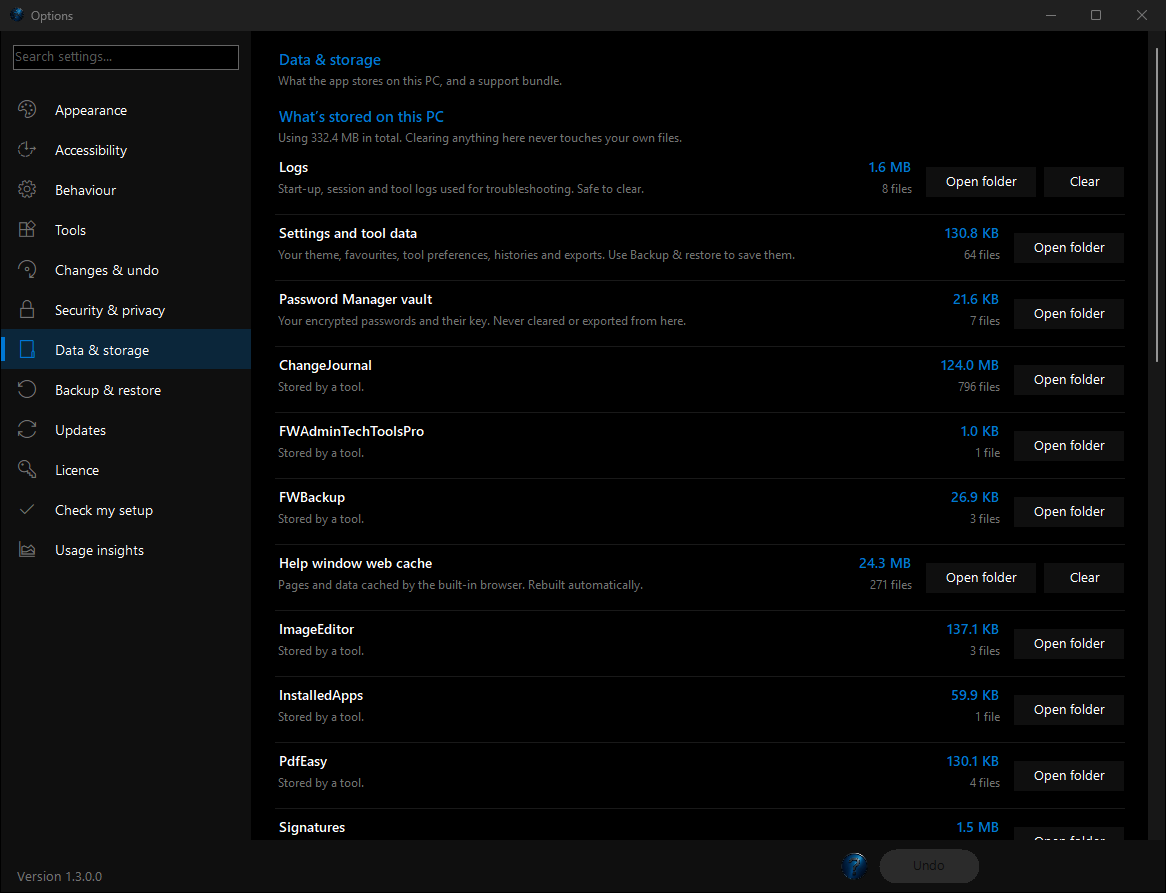
Shows what the app keeps on your PC and how much space it uses. Clearing anything here never touches your own files.
What's stored on this PC - one row for each kind of data, with its size and number of files. Logs (start-up, session and tool logs used for troubleshooting) and the web caches (pages saved by the built-in browser that shows help pages) can be cleared safely; the app rebuilds what it needs. Settings and tool data holds your theme, favourites, tool preferences and histories - use Backup & restore to save it rather than clearing it. Your encrypted Password Manager vault is listed but can never be cleared or exported from here. Every row has Open folder, so you can see the files yourself.
Log retention - the same Delete session logs older than setting as on Security & privacy.
Create support bundle... - makes a zip file you can email to us if something isn't working. It contains system details (the app's version and edition, the Windows version and language, screen sizes and free space on your drives), the options you have changed and the end of the app's logs. Your user name, computer name, email addresses and licence keys are replaced with placeholders, and it never includes your files or passwords. You choose where to save it, and File Explorer opens with the zip selected.
Backup & restore
Protects your settings, and moves them to another PC.
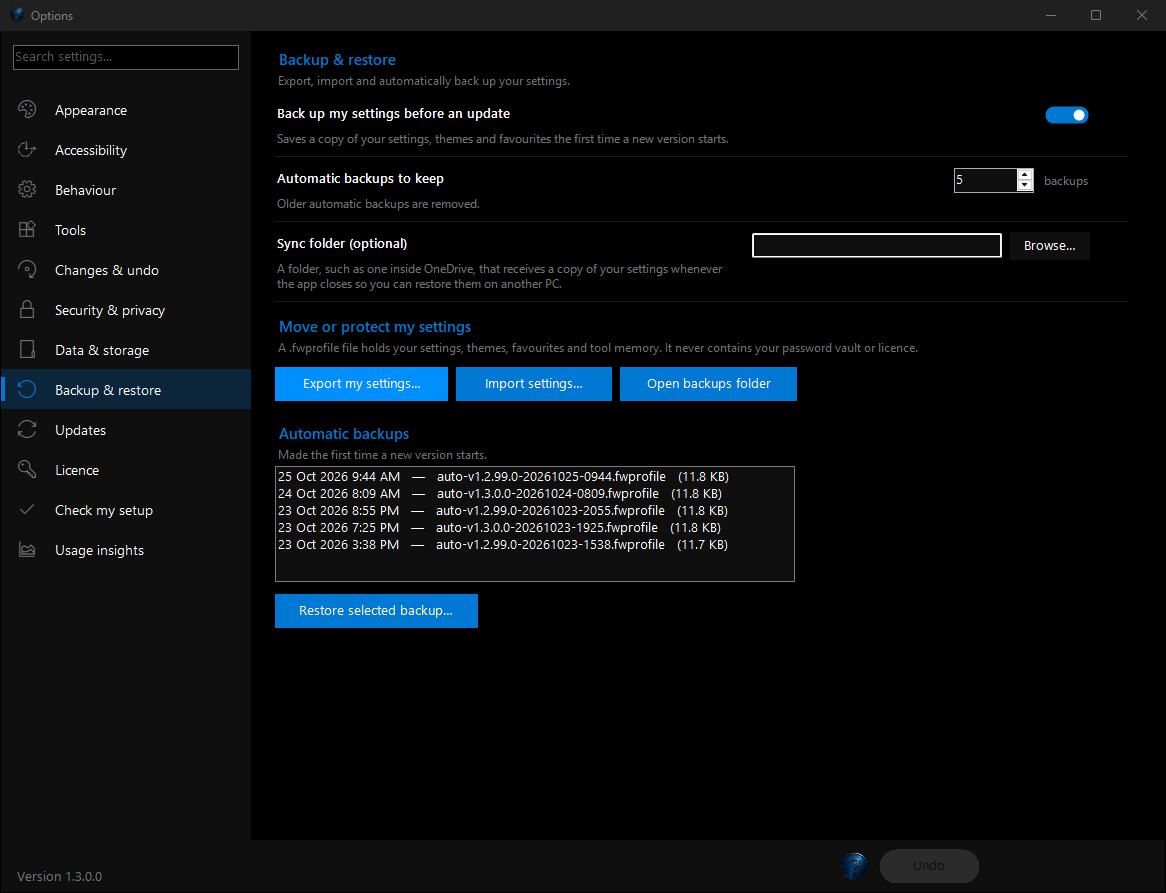
Back up my settings before an update (default on) - the first time a new version starts, a copy of your settings, themes and favourites is saved, so an update can never lose them.
Automatic backups to keep (default 5, from 1 to 30) - older automatic backups are deleted.
Sync folder (optional) - choose a folder, for example one inside OneDrive, with Browse.... Every time the app closes, a copy of your settings is saved there. On another PC that uses the same OneDrive, pick the same folder and click Restore from sync folder..., which appears once a copy is there.
Export my settings... saves a .fwprofile file holding your settings, themes, favourites and tool memory. Import settings... loads one: it replaces your current settings, but saves them first so you can go back. Some settings need the app to be closed and reopened; it tells you when. A .fwprofile file never contains your password vault or your licence. Open backups folder shows the automatic backups in File Explorer.
Automatic backups - the list shows each automatic backup with its date and the version it was made by. Select one and click Restore selected backup... to go back to it.
Example
You're moving to a new laptop. On the old PC click Export my settings... and save FWTechTools-settings-20261031.fwprofile to a USB stick. Install the app on the new laptop, open Options > Backup & restore, click Import settings... and choose the file. Your theme, favourites and remembered tool values are there; enter your licence key or sign in to the Microsoft Store as usual.
Updates
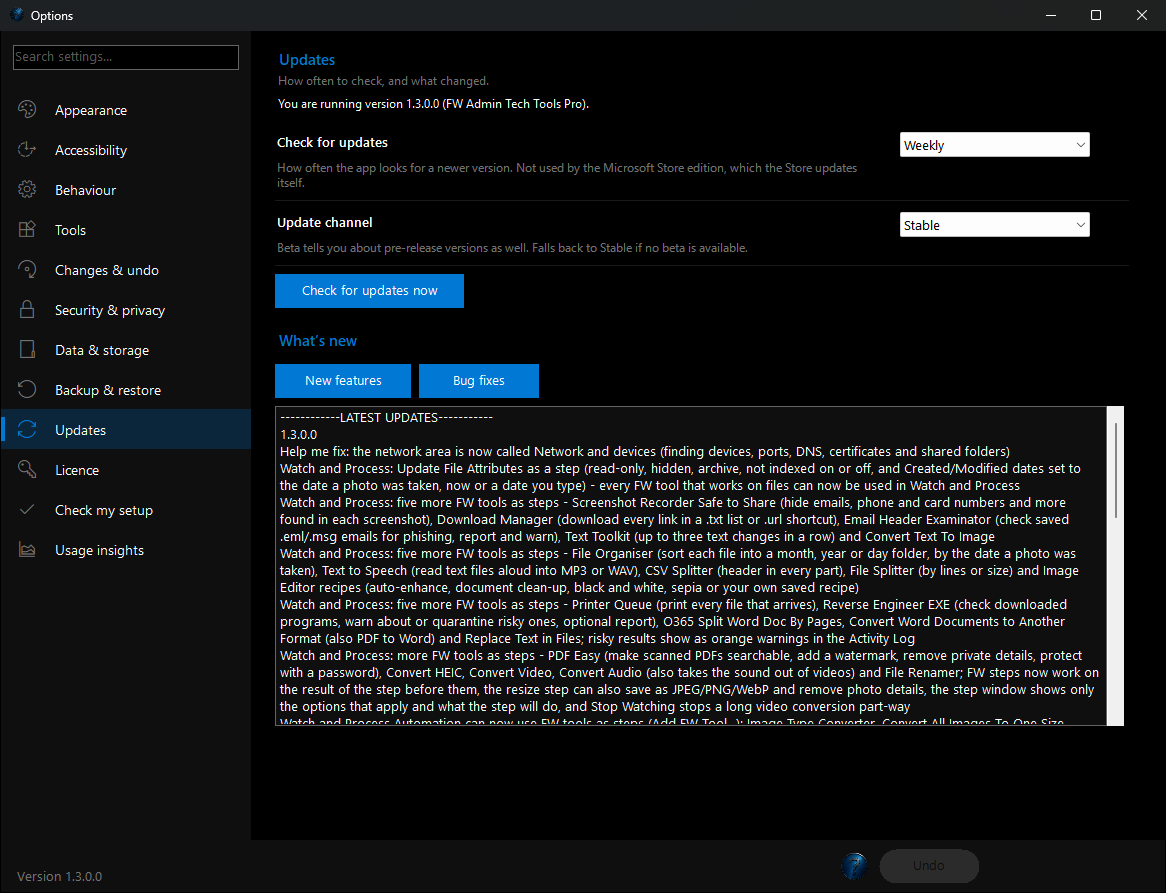
Shows the version you're running and what's new in it.
If you have the Microsoft Store edition, the Store keeps the app up to date for you, so this page only shows the version and the release notes.
For the version downloaded from this website: Check for updates (default Weekly; also Fortnightly, Monthly or Never) sets how often the app looks for a newer version, and Update channel (default Stable) can be set to Beta to also hear about test versions before they are released (it falls back to Stable when there is no beta). Check for updates now checks straight away.
What's new - New features and Bug fixes switch the box between the newest additions and the newest fixes. The complete lists are in the About window.
Licence
Shows your edition and how it is licensed.
Microsoft Store edition: the app is licensed through your Microsoft account, so there is nothing to activate or deactivate. Rate this app opens the app's page in the Store so you can leave a rating, and Online help opens the help on this website.
Bought from this website: the page shows whether this computer is activated and your licence key with all but the last four characters hidden. To move the licence to another computer: 1. click Deactivate this computer... (available once the date shown on the page has passed - the app tells you how long is left); 2. install the app on the other computer; 3. enter the same licence key when it asks. The app closes after deactivating. License Manager shows the computers your licence is activated on (with when each was activated and last seen), and lets you activate a key or deactivate the current licence.
Check my setup
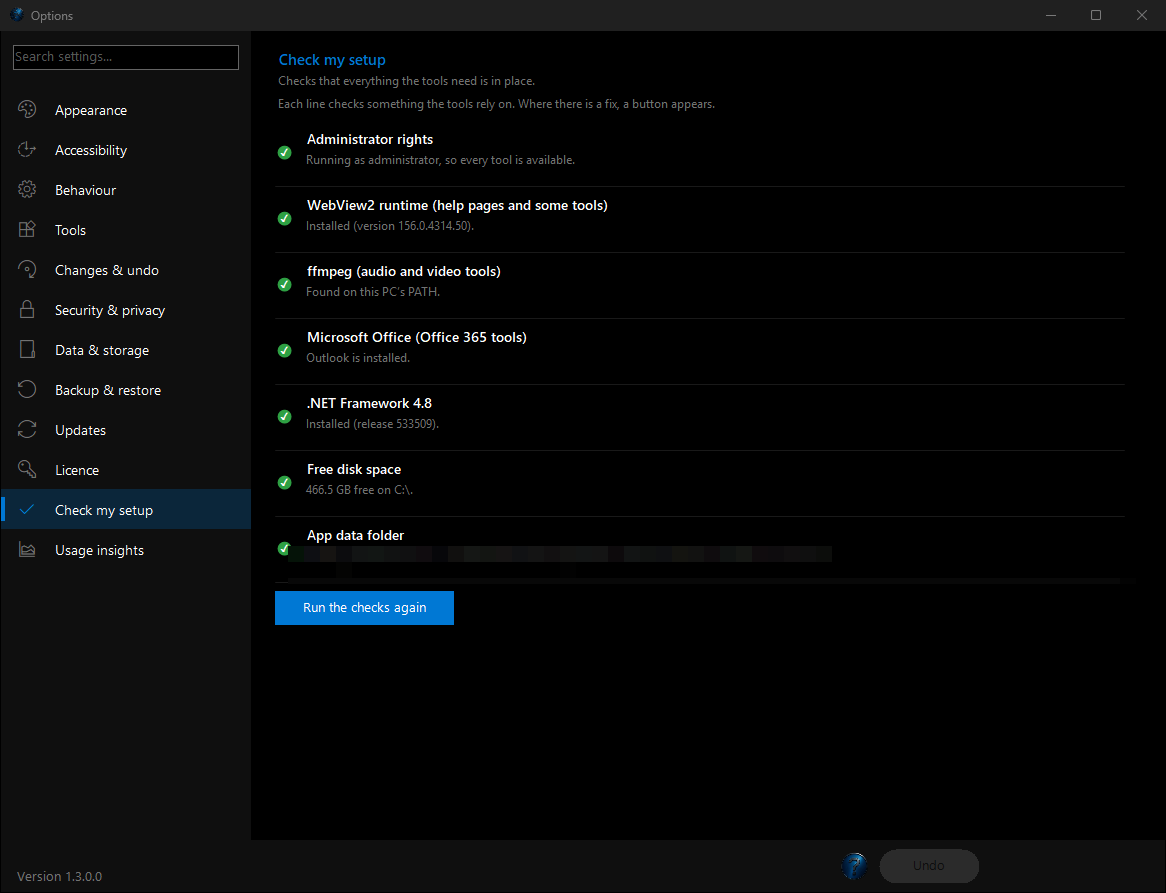
Checks everything the tools rely on, in a few seconds, without changing anything. Each line gets a green tick, an orange warning or a red cross, and where there is a fix, a button.
- Administrator rights - some tools (for example Windows Repair Wizard) need the app to run as administrator. If it isn't, those tools are shown but switched off, and Restart as administrator reopens the app with the rights it needs (open tool windows close).
- WebView2 runtime - the part of Windows that shows the help pages and some tools. If it is missing, Download WebView2 opens Microsoft's download page.
- ffmpeg - the video and audio engine used by the converters, the video editor and the screen recorder. It comes with the app; if it is missing, reinstalling the app restores it (Open the app folder shows where it should be).
- Microsoft Office - only the Office tools (Outlook and Word tools) need it; everything else works without it.
- .NET Framework 4.8 - the app needs version 4.8 or newer. Download .NET Framework opens Microsoft's page if it is missing.
- Free disk space - a warning under 2 GB free on the Windows drive, because the video and image tools need room to work. Open Storage settings opens Windows' own clean-up settings.
- App data folder - checks that the app can save its settings.
Run the checks again repeats them, for example after installing something.
Usage insights
Shows how many times you've opened tools and for how long, and a bar chart of your 12 most-used tools. Your most-used tools are listed first in the Ctrl+K command palette. The numbers are kept only on your PC and never sent anywhere; Clear usage statistics deletes them. If Keep local usage statistics is switched off on Security & privacy, this page says so and shows nothing.
How it works / what to expect
- Every change is saved by itself within half a second. There is no OK or Save button, and closing the window never loses a change.
- Theme, accent colour, transparency and text size change every open window at once. Settings that belong to a tool, such as per-tool memory, are used the next time you open that tool.
- Your options are saved in the app's own folder on your PC (Data & storage > Settings and tool data > Open folder shows it), and they are kept when the app is updated.
- Undo covers changes made in the Options window during this session. Changes tools made to your files and Windows are undone from the Change Journal instead.
Troubleshooting
- I changed a setting and want it back the way it was. Click the reset arrow (↺) at the end of its row, or press Undo. Reset this page... puts the whole page back.
- I can't find a setting. Type a word from it into Search settings... - for example dark, clipboard or window.
- A tool window has disappeared off the screen. Open Options > Tools and click Bring back lost windows, or Gather all windows to bring every tool window to your main screen.
- The text is cut off or too big after changing the text size. Set Text size in tool windows back to 100 % (or click its reset arrow); a tool with very little room shows the largest size that fits.
- The colours are hard to read. Pick another card under Theme, set Accent colour to Automatic, or turn on Colour-blind-safe status colours.
- A tool is greyed out in the launcher. Open Check my setup: the tool needs administrator rights, and Restart as administrator fixes it.
- Help pages are blank. Check my setup shows whether WebView2 is installed and gives you a download button if it isn't.
- Easter eggs appear at the wrong moment. Set Easter eggs to Subtle or Off, or press Ctrl+Alt+E to switch them off until you close the app.
- Something isn't working and you want our help. Use Data & storage > Create support bundle... and email the zip to techtools@fullyworked.com.au with a short description.
What You Can Do With Options
- Make it look the way you like:
- Over 40 built-in themes, your own themes, accent colours and see-through windows.
- Switch between a light and a dark theme by itself, with Windows or on a schedule.
- Share a theme as a short code, including with the Customise panel on this website.
- Make it easy to read:
- Larger or smaller text in every tool window, live.
- Fewer animations, colour-blind-safe colours and automatic High Contrast.
- Save time:
- Tools that remember what you typed and start in your usual folder.
- Reopen last session's tools, and right-click files in File Explorer to open them in the right tool.
- Stay safe:
- Previews before Windows settings change, and the Change Journal to undo later.
- Windows sign-in and auto-close for the password and recovery key tools, and passwords cleared from the clipboard.
- Keep your settings:
- Automatic backups before every update, a sync folder and a settings file to move to another PC.
- See and clear what the app stores, and check everything the tools need with Check my setup.
|